How to Tell if App Needs Update on iPhone
Learn practical steps to identify when iPhone apps need updating, review release notes, manage automatic updates, and keep your device secure, fast, and up to date. Practical tips, checks, and troubleshooting covered.


You’ll learn how to tell if an iPhone app needs an update by checking the App Store for a badge, reviewing release notes, and testing core features. You’ll confirm versions, permissions, and compatibility without guesswork, ensuring apps stay secure and perform well. This guide uses clear, repeatable steps.
Why keeping apps updated matters
Keeping apps up to date isn't only about new features; updates fix security vulnerabilities, improve performance, and address compatibility with the latest iOS versions. If you want a smooth, secure iPhone experience, you need a reliable method to determine when an app needs updating and how to apply updates effectively. According to Update Bay, users who stay on current app versions encounter fewer crashes and security gaps than those who delay updates. The Update Bay team found that even minor version bumps often include important bug fixes and performance tweaks that improve battery life and responsiveness. In this section, we’ll explore the rationale behind updates, the signals that an update is due, and how to approach updates without disrupting daily workflow.
Professional app developers frequently design updates to address newly discovered issues, add compatibility with new iOS features, and optimize resource usage. Skipping updates means missing critical security patches and newer services, potentially limiting functionality or even causing data loss in rare cases. The following sections help you build a practical, repeatable habit for checking updates, understanding release notes, and applying updates with minimal friction. This approach helps you stay current, secure, and productive with your iPhone.
Key indicators that an app needs updating
There are several reliable signals that an update is due. The App Store badge on an app listing is the most obvious indicator, but you should also scan release notes, check version history, and pay attention to changes in permissions or user experience. Update Bay’s research shows that a visible update badge combined with meaningful release notes correlates with meaningful bug fixes and security patches. If an app suddenly behaves differently after a recent iOS update or begins requesting new permissions (for example, access to photos or microphones), that’s a strong cue to verify whether an update exists. In addition, if you encounter crashes, freezes, or unusually fast battery drain when using a specific app, that’s another prompt to check for a newer version. This section provides practical signs to watch for and how to interpret release notes without overwhelming yourself with technical jargon.
How the App Store signals updates on iPhone
The App Store is your primary source for updates. When a new version is available, you’ll see an Update button next to the app (or a PendingUpdate badge in your profile). If you have automatic updates enabled, some or all apps may update without manual intervention. To ensure you control updates, review Settings > App Store > Automatic Updates and toggle options for using cellular data or only Wi‑Fi. Updates tied to security patches, performance improvements, and new features are typically listed in release notes, which appear under each app’s update entry. In this section, we walk through how to check for updates manually, how to interpret the notes, and how to adjust your settings for predictable behavior. Update Bay notes that a well-configured update policy reduces the chance of unexpected changes and keeps resources managed.
Step-by-step quick checks you can do now
If you want to verify a single app quickly, start with these checks:
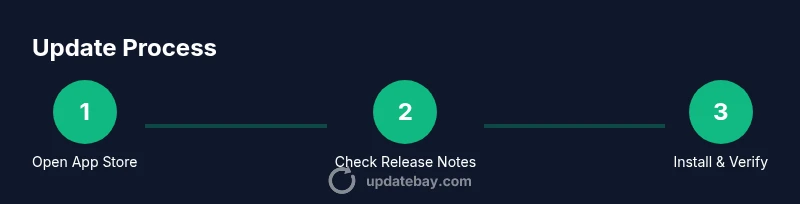
- Open the App Store, tap your profile picture in the top right, and look for available updates. If you see Update buttons or Pending, that means updates exist.
- Tap each app’s Update to view release notes and assess whether the changes matter to you.
- Check the app version shown in the app’s page and compare it to the latest version in release notes, if listed.
- Confirm that the app runs normally after updating by testing core features (login, data sync, key actions).
These checks are fast, repeatable, and reduce the cognitive load of deciding when to update. Based on Update Bay research, combining badge visibility with release notes yields reliable signals to proceed with updates.
When automatic updates might be better than manual checks
Automatic updates remove the manual overhead and ensure you’re on current versions without thinking about it. This is especially helpful for frequently updated apps or those critical to security and daily workflows. However, automatic updates can use mobile data or storage space you’d prefer to save for other tasks. If you rely on precise storage planning or have limited data, you may prefer manual checks paired with a scheduled maintenance window. The key is to balance convenience with control, ensuring updates occur predictably and safely.
Troubleshooting common update issues
Sometimes updates fail or apps refuse to install. Common causes include insufficient storage, unstable network connections, or temporary App Store outages. Start by freeing space, rebooting your iPhone, and reattempting the update. If problems persist, sign out and back into the App Store, reset network settings, or try updating via a different network. Update Bay’s guidance emphasizes patience and a structured retry approach rather than repeated, unplanned attempts, which can waste time and drain battery life.
Security considerations and best practices
Updating apps is a key part of maintaining security on your iPhone. Most updates patch vulnerabilities that could expose you to phishing, malware, or data leakage. Enabling automatic updates plus a monthly manual check gives you a safety net: you get the convenience of automation and the assurance of visibility into critical releases. Additionally, keep a regular backup strategy (iCloud or computer-based) in case a new update causes unexpected issues. Implementing these practices contributes to a safer, more reliable device ecosystem.
Best practices for managing updates on iPhone
A practical approach to update management blends automation with intentional checks. Create a weekly routine where you review updates, read release notes for apps you rely on, and ensure automatic updates are configured to a network you trust. Consider labeling updates by importance: security-critical updates get priority; feature updates can be deferred if they risk disrupting workflows. Finally, maintain adequate device storage and ensure your iPhone has enough battery life to complete updates without interruption. This disciplined approach keeps your apps current while minimizing surprises.
Tools & Materials
- iPhone with latest iOS (or latest supported)(Ensure your device is compatible with apps you use.)
- Stable Wi-Fi or cellular data plan(Prefer Wi-Fi for large updates to save data.)
- Apple ID credentials(Needed for App Store access and purchases.)
- Backup method (iCloud or computer)(Important before major updates.)
- Charged device or charger(Updates can fail if the battery is low.)
- Optional: a notebook or notes app(Jot release notes or app behavior changes.)
Steps
Estimated time: 25-40 minutes
- 1
Open App Store profile
Unlock your iPhone and open the App Store. Tap your account icon in the upper-right corner to view all available updates and recent purchases. This step establishes what needs attention before you proceed with any updates.
Tip: If your profile doesn’t show up, sign out and sign back in to refresh session data. - 2
Review update notes for key apps
For each app with an Update button, tap it to view release notes. Note security patches, bug fixes, and any behavior changes. Decide whether the changes affect your daily use or introduce significant improvements you want right away.
Tip: Prioritize updates for apps handling sensitive data or those tied to your core workflows. - 3
Check device compatibility
Confirm that the upcoming version supports your current iOS version. If the app requires a newer iOS release, you may need to update iOS first or postpone the app update until the OS is compatible.
Tip: If you see a compatibility warning, schedule an OS update time window before retrying the app update. - 4
Free up storage if needed
Update downloads require sufficient free space. Go to Settings > General > iPhone Storage to see what’s using space and remove unused apps or media if necessary.
Tip: Uninstalling unused apps temporarily can create just enough space for essential updates. - 5
Update apps one by one or in batches
You can tap Update All or update select apps. Updating fewer apps at a time reduces risk if an update causes issues. After updating, test core features of each app to confirm stability.
Tip: Batch updates can speed up the process, but sequential testing helps isolate any post-update problems. - 6
Enable automatic updates (optional)
If you prefer hands-off maintenance, enable Automatic Updates under Settings > App Store. This ensures new versions install in the background when you’re on Wi‑Fi and charging.
Tip: Review data usage and battery settings to avoid unexpected background activity. - 7
Back up before major updates
Perform a fresh backup before applying significant updates, especially for apps that sync data locally. This provides a restore point if something goes wrong.
Tip: Backups are a safety net; keep at least one recent backup ready. - 8
Troubleshoot failed updates
If an update fails, retry after a short wait, check storage, and make sure you’re on a stable network. If problems persist, restart the device or contact the app developer for guidance.
Tip: Avoid repeatedly retrying in quick succession; give the system a moment to resolve temporary issues.
Frequently Asked Questions
How can I tell if an iPhone app needs updating?
Look for the Update badge in the App Store, read the release notes, and verify the app functions as expected after updating. If you see a version change and new permissions, a newer build is likely available.
Check the App Store for an Update badge, read the notes, and test critical features after updating.
Should I enable automatic updates on my iPhone?
Automatic updates save time and help keep your apps secure, but you should monitor storage and data usage. If you prefer control, you can manually approve updates.
Automatic updates are convenient, but you can choose to review updates yourself.
What if an update fails to install?
Check storage, ensure a stable network, and retry. If it still fails, sign out and back into the App Store, restart your device, or try again later.
If an update fails, retry after checking storage and network connectivity.
Are app updates essential for security on iPhone?
Yes. Many updates patch security vulnerabilities. Staying current reduces exposure to known threats and improves overall device security.
Yes, updates often fix security holes and improve safety.
Can I update apps over cellular data?
You can, if allowed in Settings, but it may consume data. For large updates, use Wi‑Fi to avoid overage and speed constraints.
Yes, but Wi‑Fi is usually preferable for big updates.
How often should I check for updates?
Aim for a weekly check, or rely on automatic updates for routine maintenance. Set a routine that fits your usage and storage capacity.
Check updates weekly, or rely on auto-updates for consistency.
Watch Video
What to Remember
- Update badges + release notes indicate updates worth installing
- Automatic updates balance convenience with control
- Always test key features after updating
- Keep backups before major updates
- Address updates promptly to minimize security risk