How to Stop Updates: A Practical, Reversible Guide
Learn safe, reversible methods to pause automatic updates across Windows, macOS, iOS, Android, browsers, and apps. This Update Bay guide covers platform-specific steps, risks, and best practices for 2026.


This guide shows you how to stop updates by pausing or disabling automatic updates across major platforms. You'll learn safe, reversible steps for Windows, macOS, iOS, Android, browsers, and common apps, plus when to re-enable updates. Follow these steps to minimize disruption while keeping essential protections intact.
Why stopping updates is tempting and when it's risky
According to Update Bay, many users turn off updates to avoid interruptions during important work, reduce bandwidth usage, or prevent feature changes. The temptation is real: updates can interrupt workflows, push new preferences, or demand restarts. However, the decision isn't free: neglecting updates can leave devices exposed to security vulnerabilities, compatibility issues, and bugs fixed in later patches. In this section, we explore common reasons people pause updates, when it's reasonable, and the safer, reversible approaches that balance control with protection. By understanding trade-offs, you can decide what works for your setup and habits. The goal is to give you practical, non-destructive options that keep you productive without closing off critical protections.
Core risks of stopping updates
Pausing updates carries notable risks. Security is the primary concern: new flaws are fixed in subsequent patches, and delaying them may increase exposure to malware or exploit kits. You might also miss important feature refinements, bug fixes, and driver compatibility improvements that enhance stability. Some apps and services rely on the latest updates to function correctly; skipping these can cause compatibility issues or degraded performance. Finally, if you work across multiple devices, inconsistent update timing can complicate maintenance and policy compliance. The takeaway: stopping updates should be deliberate, time-bound, and accompanied by a plan to re‑enable when risk levels shift.
Pause vs disable: general strategies across platforms
Most platforms support temporary pauses, scheduled maintenance windows, or configurable update policies. The safest approach is to implement reversible pauses that you can re-enter at any time. For systems you control, use built-in settings to schedule updates during off-peak hours, label exceptions in your notes, and test critical workflows after applying updates. Remember that a pause is not a permanent shield—periodic checks and a documented plan ensure you stay protected without sacrificing control.
Windows pause options
Windows offers multiple routes to deflect updates without a full disable. In Settings > Update & security > Windows Update, you can pause updates for a platform-defined window and set Active Hours to reduce reboots during work. For home devices, pausing is usually enough to cover a busy week; for managed devices, group policies can enforce longer deferral windows, but they should be used with monitoring to avoid unpatched systems. After pausing, set a reminder to reassess once your project or travel ends, and keep an eye on security advisories so critical fixes aren’t missed for long.
macOS pause options
Mac users can delay updates by turning off automatic updates in System Preferences. Navigate to System Preferences > Software Update and uncheck Automatic Updates, then click Advanced to limit auto-downloads. This gives you control to test compatibility with essential apps before installing. Note that macOS will still surface critical security notices; plan to install those updates within a reasonable window to maintain protections while preserving workflow stability.
iOS and iPadOS pause options
On iPhone and iPad, you can constrain updates by turning off Automatic Updates under Settings > General > Software Update > Automatic Updates. For apps, enabling Wi‑Fi-only updates or scheduling update checks can help manage bandwidth and interruptions. Delaying iOS updates reduces early access to security improvements and new features, so set a clear re‑enable date tied to your maintenance plan and security needs.
Android pause options
Android devices vary by vendor, but you can often postpone OS updates by adjusting the automatic download/updation settings within Settings > System > Advanced > Software Update or equivalent. For apps, you can disable automatic updates in the Google Play Store (Settings > Network preferences > Auto-update apps). Since OS update controls differ across manufacturers, rely on vendor guidance and keep a regular review cadence to re‑enable updates when you’re ready, especially for security patches.
Browsers and apps: updating cadence and controls
Many browsers and essential apps update automatically to protect against vulnerabilities. If you must pause, look for built‑in options or enterprise policies that allow temporary deferral. For individual apps, consider delaying nonessential updates during a project while ensuring you review patch notes and re‑enable updates on a scheduled basis. This balance helps maintain security hygiene without interrupting critical work.
Safer, reversible approach: maintenance windows, testing, and documentation
A safer approach combines a temporary pause with a documented maintenance window. Create a calendar entry, note which devices are paused, and plan a testing phase to validate critical features after updates resume. Keep an eye on security advisories and vendor patch notes to ensure you re‑enable updates promptly when risk levels drop. This method minimizes disruption while preserving essential protections.
How to re-enable updates safely when you're ready
When you’re ready to resume updates, re‑enable automatic updates and start with a controlled rollout. Begin with a small set of devices or a single user group, then monitor for stability before expanding. This staggered approach reduces risk and helps you catch any compatibility issues early, ensuring a smooth return to normal update cadence.
Tools & Materials
- Device with internet access(Windows PC, macOS, iOS device, Android device, or a supported browser-enabled device)
- Backup plan(External drive or cloud backup before pausing updates)
- Maintenance calendar(Schedule pause windows and review dates)
- Vendor update notes(Keep a log of patch notes to re-enable safely)
- Testing plan(Checklist of critical apps and workflows to verify after updates resume)
Steps
Estimated time: 45-60 minutes
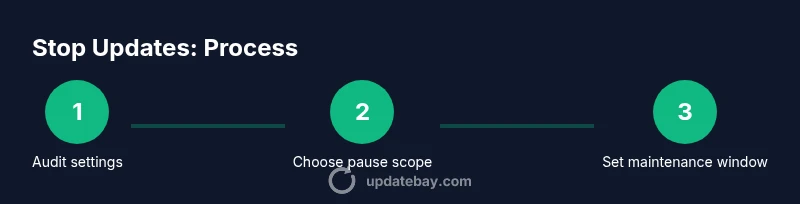
- 1
Audit current update settings
Review each platform’s update configuration to identify what is currently configured for automatic updates, deferrals, and maintenance windows. Document default states and any policy overrides.
Tip: Take screenshots or notes of each setting for later reference. - 2
Choose platforms to pause first
Decide which devices or platforms will pause updates first based on risk exposure, project importance, and connectivity constraints. Start with non-critical devices if possible.
Tip: Prioritize devices with higher exposure or travel schedules. - 3
Apply a reversible pause
Enable a platform’s pause or maintenance window feature where available. Set a clear end date or trigger for reassessment.
Tip: Label paused devices in your notes for quick reference. - 4
Set a maintenance window
Create a recurring maintenance window (e.g., weekly or biweekly) to review updates and reinstall critical patches during low-impact times.
Tip: Sync with team calendars to avoid clashes with peak work periods. - 5
Test critical workflows
Before fully stopping updates, test essential apps and processes to ensure they still operate during the pause and after re-enabling updates.
Tip: Document any compatibility issues found during testing. - 6
Document and monitor
Maintain a log of paused devices, dates, and test outcomes. Monitor for security advisories and plan re-enablement accordingly.
Tip: Set reminders to review patch notes weekly.
Frequently Asked Questions
Is it safe to stop updates on my device?
Stopping updates can protect you from interruptions, but it increases exposure to security vulnerabilities. Use a short, planned pause with a clear re-enable date and monitor for critical advisories.
Stopping updates can be risky for security. Use a planned pause with a definite time to re-enable and check for important advisories.
Will delaying updates cause my apps to break?
Delaying updates may lead to compatibility issues with newer apps or services. Test essential apps during pause periods and re-evaluate if issues arise.
Delays can cause compatibility problems. Test key apps during the pause and adjust as needed.
How long can I pause updates?
Many platforms allow a temporary pause, but exact durations vary by platform. Reassess on a defined schedule to minimize security gaps.
The pause duration varies by platform. Reassess on a defined schedule to stay protected.
Can I pause OS updates but allow app updates?
Yes, in many cases you can separate OS updates from app updates. This lets you control security patches for the OS while keeping some apps current.
You can often separate OS and app updates to manage risk and workload.
What should I do after re-enabling updates?
Test key workflows, monitor for issues, and gradually roll updates to other devices. Review patch notes to understand changes and potential impact.
Test critical workflows after re-enabling updates and roll out gradually.
Watch Video
What to Remember
- Pause updates only with a clear re‑enable plan
- Balance control with security by scheduling maintenance windows
- Test critical workflows after changes and before full rollout
- Document devices, dates, and outcomes for auditability
- Re-enable updates promptly when risk levels decrease