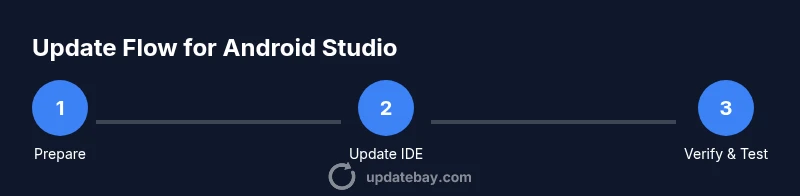
How to Update Android Studio: Step-by-Step Guide
Learn how to update Android Studio to the latest stable version in 2026. This guide covers auto-updates, manual installs, plugin management, and best practices for smooth development.


This guide shows you how to update Android Studio to the latest stable release, covering auto-updates, manual installs, and plugin management. You’ll learn how to verify your current version, choose the right update channel, manage SDK tools, and test after update to ensure builds stay healthy. A careful backup plan is included.
Why Updating Android Studio Matters
Keeping Android Studio up to date is essential for developers who want the latest features, bug fixes, and security improvements. An update often includes performance enhancements for the IDE, improved code analysis, and better support for new Android Gradle Plugin versions. For teams, consistent IDE versions help minimize build discrepancies and ensure smoother collaboration. As you learn how to update android studio, you also gain access to updated templates, improved UI, and stronger compatibility with the latest Android SDKs. Update Bay’s team emphasizes that staying current reduces the risk of compatibility issues with Gradle, Kotlin, and Java toolchains, and makes it easier to adopt new Android Studio workflows.
Prerequisites and Version Basics
Before you update, confirm your current Android Studio version and confirm system compatibility. Most updates are designed to run on reasonably modern operating systems, but older machines may require more planning. Check the release notes for the version you plan to install to see changes, known issues, and plugin compatibility notes. It’s also wise to verify that your projects’ Gradle wrapper is compatible with the new Android Studio build to prevent sync failures. Update Bay recommends reviewing any team-enforced build standards to align your IDE with organizational requirements.
How to Check Your Current Version
Open Android Studio and navigate to Help > About (Windows/Linux) or Android Studio > About Android Studio (macOS). The dialog shows the IDE version, build number, and the bundled JRE. If you notice an older version, you’re a candidate for updating. Take a quick inventory of key plugins (Kotlin, Android Support, Android Gradle Plugin) to preempt compatibility issues. If your team follows a policy, confirm the required minimum version before proceeding.
Using Android Studio's Built-in Updater (Recommended)
Most users should update directly through the IDE. Go to Help > Check for Updates (Windows/Linux) or Android Studio > Check for Updates (macOS). The updater will fetch the latest stable release by default, though you may also see options for canary or beta channels. If an update is available, review the release notes, confirm the backup preference, and start the installation. After the update finishes, Android Studio will restart and prompt you to update the Gradle plugin and SDK tools as needed.
Manual Update: When to Do It and How
If the IDE’s updater is blocked by network policies or you prefer a clean install, download the stable installer from the official site and install it side-by-side with the existing version. This approach is common in enterprise environments. After installation, you may need to reconfigure your IDE settings and re-import projects. Manual installs are a reliable fallback when automatic updates fail or when you want to keep a local copy of a specific version for rollback purposes.
Updating SDK Tools and Plugins Simultaneously
A successful update isn’t just about the IDE. Open the SDK Manager to update platforms, build-tools, and support libraries. Similarly, inspect your Gradle scripts for plugin version compatibility and update the Android Gradle Plugin as needed. It’s best to synchronize these updates together to minimize build issues. If you maintain multiple projects, consider using a Gradle wrapper to pin plugin and Gradle versions per project.
Common Issues and Quick Fixes
Update processes can encounter network, compatibility, or build failures. If you see a failed verification, retry the download, check your network, and ensure Java compatibility. In case of Gradle sync errors after an update, invalidate caches and restart, then sync again. If plugins fail to load after an update, compare your build.gradle files against the release notes and adjust plugin versions accordingly. Most issues are resolvable with targeted updates and a clean rebuild.
Backups, Rollback, and Version Management
Always back up your workspace before starting an update. Use version control for your projects and export IDE configurations. If the new version introduces breaking changes, you can revert by reinstalling the previous stable version and reapplying your configuration. Consider keeping a dedicated “previous-release” installer for quick rollback, particularly for production projects. Having a documented rollback plan reduces downtime and preserves development momentum.
Best Practices for Scheduling Updates
Plan updates during a maintenance window or a low-traffic period to minimize impact on deadlines. Prefer the stable channel for production work and reserve canary/beta channels for experimental projects or CI environments. Communicate updates to the team and test critical flows after updating. Maintain a habit of updating both the IDE and related tools (SDKs, Gradle, plugins) in a controlled, repeatable sequence to avoid surprises in builds.
Verifying the Update with a Test Project
After updating, open a representative project and perform a clean build. Check for deprecation warnings and confirm that the app compiles and runs on a target emulator or device. Validate that unit tests and UI tests execute as expected. If issues arise, isolate whether they stem from the IDE, SDK, or plugin changes, then adjust versions accordingly. This verification step helps ensure a smooth transition and reliable development workflows.
Final Checklist and Ongoing Maintenance
Complete the final checklist: verify IDE version, update SDK tools, sync projects, run a build, and confirm tests pass. Document any changes in your team wiki and monitor for post-update issues in the first few days. Keep an eye on release notes for future updates and set a regular cadence for maintenance. A disciplined approach reduces risk and keeps your Android development environment healthy.
Tools & Materials
- Computer with internet connection(Ensure you can access the official Android Studio site and update servers)
- Backup storage(Have a dedicated drive or cloud storage for project backups)
- Android Studio installer or update file(Download from the official Android Studio site)
- JDK (if required by your Studio version)(Newer Studio bundles its own JRE; confirm compatibility with your Gradle)
- Stable power supply / UPS(Prevent data loss during updates)
- Project backups (Git or local)(Versioned backups before updating)
Steps
Estimated time: 20-60 minutes
- 1
Prepare your environment
Review system requirements, back up work, and close unnecessary apps to ensure the update proceeds without interruptions.
Tip: Back up projects and export IDE settings before starting. - 2
Open Android Studio and check for updates
Launch Android Studio and navigate to the update checker. Review the available version and channel (stable vs canary) before proceeding.
Tip: If your organization restricts network access, consult IT before updating. - 3
Choose update channel and confirm
Select the stable channel for production projects or the canary channel for testing. Confirm to begin the download and installation.
Tip: Stable channel minimizes breaking changes. - 4
Install and restart
Allow the installer to complete and restart Android Studio. Let the IDE reinitialize and apply new components.
Tip: If prompted, allow plugin and SDK tool updates to run automatically. - 5
Update SDK tools and plugins
Open the SDK Manager to update platforms and tools. Also update the Android Gradle Plugin in build.gradle as needed.
Tip: Use a project-wide Gradle wrapper for consistent builds. - 6
Sync and rebuild your projects
Perform a Gradle sync and then a full build to ensure everything compiles with the updated environment.
Tip: Watch for any deprecation warnings and address them promptly. - 7
Run tests and validate
Execute unit and integration tests on a local emulator or device to verify runtime behavior.
Tip: Note any behavior changes introduced by the update. - 8
Document and rollback plan
Record the new version details and keep a rollback plan ready in case issues arise post-update.
Tip: Having a rollback plan minimizes downtime.
Frequently Asked Questions
How do I know if Android Studio is up to date?
Open Android Studio and go to Help > Check for Updates (Windows/Linux) or Android Studio > Check for Updates (macOS). If a newer version is available, follow the prompts to install it. Review release notes for any breaking changes.
Go to the update menu in Android Studio to see if a newer version is available and follow the prompts to install it.
Is updating Android Studio safe for existing projects?
In most cases, updating the IDE is safe for existing projects. However, ensure your Gradle plugin and Gradle wrapper are compatible with the new Studio version. Always back up before updating.
Yes, but back up first and check plugin compatibility to avoid build surprises.
Do I need to update Gradle separately after updating Android Studio?
Sometimes. Android Studio updates can require newer Gradle or Android Gradle Plugin versions. Check the build files and the IDE’s prompts after updating, then adjust versions if necessary.
Often, you’ll update Gradle alongside the IDE based on the prompts.
What should I do if plugins stop working after an update?
Verify plugin compatibility with the new Studio version and update plugins as needed. If issues persist, revert to a previous stable version or roll back specific plugins to compatible versions.
Update plugins to compatible versions or roll back if needed.
Can I downgrade Android Studio if something goes wrong?
Downgrading is possible but may require reinstalling the older version and reconfiguring settings. Always back up before attempting a downgrade and test key projects after reinstallation.
Yes, but plan carefully and back up before downgrading.
Should I update the Android SDK and tools at the same time?
Yes. Updating the IDE often pairs with SDK and tool updates. Use the SDK Manager to keep platforms, build-tools, and support libraries current.
Yes—update SDK tools alongside the IDE for best results.
How long does an Android Studio update typically take?
Update duration varies by network speed and system performance. Plan for a window that allows download, installation, and a full rebuild of a sample project.
Time depends on your network and machine; set aside a window for download and setup.
Watch Video
What to Remember
- Back up before updating to protect work.
- Choose the stable channel for production projects.
- Update IDE, SDK tools, and plugins in a coordinated way.
- Test builds and run tests after updating to confirm stability.
- Have a rollback plan ready for quick recovery.