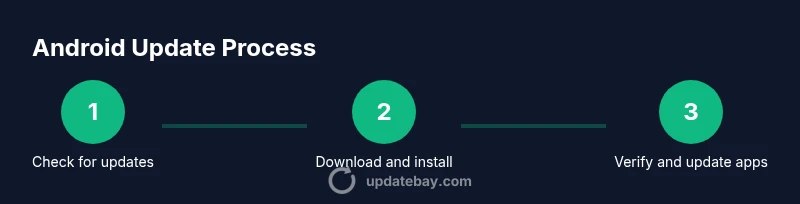
Update Software on Android: A Practical Step-by-Step Guide
Learn to update software on android safely with steps, tips, and best practices to keep your device secure, fast, and up to date in 2026.


In this guide you will learn how to update software on android safely and effectively. You'll verify the device compatibility, check for updates, choose between manual updates and auto-updates, and troubleshoot failed installations. You’ll need a charged device, stable internet, and your Google account details. The steps cover OTA updates, app updates, and security patches.
Why Update Software on Android Matters
According to Update Bay, keeping your Android device updated is essential for security, performance, and long-term usability. The practice of applying the latest software helps close vulnerabilities that could be exploited by attackers, fixes bugs that cause apps to crash, and improves battery efficiency on many devices. Even mid-range smartphones benefit from regular updates, not just flagship models. As new features arrive, older hardware can struggle if updates are skipped, leading to sluggish performance or compatibility issues with apps you rely on daily. In this guide we explore why update software on android matters, how updates are delivered, and how to manage them with minimal risk.
From the computer to the pocket, software updates are part of ongoing device care. Update Bay Analysis, 2026, shows that devices with current software experience fewer security events and faster response times when problems occur. Embracing a routine to check for updates is not about chasing every feature, but about preserving security, data integrity, and user experience. The goal is to help you stay protected while keeping your Android experience smooth. Throughout this article you’ll see practical steps, common pitfalls, and concrete tips you can apply today to keep your device healthy.
How Android Updates Work: OTA, Patches, and Major Releases
Android updates arrive through several channels, and understanding them helps you decide when and how to install them. Over-the-air (OTA) updates are delivered wirelessly by device manufacturers or carriers, and they typically include a security patch or small feature tweaks. Major OS upgrades may come yearly or twice a year, depending on the device and vendor. Additionally, many devices receive monthly or quarterly security patches that address high-risk vulnerabilities. When you install an update, your device applies new code, recalibrates system services, and may require a reboot. If you miss an update window, you can still install later, but you should aim to stay current to minimize risk. In practice, you'll often see a mix of OS updates, vendor updates, and app updates that collectively improve stability and security.
From Update Bay's perspective, a layered approach to updates reduces risk. Relying on a single mechanism can leave gaps; combining OTAs, Play System updates, and app updates creates multiple barriers against threats. Remember that update software on android is not a single event but an ongoing process that spans notification, download, installation, and post-update verification. Always review the update notes to understand what changes are included and whether there are any known issues with your specific device model.
How to Check for Updates Manually
Manual checks give you control over when updates are installed and can help you avoid interruptions during critical work. Start by unlocking your device and connecting to a stable Wi-Fi network. Then navigate to Settings > System > Software Update (the path may vary slightly by manufacturer). If an update is available, you’ll see a concise summary of changes and a button to download and install. Some devices also expose a “Check for updates” option within the manufacturer’s app or a companion update tool. If your device shows no updates, you can still review Play System Update entries or carrier-specific patches. If an update is available after installation, restart your phone to ensure all services start cleanly and to verify that the update was applied successfully. If you encounter a failure, note the error code or message for troubleshooting.
Update Bay notes that staying informed about update timelines helps you plan. In many cases, a small, well-timed update can prevent larger issues down the road, especially if you’re juggling important apps or sensitive data. Keeping track of your update status is part of responsible device maintenance.
Enable Auto-Updates and Manage Apps
Auto-updates are a practical way to keep Android software current without manual checks each week. Enable automatic OS updates where available, and turn on auto-updates for apps in Google Play. This reduces the chance of compatibility problems between the OS and your installed software. When enabling auto-updates, consider limiting updates to Wi-Fi to avoid unexpected data charges. If you prefer more control, you can schedule a weekly check and install, or manually approve each update. Regardless of your choice, ensure you still review update notes when a major update appears to learn about new permissions or feature changes.
From a security viewpoint, auto-updates act as a continuous defense by applying patches as soon as they’re released. Update Bay’s research indicates that timely updates help close security gaps before they’re exploited. Keep a clean device by periodically cleaning cache and reviewing apps that require extra permissions after an OS update; some apps may request new permissions post-update.
Troubleshooting Common Update Issues
A failed update can disrupt your day. If you encounter a stuck or failing update, start by checking your internet connection and battery level. Reconnect to Wi-Fi, plug in your device, and retry the download. If the update still won’t install, try clearing cache for the Update Center or Google Play services, or boot into safe mode to isolate problematic apps. In some cases, you may need to reset network settings or perform a factory reset as a last resort. Before taking drastic steps, ensure you’ve backed up important data. The exact steps vary by make and model, so consult your manufacturer’s support site for model-specific guidance.
Update Bay recommends avoiding third-party OTA tools that promise fast updates or bypass official channels. Only use official sources to minimize risk. If your device shows unusual behavior after updating, such as battery drain or overheating, monitor these symptoms and seek help from the manufacturer or carrier support.
Best Practices for Security and Performance
A disciplined approach to Android updates pays off in security and performance gains. Keep your battery charged during updates and use a reliable Wi-Fi connection to prevent interruptions. Always verify update notes and consider enabling a backup before applying major OS upgrades. Regularly review installed apps and disable or uninstall those that no longer serve you; conflicts after an update can degrade performance. For power users, consider a staged rollout: test updates on a spare device or a small subset of your apps before applying system-wide changes. Finally, ensure you have a robust backup strategy that covers contacts, photos, and documents in case something goes wrong during updates.
Update Bay’s guidance emphasizes that the best outcomes come from deliberate, well-documented update routines. By keeping your device current, you reduce surface area for attackers and improve overall responsiveness and battery life.
What to Do After a Major OS Update
After a major Android OS update, give your device a little time to settle. Some features may appear to lag briefly as background processes re-index data and re-optimize apps. Check that all essential apps run smoothly, and update any that show compatibility issues. Review privacy settings and permissions introduced by the update; revoke any permissions that aren’t necessary for your usage. If you notice unusual battery drain or heat, try reducing background activity or rearranging widgets to free resources. Finally, consider running a quick maintenance sweep: clear cache, verify storage space, and confirm backup completeness.
The Update Bay team recommends documenting any notable changes you observe after an OS update and sharing feedback with the device maker or carrier when appropriate. This practice helps you stay ahead of potential issues and contributes to better guidance for the broader user community.
Tools & Materials
- Android device with 50%+ battery or charging(Prevents interruption during update)
- Stable Wi-Fi connection(Large updates are best downloaded over Wi-Fi)
- Google account credentials(Needed for Play services and verification)
- Backup of important data(Photos, contacts, messages, and documents)
- Sufficient storage space(At least 2–3 GB free recommended)
- USB-C cable or external storage (optional)(For sideloading or recovery if needed)
Steps
Estimated time: 15-40 minutes
- 1
Prepare your device
Charge the battery to at least 50%, connect to Wi-Fi, and back up important data. This minimizes the risk of data loss and interruption if the update takes longer than expected.
Tip: Keep the screen unlocked and avoid using intensive apps during the update. - 2
Check for updates
Open Settings, navigate to System or About phone, and select Software Update. Review the release notes to understand changes and any device-specific considerations before installing.
Tip: If you don’t see updates, search for a manufacturer app that handles updates for your model. - 3
Download the update
Tap Download and Install. Ensure you’re on stable Wi-Fi and connected to power. Avoid heavy tasks during download to prevent interruptions.
Tip: If your device prompts for a size threshold, keep enough storage for the extra space the update may require. - 4
Install the update
The device will install and reboot. Do not interrupt the process; allow it to complete and then wait for the home screen to appear.
Tip: If the device stalls, reboot safely and retry the update. - 5
Update apps afterward
Open Google Play and update all apps, or enable auto-update for future releases. This helps prevent compatibility issues with the new OS.
Tip: Review app permissions after updates; some apps may request new permissions. - 6
Verify the outcome
Check the Android version in Settings > About Phone and confirm core apps function normally. Note any new features or changes for future reference.
Tip: Keep a minimal log of issues in case you need to seek vendor support.
Frequently Asked Questions
What is the best way to update Android OS?
Use OTA updates via Settings and allow the device to reboot. For major upgrades, ensure a backup and charging before proceeding.
Use the official OTA update path in Settings and back up your data before starting.
Should I update apps before updating the OS?
Updating apps after an OS update helps maintain compatibility and performance. You can update automatically or manually in Google Play.
Yes. Update apps after the OS update to keep everything compatible.
Is auto-update safe for Android devices?
Auto-updates are generally safe and recommended, as they apply security patches promptly. Review notes for permissions and changes.
Auto-update is safe and helpful for security patches, just check the notes.
What if the update fails to install?
Check internet and battery, retry, clear cache if needed, and consult manufacturer support if problems persist.
If it fails, retry with a stable connection, and consult support if needed.
Will a software update erase data?
Updates rarely erase data, but backups are essential in case something goes wrong during installation.
Data loss is uncommon, but back up first just in case.
How often should I update Android?
Update as soon as security patches and major improvements are available, while ensuring compatibility with critical apps.
Update when security patches arrive and you’ve checked compatibility.
Watch Video
What to Remember
- Back up data before major OS updates.
- Use official channels to update Android.
- Keep device powered during updates.
- Review update notes and permissions.
- Enable auto-updates to minimize risk.