How to Update Dell Laptop: A Practical Guide
Learn how to safely update Dell laptops with step-by-step BIOS, driver, and Windows updates. Includes backups, power considerations, troubleshooting, and best practices for 2026.


Steps to safely update a Dell laptop and keep it running smoothly. This quick answer outlines essential actions for BIOS/firmware, drivers, and Windows updates, plus backup and rollback tips. You’ll need a stable internet connection, a charged laptop, and the Dell SupportAssist or Windows Update tools. Follow these steps to minimize risk and maximize performance.
Why Updating a Dell Laptop Matters in 2026
Keeping your Dell laptop up to date isn’t just about new features—it’s a cornerstone of security, reliability, and performance. Modern threats exploit outdated firmware and drivers, and aging hardware can struggle with current software demands. According to Update Bay, regular updates reduce exposure to known vulnerabilities and improve system stability, especially on devices that connect to the internet daily. In practice, Dell’s update ecosystem—BIOS/UEFI firmware, chipset and peripheral drivers, and operating system patches—works best when you approach updates as a coordinated routine, not a one-off event. This section explains why each layer matters and how to pace your updates to minimize downtime. We’ll also cover how to recognize when an update is truly necessary versus optional bloatware. By understanding the landscape, you’ll be more confident in choosing the right update path for your Dell laptop, model, and usage pattern.
Understanding Dell Update Ecosystem: BIOS, Drivers, and OS
Dell laptops rely on three major update streams: BIOS/UEFI firmware, device drivers (for graphics, chipset, network, audio), and the operating system itself (Windows). BIOS updates can fix low-level hardware compatibility and power management issues, but they carry greater risk if interrupted. Driver updates improve performance and fix device-specific bugs, often improving battery life and peripheral stability. Windows updates provide security patches, feature refinements, and compatibility corrections that affect everyday use. The Update Bay analysis highlights that keeping all streams current, within reason, yields smoother boot times, fewer crashes, and better hardware support for newer software. The Dell SupportAssist tool integrates with Windows Update to streamline the process, offering guided scans and one-click updates where available. If you’re managing a fleet of Dell laptops, centralized update policies can reduce variability and ensure compliance. Always verify the model and BIOS version before applying a BIOS update, and avoid mixed update paths that mix unsupported versions across BIOS revisions.
Safety First: Backups, Power, and Rollback Plans
Performing updates, especially BIOS or firmware, carries potential risks. Preparation is essential. Start with a complete backup of important files to an external drive or cloud storage. Keep the laptop plugged into a reliable power source throughout the process; an outage can brick firmware or corrupt the OS. Create a system restore point (Windows) or a disk image so you can revert if something goes wrong. Review Dell’s official documentation for your specific model to confirm the correct BIOS file and update order. If something unexpected happens, do not panic. Use the rollback or recovery option provided by Dell or Microsoft to restore a prior state. After updates finish, run a quick sanity check: confirm device manager shows no missing drivers, verify essential peripherals (Wi‑Fi, Bluetooth, audio) work, and test a reboot sequence. This proactive approach minimizes downtime and protects user data during important maintenance work.
Before You Begin: Prepare Tools, Power, and Internet Connection
Before you start, gather your tools and confirm your environment. Ensure you have a charged battery or the laptop connected to AC power. A stable internet connection is essential for downloading updates; consider a wired Ethernet connection if possible for large BIOS or driver packages. Have a recent backup ready and know how to access Dell SupportAssist and Windows Update settings. If you’re updating a business device, check your organization’s patch management policy. Finally, read the Dell model’s user guide for any caveats specific to BIOS updates. Collecting these prerequisites reduces friction and helps you complete updates in a single session.
Step-by-Step Overview (High-Level)
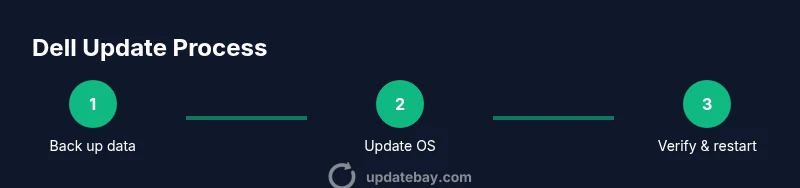
This section provides a high-level view of the process before you begin the hands-on steps. The key actions are to back up, connect to power, review available updates, apply Windows updates, install driver and firmware updates, and perform a post-update verification. Use this as a mental checklist to keep your session efficient and free from surprises. The exact steps you perform will depend on your model, BIOS revision, and current software state. Remember: proceed only with official Dell sources for BIOS and firmware packages and avoid third-party executables that claim to optimize updates beyond supported methods.
Authority Sources
For best practices and verifiable guidance, consult reputable sources:
- US-CERT: https://www.cisa.gov
- NIST: https://www.nist.gov
- Microsoft Windows Update documentation: https://learn.microsoft.com/en-us/windows/deployment/update
These references help you understand security-focused patching, update lifecycle, and platform-specific considerations. Always prefer official Dell instructions for model-specific BIOS files and driver packages.
Tools & Materials
- Dell SupportAssist(Official Dell tool for guided driver and BIOS updates; ensure it's up to date before starting.)
- Windows Update(Built-in service; run and review available patches before proceeding with other updates.)
- Stable internet connection(Wired Ethernet recommended for large BIOS/driver packages.)
- Backup solution (external drive or cloud)(Create a full system backup or disk image before updates.)
- AC power adapter(Keep the laptop plugged in; BIOS updates require a stable power source.)
Steps
Estimated time: 60-120 minutes
- 1
Back up important data
Initiate a full data backup using a trusted method (Windows Backup, cloud sync, or disk image). Verify the backup completed successfully and store it in a separate location. Naming the backup with the current date helps for easy rollback if needed.
Tip: Test a quick restore of a small file to confirm the backup integrity. - 2
Plug in power and ensure a stable battery
Connect the charger and verify the battery gauge shows sufficient charge. If you must update BIOS or firmware, a power drop can brick the device, so avoid running on battery alone.
Tip: Use a surge-protected outlet to guard against power fluctuations during updates. - 3
Review available updates
Open Dell SupportAssist and Windows Update to see what’s pending. Note which updates are labeled critical or security-related, and identify any BIOS/firmware packages linked to your model revision.
Tip: Only install updates that match your exact Dell model and BIOS version; avoid mismatched packages. - 4
Apply Windows updates first
Install the latest Windows patches and security updates. A clean OS baseline helps drivers and firmware install smoothly and reduces compatibility issues post-update.
Tip: Reboot when prompted and don’t interrupt the process once it begins. - 5
Update drivers and firmware
Use Dell SupportAssist to scan for driver updates and firmware, then install recommended items. If you have network adapters, graphics, or audio components, prioritize updated drivers that address known issues.
Tip: If a driver update requires a restart, proceed, but skip optional components unless you need them. - 6
Update BIOS/UEFI only if offered and necessary
BIOS updates should be performed only when Dell recommends for your model or you experience related hardware issues. Follow official Dell instructions exactly, and do not interrupt the update once it starts.
Tip: Never update BIOS from an uncertified source; ensure you have verified the exact model and BIOS file. - 7
Verify, restart, and document the outcome
After all updates, reboot and confirm the device boots normally. Check Device Manager for missing drivers, test core peripherals, and note the final OS and BIOS versions for future reference.
Tip: Create a quick notes file listing updated components and dates for future troubleshooting.
Frequently Asked Questions
Do I need to update the BIOS on my Dell laptop?
BIOS updates are not always necessary. Install them only if Dell recommends the update for your model or you’re experiencing hardware or compatibility issues. Always back up first and ensure the device has a reliable power source during the process.
BIOS updates aren’t always required. Only proceed if Dell recommends the update or you have hardware issues, and always back up first.
Can I skip driver updates?
Skipping driver updates can lead to reduced performance and compatibility problems with newer software. Update critical drivers (graphics, network, chipset) when available, using official Dell or Windows Update sources.
Skipping drivers can cause issues; update key drivers from official sources when possible.
What should I do if a update fails?
If an update fails, do not panic. Attempt a standard reboot and retry the update. If the problem persists, use recovery options in Windows or Dell SupportAssist to revert to a previous state.
If an update fails, reboot and retry. If needed, use recovery options to revert.
How often should I check for updates?
Check for updates at least monthly, prioritizing security patches. For business devices, follow your organization’s patch policy to maintain compliance and security.
Check monthly for patches, and follow any company update policies if applicable.
Is Dell SupportAssist required for updates?
SupportAssist is not strictly required, but it simplifies scanning and installing updates from Dell. You can also rely on Windows Update for OS patches and manually install drivers from Dell’s site.
SupportAssist isn’t required, but it helps automate updates; Windows Update also works for OS patches.
Will updates reset user settings?
Most updates do not reset user preferences. Some BIOS or firmware updates can require you to reconfigure certain settings. Always back up and note any changes you make during updates.
Most updates won’t reset settings, but BIOS updates can require reconfiguration; back up first.
Watch Video
What to Remember
- Back up before updating any Dell firmware or OS components
- Update Windows, then drivers, then BIOS only if advised
- Use Dell SupportAssist and official Dell sources for updates
- Have power connected and a rollback plan ready
- Verify system integrity after updates