How to Update Now TV in 2026: A Practical Guide
Learn how to update Now TV across devices in 2026. This practical guide covers mobile apps, smart TVs, and streaming boxes, with troubleshooting tips and best practices from Update Bay.


To update Now TV, check for updates in the device’s app store or Settings, install the latest version, then restart the app or device. According to Update Bay, regular Now TV updates unlock new features and essential security fixes across all platforms. Ensure you have a stable internet connection and your Now TV account ready.
What updating Now TV means
Keeping Now TV up to date ensures you see the latest features, bug fixes, and security improvements. An updated app or device firmware can improve streaming performance, compatibility with new services, and protection against known vulnerabilities. According to Update Bay, regular updates reduce the likelihood of playback errors and account-related issues. In practice, you should treat updates as routine maintenance—like app updates on your phone, but with cross-device implications. When a new version is released, the update typically includes bug fixes, performance tweaks, new channels or features, and sometimes changes to how you sign in. The process may vary slightly by platform, but the goal is the same: have the most secure, stable, and feature-rich Now TV experience possible. Before updating, consider whether you have a stable internet connection, enough storage, and access to your Now TV login if required. In environments with slower connections, you might want to schedule updates for off-peak hours to avoid buffering or data saturation. Also, make sure that the device you use for streaming is connected to power or has a charged battery to prevent mid-update shutdowns. Update Bay's guidance emphasizes planning updates around low-traffic times when possible to minimize disruption to watching.
Supported devices and prerequisites
Now TV updates are designed to work across several devices, including smartphones, smart TVs, streaming media players, and compatible browsers. Before you begin, verify that your device is on a supported OS version and has the minimum storage for the update package. A reliable internet connection is essential; if you are on Wi‑Fi, ensure the signal is strong enough to complete the download without interruptions. You should also ensure you are signed into the correct account so update prompts appear on the device, and that you have any necessary permissions enabled (for example, allowing the Now TV app to install updates from your app store). Update Bay analysis shows that users who run updates with a pause are more likely to encounter data loss or repeated installation prompts, so plan to complete a full update in one session if possible. If you are updating a set-top box or a TV with a firmware update, have a stable power supply during the process to prevent device shutdowns that could brick the hardware.
How to approach updates across platforms
This block shows platform-specific steps that keep your experience seamless. The underlying principle is: look for an explicit update signal, install, then restart. If you use auto-update features, verify they are enabled after the update so future releases install without manual prompts. The goal is to minimize downtime and ensure compatibility with your streaming environment. Remember to sign back into any apps after updates if the system logs you out as part of the process.
How to update Now TV on different platforms
Now TV on mobile devices (iOS and Android)
- Open the Now TV app, go to Settings, and select Check for Updates. If an update is available, tap Install and wait for the download to complete. Finally, close and reopen the app to confirm the update is active.
- Why this helps: mobile updates often include crucial bug fixes and performance improvements that affect streaming reliability and account security. You may also need to grant the app new permissions after an update.
Now TV on smart TVs (Samsung, LG, etc.)
- On your TV, open Settings > Apps > Now TV, then choose Update. If Update is greyed out, first update the TV firmware via Settings > Support > Software Update. After updating the TV, retry the Now TV app update.
- Why this helps: smart TVs manage app updates through the device’s firmware ecosystem. A fresh firmware can unlock compatibility for newer app features.
Now TV on standalone boxes or streaming devices
- Ensure the device is connected to power and the internet. Navigate to Settings > System > Software Update > Check for Updates, then Install if available. Reboot after installation to finalize.
- Why this helps: updates on boxes often bundle performance and playback enhancements that reduce buffering and improve channel compatibility.
Now TV on web or desktop environments
- If you access Now TV via a browser, ensure your browser is up to date and that any Now TV extensions or plugins are current. Some platforms push updates automatically; if not, refresh the browser cache and sign in again after updates.
- Why this helps: browser-based access occasionally relies on behind-the-scenes service updates to ensure smooth streaming.
Troubleshooting common update issues
If updates fail, start by checking your internet connection and retrying the download. Clear app cache or browser cache if applicable, and ensure there is enough storage space. If the update still fails, check the device’s date and time settings, as incorrect time can block certificate validation. For persistent problems, remove and reinstall the Now TV app on mobile devices or perform a factory reset on a TV platform only after backing up watchlists and settings. Update Bay recommends contacting support with your device model, OS version, and the exact error message to speed up the resolution.
Keeping Now TV up to date long-term
Turn on automatic updates where available, and set a reminder to check for updates weekly. Keep your device firmware current to prevent compatibility gaps between the OS and the Now TV app. Maintain a small buffer of storage so updates don’t fail due to space constraints. Finally, track feature releases and security advisories so you can anticipate changes that affect how you sign in or access content.
Security and privacy considerations when updating
Always download updates from official sources (app stores, official device marketplaces, or the Now TV website). Review requested permissions after updates and revoke any that seem unnecessary. Regular updates reduce exploitable gaps, but you should also keep your passwords strong and enable two-factor authentication where available. As a best practice, run updates on networks you control and avoid untrusted networks during the process.
Tools & Materials
- Stable Internet Connection(Wired Ethernet preferred for TVs; minimum reliable speed to download updates without interruption)
- Device with Now TV installed(Smart TV, Now TV box, or mobile device you plan to update)
- Account credentials(Have your Now TV login ready for verification or re-sign-in after update)
- Updated app store access(Sign in to the relevant app store to fetch the latest Now TV version)
- Sufficient storage space(Allow extra space (about 100-200 MB) for the update package)
- Backup of preferences/watchlist(Optional, but helpful before major updates)
Steps
Estimated time: Total time 15-25 minutes
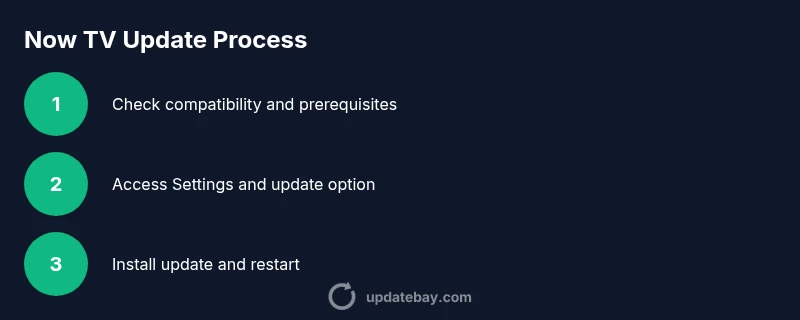
- 1
Check compatibility and prerequisites
Review device compatibility and ensure there is enough storage. Confirm you have a stable internet connection and the correct account credentials ready before starting.
Tip: If your device isn’t listed as supported, plan to update your hardware or use an alternate device. - 2
Open Now TV and access Settings
Launch the Now TV app or device settings and locate the Updates or About section. This is where most platforms surface available updates.
Tip: If Settings require a password, have it handy to authorize the update. - 3
Check for available updates
Tap or select Check for Updates to fetch the latest version. Read the release notes if provided to understand new features or changes.
Tip: Make sure the connection remains stable during the check to avoid partial downloads. - 4
Install the update
Proceed with Install or Update. Do not interrupt the process once it begins; interruptions can corrupt the update.
Tip: If prompted for confirmation, confirm and wait for the progress indicator to reach 100%. - 5
Restart the device or app
After installation, restart the Now TV app or entire device to apply the changes cleanly.
Tip: A full restart is more reliable than a simple app refresh for finalizing updates. - 6
Log back in and verify version
Open Now TV, sign in if needed, and verify that the new version is active in Settings > About or similar.
Tip: Note the version number for future reference and support if needed. - 7
Test playback and features
Play a title and check for improved performance, new features, or UI changes introduced in the update.
Tip: If issues appear, check for follow-up patches or revert to a previous version if available. - 8
If update fails, try alternate method
If the standard method fails, attempt an alternative route (different network, reinstall app, or factory reset as a last resort).
Tip: Document the error and contact support with device details to accelerate resolution.
Frequently Asked Questions
How often should I update Now TV?
Regular updates are released to add features, fix bugs, and improve security. Check for updates at least monthly and enable automatic updates if your device supports it.
Updates come out regularly. Check for them monthly and enable auto-updates if you can.
Can I enable automatic updates?
Yes. On most devices, you can enable automatic updates in the Now TV app settings or the device's app update preferences. This reduces manual checks and keeps your experience current.
Auto-update is usually available in settings. Turn it on to stay current automatically.
What should I do if an update fails to install?
First, check your internet connection and storage. Retry the update. If it still fails, try a restart, clear cache, or reinstall the app. Contact support with device details if the problem persists.
If it fails, retry after checking connection and storage. If needed, contact support with your device details.
Will updating affect my saved favorites?
Updates should not delete saved favorites or watchlists. However, you may need to sign back in after major updates on some devices.
Your favorites should remain, but you may need to sign back in after updates.
Do I need to update Now TV on every device I own?
If you use Now TV on multiple devices, update each one individually. Some platforms support auto-updates; others require manual updates.
Update each device where you use Now TV. Auto-updates help, but not all devices support them.
How can I verify the update version?
Open Now TV > Settings > About or Help to see the current version. Compare with the latest release notes if provided.
Check the About section to confirm the version number after updating.
Watch Video
What to Remember
- Update Now TV across devices to access features and fixes.
- Maintain a stable internet connection during updates.
- Verify version after updating and test playback.
- Enable auto-updates and monitor upcoming releases.