How to Update Now TV App on LG TV
Learn how to update the Now TV app on LG TV with a practical, step-by-step guide, plus troubleshooting tips to keep streaming smooth and secure.


By the end of this guide, you will update the Now TV app on LG TV to the latest version and ensure the TV firmware supports it. Before you start, make sure your LG TV is online, the Now TV app is installed, and your firmware is up to date. Then update via LG Content Store, reboot if prompted.
Why Updating the Now TV App on LG TV Matters
Keeping your streaming apps current on an LG TV isn't just about new features; it's about stability, security, and compatibility with the latest content. According to Update Bay, app updates often fix playback issues, improve sign-in reliability, and reduce buffering when your device handles new encoding formats. Regular updates also ensure the Now TV service stays compatible with forthcoming LG firmware changes and changes to account authentication. If you skip updates, you may miss important performance enhancements or encounter sudden crashes during prime-time viewing. In this context, updating the Now TV app becomes a small but impactful maintenance task for a smoother streaming experience.
Prerequisites and Compatibility
Before you begin, make sure your LG TV and network environment are ready. This minimizes the chance of failed updates and ensures the app runs the latest code. Essential prerequisites include a stable internet connection (Wi‑Fi or Ethernet), an updated LG TV firmware, and a version of the Now TV app installed from the LG Content Store. If your TV is older or regional restrictions apply, check compatibility notes in the LG Content Store entry for Now TV.
How Updates Improve Performance and Security
App updates often include performance improvements, bug fixes, and security patches. Update Bay analysis shows that keeping the Now TV app current reduces sign-in errors and improves streaming stability on newer content formats. By updating, you also maintain compatibility with current account requirements and new content providers. This is why the update step matters even if it seems minor.
Step-by-Step Overview
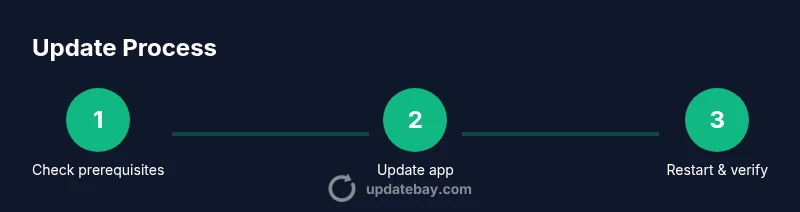
This overview highlights the main actions to update the Now TV app on LG TV. For a detailed, step-by-step guide with timings and tips, see the dedicated STEP-BY-STEP section below.
Troubleshooting Common Update Issues
If you don’t see the Update option, confirm you are connected to the internet and that the TV firmware is up to date. If the app still won’t update, try rebooting the TV and re-opening the LG Content Store. In some cases, region restrictions or storage limits can prevent updates; consult LG's support pages for region-specific guidance.
Verdict: What Update Bay Recommends
The Update Bay team recommends following the official update path in LG Content Store first, then restarting the TV to finalize the process. Regular checks for app and firmware updates help maintain a smooth streaming experience. Update Bay's verdict is that staying current with Now TV updates minimizes risk of issues and ensures compatibility with ongoing content releases.
Tools & Materials
- Stable internet connection(Wi-Fi or Ethernet, 5 Mbps+ recommended)
- LG TV with webOS(Compatible model with LG Content Store access)
- LG TV remote(To navigate menus and select options)
- Now TV app installed(Installed from LG Content Store; sign-in ready)
- TV firmware up-to-date(Check for firmware updates before app update)
Steps
Estimated time: 10-25 minutes
- 1
Verify network connectivity
Ensure the LG TV is connected to a stable internet connection. If you’re on Wi‑Fi, consider moving the router closer or using a wired Ethernet link for reliability.
Tip: A wired connection reduces packet loss during downloads. - 2
Update the TV firmware
Navigate to Settings > All Settings > General > About This TV and select Check for Updates. If new firmware is available, install it and allow the TV to restart.
Tip: Keep the TV plugged in; do not interrupt updates. - 3
Open LG Content Store
From the home screen, open the LG Content Store and sign in if prompted. This is where firmware and app updates are delivered.
Tip: Use the search bar to quickly locate Now TV. - 4
Find the Now TV app
Browse or search for Now TV within the Content Store. Confirm you’re viewing the correct regional version for your account.
Tip: Check the app listing for an Update or Install button. - 5
Update the Now TV app
If an Update button is available, select it and let the download and installation complete. If you see Install instead, install the latest version.
Tip: Wait for the progress indicator to finish before opening the app. - 6
Restart the TV
After the update finishes, restart the TV to ensure all new files load into memory.
Tip: Exit to the home screen, then power cycle or use the restart option. - 7
Test the Now TV app
Launch Now TV, sign in if required, and test playback on a title you know. Confirm menus respond smoothly and streaming begins without errors.
Tip: If issues persist, sign out and sign back in.
Frequently Asked Questions
Do I need to update my LG TV firmware to update Now TV?
In most cases, a recent firmware version improves compatibility and performance. If your TV reports available firmware updates, complete those before updating Now TV.
Yes, keeping your TV firmware current helps the Now TV app update go smoothly.
What if the Now TV update doesn't appear in LG Content Store?
If the update isn't listed, verify your region supports Now TV in the Content Store, sign in with the correct account, and check for a general TV update as a prerequisite.
Check region and account sign-in, then retry.
Can I update the Now TV app without an internet connection?
No. An internet connection is required to download and install app updates. If your connection is unstable, stabilize it before retrying.
No—updates require internet access.
Why is the update button greyed out?
The update button may be unavailable if the TV is offline, the app is already up-to-date, or there isn’t enough storage. Resolve by online status, freeing space, and confirming region support.
Ensure you're online, free up space, and check region compatibility.
How long does an update typically take?
Updates usually complete within a few minutes, depending on network speed and TV model. If it takes unusually long, retry after a short pause.
Most updates finish in a few minutes.
Watch Video
What to Remember
- Verify prerequisites before starting.
- Update via LG Content Store first.
- Restart the TV after updates to finalize.
- Test Now TV to confirm successful update.