How to update Now TV app on Samsung TV
Step-by-step guide to update the Now TV app on Samsung TVs. Confirm compatibility, choose automatic or manual updates, troubleshoot issues, and verify playback for seamless streaming.


By the end of this guide you will update the Now TV app on your Samsung smart TV to the latest version, ensuring access to new features, improved performance, and bug fixes. You’ll verify your TV model compatibility, connect to the internet, and follow step-by-step prompts to install the update from Samsung’s app store or the built-in update system.
Why updating the Now TV app on Samsung TV matters
Regular updates to the Now TV app on Samsung TVs improve stability, fix bugs, and unlock new features that enhance streaming quality on big screens. According to Update Bay, user reports of buffering or crashes often decline after applying the latest app version. Keeping the app current also helps protect against exploits and compatibility issues with newer content encodings. In practice, updating is a quick maintenance task that yields noticeable gains in load times, navigation responsiveness, and ad handling. If you watch Now TV regularly, this is one of the most impactful maintenance steps you can take. This guide walks you through checking compatibility, choosing the update path, and validating the install so you can enjoy uninterrupted streaming.
Check if your Samsung TV supports the Now TV app
Now TV is available on most recent Samsung smart TVs with Tizen OS. Before chasing an update, confirm your model supports the Now TV app and that the app is installed. You can locate the supported versions in Samsung's official support pages or the TV's Apps section. If your model is older, you may still access the service via a connected streaming device. This compatibility check helps you avoid chasing updates that won’t install due to hardware limits. Update Bay’s guidance emphasizes verifying model support before spending time on update paths.
Ways to update: automatic vs manual
There are two primary paths to update the Now TV app on a Samsung TV: automatic updates and manual updates. Automatic updates run in the background, keeping apps current with minimal effort. Manual updates require you to actively check the App Store or the Now TV app page for an available update and apply it. Choosing the right path depends on how you use the TV, network reliability, and whether you want a hands-off approach for future updates. Update Bay notes that enabling automatic updates reduces the risk of missing critical security fixes or feature improvements.
Update path: Samsung App Store (manual update)
To update via the Samsung App Store, navigate to Smart Hub, select Apps, and locate Now TV. If an Update button is visible, select it to begin the installation. If the button is not present, the app is already up to date. You can also enable notifications for app updates in the store settings so you’re alerted as soon as updates are released. Regularly checking for updates from the official store helps prevent flaky playback and ensures you have the latest bug fixes.
Update path: Firmware dependency and OS updates
Some Now TV updates rely on the TV’s firmware being current. If you don’t see any Now TV updates, you may need to install a system software update first. Go to Settings > Support > Software Update to check for available firmware updates. Install any available updates, then re-open the Now TV app to see if the update prompt appears. Keeping both the app and the TV firmware up to date minimizes compatibility issues and maximizes performance.
How to verify the update is installed
After updating, open Now TV and navigate to the About or Settings section to confirm the version shown matches the latest release. You can also replay a few titles to verify buffering, load times, and playback stability. If the app launches more quickly and returns fewer errors, the update likely installed correctly. It’s worth running a short stream to check for improved ad handling and smoother navigation.
Common issues after update and how to fix
If the app won’t update, check your network connection, restart the TV, or try updating via a wired Ethernet connection. If playback glitches persist after updating, clear the Now TV cache from the app settings (where available) or reinstall the app. Some issues may require a full reboot of the TV or a temporary removal of the app and re-download from the Samsung App Store. Update Bay’s practical tips suggest starting with the simplest fixes and moving to more involved ones if problems persist.
Security and privacy considerations when updating apps
Only update Now TV from Samsung’s official App Store or through the TV’s built-in update mechanisms. Avoid sideloading apps or using third-party installers, which can expose you to malware or data leakage. Review the app’s requested permissions after updating and disable any that aren’t necessary for streaming. Regular updates typically include security patches that protect your streaming data and device integrity, reinforcing your overall home network security.
Tips for a smooth update experience
Prepare a stable network environment, prefer a power source if you’re updating via firmware, and avoid running other bandwidth-heavy tasks during the update. If you’re uncertain about the update’s progress, monitor the TV screen for progress indicators rather than turning off the TV. Keeping auto-update enabled saves time and reduces the chance of missing future fixes, especially when Now TV releases urgent patches for streaming reliability.
Testing the Now TV app after updating
Once the update completes, test a few programs across different genres to ensure performance is consistent. Check for improved startup time, smoother transitions between menus, and fewer re-buffering events. If testing reveals any issues, consult the troubleshooting steps above and consider reaching out to support channels for further assistance.
What to do next: future-proofing updates
To stay current with minimal effort, keep automatic updates enabled and periodically check for firmware updates. Consider creating a simple maintenance routine: once a month, verify both app and firmware versions, test playback with a short video, and review any release notes from Samsung or Now TV for new features or known issues. This proactive approach helps preserve a reliable streaming experience over time.
Tools & Materials
- Samsung TV remote(Used to navigate Smart Hub and settings)
- Stable Wi-Fi or Ethernet connection(Essential for downloading updates)
- Samsung account(Needed for app downloads and updates in some models)
- TV with current model information(Know your model and firmware version to verify compatibility)
- Access to Samsung App Store on TV(Where you will find and update Now TV)
Steps
Estimated time: Total time: 12-20 minutes
- 1
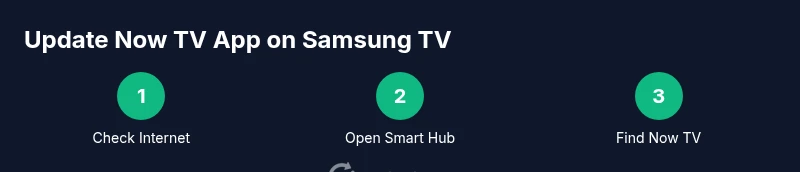
Verify internet connection
Ensure your Samsung TV is connected to a stable Wi‑Fi network or wired Ethernet. A weak or intermittent connection is the most common reason apps fail to update.
Tip: Run a quick speed test on another device to confirm network stability. - 2
Open Samsung Smart Hub
Press the Home button on your remote to access the Smart Hub where apps are managed.
Tip: Keep your TV connected to the home network during this process. - 3
Find Now TV in Apps
Navigate to Apps and use the search bar to locate Now TV, or browse the catalog if you remember its placement.
Tip: Using the search feature speeds up locating the app. - 4
Check for updates
Select Now TV and choose Update if the option is available. If Update is greyed out, the app is already current.
Tip: If you don’t see Update, proceed to firmware checks (below). - 5
Enable automatic updates
If automatic updates are not enabled, turn them on in Settings > Apps > Auto-update so future updates install automatically.
Tip: Automatic updates reduce the chance of missing critical fixes. - 6
Restart the TV
Power off the TV, wait 15–30 seconds, and turn it back on to finalize the update process.
Tip: Avoid unplugging the TV during updates to prevent partial installations. - 7
Sign in again if prompted
If Now TV asks you to sign in after updating, re-enter your credentials to restore access.
Tip: Use a password manager if you have multiple streaming accounts. - 8
Test Now TV playback
Launch Now TV, select a title, and verify smooth playback without buffering or crashes.
Tip: Test at least two titles from different genres to gauge performance. - 9
Check firmware if needed
If the update isn’t visible, check Settings > Support > Software Update for available firmware updates and install.
Tip: Firmware updates can unlock app update compatibility.
Frequently Asked Questions
Do I need to update the Now TV app on Samsung TV?
Yes. Updates fix bugs, improve performance, and add features that enhance streaming on Samsung TVs.
Yes. Updates fix bugs, improve performance, and add features for smoother streaming.
What if the update doesn’t show in the Apps section?
Check your internet connection, look for firmware updates, and try restarting the TV. If still missing, contact Samsung or Now TV support.
Check connection, verify firmware, and restart. If it still doesn’t appear, contact support.
Can I update Now TV automatically?
Yes. Enable automatic updates in the Samsung Smart Hub settings to keep apps current without manual checks.
Yes, enable automatic updates in Smart Hub settings.
Will updating Now TV affect other apps?
Generally no. App updates target the specific application and should not disrupt others.
Updates typically affect only the updated app and won’t disrupt others.
What if update fails due to compatibility?
Update firmware first; if still incompatible, the app version may be blocked on your model.
Update the firmware, then check again; some models can’t support newer app versions.
Watch Video
What to Remember
- Check compatibility before chasing updates.
- Use official update paths to avoid security risks.
- Enable automatic updates to save time.
- Restart the TV after updates to apply changes.
- Test playback to confirm a successful install.