How to Update VS Code in Windows 11
Learn how to update VS Code in Windows 11 with GUI, CLI, and Store methods. This practical, expert guide covers prerequisites, step-by-step updates, troubleshooting, and best practices to keep your development environment secure and up to date.


Curious how to update vs code in windows 11? This guide shows how to update VS Code on Windows 11 using the GUI, the command line, or the Windows Store, with checks for version accuracy and extension compatibility. Follow these practical steps to keep your development environment secure, fast, and fully featured with minimal downtime.
Why keeping VS Code up to date on Windows 11 matters
Keeping Visual Studio Code up to date on Windows 11 matters for security, stability, and access to the latest features and extensions. Each new build often patches security vulnerabilities, fixes bugs that affect performance, and adds capabilities that improve your workflow. For developers, staying current can prevent compatibility issues with language servers and popular extensions. According to Update Bay, timely updates reduce exposure to known vulnerabilities and help keep your development environment aligned with current best practices. Regular updates also ensure you can take advantage of improved IntelliSense, debugging improvements, and smoother patch rollouts that minimize disruption during your workday. In practice, a small update routine can prevent larger, riskier breaks when you install new tooling or extensions. By prioritizing updates, you invest in a more reliable, productive setup that scales with your projects and teammates.
Prerequisites and quick checks
Before you start updating VS Code on Windows 11, verify you have a stable internet connection, an admin-enabled account, and a current backup of your settings. Check whether you’re running the Stable release or an Insiders build, as this may affect update behavior. Ensure there is enough disk space for the installer and that your extensions aren’t in a conflicting state. If you rely on specific language servers or extensions, note their versions so you can verify compatibility after the update. Update Bay recommends preparing a short rollback plan in case an update introduces an unexpected issue. Having these checks in place minimizes downtime and keeps your workflow uninterrupted.
Update methods overview: GUI, CLI, and Store
There are three primary ways to update VS Code on Windows 11: through the built-in GUI updater inside the app, via the Windows Package Manager (Winget) CLI, and by installing the version from the Microsoft Store if you’re using the Store edition. The GUI method is point-and-click and user-friendly, ideal for quick upgrades. The CLI method is powerful for automation and scripting in developer workflows. The Microsoft Store method is particularly relevant if you installed VS Code from the Store and prefer Store-managed updates. Regardless of the method, you should verify the installed version after updating and re-check your extensions for compatibility. This comprehensive approach helps you maintain a stable development environment while taking advantage of new features.
Method 1: Update using the GUI in VS Code
Open VS Code, then navigate to the menu to check for updates. If a new version is available, you’ll be prompted to install it; click the update button and allow the installer to run. The GUI method usually handles extension compatibility automatically and requires a restart once the update completes. Pro tip: save your work before starting the update to avoid losing unsaved changes. For a visual reference, see the image titled 'update_vs_code_gui.png' in the accompanying guide.
Method 2: Update via Winget CLI (Windows Terminal)
Open Windows Terminal and run a command to upgrade VS Code. A typical command is Winget upgrade --id Microsoft.VisualStudioCode, which fetches the latest stable build for your installed channel. If you’re on a different channel or architecture, adjust the ID accordingly. This method is ideal for automating updates as part of a script or a regimen in development environments. Tip: run the command with admin privileges if required by your system policy.
Method 3: Update from the Microsoft Store (Store edition)
If you installed VS Code from the Microsoft Store, updates may arrive through Store updates. Open Microsoft Store > Library > Get updates to fetch the latest Store version. Store-managed updates can be convenient for keeping a system-wide, auto-updated application footprint. Note that the Store edition might differ from the classic installer in terms of how updates are delivered and configured.
Verifying the update and managing extensions
After updating, verify the version to confirm the update took effect. In VS Code, use Help > About to view the current version; from the terminal, run code --version. Also review your extensions for compatibility with the new build; some extensions may require updates themselves or temporary disablement until compatibility is confirmed. If you rely on specific extensions, consider pinning versions or testing updates in a separate workspace before broad deployment.
Troubleshooting common update issues
If an update fails, check your internet connection and retry. Ensure you have admin rights or adjust permissions as needed. Use the official update logs or VS Code's internal logs to diagnose issues, and consider reinstalling the updater or the entire application if problems persist. For persistent issues, consult the support or community forums for known patch-related problems and workarounds. Update Bay also notes that keeping a rollback plan helps minimize downtime when updates introduce unexpected behavior.
Best practices for a smooth update workflow
Adopt a regular update routine: enable auto-update where appropriate, schedule updates during low-activity periods, and back up settings before major upgrades. Maintain consistency by using a single distribution channel (Stable vs Insiders) across your team. Periodically review installed extensions for compatibility and remove or replace any that are no longer maintained. This approach reduces friction and keeps your environment secure and productive.
Final checks after updating
Restart VS Code to apply changes fully and clear any stale caches. Re-run essential workflows to ensure everything behaves as expected and confirm that key extensions loaded correctly. Document the update in your team notes if you work collaboratively, highlighting any newly enabled features or changes in behavior. Regular post-update checks help you maintain confidence in your development environment.
Tools & Materials
- Stable internet connection(Wired ethernet recommended for reliability; avoid metered wireless networks during updates.)
- Admin access on Windows 11(Some updates require elevated permissions for installation.)
- VS Code installed (Stable or Insiders as applicable)(Know which channel you use to avoid cross-channel conflicts.)
- Windows Terminal or PowerShell(Useful for CLI updates via Winget.)
- Winget (Windows Package Manager)(Use for CLI-based updates; ensure Winget is up to date.)
- Backups of settings and extensions(Helps restore in case of extension incompatibilities.)
Steps
Estimated time: 20-40 minutes
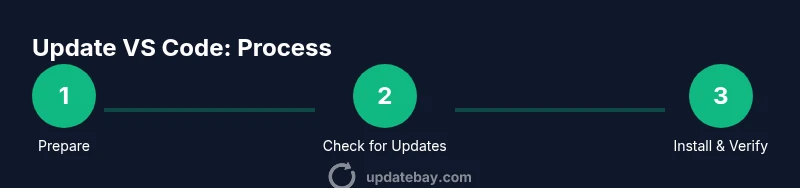
- 1
Prepare your environment
Confirm admin rights, ensure internet connectivity, and save work. If you have a specific workspace, close heavy applications to speed up the update process and avoid conflicts with files in use.
Tip: Consider backing up VS Code settings and a list of essential extensions before updating. - 2
Open VS Code and check for updates
In the VS Code menu, use the built-in update check: Help > Check for Updates. If an update is available, the prompt will guide you through downloading and installing it. You may be prompted to restart after the update.
Tip: Save any unsaved files before proceeding to avoid data loss. - 3
Update via GUI if prompted
Click the update button when prompted and let the installer complete. This method handles extension compatibility in most cases and requires a restart to complete installation.
Tip: If you don’t see an update prompt, you may already be on the latest version. - 4
Update via Winget CLI
Open Windows Terminal and run Winget upgrade --id Microsoft.VisualStudioCode to fetch the latest stable build. If you’re on a different channel, specify the exact package ID.
Tip: Run the command as administrator if your policy requires it. - 5
Store edition update (if applicable)
If you installed from the Microsoft Store, open Store > Library > Get updates and install any VS Code Store updates. Store updates may differ in delivery from the installer.
Tip: Ensure you are using the same edition (Stable vs Insider) as before. - 6
Verify the update
Check the version via Help > About or run code --version from a terminal. Compare with the release notes to confirm new features and fixes are present.
Tip: Note any breaking changes or behavior differences. - 7
Manage extensions post-update
Reload/enable extensions as needed. Some extensions may require updates or temporary disabling if compatibility issues appear.
Tip: Review critical extensions first and test key workflows. - 8
Troubleshoot issues
If updates fail, retry with a stable internet connection, run with admin rights, and review logs. Consider a clean reinstall if problems persist.
Tip: Consult official docs or community forums for known issues related to the specific release. - 9
Finalize and document
Document the successful update in team notes, enable auto-update if suitable, and schedule the next routine check to maintain momentum.
Tip: Automate future updates using scripts or scheduled tasks where possible.
Frequently Asked Questions
Do I need admin rights to update VS Code on Windows 11?
Most updates require administrator privileges on Windows. If you’re on a managed device, you may need IT assistance. The GUI updater typically runs with the necessary permissions, but CLI methods may also prompt for elevation.
Yes, admin rights are usually required for updates. If you’re in a managed environment, contact IT for permission or a sanctioned update method.
Will updating VS Code affect my extensions?
In most cases, extensions continue to work after an update, but some may require updates themselves or temporary disabling. It’s a good practice to review extension compatibility notes after updating.
Extensions are usually compatible, but some may need updates. Review notes after updating.
What should I do if the update fails to install?
First, check your internet connection and permissions. Review VS Code logs for error details, then retry or reinstall the updater. If the issue persists, consult official docs or user forums for workaround steps.
If updates fail, check connection and permissions, review logs, and retry or reinstall. Seek official guidance if needed.
Can I update VS Code without an internet connection?
Updating VS Code typically requires an internet connection to download the latest build. Some offline installers exist, but they must match your current channel and OS architecture.
Online download is usually required; offline installers exist but are channel-specific.
Should I use Stable or Insiders builds for updates?
Stable builds are recommended for regular development work due to better reliability. Insiders builds offer early features but can be less stable and should be used for testing only.
Stick with Stable for production work; use Insiders if you want early access for testing.
How can I revert to a previous version if something goes wrong?
If needed, uninstall the current version and reinstall the previous one from a reliable source or use a backup of your settings and extensions to restore your environment.
You can revert by reinstalling the previous version and restoring settings and extensions from backup.
Watch Video
What to Remember
- Verify your update method fits your setup.
- Check extensions for compatibility after updates.
- Use a rollback plan for risky upgrades.
- Enable auto-update where sensible.
- Document the update for teams