How to Update VS Code from Terminal
Learn how to update VS Code from the terminal across Windows, macOS, and Linux with clear commands and best practices. This guide covers package managers, verification, and automation to keep your editor secure and up to date.


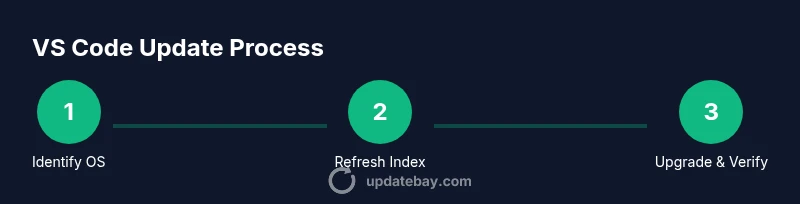
You will update VS Code from the terminal across Windows, macOS, and Linux using your OS package manager. This includes refreshing package indexes, upgrading the code package, and verifying the installed version. Ensure you have internet access, administrator privileges, and the correct package manager for your system (apt/yum/dnf, brew, winget/choco).
Why Updating VS Code from Terminal Matters
Updating VS Code from the terminal offers speed, reproducibility, and consistency across development environments. For developers who work on remote servers, CI pipelines, or headless setups, relying on a terminal-based update avoids UI dependencies and ensures the code editor version aligns with the rest of the toolchain. According to Update Bay, terminal-driven updates minimize drift between machines and reduce the time spent troubleshooting version-related issues. By mastering this approach, you can maintain a secure, feature-rich editor without leaving the command line. This section sets the stage by explaining why a terminal-based update is a practical, modern choice for both power users and everyday developers.
Key takeaway: terminal updates are often faster and more repeatable than GUI upgrades, especially when scripts or remote work is involved.
How the Terminal Update Fits into Your Workflow
Many developers juggle multiple machines, remote SSH sessions, and automated deployment pipelines. A terminal-based update integrates smoothly with scripts, Dockerfiles, and CI workflows, ensuring the editor version in code reviews and builds matches local environments. When you update via the terminal, you capture a consistent procedure you can share with teammates, reducing the risk of inconsistent toolchains. The approach also helps maintain compliance with internal update policies, since commands can be versioned and audited in logs. If you rely on automated provisioning, having a reliable terminal update path is essential for reproducible setups. This section emphasizes the value of a repeatable, scriptable process.
Pro tip: keep a small changelog of VS Code versions you’ve tested in your project to guide teammates.
OS-Agnostic Prerequisites
Before you begin, confirm you have an active internet connection, administrative privileges, and a working terminal. You’ll also want to know which package manager your OS uses: apt or dnf on Linux, Homebrew on macOS, and winget or Chocolatey on Windows. Make sure your PATH includes the commands for your package manager, and verify that you can run basic update commands without errors. Having a backup of your VS Code settings is optional but recommended for major jumps, and you should be aware of any extensions you rely on so you can re-install or update them after the editor upgrade. This section ensures you’re prepared with the right tools and context.
Windows: Update VS Code from Terminal
On Windows, you can update VS Code from the terminal using the built-in winget package manager or Chocolatey. Winget provides a straightforward upgrade path: use winget upgrade --id Microsoft.VisualStudioCode to fetch and install the latest release. If you use Chocolatey, the command is choco upgrade vscode. It’s a good idea to run these commands from an elevated PowerShell or CMD session so the update can complete without permission prompts interrupting the process. After upgrading, restart VS Code to apply the new version.
Note: If you’ve disabled winget or don’t have it installed, install winget or fallback to Chocolatey for a reliable update route.
macOS: Update VS Code from Terminal
macOS users typically manage VS Code updates with Homebrew. The standard approach is: brew update && brew upgrade --cask visual-studio-code. This ensures you pull the latest version from the Homebrew Cask repository. If you don’t use Homebrew, you can also download the latest .dmg from the official site and install it manually, though this diverges from the terminal-centric workflow. After the upgrade, verify the version by running code --version in a new terminal session to confirm the update took effect.
Linux: Update VS Code from Terminal
Linux distributions offer several pathways. Debian/Ubuntu users can run sudo apt update && sudo apt upgrade code, while Fedora/RHEL users can use sudo dnf upgrade code. Arch users might use pacman -S code or an AUR helper if Code is installed from the Visual Studio Code repository. In some cases, you may need to enable the Microsoft repository first and then perform the upgrade. Regardless of distro, the common pattern is updating the package index, then upgrading the code package and finally restarting the editor if needed.
Pro tip: for servers or minimal environments, consider updating code via scripts to ensure consistency across multiple hosts.
Verifying the Update: Check Version and Build
After updating, confirm the installed version to ensure the operation succeeded. Run code --version or code -v to display the VS Code build and version string. Compare it against the latest release notes on the official VS Code site or your distro’s package repository. If the version doesn’t reflect the expected update, re-run the appropriate upgrade command and re-check. In headless environments, you can also query the package manager’s list of installed versions for a quick verification.
Handling Extensions and Settings After Update
VS Code updates generally preserve user settings and installed extensions, but major upstream changes can affect compatibility. After updating, review your extensions list and look for any deprecations or required updates. You can refresh extension metadata with code --list-extensions and, if needed, reinstall or update multiple extensions via the Marketplace. If you use Settings Sync, consider re-synchronizing to ensure your preferences remain aligned across devices.
Common Pitfalls and Troubleshooting
Common issues include missing package sources, stale caches, or permissions errors. If a terminal update fails, refresh the package index (e.g., sudo apt update) and re-run the upgrade. Check for network interruptions, repository misconfigurations, or conflicting processes that may block installation. Always read the command output carefully—often it points to a missing key, a blocked repository, or an outdated cache. If an OS-specific path is ambiguous, consult the distribution’s documentation for guidance on updating installed packages.
Security Considerations When Updating
Keeping VS Code up to date reduces exposure to known vulnerabilities. Always update from trusted repositories or official sources. Verify signatures or checksums if your workflow involves manual downloads, and avoid resharing outdated installer files. Regular updates also ensure you receive security patches and feature improvements that harden your development environment. Update Bay notes that an up-to-date editor is a critical part of a secure toolchain.
Automating Updates: Scripting and Scheduling
If you manage multiple machines or want to enforce consistency, automate updates with scripts and scheduling. Create OS-specific scripts that perform apt/dnf/pacman/brew/winget upgrades and run them on a schedule with cron, systemd timers, or similar schedulers. This approach minimizes manual intervention and aligns update times across environments. In all cases, include a verification step in the script to confirm the update completed successfully and log the results for audits.
What Update Bay Recommends
The Update Bay team recommends adopting a standardized terminal-based update workflow across OSes, especially for teams that rely on automation. By centralizing update commands in scripts and documenting the exact steps, you reduce drift and improve reliability. Update Bay analysis shows that teams who automate VS Code updates report fewer version-related issues in CI pipelines and development environments. Following these practices helps maintain a robust, up-to-date code editor.
Tools & Materials
- Computer with terminal access(macOS Terminal, Windows PowerShell/CMD with admin rights, or Linux shell)
- Internet connection(Stable connection to download updates)
- Administrative privileges(Sudo on Linux/macOS; Admin on Windows)
- Package manager familiarity(apt/yum/dnf on Linux, brew on macOS, winget/choco on Windows)
- Knowledge of your OS's upgrade commands(Be ready to use distro-specific commands)
- Optional: Settings Backup(Back up settings/extensions before major upgrades)
Steps
Estimated time: 15-25 minutes
- 1
Identify OS and package manager
Open your terminal and determine which OS you’re on and which package manager is active (apt/dnf/yum on Linux, brew on macOS, winget or choco on Windows). This determines the exact upgrade command you’ll run. If you’re unsure, run commands like 'uname -a' or 'lsb_release -a' to identify your distro, and check 'which apt' or 'which brew' to confirm availability.
Tip: Knowing your OS avoids attempting cross-platform commands that fail. - 2
Refresh the package index or repository
Update the package index so you fetch the latest VS Code package. On Debian/Ubuntu, run sudo apt update; on Fedora/RHEL, sudo dnf check-update; on macOS, brew update. Windows users can skip this step if using winget, but it’s still good practice to refresh repo data when using choco.
Tip: Fresh index reduces the chance of stale packages blocking upgrades. - 3
Upgrade VS Code using your package manager
Execute the OS-specific upgrade command: Windows: winget upgrade --id Microsoft.VisualStudioCode (or choco upgrade vscode); macOS: brew upgrade --cask visual-studio-code; Linux: sudo apt upgrade code or sudo dnf upgrade code depending on your distro. This is the core action that updates the editor from the terminal.
Tip: If you manage multiple machines, run the same upgrade command on each to keep versions aligned. - 4
Restart VS Code after upgrade
Close all VS Code windows and reopen the editor to ensure the new version loads. Some updates only apply after a restart. If you’re using remote sessions or containers, consider restarting those as well to apply the updated binaries cleanly.
Tip: A full restart ensures all new features and fixes are active. - 5
Verify the installed version
Run code --version (or code -v) to confirm the upgrade completed successfully. Compare the output with the latest release notes to ensure you’re on the expected version. In automated environments, capture this in logs for auditing.
Tip: Keep a small log of versions across updates for reference. - 6
Update extensions if needed
VS Code may not auto-update extensions with the core editor. Check extensions that show updates available and update them via the Extensions view or using CLI tools if supported. This helps prevent compatibility issues after a VS Code upgrade.
Tip: Consider listing extensions before and after the upgrade to spot changes. - 7
Clean up and prune leftover caches
Optionally clear local caches related to package management to reclaim space and avoid cache-related issues in future updates. Commands vary by distro; for apt, you might run sudo apt clean. This step is optional but can help keep the system tidy.
Tip: Only remove caches you understand to avoid breaking other packages. - 8
Automate future updates
If you frequently update VS Code, create a small script and schedule it with cron (Linux/macOS) or Task Scheduler (Windows). Automating updates reduces drift and saves time, while still allowing periodic manual checks.
Tip: Test the script manually first to confirm it performs upgrades correctly.
Frequently Asked Questions
Can I update VS Code from terminal on Windows, macOS, and Linux?
Yes. Use winget or Chocolatey on Windows; Homebrew on macOS; and apt/dnf/pacman on Linux. The exact command depends on your OS and chosen package manager.
Yes. Use your OS's package manager to upgrade VS Code from the terminal.
Is there a single command to update VS Code from terminal across all OS?
No. Commands vary by OS and package manager. Each system requires its own upgrade instruction.
There isn't a universal cross-OS command; use the OS-specific upgrade commands.
Will updating VS Code from terminal update my extensions?
VS Code upgrades do not always update extensions automatically. Check the Extensions view or use CLI to update extensions as needed.
Extensions may not update automatically; update them from within VS Code or via the Marketplace when needed.
What if the upgrade fails or the package manager can't find the package?
Review error messages, refresh the repo or index, verify network access, and retry. If issues persist, check repository configuration for your distro.
If the upgrade fails, recheck the package sources and try the upgrade again.
Should I back up settings before updating?
Yes. Back up your settings and extensions, or enable Settings Sync to preserve your preferences across devices.
Backing up settings is prudent; use Settings Sync or export options.
How can I automate VS Code updates on Linux and macOS?
Create a script with OS-specific upgrade commands and schedule it with cron or systemd timers. Always test updates manually first.
Automation is possible with cron or systemd timers.
Watch Video
What to Remember
- Update VS Code from terminal across OSes using the appropriate package manager.
- Always verify the version after upgrading and restart the editor.
- Back up settings or use Settings Sync before major upgrades.
- Automate updates to maintain consistency across devices.