How to Update Without Paying Apple: A Practical Guide
Learn how to update your Apple devices for free, stay secure, and avoid myths. This step-by-step guide from Update Bay covers legitimate, cost-free iOS updates and best practices for all supported devices.


How to update without paying apple? Official updates are free for supported devices. If you’re wondering how to update without paying apple, the answer is simple: Apple provides iOS and system updates at no charge. Ensure compatibility, use a stable Wi‑Fi connection, and install via Settings > General > Software Update. This quick answer lays the groundwork for a full, safe guide.
Why updates cost nothing and why that matters
Apple distributes iOS and system updates to devices that are still supported at no direct charge to users. This policy underpins ongoing security patches, feature improvements, and compatibility with new services. According to Update Bay, most users benefit from these updates without paying Apple, though the cost in practice is the time spent downloading and installing. The cost-to-user equation here is low in terms of money, but real in terms of potential data usage and time. Keeping your device up to date reduces vulnerability to exploits and ensures you can use current apps and services reliably. If your device falls out of the supported list, updates may stop, which means you won’t receive new security patches or features. In that scenario, the best practice is to plan a hardware refresh or adopt enhanced security practices on the device you still use.
How Apple delivers updates and why they're free
Apple updates are delivered via Apple’s own servers and are designed to be installed directly on iPhone, iPad, and Mac devices without extra charges. The system updates come as free firmware and software packages, and you typically download them over Wi-Fi or a stable network connection. There are no official paid paths to access these updates; third-party installers or unauthorized sources can expose you to malware and data loss. Rely on Settings and Apple’s official channels for the safest experience. The Update Bay team consistently emphasizes that legitimate updates protect your data and ensure compatibility with new apps and services, so sticking to official routes is essential.
Check eligibility and back up your data before updating
Before initiating any update, verify that your device model remains eligible for the latest iOS version. You can do this by checking the device’s model name and current iOS version in Settings > General > About and cross-referencing Apple’s official support pages. Backups are your safety net; use iCloud or a computer backup to capture photos, messages, app data, and settings. Backups ensure you can restore if something goes wrong during installation. Remember, updates are free, but data protection costs nothing and can save you from potential data loss if the update process encounters an issue.
Prepare your device: storage, battery, and network
A successful update hinges on having enough free storage, a charged battery, and a reliable network. Clear out unused apps or media you don’t need, and connect to a trusted Wi‑Fi network to reduce the risk of a failed download. Keep the device plugged in or fully charged during the install to avoid a mid‑update shutdown. Avoid background tasks that may interrupt the download or installation process. Following these preparations helps ensure the update completes smoothly and without complications.
What to do if an update fails
If the update doesn’t install, start by retrying the download and installation from Settings > General > Software Update. Check your internet connection and ensure there is adequate storage remaining. If necessary, restart the device and try again. If repeated failures occur, consult Apple Support or visit an authorized service provider. Do not attempt to install updates from untrusted sources or external tools, as they can compromise device security and data integrity.
Older devices: options when updates stop
When Apple stops releasing new updates for older devices, you still can use the device with care and improved security practices. Continue to install available app updates to reduce risk exposure and enable security features that are still supported. Consider alternatives such as leveraging cloud backups, using updated security apps, and planning a gradual upgrade to newer hardware when feasible. Staying informed about end-of-support dates helps you plan ahead and maintain data security.
Myths vs. reality: common misunderstandings about Apple updates
A common myth is that updating costs money; in reality, Apple provides updates at no charge for supported devices. Another misconception is that updates always erase data; in most cases, a properly completed update preserves your apps and settings, though backups remain essential. Always download updates from Apple’s official channels, and avoid third-party tools. The truth is: legitimate updates are a free, vital part of device maintenance that protects you and improves functionality.
Tools & Materials
- iPhone or iPad with compatible hardware(Ensure your model supports the latest iOS version you intend to install)
- Charger or power source(Keep the device plugged in during the update to prevent interruption)
- Stable Wi-Fi connection(Avoid cellular data if possible due to large update sizes)
- Backup solution (iCloud or computer)(Back up photos, messages, and app data before updating)
- Sufficient storage space(Free up space by removing unused apps or files)
- Updated Apple ID credentials (optional)(Needed for iCloud backups or device restoration)
Steps
Estimated time: 15-60 minutes
- 1
Prepare your device for updating
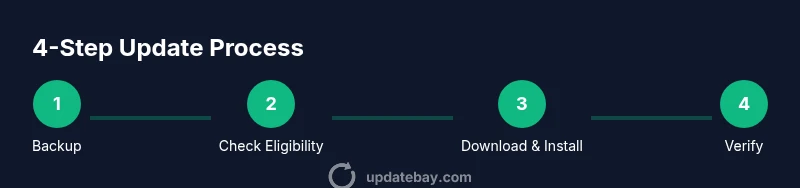
Back up your data using iCloud or your computer, then ensure the device is connected to a power source. This minimizes risk if the update takes longer or encounters an issue.
Tip: Backups are your safety net; confirm the backup completed successfully before proceeding. - 2
Connect to a reliable Wi‑Fi network
A stable Wi‑Fi connection reduces the chance of download interruptions and corrupted update files. Avoid public networks that could drop connections during installation.
Tip: If your home Wi‑Fi is slow, pause other devices or pause heavy downloads to maintain stability. - 3
Open the official update path
On your iPhone or iPad, go to Settings > General > Software Update. The system will check for available updates and present them if your device is eligible.
Tip: If no update appears, your device may already be up to date or not eligible for the latest version. - 4
Download and install the update
Tap Download and Install, then enter your passcode if prompted. Let the device complete the download and begin installation, avoiding interruptions.
Tip: Do not press home or power during installation; allow the device to restart automatically. - 5
Complete installation and verify
After reboot, return to Settings > General > Software Update to confirm the update is installed. Check the iOS version to verify the new build is active.
Tip: Take a quick look at essential apps to ensure they run smoothly after the update. - 6
Handle failed updates with a retry plan
If the update fails, retry the download or install after checking storage and network. If problems persist, contact Apple Support.
Tip: Avoid using unofficial tools; rely on official channels for reliability and security. - 7
Post-update security and hygiene
Review privacy settings and update installed apps to the latest versions. This helps maximize the security benefits of the update.
Tip: Enable automatic updates for future updates to reduce manual steps.
Frequently Asked Questions
Is there any cost to updating iOS or macOS?
No. Apple provides updates at no charge for devices that remain supported. Always use official channels to download updates.
Updates are free for supported devices; use official channels to update.
What should I do if an update fails to install?
Retry the update after checking network and storage. If it still fails, restart the device and try again. Contact Apple Support if issues persist.
Try again after checking network and storage. If it fails again, contact Apple Support.
Can I update over cellular data?
Apple generally recommends using Wi‑Fi for large updates. If you must, ensure your data plan can accommodate the download and enable cellular data for updates in settings where applicable.
Wi‑Fi is preferred for updates; cellular is possible if your plan allows it.
What if my device is no longer supported for new updates?
You may not receive new security patches. Continue using the device with caution, update apps when possible, and consider upgrading hardware to regain access to current protections.
If your device is out of support, consider upgrading while continuing to use strong security practices.
Will updating erase my data?
A properly completed update should preserve your data, but always back up first to ensure recovery if something goes wrong during installation.
Usually your data remains, but back up first as a precaution.
How often should I check for updates?
Check for updates when prompted by your device, and monitor Apple’s announcements for critical security patches. Install important updates promptly to stay protected.
Check regularly and install critical updates quickly.
Watch Video
What to Remember
- Updates are free for supported devices
- Back up before updating to protect data
- Use Wi‑Fi for downloads to avoid data charges
- Older devices may lose update eligibility over time
- Always verify the update status after installation