How to Update Without App Store: A Practical Guide
Learn safe, legitimate ways to update software and devices without the app store. This practical guide covers verification, platform-specific paths (Android, Windows, macOS, Linux), and best practices for security.


Updating without the app store is possible on multiple platforms, but it requires caution and a solid plan. Use official installers or trusted vendor downloads, verify digital signatures, and back up your data before proceeding. This guide covers Android, Windows, macOS, and Linux paths, plus security tips, safety notes, and a risk-aware workflow you can implement today.
Why Update Without App Store Matters
Updating without the app store matters because not all devices or software offer a seamless offline path, and some critical updates are distributed directly by vendors for security or compatibility reasons. According to Update Bay, staying current with software updates—even when the store pathway isn’t available—helps protect against known vulnerabilities and ensures feature parity. This section explains common scenarios where bypassing the store is reasonable, such as enterprise devices, devices with restricted access, or legitimate vendor-provided installers. It also lays out the core risks: malware from untrusted sources, corrupted installers, and interrupted updates that can leave a device in an unstable state. The goal is to empower you with a clear, safety-first mindset before you begin.
Safety First: Verifying Sources and Signatures
Before you download anything outside the app store, you must confirm the source’s trustworthiness. Only pull installers from the official vendor website, the device manufacturer, or a recognized distribution channel. Always verify digital signatures or checksums if they are provided. This practice greatly reduces the risk of installing tampered or malware-laden packages. If a download page looks suspicious or offers multiple mirrors with inconsistent file sizes, stop and seek an alternative official link. A safe approach includes cross-checking the download URL on the vendor’s official site and using a secure connection (HTTPS).
Platform Differences: Android, Windows, macOS, Linux
Each major platform offers distinct paths for updating without the app store. Android users may sideload APKs from trusted sources; Windows users can install from official installers or offline package managers; macOS users rely on vendor PKG or DMG installers; Linux users sometimes install from vendor-provided deb/rpm packages or compile from source. While the mechanics differ, the underlying principles are the same: obtain a legitimate package, verify integrity, back up data, and follow platform-specific installation steps carefully. This section maps out typical options and caveats for each platform.
Android: Sideloading Apps Safely Without Google Play
Sideloading on Android involves enabling installation from unknown sources, then installing APKs from trusted publishers. The safest path is to use official vendor-provided APKs or enterprise app storefronts when available. Always verify the APK’s SHA-256 checksum and compare it to the publisher’s published value. Keep security settings tightened after the installation and monitor app behavior for any unusual requests or permissions. Never install APKs from random mirror sites or promotional pages, as these are common vectors for malware.
Windows: Installing Updates Without the Microsoft Store
Windows updates can come from official installers released by Microsoft or hardware vendors, especially for drivers and firmware. Use the Windows Update Catalog or the vendor’s site to download standalone installers (MSU, EXE, or MSI files). Verify hashes if provided, and run installers with administrative privileges. Do not interrupt updates once they begin; a disrupted install can corrupt system components. After installation, reboot if required and check the Update History to confirm the update is listed.
macOS: Updating Apps Outside the Mac App Store
Mac users may update applications via vendor-provided DMG or PKG installers, or by downloading apps directly from the developer’s site. Ensure the download comes from an official source and verify any available signature or hash. macOS Gatekeeper may block uncertified apps; you may need to adjust security settings briefly to complete installation, then revert them. After updating, open the updated app to confirm the new version number and proper functionality.
Linux: Manual Updates Without a Distribution Repository
On Linux, updates without a central repository often involve downloading a vendor-supplied package (deb, rpm, or an AppImage) or compiling from source. Verify the package against the publisher’s checksum, and use the appropriate package manager commands (dpkg, rpm, or apt/yum) to install. If you’re building from source, follow the project’s README for configuration and compilation steps. Remember to run updates with root privileges and to reboot if the kernel or critical drivers were updated.
Best Practices and Common Pitfalls
A solid practice is to maintain up-to-date backups, test updates on a staging device if possible, and keep a rollback plan in case something goes wrong. Common pitfalls include using unofficial mirrors, skipping verification steps, and failing to back up data. Always re-check that you’re on the official site, verify file integrity, and ensure you have a fallback option if the update fails or causes instability.
Final Checklist Before You Update
- Confirm the device and target update source are legitimate. - Back up all important data. - Verify the package signature or checksum. - Ensure the device is plugged in or has sufficient power. - Follow platform-specific installation instructions precisely. - Re-enable any security settings you temporarily adjusted after the update.
Tools & Materials
- Device or computer(The system you’ll update)
- Official offline installer or trusted source URL(From vendor or manufacturer)
- Backup storage (external drive or cloud)(For data safety)
- Checksum tool or signature verification method(To confirm integrity)
- Power source or charger(Prevent shutdowns during install)
- Antivirus/anti-malware scan (optional)(Scan downloaded file)
Steps
Estimated time: 60-120 minutes
- 1
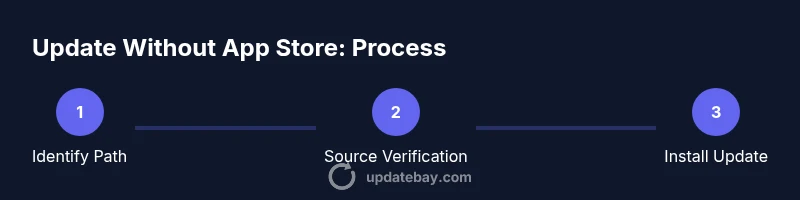
Identify Update Path
Determine whether your device supports official offline installers, vendor-provided packages, or other legitimate paths for updates. This initial step clarifies the scope and reduces risk by aligning with supported methods.
Tip: Know your device model and current OS/version before starting - 2
Find Official Installers
Visit the vendor’s official site or enterprise portal to locate the offline installer or package. Avoid third-party mirrors, as they can host tampered files. Verify the download page link via the device’s official support channels.
Tip: Prefer the vendor's direct download page - 3
Back Up Your Data
Create a full backup of critical data and system settings where applicable. This protects you if the update fails or causes compatibility issues. Verify that the backup is accessible and restorable.
Tip: Test a quick restore from the backup - 4
Enable Necessary Settings Temporarily
If required by the platform, enable temporary permissions or security allowances only for the update process. Revoke these permissions immediately after installation to maintain security.
Tip: Only enable temporary settings for the update - 5
Download the Update Package
Download the official installer or package to a secure location. Ensure the connection is HTTPS and the file size matches the vendor’s stated size to avoid corrupted files.
Tip: Avoid downloading during unstable network conditions - 6
Verify Package Integrity
Use the published checksum or digital signature to verify the file. A mismatch indicates tampering or corruption; do not proceed.
Tip: If verification fails, re-download from the official source - 7
Install the Update
Run the official installer or follow vendor-provided instructions for your platform. Do not interrupt the process once it starts, and follow any on-screen prompts carefully.
Tip: Keep the device plugged in and avoid multitasking during install - 8
Verify Update and Clean Up
After installation, verify the update version, test core functionality, and remove temporary files. Keep a rollback plan in case issues arise.
Tip: Check that the new version is reflected in app/OS info
Frequently Asked Questions
Is updating without the app store safe?
Updating outside the app store can be safe if you use official installers, verify signatures, and back up data. Avoid untrusted sources that may host malware.
Updating without the store is safer when you use trusted sources and verify integrity, plus back up first.
What are the risks of sideloading on Android?
Sideloading APKs from unknown sources can introduce malware or unstable software. Always use official or enterprise-approved sources and verify the APK signature.
Sideloading can be risky; use trusted sources and verify signatures.
Can I update iOS apps without the App Store?
Apple generally distributes iOS app updates through the App Store. Some enterprise apps may have alternate channels, but this is not typical for consumer apps and may violate terms.
For consumer apps, updates are usually via the App Store; alternate channels are uncommon.
Do I need to back up before updating?
Yes. A backup protects your data if the update fails or causes compatibility issues. It’s a best practice across Android, Windows, macOS, and Linux.
Always back up before updating to be safe.
How do I verify the authenticity of an update?
Use checksums or digital signatures published by the vendor. If these don’t match, do not install the update and re-download from the official source.
Check the signature or hash to confirm authenticity.
What if the update fails after installation?
Consult the vendor’s support resources, roll back if a restore point exists, and verify system stability before attempting another update.
If it fails, use the rollback options and seek official guidance.
Watch Video
What to Remember
- Back up before updating outside the store
- Verify source integrity and authenticity
- Follow platform-specific steps precisely
- Re-enable security settings after update
- Maintain a rollback plan if something goes wrong