How to Update Apple Watch: A Practical Guide
Learn how to safely update Apple Watch with our step-by-step guide. Prepare, troubleshoot, and verify watchOS updates for better security and performance.


This guide explains how to update Apple Watch (watchOS) using your iPhone, including prerequisites, a clear step-by-step process, and common troubleshooting tips. You’ll learn how to prepare devices, initiate the update, and verify the installation to ensure your watch stays secure and responsive.
Why Keep Your Apple Watch Updated
According to Update Bay, keeping your
Prerequisites Before You Update
Before you start an update, make sure you have everything you need. This reduces the chance of interruption and prevents a corrupted installation. Based on Update Bay research, the most common update failures happen when devices are offline, undercharged, or lacking temporary storage. Check these prerequisites:
- A compatible
How the Update Process Works (
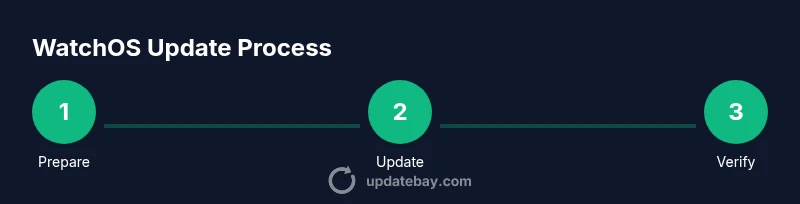
Step-by-Step Overview for Updating
In practice, most users perform these actions in sequence: verify prerequisites, update the
Troubleshooting Common Update Issues
If the update fails, common culprits are insufficient space, a flaky network, or the devices disconnecting during transfer. Start by freeing space on your
Verifying the Update and Post-Update Checks
After the update finishes, verify the
Automatic Updates, Settings, and Privacy Considerations
Automatic updates simplify maintenance, but you may prefer manual control to time updates around your day. If you enable automatic updates, ensure your
Final Preparation and Best Practices
Before you begin, ensure both devices have stable power and recent backups where applicable. Keep both devices close and actively connected during the process, and avoid initiating updates over a weak public network. After updating, perform a quick test run of your most-used apps and health features to confirm everything is functioning as expected. By following these best practices, you minimize risk and maximize the benefits of the newest
Tools & Materials
- iPhone with the latest iOS version(Must be signed into iCloud and connected to a reliable Wi‑Fi network)
- Apple Watch(On wrist or placed on charger during update)
- Apple Watch charger(Keep plugged in throughout the update)
- Stable Wi‑Fi network(Prefer 5GHz if available for stability)
- Sufficient storage on iPhone and Apple Watch(Free up space if needed before updating)
- Power source for devices(Keep devices charged to avoid mid-update shutdown)
Steps
Estimated time: 30-60 minutes
- 1
Prepare devices
Charge both devices to a comfortable level and connect your iPhone to a stable Wi‑Fi network. Open the Watch app on your iPhone to begin the process and ensure the Apple Watch is nearby.
Tip: Keep both devices close during the update to ensure a smooth transfer. - 2
Update iPhone if needed
If your iPhone isn’t on the latest iOS version recommended by Apple, perform that update first. This reduces compatibility issues between iPhone and watchOS during the transfer.
Tip: Back up your iPhone before applying major iOS updates. - 3
Open Watch app and start the update
In the Watch app, go to General > Software Update. If an update is available, tap Install or Update and enter your passcode if prompted.
Tip: Make sure you’re connected to power and avoid using the device for other tasks during installation. - 4
Monitor installation progress
The update will download on the iPhone and then install on the Apple Watch. Expect a progress indicator and possible watch reboots. Do not disconnect power or close the apps during this stage.
Tip: If the progress stalls, give it a few minutes, then retry or restart both devices. - 5
Verify post-install status
After installation completes, verify the watchOS version in the Watch app and on the watch. Restart both devices and test essential features (notifications, health tracking, app performance).
Tip: Wait a few minutes for system optimizations to settle before heavy usage. - 6
Finalize and back up
Complete any required sign‑ins, re‑enable preferred settings, and consider backing up your watch settings and iPhone data for future updates.
Tip: Document any settings changes you make so you can reproduce them after the next update.
Frequently Asked Questions
Do I need to update my iPhone before updating my Apple Watch?
In many cases, updating the iPhone first helps ensure compatibility with the watchOS update. If your iPhone is already current, you can proceed to update the Apple Watch, but if there’s a newer iOS available, consider applying it beforehand.
Yes, updating the iPhone first can help; if you’re already on the latest iOS, you can proceed to update the watch.
Can I use my Apple Watch while the update is in progress?
During the update, it’s best to avoid heavy use of the Apple Watch. Let the installation complete without running apps that could interrupt the process.
Avoid using the watch during the update to prevent interruptions.
What should I do if the update stalls at 0% or takes too long?
If the update stalls, disconnect briefly, restart both devices, and try again. Ensure a strong Wi‑Fi connection and adequate power before retrying.
If it stalls, restart and try again on a stable connection.
Will updating erase my data or settings?
A standard watchOS update should not erase your data. Backups of paired iPhone data are recommended, and you may need to re‑authenticate some services after the update.
Updates generally don’t erase data, but back up first and check your settings afterward.
How often should I update my Apple Watch?
Keep watchOS up to date with the latest security patches and features. Check for updates regularly, especially after major iOS releases or public beta periods.
Check for updates regularly and install them when available.
What if I have insufficient space for the update?
Free up space on both devices by removing unused apps or media, or temporarily offloading data to iCloud, then retry the update.
Free space or offload data, then retry the update.
Watch Video
What to Remember
- Prepare both devices before updating
- Update iPhone if required, then update watchOS
- Keep devices on power and near each other during install
- Verify the update and test core features after installation
- Prefer automatic updates for convenience, but review privacy settings afterward