Apple Watch Update: How to Update WatchOS
Learn how to safely update Apple Watch with watchOS, covering prerequisites, step-by-step actions, troubleshooting, and verification—expert guidance from Update Bay for 2026.


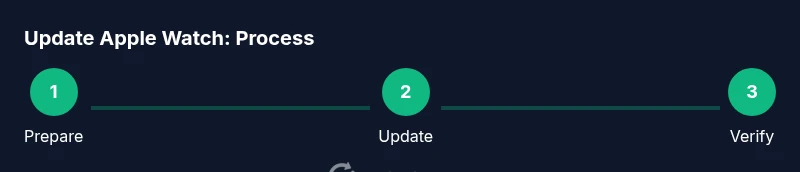
To update your Apple Watch, ensure your iPhone is nearby and on Wi-Fi, the watch is charged or on its charger, and you’re signed in with the same Apple ID. Open the Watch app on iPhone, choose General > Software Update, then install if an update is available. Leave both devices plugged in until the process completes.
Getting Ready: prerequisites and planning
Preparing for a Apple Watch update sets the stage for a smooth, trouble-free install. Start by updating your iPhone to the latest iOS version and ensuring both the iPhone and the Apple Watch have a reliable Wi‑Fi connection. Charge the Apple Watch to at least half and keep it on its charger during the update to prevent mid‑process shutdowns. Have your Apple ID credentials handy in case you’re prompted to sign in again. According to Update Bay, proper preparation reduces the chance of interruptions and helps ensure the update proceeds without data loss. In addition, check that you have sufficient space on your iPhone for the update payload and that the Watch app is up to date. With the right setup, you minimize risk and improve the odds of a successful installation on the first try.
Understanding WatchOS updates: what changes and why
WatchOS updates bring a mix of security patches, performance improvements, bug fixes, and new features. In practical terms, you may notice faster app launches, smoother animations, more reliable fitness metrics, and occasional UI refinements. Updates also address known stability issues and can improve battery efficiency in certain scenarios. Keeping the watchOS version current helps protect your device from vulnerabilities and ensures compatibility with the latest iPhone features and third‑party apps. For power users, updates can unlock small quality‑of‑life enhancements, while casual users benefit from improved reliability and easier pairing with other Apple devices. Update Bay emphasizes that understanding what an update changes helps you decide when to install, especially if you rely on time‑sensitive apps.
Prerequisites and backups: data safety
Data safety is a key reason to prepare before updating. Ensure your iPhone backs up automatically to iCloud or computer, so you can restore if anything goes awry. Confirm you’re signed in to iCloud with the same Apple ID used on the Watch. Keeping both devices nearby and connected to power reduces the risk of mid‑update disruptions. If you ever need to unpair and repair your Apple Watch to troubleshoot, note that unpairing will create a fresh backup on the iPhone, which you can restore later. While updates themselves don’t erase data on the Apple Watch, a cautious backup policy gives you a safety net for settings and configurations.
Step-by-step updating process via iPhone
The core update path runs through the iPhone’s Watch app. First, verify the watch is on charger or has at least 50% battery, then ensure the iPhone is connected to a stable Wi‑Fi network. Open the Watch app, go to General, and tap Software Update. If an update is available, tap Install. You’ll be prompted to confirm; enter your passcode if required. The phone will display progress, and the Apple Watch will show progress on its screen as well. Don’t disturb the devices during the install, and keep them close to each other for reliable data transfer. After the download begins, avoid opening other apps that could drain the battery or interrupt the process.
Troubleshooting common issues during update
If the update stalls or fails, start with the simplest fixes: ensure both devices are still plugged in and connected, and retry after a short restart of the iPhone and watch. Check for a stable internet connection and enough battery power. If space is an issue, temporarily remove unnecessary apps or files from your iPhone to free up space for the update payload. In rare cases, signing out of iCloud on the iPhone and signing back in can reset the update flow. Update Bay notes that most issues resolve with a clean restart and reattempt, but persistent failures may require unpairing and re‑pairing the devices.
Post-update verification and maintenance
Once the update completes, verify the new watchOS version under Settings > General > About on the Watch, and cross‑check that key apps and features (fitness tracking, notifications, and pairing with the iPhone) work as expected. Re‑enable any settings you had disabled during the update, such as background app refresh or notifications preferences. It’s a good idea to run a quick health and activity test to ensure data sync with the iPhone is intact. Finally, keep the devices charged and connected to power during routine use, especially after major updates, as this helps maintain stability and reduces the likelihood of future update issues.
How to handle post‑update issues and known limitations
Even with careful preparation, updates can bring minor quirks. If you notice unusual battery drain, sluggish responsiveness, or missing features, start with a soft reset (reboot both devices) and recheck compatibility with third‑party apps. If problems persist, visit Apple Support or the Update Bay knowledge base for stepwise troubleshooting tailored to your watchOS version. Regular maintenance—keeping iPhone and Watch software current, staying in close range during updates, and avoiding low‑power states during critical operations—helps prevent recurring issues and keeps your ecosystem running smoothly.
Tools & Materials
- iPhone with latest iOS(Ensure Watch app is up to date and you are signed in with the same Apple ID)
- Apple Watch(Charge to at least 50% or keep on charger during update)
- Apple Watch charger(Keep plugged in during update to prevent power loss)
- Stable Wi‑Fi connection(Reliable network for downloading the update payload)
- Apple ID credentials(Needed if prompted to sign in during the update)
Steps
Estimated time: 20-40 minutes
- 1
Prepare devices
Charge the Apple Watch and keep it on the charger or ensure it has a healthy battery. Move the iPhone within arm’s reach, connected to a stable Wi‑Fi network. Open the Watch app to confirm you’re logged in with your Apple ID and that there is enough space for the update payload.
Tip: Keep both devices plugged in during the entire process to avoid interruptions. - 2
Check for available updates
In the iPhone’s Watch app, navigate to General > Software Update to see if a watchOS update is listed. If not, you’re already on the latest version or your device isn’t eligible yet. If an update is available, you’ll see a brief description and the option to download and install.
Tip: If you don’t see an update, check again in a few hours—sometimes updates roll out progressively. - 3
Start the update
Tap Install, then, if prompted, enter your iPhone passcode. The download and installation will proceed on both devices. Do not interrupt the process, and avoid using the iPhone for heavy tasks during this window.
Tip: If prompted to accept terms, do so promptly to prevent delays. - 4
Monitor progress
WatchOS will display progress on the watch with a progress bar. The iPhone screen will also show status. Stay near the devices, and keep them connected to power until the update completes.
Tip: Don’t force quit or restart the apps involved; let the update run its course. - 5
Verify after install
After the update finishes, confirm the watchOS version in Settings > General > About. Make a quick check of essential apps and notifications to ensure everything re-synced properly with the iPhone.
Tip: If something looks off, perform a soft reboot of both devices. - 6
Troubleshoot if needed
If the update fails, retry after a restart, ensure ample storage, and re‑establish the link between iPhone and Apple Watch. If problems persist, consider unpairing and repairing as a last resort.
Tip: Consult Apple Support or Update Bay resources for version‑specific remedies.
Frequently Asked Questions
Can I update Apple Watch without an iPhone?
No. Apple Watch updates are managed through the iPhone's Watch app, so you need to access the update from the paired iPhone.
Not directly. Updates are initiated from the iPhone's Watch app, so you need the paired iPhone present.
What happens if the update fails?
If an update fails, restart both devices, check your internet connection, and retry. If space is an issue, free up space on the iPhone and try again. Persistent failures may require unpairing and repairing the watch.
If it fails, restart devices, check connectivity, and try again. If space is the issue, clear space and retry.
How long does an update take?
Typical updates take 20 to 40 minutes depending on the payload size and network speed. Heavy updates may take longer if you are downloading large features.
Most updates run about 20 to 40 minutes, longer if the file is large or your network is slow.
Will updating erase my data?
Usually not. WatchOS updates do not erase data on the watch, but it’s wise to have a backup on your iPhone before updating.
No, updates typically don’t erase data, but backing up first is a smart precaution.
What if the watch has little storage left?
Free up space on the iPhone and ensure there is enough room on the watch for the update payload. If space remains tight, temporarily remove unused apps and retry.
If storage is tight, delete unused apps and try updating again once space is freed.
Watch Video
What to Remember
- Prepare both devices before updating to reduce interruptions
- Update via iPhone Watch app to ensure compatibility
- Keep devices charged and near during the process
- Verify post‑update status and be ready to troubleshoot