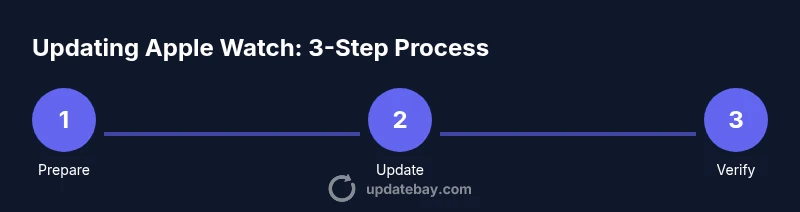
How to Update Apple Watch: A Practical Guide
Learn to safely update your Apple Watch to the latest watchOS with a clear, step-by-step plan. Includes prerequisites, methods, troubleshooting, tips, and verification to minimize risk.


If you’re wondering how update apple watch, this guide shows you how to update watchOS safely. You’ll learn what you need before you start, the two common methods (over‑the‑air via iPhone and a computer option), and how to verify the update completes without data loss. Follow the steps exactly, and you’ll minimize interruptions during the process.
Why Updating Your Apple Watch Matters
Updating your Apple Watch is about more than getting new features. Each watchOS release includes security patches, performance improvements, and bug fixes that can affect battery life, app compatibility, and overall reliability. Regular updates help ensure your device stays secure and responsive in daily tasks like fitness tracking, notifications, and contactless payments. Understanding how update apple watch in practice means recognizing that updates optimize the operating system to better utilize the hardware you rely on every day. According to Update Bay, timely updates reduce exposure to known vulnerabilities and improve battery management, which translates into longer daily use and fewer quirks. This guidance isn’t about chasing every new feature, but about maintaining consistent performance and security for wearables that carry personal data.
When you see a watchOS update available, it’s a signal to plan a brief maintenance window. The investments in time and preparation pay off with a smoother experience and fewer post-update issues. In practice, the benefits include faster app launches, better health and fitness metrics accuracy, and improved integration with other Apple devices. If you’re new to updating, think of it as routine maintenance that protects your digital life as you wear your device daily.
Prerequisites Before You Update
Before you start, make sure your iPhone is running the latest iOS and that your Apple Watch has sufficient power. A stable Wi‑Fi connection speeds up the download, and keeping both devices close together reduces the chance of interruptions. Sign in with your Apple ID and ensure two-factor authentication is enabled, since you may need to authorize the update on your iPhone. It’s also wise to perform a quick backup of your iPhone data and review your storage on the iPhone to ensure there’s enough room for the update download. These steps minimize surprises and help you recover quickly if something goes wrong. In short, prep work now prevents headaches later and helps the update go smoothly.
Update Methods: Over-the-Air vs. Computer
Most users update watchOS over the air (OTA) using the Watch app on the paired iPhone. The OTA path downloads the watchOS update to the iPhone and then transfers it to the Apple Watch, which simplifies the process and requires no extra cables. A computer-based update is less common for Apple Watch but can be used in particular scenarios with Finder on macOS or iTunes on Windows. The computer method can be helpful if you have a slow OTA connection or limited storage on the iPhone. In both cases, you should keep the devices near each other and plugged in during the update to avoid failures caused by power loss.
Step-by-Step Troubleshooting and Verification
If the update stalls, check your Wi‑Fi connection and battery level on both devices. Keep the iPhone close to the Watch and ensure the Watch app is active. If necessary, restart both devices and retry the update. After installation, verify the new version by going to Settings > General > About on the Watch and confirming the watchOS version. If everything looks right, run a quick test of key features like notifications, messages, and health metrics to confirm full functionality.
Common Pitfalls and How to Avoid Them
A common mistake is starting the update on a flaky network or when either device is low on power. Avoid this by charging the Watch and keeping the iPhone on a reliable Wi‑Fi network. Another pitfall is interrupting the update—do not force quit the Watch app or unplug devices mid‑install. If storage is low on the iPhone, free space before downloading. Finally, if you rely on certain apps, ensure they’re compatible with the new watchOS version before updating to prevent post‑update issues.
After Update: What Changes to Expect and How to Adapt
Post-update, explore the new features and settings introduced by watchOS. Check for app compatibility and adjust notification preferences if needed. Take a moment to review privacy settings and permissions for newly added features. A quick run-through of core tasks—reading messages, tracking workouts, and monitoring health metrics—helps confirm essential functions are working correctly and gives you a practical feel for the updated experience.
Tools & Materials
- iPhone with the latest iOS(Keep a stable Wi‑Fi connection and ensure Continuity features are enabled.)
- Apple Watch with charger(Keep the watch on its charger during the update.)
- Mac with Finder or Windows PC with iTunes (optional)(For computer-based update path if desired.)
- Stable Wi‑Fi network(Prefer a reliable 5 GHz network for speed and stability.)
- Apple ID with two-factor authentication(Required to authorize updates.)
Steps
Estimated time: 30-60 minutes
- 1
Prepare devices and backup
Charge both devices and ensure the iPhone has a stable internet connection. Back up important data to iCloud or your computer to safeguard your information during the update.
Tip: Enable charging on the Apple Watch and connect the iPhone to a reliable Wi‑Fi network. - 2
Open the Watch app on iPhone
On the paired iPhone, open the Watch app to access watchOS settings and updates. Keep the iPhone within reach throughout the process.
Tip: Ensure the iPhone is unlocked so the app can proceed without prompts. - 3
Check update availability
In the Watch app, go to General > Software Update to see if a watchOS update is available. If there is, prepare to install.
Tip: If no update appears, verify the iPhone has internet and is properly paired. - 4
Start the update
Tap Install, enter your passcode if prompted, and allow the download to begin. Avoid using the phone for other tasks while the update runs.
Tip: Keep both devices near each other and plugged in during the process. - 5
Monitor progress
Watch the progress indicators on both devices. Do not disconnect power or move away from the Wi‑Fi during installation.
Tip: If the progress stalls, pause briefly and retry from the same screen. - 6
Verify success and finalize
After installation, confirm the version in Settings > General > About on the Watch. Re‑pair if any pairing issues appear.
Tip: Test notifications and key features to ensure everything works as expected. - 7
Optional: adjust settings post-update
Customize watch faces, notifications, and app permissions as needed to optimize your updated experience.
Tip: Review privacy settings for newly added features.
Frequently Asked Questions
Do I need my iPhone nearby to update Apple Watch?
Yes. Updates are managed through the paired iPhone's Watch app, so keep the iPhone close during the process.
Yes. You usually update your Apple Watch using the Watch app on your iPhone, so keep the iPhone nearby.
Can I update Apple Watch without iPhone?
In most cases, updates are started from the iPhone. If the update was downloaded, the Watch may install, but you still typically need the iPhone.
Usually you need the iPhone to start the update; the watch may complete the installation if the update was downloaded beforehand.
What should I do if the update fails?
Check your internet connection and battery level, restart both devices, and retry. If persistent, attempt a computer-based update or seek support.
If it fails, verify connectivity and power, restart, and try again; if needed, use a computer-based update.
How long does an update typically take?
Updates generally take some time depending on download speed and device readiness. Plan for a window of time.
Updates usually take around half an hour to an hour, depending on network conditions and hardware.
Will updating Apple Watch erase data?
Updates shouldn’t erase data, but backing up beforehand is a good safety net.
Updates don’t normally erase data, but it’s smart to back up before updating.
What if the progress is stalled?
Check power and network status, then retry from the Watch app. If issues persist, consider a computer-based update.
Stalled progress usually means connectivity or power issues; fix those and retry.
Watch Video
What to Remember
- Prepare devices and backup before updating
- Use the Watch app on iPhone for updates
- Keep devices plugged in and on Wi‑Fi
- Verify the update and test core features after installation