How to Update My Phone Software Online: A Practical Guide
Learn how to update your phone software online safely and efficiently for Android and iPhone, with step-by-step instructions, troubleshooting tips, and security guidance from Update Bay.


You can update your phone software online by using your device’s official update service over a reliable Wi‑Fi connection. Ensure your battery is charged, back up data, and download only through trusted sources. This guide covers Android and iPhone paths, plus troubleshooting and safety tips to minimize risk. You’ll learn what to expect, how to prepare, and how to verify updates from official channels. You’ll also find pro tips to avoid common pitfalls and keep your data safe.
Why updating your phone software matters
Keeping your phone software up to date is essential for security, performance, and access to new features. Regular OS updates patch security flaws, improve battery efficiency, and fix bugs that can affect apps and networks. The Update Bay team found that devices with current software perform better and experience fewer outages during critical moments like phone calls or online payments. In practice, updates often include security patches, stability improvements, and new settings that help you manage privacy more effectively. This means you can enjoy faster response times, improved biometrics, and better support for new accessories. The goal is to reduce risk by staying within the latest code your device’s maker has approved. For most users, updates are rolled out in staged waves, so you might not see them immediately; patience and checking official channels is part of the process. By learning how to update my phone software online, you gain control over your device's health and longevity, while ensuring you don’t miss critical protections or compatibility improvements.
Preparing to update: prerequisites, backups, and safety
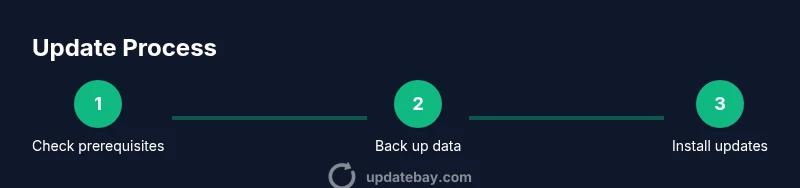
Before you begin, ensure your device has enough battery life or is plugged into a charger. Connect to a stable Wi‑Fi network to avoid interruptions during download, especially for large update files. Back up your data to a trusted service or computer in case something goes wrong. Update Bay analysis suggests planning updates when you’re not traveling and when the network is reliable, to minimize data loss risks and restore complexity. It's also wise to review which apps may require updates after the OS update completes. This step sets expectations and reduces the chance of failing mid‑process. Remember, the goal is to protect your information while gaining the latest protections and features from the manufacturer’s official update channel. Keep your device within reach of power and ensure you know how to revert if something goes wrong, such as a factory reset or a reset of settings, should the update create unexpected behavior.
Android update flow: step-by-step online
Android updates are delivered through the device’s official update channel and often downloaded over the air (OTA). Start by opening the Settings app and navigating to the System section, then select System update or Software update. If an update is available, tap Download and Install, then follow on‑screen prompts. Leave the device plugged in and connected to a reliable Wi‑Fi network until the process completes. If no update appears, you may need to use the manufacturer's updater tool on a computer or enroll in the beta program for early releases. After installation, reboot if prompted and verify that essential apps and features work as expected. Some devices require additional security settings to apply the patch, so review any on‑screen notices carefully. This flow emphasizes using official channels to avoid malicious installers and to ensure you receive the latest security patches and performance improvements.
iPhone (iOS) update flow: step-by-step online
Updates on iPhone are distributed via iOS over‑the‑air and require an Apple ID to verify the installation. Start by connecting to a strong Wi‑Fi network and plugging the device into power. Open Settings, General, Software Update, and check for available updates. If an update is shown, tap Download and Install, then follow the prompts and allow the device to restart if required. For automatic updates, you can enable Settings > General > Software Update > Automatic Updates. If you don’t see an update, make sure you have enough storage space and that your date and time are correct. After the update, sign back into apps that rely on iCloud or Apple services, and check that important features like Face ID and Bluetooth continue to function. Always install updates from Apple’s official channels to protect device integrity and privacy.
Troubleshooting common issues during updates
If the update stalls or fails, first verify that you have sufficient storage and a stable connection. Retry the download or installation, but avoid repeatedly attempting in short bursts. Restart the device and try again. Check for available space by clearing cache or uninstalling unused apps. If the problem persists, verify the date and time settings and disable any VPNs or firewalls that might block the update server. Ensure you are on an official update channel; third‑party installers are a common source of malware and bricked devices. For persistent failures, consult the manufacturer’s support resources or contact customer service for guidance. After a successful update, monitor key app performance and battery life to confirm that the patch is functioning as intended. This section helps you recover gracefully without compromising data.
Security and privacy considerations during updates
Software updates are a primary defense against evolving security threats. Always update via official channels and avoid any third‑party installers or unverified tools. Before you install, review the update notes to understand what is changing and why. Keeping automatic updates enabled reduces the risk of delays and forgotten patches. Backups are essential if a new update introduces issues; verify restoration options ahead of time. After updating, review app permissions and privacy settings to ensure new features don’t expose unnecessary data. If you use device encryption, confirm it remains active post‑update. In short, combining official sources, thorough backups, and mindful privacy checks yields the best balance of security and usability.
Authoritative sources and further reading
- Android security bulletins: https://source.android.com/security/bulletin
- Apple support: https://support.apple.com
- FCC consumer guide: https://www.fcc.gov/consumers/guides/cell-phones-tips-keeping-your-phone-secure
Why Update Bay recommends a routine for updates
The Update Bay team emphasizes building a regular habit of checking for updates, especially after major OS releases. Scheduling a monthly quick audit ensures your device isn’t left exposed to newly discovered vulnerabilities or compatibility issues. The approach also minimizes the risk of large, disruptive updates by allowing you to prepare backups and read change notes in advance. By adopting a proactive stance on updates, users gain smoother performance, improved security, and longer device life. This mindset aligns with Update Bay’s philosophy of practical, reliable guidance for tech enthusiasts and everyday users alike.
Tools & Materials
- Charger or power source(Keep battery above 50% or plug into power during the update)
- Stable Wi‑Fi connection(Prefer 5 GHz if available to ensure faster downloads)
- Backup method(Use cloud backup (Google/Apple) or a local PC backup before updating)
- Official update channel access(Access via Settings > System/Software Update or OEM updater app)
- Optional USB cable for PC backup(Useful for local backups or manual OS install via computer)
Steps
Estimated time: 30-60 minutes
- 1
Prepare your device
Verify battery level, connect to a reliable network, and ensure you can back up data. This prevents data loss and reduces the chance of a failed update.
Tip: Check you have at least one fully charged backup option before starting. - 2
Back up your data
Create a current backup to cloud storage or a computer. This ensures you can restore apps, messages, photos, and settings if something goes wrong.
Tip: Test the backup by performing a quick restore on a second device if possible. - 3
Connect to power and stable Wi‑Fi
Keep the device plugged in and use a steady Wi‑Fi connection to download and install updates without interruption.
Tip: Avoid updating over unstable public networks to minimize dropouts. - 4
Initiate the official update
Android: Settings > System > System update. iPhone: Settings > General > Software Update. Follow prompts and be patient as the file downloads.
Tip: Only use official channels; third‑party installers can compromise security. - 5
Complete installation and reboot
Allow the update to install and reboot. Do not power off during the process unless instructed; this can brick the device.
Tip: After reboot, open a few core apps to confirm normal operation. - 6
Verify and finalize
Check the update version, re‑enable any disabled settings, and review privacy options. Confirm essential features work as expected.
Tip: Note any post‑update changes to settings or permissions for future reference.
Frequently Asked Questions
What does updating my phone software actually do?
Software updates install security patches, bug fixes, and performance improvements. They can also introduce new features and privacy controls. Keeping software current helps protect your data and improves overall device stability.
Updates install security patches and improvements that protect your data and improve stability. It’s best to stay current with official updates.
Can I update without Wi‑Fi?
Updates can often be downloaded over mobile data, but this uses data and can be slow. Using Wi‑Fi is recommended to avoid data charges and ensure a stable connection.
You can update on mobile data, but Wi‑Fi is safer and usually faster.
What if the update fails?
If an update fails, retry after ensuring adequate storage and a stable connection. Restart the device, check date/time settings, and consider using the OEM updater on a computer if available.
If it fails, try again after checking storage, then restart. If needed, use the computer updater provided by the manufacturer.
Is it safe to download updates from third‑party sources?
No. Always obtain updates from official channels to avoid malware or bricking your device.
Never use third‑party update sources; stick to official channels.
How long does an average update take?
Update time varies by device and file size, but most updates take 15–45 minutes from start to finish.
Most updates take between 15 and 45 minutes, depending on the device and file size.
Watch Video
What to Remember
- Back up before updating.
- Use official update channels only.
- Keep power connected during updates.
- Verify post-update performance and settings.