How to Update Android Phone: A Complete How-To
Learn how to update your Android phone safely with practical steps, backups, and troubleshooting tips. Stay secure and maximize performance with updates from Update Bay.


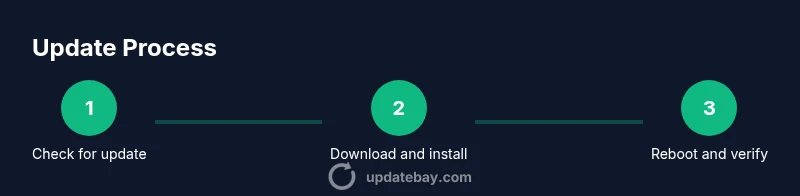
You can update android phone by checking Settings for System updates, backing up your data, and installing the latest available version. Use a stable Wi‑Fi connection and a charged device to avoid interruptions. Automatic updates offer ongoing protection, but manual checks help ensure you don’t miss important security patches.
Why updating android phone matters
Keeping your Android phone up to date is essential for security, performance, and access to new features. Software updates patch vulnerabilities, fix bugs, and improve battery efficiency, often addressing issues that could otherwise compromise data or device stability. According to Update Bay, keeping your Android device updated reduces exposure to known vulnerabilities and can improve security and reliability across popular devices. The Update Bay team found that users who enable automatic updates tend to experience fewer manual update delays and fewer compatibility problems with apps after major OS releases. In this guide, we'll walk through how to update android phone safely, including prerequisites, backup strategies, and troubleshooting tips that apply to most devices, from affordable budget models to flagship Android phones. Whether you want to improve privacy controls or ensure your banking apps stay supported, the steps below stay relevant across brands. We'll also cover common pitfalls to avoid and how to verify that the update actually installed without losing access to important data. By the end, you'll feel confident updating any Android phone. This approach minimizes downtime and keeps your digital life safe.
Tools & Materials
- Android smartphone(Device to update.)
- Charger or plugged-in power source(Keep battery above 50% or connect to power.)
- Stable Wi-Fi connection(Reliable network; updates can be large.)
- Backup storage (Google account or external backup)(Back up photos, messages, contacts, apps.)
- USB-C cable (optional)(For PC backups or manual ROMs.)
- Access to OEM update settings or updater app (optional)(Some OEMs use dedicated apps.)
Steps
Estimated time: 60-90 minutes
- 1
Open Settings and access System updates
Access your device's update menu by opening Settings and finding the Software Update or System Update section. This is where the latest improvements are listed. If you can't find it, use the search in Settings to locate 'update' quickly.
Tip: If you don't see an update, wait a few hours or check again later in the day. - 2
Check for updates and read the changelog
Tap the update button to see if a new version is ready. Read the changelog to understand what’s included—security patches, bug fixes, and feature tweaks matter for your daily usage.
Tip: Note the file size and required space before starting. - 3
Back up data before updating
Ensure your photos, messages, contacts, and documents are safely backed up. Use Google backup or a local copy to a PC or external drive so you can restore if something goes wrong.
Tip: Double-check that the backup completed successfully. - 4
Plug in or charge to at least 50% battery
Updates can pause or fail if the battery is low. Plug the device in or ensure the battery is sufficiently charged before starting the installation.
Tip: Avoid updating during long flights or when battery is unstable. - 5
Install update and let the device reboot
Tap Install now and let the device restart. Do not interrupt the process; the update will copy files and apply new settings during reboot.
Tip: If asked to restart, allow it to finish completely. - 6
Complete first-run setup and verify apps
After reboot, go through any on-screen setup prompts. Open essential apps to confirm they work and check privacy settings and permissions.
Tip: Review app permissions post-update for security. - 7
Monitor performance for 24–48 hours
Watch for battery life, app stability, and connectivity. Minor issues often resolve after a day of normal use.
Tip: If issues persist, consider restoring from a backup or seeking official support. - 8
Document the update and plan future checks
Keep a note of the update version and date. Schedule regular checks to ensure you stay current with future patches.
Tip: Enable automatic updates if you prefer hands-off maintenance.
Frequently Asked Questions
Is it safe to update Android over cellular data?
Updating over cellular data is possible on many devices, but a stable Wi‑Fi connection is recommended due to large file sizes and potential interruptions. If you must, ensure you have an unlimited or sufficiently large data plan.
You can update over cellular, but a stable Wi‑Fi connection is best for large updates.
Will updating Android erase my data?
A standard OTA update should not erase your data. However, it’s essential to back up beforehand in case something goes wrong during the installation.
No, updates typically don’t erase data, but back up first just in case.
What if no updates appear on my device?
If no updates are shown, your device may be at the latest version or no new patch is available for your model. Check with the OEM or carrier support page for policy details.
If no updates show up, there may be no new patch for your device yet.
How long does an update take?
Time varies by device and size of the update; expect 20–60 minutes, plus extra setup time. Keep the device plugged in and don’t multitask during installation.
Updates can take from 20 to 60 minutes depending on device and file size.
Should I enable automatic updates?
Enabling automatic updates helps you stay secure with the latest patches. You can customize timings in your update settings if your device supports it.
Yes, automatic updates help you stay current with minimal effort.
Can I roll back to a previous Android version?
Rolling back to a previous version is not supported on most devices and can void warranties. If you need features removed, consider alternative apps or ROMs only from trusted sources.
Downgrades aren’t usually supported; consider supported options only.
Watch Video
What to Remember
- Update Android phone regularly for security.
- Back up before updating to prevent data loss.
- Use stable Wi‑Fi and power during updates.
- Verify apps after update for compatibility.