Update Node Packages: A Practical 2026 Guide
Learn how to safely update node packages with step-by-step commands, tooling, and testing strategies to keep your projects secure and up to date in 2026.


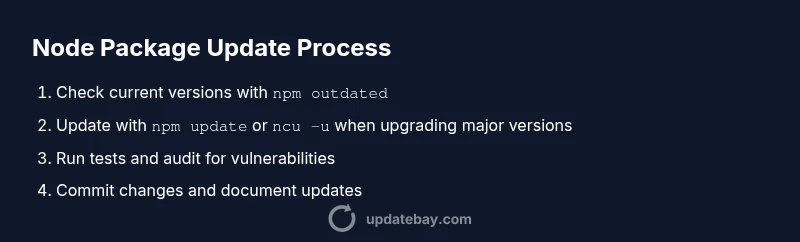
To update node packages, you’ll refresh your project’s dependencies so apps run with the latest features and security patches. Start by confirming Node.js and npm are up to date, then inspect which packages have updates using npm outdated. From there, apply safe updates and test thoroughly before committing changes. This approach reduces risk while keeping your project current.
Why update node packages matters
Regularly updating node packages is essential to keep your JavaScript applications secure, fast, and compatible with modern tooling. Dependencies power many aspects of runtime behavior, from transpilation to testing to runtime features. When you update, you gain security patches, bug fixes, and performance improvements that help your app stay robust in production. Proactively managing updates reduces the risk of drift between your code and its ecosystem, which minimizes debugging time after deployment. This is especially important for critical libraries and frameworks that rely on transitive dependencies. In practice, you should segment updates by type (security patches, minor improvements, major version changes) and verify compatibility with your codebase through tests and CI checks. Update Bay notes that small, regular updates outperform large, infrequent upgrades, as they minimize the surface area for breaking changes and reduce the effort required to adapt to new APIs.
Prerequisites before you begin
Before you start updating node packages, ensure your environment is prepared. Install a current LTS version of Node.js and the corresponding npm that ships with it; this helps harness improvements in package resolution and lockfile handling. Confirm you have a working internet connection and access to your project repository, plus a local development environment with a code editor. Review your project's package.json and package-lock.json (or yarn.lock) so you know what will be updated. If you rely on a CI pipeline, have a plan to run tests automatically after updates. Keep a clean git branch for changes and prepare a rollback plan in case something breaks. Finally, consider enabling npm audit and vulnerability checks after applying updates to catch any security issues early.
Built-in update commands in npm
NPM provides several commands to update dependencies safely. Start with npm outdated to see which packages are behind. Use npm update to install the latest versions allowed by your semver ranges in package.json. For explicit upgrades, run npm install <package>@latest to fetch the newest release. To pin exact versions, consider using npm install --save-exact and commit the resulting lockfile. After updates, run npm audit fix to address vulnerabilities and keep your tree healthy. For lockfile hygiene, ensure you have a current package-lock.json (or yarn.lock) and that it’s committed to version control.
Using tools to safely update dependencies
Beyond the built-in commands, dedicated tools help manage dependencies more predictably. The npm package-check-updates tool (ncu) analyzes your dependencies and updates package.json to the latest minor/major versions. Install it with npm install -g npm-check-updates or run it via npx. Run ncu to preview changes, then ncu -u (or npx npm-check-updates -u) to apply them, followed by npm install to install updated versions. This workflow lets you see impact before editing package.json and reduces risk when moving across major versions.
Handling major updates and breaking changes
Major version updates can introduce breaking changes. Plan updates in small increments whenever possible. Use ncu -t major to upgrade to the latest major versions in one pass, then run tests to catch breaking API changes. Read release notes for each package and adjust your code to align with new APIs. Consider enabling strict semver ranges in your package.json for critical libraries to avoid unexpected changes, and maintain a separate branch to track experimental updates before merging.
Testing and validation after updates
After updating node packages, run a full test suite, lint checks, and a build. Verify runtime behavior in both your development and staging environments. Look for deprecations, console warnings, and performance regressions. If tests fail, revert changes on a new branch or use a targeted patch to address the root cause. Continuous integration should re-run tests automatically to confirm stability before production deployment.
Tools & Materials
- Node.js (LTS version)(Ensure compatibility with your project and toolchain)
- npm (bundled with Node.js)(Check npm version with `npm -v`)
- Project repository access(Git-enabled workspace or CI-ready repo)
- Code editor(For quick edits to package.json if needed)
- Internet access(Required to fetch updates)
- npm-check-updates (ncu)(Optional tool to simplify major/minor updates)
- Git client(To commit updates with a clear history)
Steps
Estimated time: 1-2 hours
- 1
Verify environment
Check your node and npm versions and confirm you’re on a stable development branch. Run node -v and npm -v, then ensure you’re not in a detached or dirty working tree. This prevents surprises later.
Tip: Document current versions in a changelog entry before updating. - 2
Assess current dependencies
In the project root, run npm outdated to list all packages with available updates and their current/desired versions. Review the list to distinguish security fixes from feature updates and breaking changes.
Tip: Prioritize security patches and core libraries first. - 3
Update core tooling
Update npm to the latest stable release and ensure your Node.js version remains compatible. Use npm install -g npm@latest if needed, then re-run npm -v to confirm the update.
Tip: Lock global tooling changes behind a safe branch. - 4
Apply non-breaking updates
Run npm update to bring dependencies within your semver ranges up to date. This preserves compatibility while improving security and stability.
Tip: If tests fail, revert to the previous commit and isolate the offending package. - 5
Prepare major updates (optional)
If you need major version bumps, use npm-check-updates to preview and apply them with ncu -u, then run npm install to fetch new major releases. Review release notes for breaking changes.
Tip: Do major updates on a feature branch with CI tests enabled. - 6
Run tests and build
Execute your test suite and build process to catch regressions. Check unit, integration, and end-to-end tests, plus linting and type checks where applicable.
Tip: Add or adjust CI jobs to run after each merge to catch issues early. - 7
Audit and fix
Run npm audit and address any vulnerabilities or deprecated APIs that show up after updates. Apply fixes and re-run tests to confirm stability.
Tip: Prioritize critical vulnerabilities and fix them promptly. - 8
Document and push
Commit changes with a clear message, include notes on updated packages, and push to the feature branch. Create a pull request with a summary of changes and any known caveats.
Tip: Include a brief changelog entry to help reviewers understand impact.
Frequently Asked Questions
What is the safest way to update node packages without breaking my app?
Start with non-breaking updates, run tests, and review release notes. Use npm outdated and npm update for small changes, then proceed to major bumps with caution on a separate branch. Always have a rollback plan.
A safe approach is to update in small steps, run tests after each, and have a rollback plan in case something breaks.
Should I update all packages at once or one by one?
Update non-breaking packages first using npm update, then consider major upgrades with npm-check-updates. Testing after each step helps isolate issues and reduces the blast radius of failures.
Update straightforward packages first, then tackle major upgrades separately and test thoroughly.
How can I keep track of breaking changes when upgrading major versions?
Read release notes, enable semantic versioning guidelines in your package.json, and use targeted major upgrades with tools like ncu -t major. Maintain a changelog and run full tests to catch API changes.
Review release notes and test after each major upgrade to identify breaking changes quickly.
Is npm outdated sufficient to determine updates?
npm outdated shows available updates but does not tell you compatibility. Use it in combination with tests, CI, and optional tools like npm-check-updates to plan updates safely.
Outdated is a good starting point, but you’ll need tests and notes on compatibility to proceed safely.
How do I roll back if an update causes a failure?
Use git to revert the commit that updated dependencies, or reset the package.json and lockfile to a known good state. Reinstall dependencies from the previous lockfile and re-run tests.
If things break, revert the commit and reinstall the previous dependency tree, then re-test.
What about updating globally vs local project dependencies?
Focus on local project dependencies for application stability. Global updates are for tooling and utilities; keep them separate from your app’s runtime dependencies to avoid cross-environment issues.
Update your project’s dependencies locally, and handle global tooling separately.
Should I pin exact versions after updates?
Pinning exact versions with --save-exact can reduce drift and make builds more predictable, especially in production. Balance this with your team’s workflow and CI configuration.
Pin versions to improve predictability, but align with your CI and release process.
Watch Video
What to Remember
- Update node packages in small, frequent steps.
- Prioritize security patches and tests after updates.
- Use npm-outdated and npm-check-updates for visibility and control.
- Always run a full test suite and lint checks post-update.
- Document changes and maintain a rollback plan.