How to Update a Package with npm: A Practical Guide
Learn how to update npm packages safely, manage version ranges, audit dependencies, and test changes to keep your project secure and working.


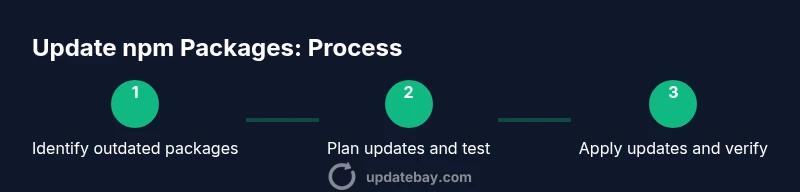
Updating a package with npm is straightforward: identify which packages need updating, decide whether to update all or targeted packages, and run the right commands. Use npm update for minor/patch updates within your version ranges, npm install for major upgrades, and npm audit to check vulnerabilities before applying changes. Always test changes locally before committing.
Why updating npm packages matters
Keeping npm packages up to date is essential for security, performance, and compatibility. Each update patches known vulnerabilities, fixes bugs, and can unlock new features that improve your application's behavior. Skipping updates over long periods increases the risk of drift, where dependencies diverge from the environment where your app was built, leading to runtime failures or harder debugging. According to Update Bay, regular updates are a best practice for modern JavaScript projects. The goal isn't to chase every new release but to apply targeted, validated changes that preserve stability while reducing risk. In practice, you should monitor important packages (such as core libraries and build tools) and plan updates around your release cycle. Consider setting up a process that prioritizes security-related patches and compatibility fixes first, then feature updates once you have validated tests. This foundational habit makes it easier to maintain a healthy codebase over time.
Understanding npm update vs install vs upgrade
When you update a package with npm, it's important to distinguish between npm update, npm install, and major version upgrades. npm update updates packages to the highest version allowed by your package.json ranges. For example, if you have "express": "^4.17.1", npm update will install the latest 4.x.x. npm install, by contrast, installs a new version according to your spec or a new package, and it can add or upgrade dependencies. Note that npm update does not necessarily fetch major version upgrades unless your range allows it. If you need to go to a new major version, you can run npm install <pkg>@latest or specify a major version like npm install <pkg>@5.0.0 to override ranges. After updating, npm will refresh package-lock.json to reflect the new dependency graph. This means that committing the lockfile is part of maintaining reproducible builds. Understanding these distinctions helps you implement smoother, safer updates and avoid accidental major bumps. Update Bay analysis, 2026 shows that aligning updates with tested ranges minimizes surprises.
Preparations: audit, backup, and version ranges
Before you touch dependencies, establish a safe baseline. Run npm outdated to identify what’s behind, and npm audit to surface known vulnerabilities. Create a quick backup of package.json and package-lock.json (or commit them to your VCS) so you can revert if something goes wrong. Review version ranges in your package.json: consider whether you want to stay within the current major line (e.g., ^4.0.0) or allow minor bumps (e.g., ^4.x) while avoiding automatic major upgrades. Document any changes you plan to make, and ensure your local environment mirrors CI and staging as closely as possible to prevent surprises during deployment.
How npm update works under the hood
npm relies on package.json ranges and the existing lockfile to determine what can be updated. When you run npm update, npm resolves the highest compatible versions within your defined ranges and rewrites node_modules and package-lock.json accordingly. This doesn't alter major versions unless your range allows it. The lockfile plays a critical role in reproducible installs, so keep it under version control and commit after updates. If you need a more aggressive upgrade path, you can bypass the range by explicitly installing a new version (e.g., npm install <pkg>@<version>). This operation also updates the lockfile to reflect the new graph. Understanding this behavior helps you plan updates with confidence and minimal disruption.
Strategies: updating all vs targeted updates
You can update all dependencies with a single command or target specific packages that require attention. For broad updates, npm update will adjust all eligible packages within your ranges. For targeted updates, identify the packages most likely to impact your app (core libraries, build tools, security-related packages) and update them individually using npm update <pkg> or npm install <pkg>@<version>. After making changes, re-run tests and build checks to confirm compatibility. Update Bay analysis, 2026 reinforces the idea that staged, selective updates reduce risk while maintaining progress.
Handling breaking changes and major version updates
Major version updates can introduce breaking changes. When planning a major update, first read the release notes to understand the changes, deprecations, and migration steps. Pin the new major version in package.json if you intend to adopt it, then run npm install to update the lockfile. Run your test suite in a staging environment and fix any breaking changes before merging. If you must stay on a major version for a time, consider using feature flags and incremental updates to minimize risk.
Best practices for package.json and lockfiles
Maintain clear version ranges in package.json and always commit package-lock.json after updates. Use npm ci in CI pipelines to ensure deterministic installs based on the lockfile. Prefer patch or minor upgrades when possible and reserve major upgrades for planned release cycles after thorough testing. Regularly audit projects for vulnerabilities and update those packages promptly to reduce exposure. Consider pinning critical dependencies to known-good versions during high-risk periods to protect production systems.
Common pitfalls and how to avoid them
Common pitfalls include updating without tests, ignoring breaking changes, and relying on npm update to handle major bumps automatically. Always test in a staging environment, review release notes, and validate bundle sizes and performance after updates. Don’t forget to update documentation and inform your team about changes. Finally, avoid updating too many dependencies at once in critical projects; gradual updates minimize regression risk.
Measuring success: test, build, and deployment checks
After updating, run the full test suite, lint checks, and any end-to-end tests. Rebuild the project and verify that the deployment pipeline passes in CI. If issues arise, use a rollback plan and revert the lockfile if necessary. The goal is a stable, reproducible, and well-documented update that improves security and performance without introducing new bugs.
Tools & Materials
- Node.js installed (LTS)(Ensure Node version is compatible with npm version you plan to update.)
- npm (comes with Node.js)(Verify npm -v to confirm version before updates.)
- package.json and package-lock.json(Back up or commit before making changes.)
- Git repository access(Helpful for reverting changes if needed.)
- Network access to npm registry(Needed to fetch updated packages.)
- Testing environment (dev/staging) ready(Test updates before production deployment.)
- Release notes or changelog access(Use to assess breaking changes for major upgrades.)
Steps
Estimated time: 60-120 minutes
- 1
Prepare your environment
Ensure Node.js and npm are up to date, and that you have a clean working directory. Create a new branch and back up package.json and package-lock.json so you can revert if needed. This step reduces risk when you start updating packages.
Tip: Use a dedicated update branch to isolate changes from main development work. - 2
Audit current state
Run npm outdated to list what’s behind and npm audit to identify vulnerabilities. This gives you a clear picture of which packages need attention and what risks you’re mitigating before applying updates.
Tip: Prioritize security-related patches first based on vulnerability findings. - 3
Decide your update strategy
Determine whether to update all packages within your ranges or target specific ones. For major upgrades, plan and test in a staging environment before updating. Document the strategy for your team.
Tip: Major upgrades deserve a formal plan and code review. - 4
Apply targeted updates
Update selected packages with npm update <pkg> or npm install <pkg>@<version> to upgrade beyond the current range if needed. This updates node_modules and refreshes package-lock.json.
Tip: Limit the number of simultaneous changes to simplify debugging. - 5
Test thoroughly
Run unit tests, integration tests, and build processes to catch regressions. If tests fail, revert to the previous lockfile and re-evaluate the strategy.
Tip: Don’t bypass tests; they catch issues that static analysis misses. - 6
Update lockfile and commit
Once tests pass, commit package.json and package-lock.json. This ensures reproducible builds for CI and teammates.
Tip: Include a concise PR description detailing the updates and rationale. - 7
Monitor after deployment
Observe application behavior in staging and production for a period after deployment. Be prepared to rollback if unexpected issues arise.
Tip: Set up monitoring alerts for errors and performance regressions.
Frequently Asked Questions
What is the difference between npm update and npm install when updating packages?
npm update modifies installed packages within the ranges specified in package.json, while npm install can add new packages or adjust to a specified version. For major upgrades, you often need to run npm install <package>@version or modify the range in package.json and then run npm install.
Use npm update to stay within your defined ranges, and use npm install when you need a new version or to apply a major upgrade after updating the range.
Can I update all dependencies at once?
Yes, you can use npm update to refresh all packages that are allowed by your current version ranges. For large projects, consider updating in stages and running tests after each group of updates to catch issues early.
You can update all in one go, but staged updates help you catch problems sooner.
How should I handle major version updates safely?
Read the release notes, test in staging, and consider incrementally updating to the new major. Update your package.json range if needed, then run npm install and run your full test suite before deploying.
Major updates can break things, so test thoroughly in staging first.
What happens to the lockfile after updates?
The package-lock.json is updated to reflect the new dependency graph. Commit these changes to ensure deterministic installs across environments.
Lockfile changes ensure everyone installs the same dependency tree.
Should I commit package-lock.json after every update?
Yes. Committing the updated lockfile helps ensure consistent installs in CI and across teammates. If you’re deploying rapidly, consider a PR with a clear changelog.
Lockfiles matter for consistent installs across environments.
Watch Video
What to Remember
- Audit dependencies before updating
- Test changes in staging before production
- Commit lockfile changes for reproducible installs
- Prefer patch/minor updates when possible
- The Update Bay team recommends testing updates in staging before production