How to Update Node: A Complete Step-by-Step Guide
Learn how to update Node safely across environments. This in-depth guide covers nvm, OS package managers, verification steps, and best practices to keep your Node.js installation secure and compatible.


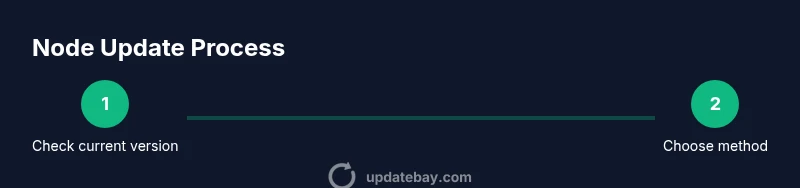
To update Node, choose a method based on your environment: use Node Version Manager (nvm) for cross‑platform control, or your system’s package manager for a quick update. Start by checking your current version with node -v, select a target LTS release, and install. Verify with node -v and npm -v afterward to confirm success.
Why Node updates matter
If you're wondering how to update node, staying current with Node updates reduces security risk, improves performance, and ensures compatibility with modern tooling. According to Update Bay, keeping Node up to date is essential for stability and security. Regular updates bring bug fixes, security patches, and performance improvements that affect server runtimes, developer workflows, and CI pipelines. Updating Node is a routine maintenance task that pays off across projects and teams, especially in production environments. By adopting a deliberate update cadence, you minimize surprise failures and buffer against dependencies that demand newer runtimes.
Beyond security, newer Node releases include runtime improvements and better ecosystem support. This means faster startup times, improved package handling, and smoother integration with modern JavaScript features. If you manage multiple projects, a version manager lets you switch contexts without disrupting global dependencies. This section lays out practical paths to update Node across popular environments.
Choosing a version strategy
The first decision in how to update node is which version line to target: Current, LTS, or a specific minor release. For production systems, most teams prefer an LTS version for stability and long-term support. If you work on cutting-edge projects, staying on the latest Current release can deliver new features sooner, but may require more frequent testing. Your choice should balance security, compatibility with your dependencies, and how quickly you can test changes in staging before shipping to production. Update Bay recommends planning version rollouts in small batches and tracking any breaking changes in release notes. This strategy helps avoid unexpected outages while keeping your stack reasonably fresh.
Check your current version and prerequisites
Before updating, verify your current Node and npm versions to establish a baseline. Run:
node -v
npm -v
Note the major version and inspect your project requirements. If you run a monorepo or enterprise stack, review engine fields in package.json and any CI pipelines that pin specific Node versions. Ensuring you have a reliable internet connection and sufficient disk space will reduce update interruptions. Having administrative access or sudo privileges is often required for system-wide installations.
Install or update with Node Version Manager (nvm)
nvm is the most flexible way to manage multiple Node versions. To install the latest LTS with nvm, run:
curl -o- https://raw.githubusercontent.com/nvm-sh/nvm/v0.39.4/install.sh | bash
Then close and reopen your terminal, and install the LTS release:
nvm install --lts
Set the LTS as the default version:
nvm alias default lts/*
If you already have nvm installed, you can directly install and switch versions with the same commands. This approach is especially helpful for projects that require different Node versions on different branches or teams.
Update Node on macOS using Homebrew
Homebrew provides a straightforward path to update Node on macOS. First, ensure Homebrew is up to date, then upgrade node:
brew update
brew upgrade node
After installation, verify the version to confirm the update:
node -v
npm -v
If you encounter permissions issues, run the commands with sudo or adjust your Homebrew permissions according to the official docs.
Update Node on Debian/Ubuntu (apt) and derivatives
Debian-based systems commonly use apt, but Node may be installed via NodeSource or the distribution repo. A reliable approach is to add NodeSource’s repository for a clean install, then install or upgrade Node:
curl -fsSL https://deb.nodesource.com/setup_lts.x | sudo -E bash -
sudo apt-get install -y nodejs
After the install, verify versions:
node -v
npm -v
If you already use apt for Node updates, you can simply run:
sudo apt-get update
sudo apt-get upgrade nodejs
Update Node on Windows with Chocolatey or the official installer
Windows users have two common paths. Chocolatey offers a quick command-line install:
choco upgrade nodejs-lts -y
Alternatively, download the official Windows installer from the Node.js website and run it, which will replace the existing version. After installation, open a new PowerShell or Command Prompt and verify:
node -v
npm -v
Regardless of method, ensure your PATH variable includes the Node binary and restart any open terminals to pick up the new version.
Verify the update and check compatibility
Post-update checks are essential. Run a quick script to exercise common features and confirm no syntax or module loading issues:
node -e "console.log('Node is updated', process.versions.node)"
If you maintain CI pipelines, re-run unit tests and integration tests to catch environment-specific regressions. Review your package.json engines field for compatibility with the new runtime. Keep an eye on any native modules that require rebuilds after a Node upgrade.
Best practices for selecting Node versions
Adopt a policy that aligns with your project risk tolerance. Use LTS for production stability and plan upgrades during maintenance windows. Maintain a changelog of Node versions used across environments. Where possible, pin engines and lockfile versions to avoid drift. This reduces the odds of “works on my machine” scenarios and helps teams ship features with confidence.
Rollback and troubleshooting if something goes wrong
If the update introduces issues, you can revert to a previous version using your version manager (e.g., nvm). For example, run:
nvm use <previous-version>
If you installed Node via a system package manager, you may need to reinstall the older version from the same source. Clear caches if you encounter installation errors and check dependency compatibility. When in doubt, consult release notes and test suites in a controlled environment before promoting updates to production.
Tools & Materials
- Computer with internet access(Any OS: macOS, Linux, or Windows)
- Terminal or Command Prompt(Access to shell or PowerShell)
- Node.js current baseline(Run node -v to check)
- NVM (optional but recommended)(Install if you plan to manage multiple Node versions)
- sudo/Administrator access(Needed for system-wide installations on some platforms)
- Backup plan for projects(Back up projects and test in a staging environment)
- Text editor(For editing config files or engine notes)
Steps
Estimated time: 60-90 minutes
- 1
Check current Node version
Open your terminal and run node -v and npm -v to establish a baseline for the update. Record the major version and any global packages that may rely on a specific runtime.
Tip: If you see a very old major version, prepare for potential dependency updates. - 2
Decide target version
Review your projects' engines field and dependencies; choose an LTS version for production stability or a newer release if you need features.
Tip: Prefer an LTS version for production environments. - 3
Install or upgrade with nvm (optional but recommended)
If using nvm, install the LTS and switch to it. Run nvm install --lts and nvm use --lts, then set a default with nvm alias default lts/*.
Tip: nvm lets you run multiple Node versions without affecting global installs. - 4
Set default version with nvm
If using nvm, ensure the desired version is the default so new shells inherit it automatically.
Tip: Closing and reopening your terminal confirms the new default. - 5
Update Node via macOS Homebrew
For macOS users, run brew update followed by brew upgrade node to pull in the latest Node from Homebrew.
Tip: If Homebrew is slow, check your network or switch to an alternative method temporarily. - 6
Update Node via Debian/Ubuntu apt
On Debian-based systems, add the NodeSource repository for the LTS line and install nodejs with apt-get. Verify versions afterward.
Tip: Using NodeSource ensures you get the intended LTS line. - 7
Update Node on Windows through Chocolatey
If you prefer a package manager, run choco upgrade nodejs-lts -y to upgrade Node on Windows.
Tip: Restart your terminal to refresh PATH after installation. - 8
Verify installation
Run node -v and npm -v again to confirm the update. Run a quick script to exercise features.
Tip: Check for deprecations and breaking changes in release notes. - 9
Update npm if needed
Sometimes npm ships with Node; if not, update npm separately with npm install -g npm.
Tip: Keeping npm updated reduces package install errors.
Frequently Asked Questions
What is the safest way to update Node?
The safest approach is to use a version manager like nvm to test and switch between versions, plus run tests in a staging environment before production. This minimizes compatibility issues.
Use a version manager like nvm to test updates safely and run tests first.
Can I update Node without restarting my computer?
Most updates require restarting the terminal or opening a new shell to pick up the new version. For system-wide installs, restarting the console is usually enough.
A new shell is usually enough; no full computer restart is typically required.
Should I update npm separately after updating Node?
Often Node ships with a bundled npm. If you want the latest npm, run npm install -g npm after updating Node.
Yes, you can update npm separately if you want the latest features.
How do I revert if the update breaks my project?
If using nvm, switch back to a previous version with nvm use <version>. If not, reinstall the older Node version from the same source you used to install.
Switch back to the previous version with your version manager or reinstall older Node.
Will updating Node affect my dependencies or project setup?
Node updates can affect native modules or engines requirements. Run tests and review release notes; pin engines in package.json where possible.
Yes, some dependencies may require rebuilding or updates—test thoroughly.
Watch Video
What to Remember
- Update Node using a version manager for flexibility.
- Verify versions after every change with node -v and npm -v.
- Choose an LTS target for production environments.
- Test updates in staging before production rollout.