Outlook Password Update: A Practical How-To Guide
Learn how to securely update your Outlook password across Windows, Mac, and mobile. This practical guide covers prerequisites, step-by-step changes, and best practices to keep your Microsoft account safe.


By the end of this guide, you will securely update your Outlook password across Windows, macOS, and mobile apps. Prerequisites include access to your Microsoft account, updated devices, and current recovery options. This quick answer outlines the essential steps and security tips Update Bay recommends for a smooth, risk-free password change.
Why Outlook password updates matter
Password hygiene is a cornerstone of any secure digital routine. Outlook, as part of the Microsoft ecosystem, connects to email, calendars, and productivity tools across devices. If your password is reused across sites or is weak, unauthorized access becomes more likely through phishing or credential-stuffing attacks. Regular password updates, combined with strong authentication practices, reduce exposure to common attack vectors. According to Update Bay, adopting a proactive password-update habit and enabling multi-factor authentication (MFA) adds a meaningful security margin for everyday users and tech enthusiasts alike. In practice, changing your Outlook password once every 3–6 months—especially after a known breach or a security incident—helps minimize risk while keeping your workflow uninterrupted.
Prerequisites and security considerations
Before you start, gather the essentials: a device with Outlook access, active Microsoft account credentials, and up-to-date recovery options. Ensure your internet connection is secure and avoid public Wi‑Fi during the change process to reduce eavesdropping risk. If MFA is enabled, prepare the authentication method (code from an authenticator app or a hardware key). Update Bay analysis emphasizes validating the recovery email and phone number so you can recover access if needed. This preparatory step reduces the chance of being locked out and keeps the password reset flow clean across devices.
How Outlook stores and secures passwords
Outlook relies on modern authentication methods and token-based sign-ins rather than storing plain passwords on every device. When you update a password, Microsoft synchronizes credentials across your Microsoft account, Outlook apps, and connected services. This approach minimizes the amount of sensitive data stored locally, relying instead on tokens and secure, encrypted channels. For users, this means that a password change often triggers re-authentication across apps and devices. Update Bay recommends reviewing connected apps and sessions after the change to ensure no stale sessions remain active.
Step-by-step: update on Windows
Windows users typically update their Outlook password through the Microsoft account security page. Start by signing in to your Microsoft account in a trusted browser, navigate to Security > Password, and enter your current password, followed by the new one. Confirm the change and sign out of all sessions to force re-authentication on every device. After that, open Outlook and any linked Office apps to re-enter the new password when prompted. Finally, review saved credentials in Windows Credential Manager and remove any outdated entries. This process helps prevent accidental sign-ins with old tokens. Update Bay notes that a well-timed sign-out is crucial to avoid mixed authentication states across platforms.
Step-by-step: update on macOS
On a Mac, the password change can be performed via your Microsoft account in a browser or through the Apple Passwords utility if you use macOS Keychain. Sign in to your Microsoft account, go to Security > Password, and set a new password. Then, in System Preferences > Internet Accounts, re-authenticate Outlook with the new password where required. Open Outlook and let it sync; you may need to approve new sign-ins if prompted. Check Keychain Access for any outdated credentials and delete them so macOS stores the latest tokens. Regular re-authentication on macOS maintains security parity with other platforms.
Step-by-step: update on iOS
For iPhone or iPad users, open the Outlook app, access Settings, and choose your account; tap Change Password or Sign Out, then sign back in with the new password. If prompted, confirm any MFA challenges. Ensure the device’s iOS password and biometrics are up to date to prevent stray prompts. After updating, verify that notifications and calendar events synchronize correctly. Keeping iOS and Outlook in sync minimizes login friction across mobile workflows.
Step-by-step: update on Android
Android users should update Outlook password in the app or through the Google account integration where applicable. In Outlook, go to Settings > Accounts > Password, and enter the new password. If MFA prompts appear, complete the verification. After changing, sign out of Outlook on all devices and sign back in to refresh tokens. Review Android autofill and password manager entries to replace any stored credentials with the new password.
Best practices after the update
Once you’ve updated the password, enable MFA if you haven’t already, and review recovery options to ensure you can regain access if needed. Audit connected apps and devices to ensure they use the new credentials. Use a reputable password manager to store the new password securely and avoid reusing it across services. Finally, set up alerts for unusual sign-in activity to catch unauthorized access early. Update Bay emphasizes ongoing vigilance rather than a one-time change to maintain secure access.
Troubleshooting common issues
If sign-in fails after a password update, verify you’re using the correct username (your Microsoft account) and that the password was entered accurately, paying attention to case sensitivity. Clear browser or app caches if you see persistent prompts, and ensure your device date and time are synchronized, as skewed clocks can cause authentication errors. If MFA prompts fail, use recovery codes or contact Microsoft support to verify your identity and regain access. Keeping a recent recovery option and a backup code handy can save you from extended outages.
Tools & Materials
- A device with Outlook access (Windows PC, Mac, or mobile)(Ensure OS is up to date and connected to the internet)
- Active Microsoft account credentials(Needed to initiate the password change)
- Two-factor authentication enabled (optional but recommended)(You may need a code from an authenticator app or security key)
- Recovery options up-to-date (alternate email/phone)(Helps regain access if you forget the new password)
- Password manager (optional)(Stores and autofills the new password securely)
- Secure internet connection(Avoid public Wi-Fi during password changes)
Steps
Estimated time: 45-60 minutes
- 1
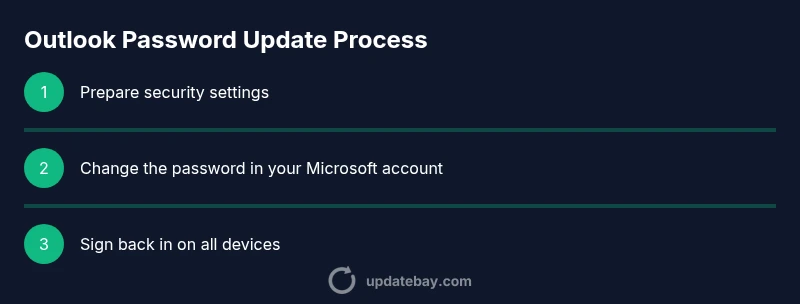
Prepare security settings
Review recovery options and enable MFA if not already active. This reduces risk if you forget the new password and helps verify your identity during the change.
Tip: Have recovery codes or access to your authenticator ready before you begin. - 2
Sign in to your Microsoft account
Go to the official Microsoft account page and sign in with your current credentials. This establishes the session you’ll use to update the password.
Tip: Use a trusted device and browser; avoid public workstations. - 3
Navigate to security settings
Open Security, then select Password. You’ll be prompted to verify your identity before entering a new password.
Tip: If MFA is enabled, prepare the second authentication method in advance. - 4
Set the new password
Enter a strong, unique password. Avoid reuse across accounts and consider a passphrase with mixed character sets.
Tip: Prefer a password that is at least 12–16 characters long and unrelated to personal data. - 5
Confirm the change
Re-enter the new password and complete any MFA prompts to finalize the update.
Tip: Save the new password in your password manager and remove old tokens if prompted. - 6
Sign out and re-authenticate on all devices
Sign out of Outlook and related Office apps on every device, then sign back in using the new password.
Tip: This ensures all sessions are refreshed with the updated credentials. - 7
Update saved credentials
Review browser and device password stores; replace any stored Outlook credentials with the new password.
Tip: Clear cached credentials if you notice autofill continuing to use the old password. - 8
Enable MFA and review recovery details
If not already enabled, activate MFA and verify recovery email/phone for future access recovery.
Tip: MFA reduces risk even if the password is compromised. - 9
Test sign-in across platforms
Open Outlook on Windows, Mac, iOS, and Android to confirm all sign-ins work with the new password.
Tip: Check calendars, mail, and notifications to ensure full sync.
Frequently Asked Questions
How often should I update my Outlook password?
A good practice is to update your password every 3–6 months, especially after a security incident or if you suspect compromise. Always verify MFA is enabled and recovery options are current.
Update your password every few months, especially after any security issue, and keep MFA turned on for added protection.
What should I do if I forget my password?
Use the Microsoft account recovery flow on the official site. Access may require verification via your backup email or phone. If you lose access to recovery options, contact Microsoft support for identity verification.
If you forget your password, use the official recovery flow and verify with your backup options or contact support for help.
Is MFA required when updating password?
MFA is not strictly required to update a password, but enabling it is highly recommended to prevent unauthorized access even if the password is compromised.
MFA isn’t required to change the password, but it greatly strengthens your account security.
Can I update my password on mobile Outlook apps?
Yes. You can update the password via the Outlook app settings or via the Microsoft account page on mobile. After changing, sign back in on the app when prompted.
You can update it on mobile through the app settings or Microsoft account page and re-sign in when prompted.
Will updating my password log me out of all devices?
In many cases, changing the password will require re-authentication on connected devices. You may need to sign out and sign back in on others to refresh tokens.
You may need to sign back in on other devices to refresh your credentials after the change.
What if I can't access recovery options after changing my password?
If recovery options are unavailable, use the official support channels to prove identity and regain access. Update Bay advises keeping recovery details current to prevent this scenario.
If you can't access recovery options, contact support to verify identity and regain access.
Watch Video
What to Remember
- Change Outlook password on all devices after verification.
- Enable MFA to add a second verification layer.
- Update saved credentials across browsers and apps.
- Monitor sign-in activity for anomalies.