What to Do If Updates Are Underway Stuck: Urgent Troubleshooting
Urgent guide to fix updates that stall during download or installation. Step-by-step troubleshooting for Windows, macOS, and apps with safety tips and prevention.


The most likely cause is a stalled download due to flaky network, competing background tasks, or corrupted update components. Quick fix: pause the update, check your internet connection, disable VPNs or proxies, and restart the device. If the progress remains at a standstill, run the built-in troubleshooter, clear temporary update files, and reattempt installation.
What to do if updates are underway stuck: Immediate steps
If you’re wondering what to do if updates are underway stuck, begin with rapid, low-risk actions that address common culprits: network problems, background processes, or a corrupted cache. According to Update Bay, most stalls clear up when you pause the update, verify your network, and restart the device. This quick triage buys time and minimizes data loss. Before you start, note the update that’s running, any error codes, and whether a VPN or firewall is active. With calm, methodical steps, you can often recover from a stall without a full reinstall. For businesses or critical data, plan backups and communicate downtime expectations.
In this guide you’ll find a practical, repeatable checklist for Windows, macOS, iOS, Android, and major apps. The goal is to restore normal progress quickly while avoiding risky workarounds.
Common Causes of Stalled Updates
Stuck updates usually come from one of several frequent causes. Network issues top the list: unstable connections, metered networks, proxies, or VPNs can interrupt downloads mid-flight. A second common factor is corrupted update components or cache data that misleads the installer. Finally, aggressive antivirus or firewall settings, insufficient disk space, or conflicting background services can block progress. By categorizing the problem, you can apply targeted fixes rather than random troubleshooting. Update Bay's experience shows that addressing network and cache issues first resolves the majority of stalls within the first few attempts.
Diagnostic Flow: Symptom → Diagnosis → Solutions
Start with concrete symptoms: where does the stall occur (percentage, error code, or time of day)? Check for common causes in order: network connectivity → update cache → antivirus/firewall interactions → disk space. If you identify a network hang, focus on connectivity. If you see an error code related to cache, clean the cache and retry. For antivirus conflicts, temporarily disable protection and retest. Each symptom should guide you to an actionable fix.
Step-by-Step: Fixes for the Most Common Cause
- Pause updates, disconnect VPNs, and ensure a stable network. 2) Restart the device and attempt the update again. 3) Run the system troubleshooter (Windows) or Disk Utility/First Aid (macOS) to identify issues. 4) Clear the download cache and temporary files associated with the updater. 5) Free up disk space if feasible, especially on devices with limited storage. 6) Reboot, reinitiate the update, and monitor progress. 7) If the stall persists, reset the update components (Windows) or reinstall the updater (macOS). 8) Consider a clean boot to rule out app conflicts. 9) If data safety or hardware concerns emerge, contact support.
Tip: Keep work unsaved data backed up before major fixes.
Safety Warnings and When to Seek Help
Always back up important data before performing core system changes. Do not permanently disable essential security software without testing alternatives. If you’re managing devices in a business environment, coordinate maintenance windows with IT and avoid applying risky fixes on production systems during peak hours. If you encounter hardware faults, or the update affects bootability, stop and seek professional help promptly. Updates should be reversible where possible; if the device won’t boot after a failed update, escalate to support.
Prevention: How to Avoid Future Update Stalls
- Schedule updates during low-usage windows and ensure reliable network access.
- Maintain consistent backups and enable automatic restore points where available.
- Disable non-essential startup apps to reduce conflicts during updates.
- Regularly clear update caches and perform disk maintenance.
- Keep operating system and apps updated to minimize compatibility issues.
According to Update Bay, implementing a proactive maintenance plan reduces update-related downtime across devices.
System-Specific Guidance: Windows, macOS, Android, and Apps
Windows: Run the Windows Update Troubleshooter, reset Windows Update components if needed, and verify there’s sufficient disk space. macOS: Use Software Update in System Preferences, clear caches if necessary, and check for conflicting background processes. Android: Check for a pending system update, clear cache for the Update service, and ensure storage is available. Apps: Some updates stall within apps; try closing and reopening the app, clearing its cache, or reinstalling the app if necessary. If a vendor-specific tool is involved, follow its official guidance and avoid third-party optimizers that could worsen the issue.
Real-World Scenarios and Quick References
- Scenario A: Update stalls at 0% on Windows after a noisy network session. Action: pause, check connectivity, restart, and run the built-in troubleshooter.
- Scenario B: macOS update downloads but stalls during installation. Action: free disk space, retry, and clear updater caches.
- Scenario C: An app update stalls due to background antivirus interference. Action: temporarily disable antivirus, perform the update, re-enable protection, and adjust exclusions if needed.
- Scenario D: Updates fail repeatedly after a device lock during maintenance window. Action: perform a clean boot and retry.
This approach mirrors common patterns seen in 2026 guidance from Update Bay.
Wrap-Up: Quick Reference Checklist
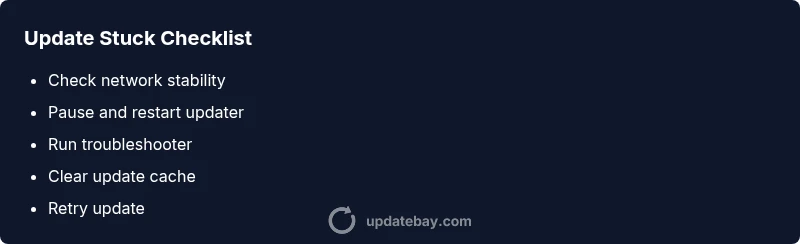
- Pause updates and check network stability.
- Run built-in troubleshooter and clear caches.
- Ensure ample disk space and reduce background load.
- Retry the update, possibly in a clean boot or safe mode if needed.
- Seek professional help if the device won’t boot after updates.
Steps
Estimated time: 45-60 minutes
- 1
Pause updates and verify connectivity
Pause the active update, disconnect any VPNs, reconnect to a stable network, and confirm you can reach common sites without drops.
Tip: A quick network speed test helps quantify stability. - 2
Restart and retry
Restart the device to clear volatile state, then resume the update from the initial screen or notification center.
Tip: Close other heavy apps to free resources. - 3
Run the built-in troubleshooter
On Windows, run Windows Update Troubleshooter; on macOS, use Software Update diagnostics if available.
Tip: Follow on-screen prompts and note any error codes. - 4
Clear update cache/files
Delete temporary updater files and caches according to OS guidelines, then rerun the update.
Tip: Do not delete personal files; target updater caches. - 5
Check disk space
Ensure there is enough free space for the update. If space is tight, offload or remove nonessential files.
Tip: A few extra gigabytes can matter for big patches. - 6
Reset updater components
For Windows, reset Windows Update components; for macOS, reinstall the updater if necessary; for mobile, clear the store’s data.
Tip: Back up data before major resets. - 7
Retry in a clean boot or safe mode
Restart in a minimal state to rule out third-party conflicts, then attempt the update again.
Tip: If the update completes, reintroduce services one by one. - 8
Assess for hardware issues
If boot problems occur after updates, check for hardware faults or driver issues, and consider professional support.
Tip: Document any error codes and symptoms for support. - 9
Contact support if unresolved
If the device won’t boot or updates repeatedly fail, escalate to official support channels.
Tip: Prepare system logs and recent changes to speed up diagnosis.
Diagnosis: Device shows updates stuck or progress stalls during download or installation
Possible Causes
- highNetwork connectivity issues or VPNs/proxies interfering with download
- highCorrupted update components or cache data
- mediumAntivirus or firewall blocking updater processes
- lowInsufficient disk space or hardware constraints
Fixes
- easyPause updates, disconnect VPNs, verify internet stability, then restart device
- easyRun the built-in update troubleshooter and clear updater caches
- easyFree up disk space and temporarily disable conflicting security software to test
- mediumReset Windows/Mac updater components or perform a clean boot and retry
Frequently Asked Questions
Why are updates stuck at 0% or 1%?
Stalls at the start often point to network problems, server-side delays, or corrupted initial updater data. Check connectivity and retry, then use the built-in troubleshooter if needed.
Updates stuck at the beginning usually mean network or initial updater data issues. Check your connection and try again, using the troubleshooter if needed.
Can I safely cancel an update that's stuck?
Yes, you can pause or cancel and restart the update. Save work first to avoid data loss, and avoid interrupting a critical system patch when possible.
Yes, you can pause or cancel and restart, but save your work first and avoid interrupting critical patches when possible.
Should I disable antivirus to let updates finish?
Temporarily test with security software paused only if you trust the source and understand the risk. Re-enable protection right after testing and use exceptions if needed.
Only temporarily disable security software for testing, then re-enable it. If you do this, be careful and reconnect securely.
What if the problem persists after trying these steps?
If updates still stall, consult official support or device manufacturer resources. Provide error codes, system logs, and steps you’ve already tried.
If the problem persists, reach out to official support with error details and a list of steps you've attempted.
Is clearing the update cache safe?
Clearing update cache is generally safe and can force fresh downloads. It may reset some preferences, so re-run the update afterward.
Clearing the update cache is usually safe; it helps force a fresh download. Then retry the update.
When should I call a professional?
If you suspect hardware issues, boot failures, or repeated failures across multiple devices, professional help is recommended to avoid data loss.
Call a professional if you think hardware issues or repeated failures are involved.
Watch Video
What to Remember
- Identify the root cause fast: network, cache, or conflicts.
- Use built-in tools first before heavier fixes.
- Always back up data before major changes.
- Prevent future stalls with routine maintenance.
- Seek professional help when hardware failures or boot issues occur.