Windows Stuck on Update: Troubleshooting Guide
Facing Windows stuck on update? This guide walks you through quick checks, safe repair steps, and best practices to complete updates reliably and prevent future stalls. Learn practical fixes from Update Bay's expert guidance.


Most often, Windows gets stuck on update due to a corrupted update package or a stalled download. Start with simple fixes: restart the PC, run the Windows Update Troubleshooter, and ensure a stable internet connection. If it remains stuck, boot to Safe Mode and retry the update or perform a System Restore. If this doesn’t work, seek professional help.
Why Windows Stuck on Update Happens
When you see the message that Windows is updating, the system is trying to install new files and adjust settings. A variety of factors can cause it to stall: a corrupted update package, an incomplete download, or a temporary mismatch in system files. In many cases, the problem stems from the update components themselves rather than the entire OS. The phrase windows stuck on update is common among users who experience long waits or a spinning circle with little progress. Understanding the typical failure modes helps you apply the right fix without unnecessary tinkering. From Update Bay’s perspective, most stalls are solvable with a structured approach that starts with the easiest checks and advances only as needed.
Quick Checks You Can Do Right Now
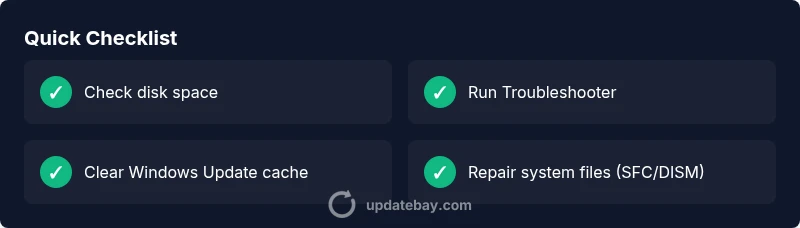
Before diving into repair steps, run through quick self-checks that cover the majority of cases. Ensure your PC has enough free disk space, a stable power supply, and a reliable internet connection. Disable any VPNs or proxies that might interrupt the download, and pause any ongoing large backups or downloads. If you’re on battery power, plug in the charger to prevent power loss mid-update. Temporarily disable third‑party antivirus or firewall features that aggressively scan or block update components, then reattempt the update. These small steps resolve many instances of the problem and avoid more invasive fixes.
Safe Mode and Recovery Options
Booting into Safe Mode with networking can help determine if a background service or third-party software is causing the stall. In Safe Mode, Windows loads only essential drivers and services, reducing the chances of conflicts during an update. From there, you can re-run the update or perform a system restore to a moment when updates were applying cleanly. If Safe Mode reveals no improvement, you may consider using a recovery option such as Reset this PC with or without keeping your files, after backing up important data.
Advanced Repair Options for Persistent Stucks
If the basic checks don’t resolve the issue, proceed to advanced repair options that specifically target Windows Update components. Running System File Checker (sfc /scannow) and Deployment Image Servicing and Management (DISM) can repair corrupted system files and restore the integrity of the update store. You can also reset Windows Update components by stopping services, renaming the SoftwareDistribution folder, and restarting services. These steps address deeper problems without reinstalling Windows.
When to Use System Restore or Fresh Start
If updates continue to fail after trying the usual remedies, you have a few non-destructive options. A System Restore can roll back system changes to a known good state without affecting your personal files. If restore points are unavailable, using a Fresh Start (or equivalent reset option) can fix persistent update issues while preserving user data where possible. Always back up important documents before performing restoration actions.
Best Practices to Avoid Future Stalls
Regular maintenance helps prevent update stalls. Schedule updates at times you won’t need the PC for work, ensure sufficient disk space, and keep drivers and security software updated to minimize conflicts. Enable Windows Update notifications so you’re prepared for restarts, and keep a clean software environment by removing unused apps and temporarily disabling nonessential startup items. By adopting these habits, you reduce the likelihood of encountering windows stuck on update again.
Steps
Estimated time: 30-60 minutes
- 1
Prepare your environment
Save open documents, connect to power, and ensure the network is stable. Exit heavy backups or large downloads to prevent contention during the update. Confirm you have at least a moderate amount of free disk space to allow the updater to park temporary files.
Tip: A clean restart before attempting fixes can clear transient issues. - 2
Run the Windows Update Troubleshooter
Open Settings > Update & Security > Troubleshoot > Additional troubleshooters > Windows Update. Run the troubleshooter and apply any recommended fixes. Reboot and try updating again.
Tip: Run as administrator if prompted to ensure the troubleshooter has full access. - 3
Clear update cache and retry
Stop the Windows Update service and BITS, rename the SoftwareDistribution folder, then restart services. This clears corrupted update files that may block progress.
Tip: Do not delete personal files; you are only resetting update cache. - 4
Repair system files
Open Command Prompt as admin and run: sfc /scannow, then DISM /Online /Cleanup-Image /RestoreHealth. Allow both commands to complete fully and then retry the update.
Tip: DISM can take a while; do not interrupt the process. - 5
Retry in Safe Mode or with recovery options
If the update still stalls, boot into Safe Mode with networking and retry. If needed, use System Restore to a point before the issue began, or Reset this PC as a last resort.
Tip: Back up important files before major recovery actions. - 6
Monitor and prevent future stalls
After a successful update, monitor for a day and ensure automatic updates remain enabled. Schedule restarts and keep drivers up to date to minimize future conflicts.
Tip: Create a restore point before major updates as a precaution.
Diagnosis: Machine shows update progress stuck for hours with a spinning circle or no progress
Possible Causes
- highCorrupted Windows Update package
- highInsufficient disk space
- mediumNetwork connectivity issues or VPN/proxy interference
- mediumThird-party antivirus or security software blocking updates
- lowCorrupted system files or component store
Fixes
- easyRun Windows Update Troubleshooter and basic checks
- easyClear Windows Update cache by stopping services and deleting SoftwareDistribution
- mediumReset Windows Update components with commands
- mediumRun SFC (sfc /scannow) and DISM (DISM /Online /Cleanup-Image /RestoreHealth)
- easyFree up disk space and temporarily disable conflicting software
- hardUse System Restore or Reset this PC if necessary
Frequently Asked Questions
Why is my Windows update stuck on update after hours?
A common cause is a corrupted update package or a stalled download. Begin with the Troubleshooter, then clear the update cache and repair system files if needed.
A common cause is a corrupted update package or stalled download. Start with the troubleshooter and cache clear, then repair system files if needed.
Can I safely cancel or pause an update that's stuck?
If the update is actively progressing, avoid force quitting. Use the Troubleshooter and Windows settings to stop the process gracefully when possible, then restart the update.
If it’s actively updating, avoid force quitting. Use the Troubleshooter and settings to stop and restart safely.
Should I disable antivirus during updates?
Temporarily disabling security software can help if it interferes with update components, but re-enable it as soon as the update completes. Do this only if you trust the update source.
Temporarily disable antivirus only if it interferes with the update, then re-enable after the update finishes.
What is Safe Mode and how does it help with updates?
Safe Mode loads minimal drivers and services, reducing conflicts during updates. It can help determine if a background program is causing the stall.
Safe Mode runs with minimal software to help identify conflicts during updates.
When should I consider a clean install vs repair?
If updates repeatedly fail despite fixes and restore points are unavailable, a repair install or clean install may be necessary. Back up data first and evaluate the impact on installed apps.
If repeated failures persist and restores fail, consider repair or clean install after backing up data.
Watch Video
What to Remember
- Start with quick checks before deeper fixes
- Repair Windows Update components to resolve most stalls
- Use Safe Mode and Recovery options if standard updates fail
- Back up data and create restore points before major actions
- Prevent future stalls with scheduling and maintenance