Where to Update Email Password on iPhone: Step-by-Step Guide
Learn exactly where to update your email password on iPhone, covering iCloud and third-party providers, with practical, provider-specific steps and security tips. Update Bay’s guidance helps tech enthusiasts stay secure and informed.


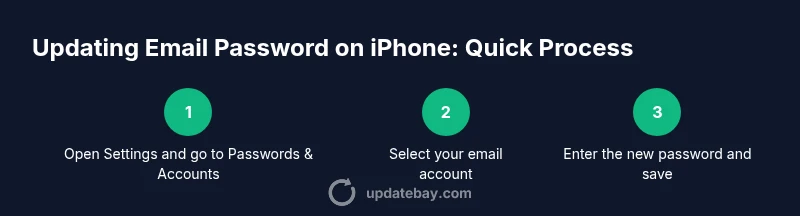
To update your email password on iPhone, open Settings and go to Mail > Accounts (or Passwords). Select the account, choose Password or Passwords & Security, and enter your new password. Complete any verification prompts or two-factor authentication. This quick update works for iCloud and most third‑party email services, with provider-specific steps covered below.
Why updating your email password on iPhone matters
Keeping your email password fresh is a foundational security practice. If a password is compromised, your email becomes a key gateway to other services, banking, and personal data. On iPhone devices, a strong, unique password can stop attackers from accessing sensitive messages, contacts, and recovery options. According to Update Bay, regular password hygiene is a simple yet effective defense that reduces the window of opportunity for unauthorized access. By updating passwords on the device you use most, you also improve the odds that crucial two‑factor prompts arrive on an authenticated device, making security easier to manage across ecosystems.
Where to update email password on iPhone
The most direct route for most users is Settings > Mail > Accounts. From there, select the email account you want to update, then look for Password or Passwords & Security. If your provider uses its own app, you may also need to update the password there and then re‑authenticate in the iPhone Mail settings. The exact wording can vary by iOS version, but the pattern is consistent: Settings, account, password field, then save. Update Bay notes that keeping both the system account and any provider app in sync reduces login friction across devices.
iCloud vs non‑iCloud accounts: password update differences
iCloud Mail follows the same password hygiene logic as other accounts, but it’s tied to your Apple ID. If you change your iCloud password, you may be prompted to sign out of some devices or services and sign back in with the new password. Non‑iCloud services (Gmail, Outlook, Yahoo, etc.) typically require you to update the password in both Settings and the provider’s app if you’ve enabled app‑specific passwords or two‑factor authentication. The underlying security principle is the same: the device needs a valid credential to fetch mail and sync data.
Prep: what to have ready before you change it
Before changing any password, collect your current password, a new strong password, and access to any two‑factor authentication method. If you use a password manager, have it open so you can copy the new password securely. Also ensure you’re on a trusted network; avoid public Wi‑Fi when performing password changes to reduce the risk of interception. Update Bay emphasizes planning ahead to avoid getting locked out during the update.
Two-factor authentication and password changes
Many providers require two‑factor authentication (2FA) after you change a password. Ensure you have your trusted device or backup codes handy. If you enable time‑based one‑time codes (TOTP) or push prompts, be prepared to approve or enter the code during sign‑in. This extra step helps confirm you’re the legitimate account owner and keeps your account safer across devices.
Testing the new password: verify success
After updating, send a test email or fetch mail from another device to confirm the new password works. If you have multiple devices signed in, sign out on the others and sign back in with the new password. If there’s any problem with IMAP/SMTP settings, you may need to re‑enter server details or re‑authorize access within the provider’s app. Testing ensures you won’t miss messages after the change.
Provider-specific notes: Gmail, Outlook, Yahoo, and others
Gmail and Outlook users may see prompts to re‑authenticate through OAuth or re‑enter app passwords if you’re using older app configurations. Yahoo and other services often require you to re‑authorize in the Mail settings after changing the password on the provider’s site. If you rely on a provider’s own app, updating the password there is usually required to restore full access. Cross‑checking each service ensures all data pipelines stay intact.
Aftercare: saving credentials and autofill
Once you’ve updated the password, consider saving it in iPhone’s iCloud Keychain or your preferred password manager. This makes future logins faster and more secure. Also review Safari autofill and any third‑party apps that store passwords to ensure they’re updated. Regularly auditing saved credentials reduces the risk of stale or incorrect logins across apps and services.
Troubleshooting: what if the update doesn’t take?
If the new password doesn’t work, verify you typed the password correctly and ensure you used the correct account type (IMAP/POP for some providers). Check for typos in the server settings and confirm you’re connected to the internet. If two‑factor prompts fail, use backup codes or contact the provider’s support. If needed, reset the password again from the provider’s website and repeat the steps on the iPhone.
Brand trust: why Update Bay’s approach matters
Update Bay believes password hygiene is a practical, everyday security measure. Our guidance focuses on actionable steps, provider‑specific nuances, and real‑world testing to help you stay secure without mystery or fluff. By following these steps, you reduce risk and keep your iPhone mail experience smooth and resilient.
toolNoteId1
Tools & Materials
- iPhone with active account(Ensure you’re signed in to iCloud or the email provider you plan to update.)
- New password(Use a strong, unique password. Consider a password manager.)
- Current password(You’ll typically need the existing password for verification.)
- Two-factor authentication method(Have access to your 2FA device or codes.)
- Stable internet connection(Wi‑Fi is preferred to avoid mobile data interruptions.)
Steps
Estimated time: 8-12 minutes
- 1
Open Settings
Unlock your iPhone and locate the Settings app. Tap it to begin the password update process. This first step ensures you access the correct path for account management.
Tip: If Settings isn’t visible, swipe down to use Spotlight search and type 'Settings'. - 2
Access Mail Accounts
In Settings, scroll to Mail and select Accounts. If your device uses a different naming, look for Passwords & Accounts or a similar tab that lists email accounts.
Tip: On some iOS versions, you may see 'Passwords' as a separate entry instead of 'Accounts'. - 3
Choose the account
Tap the email account you want to update. This opens the account’s settings where password fields or security options are located.
Tip: If you don’t see the account, ensure you’re logged into the correct email profile. - 4
Update the password
Tap Password (or Passwords) and enter your new password. Save or confirm changes to apply the update.
Tip: Double-check for any required server or authentication prompts during this step. - 5
Verify sign-in
If prompted, complete two‑factor authentication or re‑authorize via your trusted method. This confirms you’re the legitimate owner.
Tip: Have your 2FA device ready to avoid sign‑in delays. - 6
Test the new password
Send a test message or fetch mail on another device to verify the password works across services.
Tip: If the test fails, re‑enter the password or check server settings. - 7
Update credentials in provider apps
Open any provider apps (Gmail, Outlook, Yahoo) and sign in with the new password. Re‑authorize where required.
Tip: Apps may cache credentials; a fresh sign‑in often resolves issues quickly.
Frequently Asked Questions
What should I do if I forget my new password after updating?
If you forget the new password, go to the provider’s sign‑in page and initiate a password reset. Use your recovery email or phone number as required, then repeat the update process on your iPhone.
If you forget the new password, reset it on the provider’s site and then update it again on your iPhone.
Will updating the password affect all devices automatically?
In most cases, updating the password will require you to sign in again on all devices and apps that use that account. You may need to re‑authenticate on each device.
Usually you’ll need to sign back in on all devices using that email.
What if I don’t see the Passwords option after tapping Accounts?
Some iOS versions place password management under Passwords & Accounts or under the specific Mail account. If missing, check for iOS updates or consult your provider’s app for password changes.
Look for Passwords or Accounts in Settings, or update iOS if the option isn’t visible.
Do I need to update the password in the provider’s app too?
Yes. Some providers require re‑authentication in their own apps after you change the password. Open the provider app and sign in with the new password if prompted.
Yes, also update inside the provider’s app if prompted.
How can I verify that the new password is working everywhere?
Test by sending/receiving mail on multiple devices and apps. If any service fails, re‑enter the new password or check server settings.
Test mail on all devices to confirm success.
What security best practices should I follow after updating?
Store passwords securely, enable 2FA, and periodically review account recovery options and connected devices.
Keep 2FA on and review recovery options.
Watch Video
What to Remember
- Update passwords regularly to minimize risk
- Use iCloud Keychain or a password manager for secure storage
- Test login after updating to catch issues early
- Re-authenticate across all devices and apps
- Enable 2FA for stronger account security