Where to Update Mail Password on iPhone: A Step-by-Step Guide
Learn how to update your mail password on iPhone for iCloud, Gmail, Outlook, and more. This practical guide covers password changes, re-authentication, and security best practices with clear steps from Update Bay.


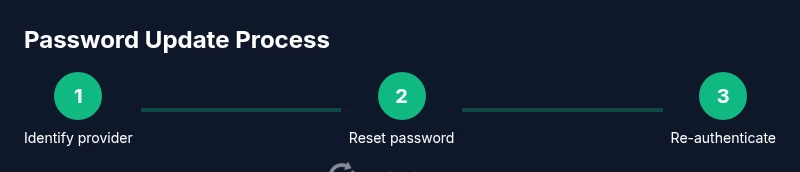
In this guide you’ll learn how to update your mail password on iPhone for common providers (iCloud, Gmail, Outlook, Yahoo) and keep everything in sync. You’ll start by resetting the password with your mail provider, then re-authenticate in iPhone Settings and the Mail app, and finally test your mail flow. The steps also cover using a password manager and enabling 2FA for better security.
Introduction: where update mail password iphone and why it matters
If you’ve ever wondered where update mail password iphone happens, you’re not alone. This process ensures your email credentials stay current on your iPhone, protecting sensitive messages and maintaining reliable delivery. According to Update Bay, regular password changes reduce the risk of unauthorized access and help keep mail syncing across devices seamless. In this article we walk through password updates for major providers like iCloud, Gmail, and Outlook, plus practical tips for keeping accounts secure on iPhone and across apps. You’ll also find guidance on password managers, 2FA, and verifying that mail continues to work after changes.
Core concepts: how mail passwords work on iPhone and providers
Your iPhone stores credentials for each mail account, and the OS uses IMAP/SMTP settings to fetch and send messages. Passwords can change at the provider level, or be revoked for security. When you update, the Mail app may prompt you to re-authenticate. Modern providers often support OAuth, which reduces password reuse but still requires re-authentication after a reset. Understanding this helps you plan a smoother transition across devices, apps, and calendars linked to your accounts. This section covers iCloud mail and popular providers like Gmail, Outlook, and Yahoo, plus how Apple ID security interacts with mail credentials.
Pre-flight checklist: what you need before updating
Before you start, gather the essentials: (1) the mail provider you use, (2) your new password or a password generated by a manager, (3) access to your iPhone Settings, and (4) a reliable Internet connection. If you enable two-factor authentication, have codes ready. It’s also wise to have recovery options updated on the provider’s site. By checking these items first, you minimize back-and-forth and reduce the chance of getting locked out.
Step 1: reset the password online with your mail provider
Begin by visiting your mail provider’s password reset page. Sign in if possible, or follow the recovery flow. Create a strong, unique password (preferably generated by a password manager). Save the new password securely. If prompted, complete any two-factor authentication (2FA) challenges. After successfully updating, log out and prepare to sign back in on your iPhone.
Step 2: update the password on your iPhone in Settings
On the iPhone, open Settings and go to Mail > Accounts. Tap the account you updated, then select Password (or re-enter the password field). Enter the new password exactly as provided by the provider and confirm. If the system prompts for updated server settings, accept the defaults and allow the device to verify the connection. This step re-links your iPhone with the provider using the new credentials.
Step 3: re‑authenticate and verify mail delivery
Return to Mail and calendars to ensure the account is connected. You may be asked to sign in again or approve access via a push notification. Send a quick test email to and from the account, and verify that incoming messages appear promptly. If you have multiple devices, repeat the update on each one to keep everything synchronized.
Step 4: store and manage passwords securely
Use a password manager or iPhone Keychain to store the new password securely. Passwords should be long, unique, and not reused across services. Enabling autofill for passwords can speed future sign-ins while maintaining security. Consider enabling 2FA wherever available and keeping backup recovery options current.
Step 5: security best practices after updating
After updating, review security settings: enable two-factor authentication, review trusted devices, and monitor recent activity on the provider’s site. Regularly update passwords every 6–12 months, especially if you suspect a breach or notice suspicious activity. If you share your device, consider a passcode or biometric lock and limit app permissions related to mail.
Step 6: troubleshooting common issues
If you encounter login errors after updating, double-check the password entry for typos and ensure you’re using the correct provider (e.g., Gmail vs. Google Workspace). Some apps require an app-specific password—this is rare with OAuth but can occur for legacy apps. Rebooting the device or removing and re-adding the account can resolve lingering auth prompts.
Tools & Materials
- iPhone with latest iOS(Ensure device is updated for best compatibility)
- Active mail accounts (iCloud, Gmail, Outlook, etc.)(Know the provider you need to update)
- New strong password or password manager generated password(Ideally 12+ chars with mixed characters)
- Password manager app (optional but recommended)(If you don’t use one, rely on iPhone Keychain)
- Two-factor authentication ready (codes or authenticator app)(You may need to complete 2FA during sign-in)
- Stable Internet connection (Wi‑Fi or cellular)(Needed to verify changes)
- Access to recovery options(Helpful if password is forgotten)
Steps
Estimated time: 20-35 minutes
- 1
Identify the provider and prepare credentials
Confirm which mail service you use (iCloud, Gmail, Outlook, Yahoo) and locate your recovery options. Have the new password ready or a password generator ready to use. This ensures you start with the correct credentials.
Tip: Write down the provider name and the new password location before you begin. - 2
Reset password online with the provider
Open the provider’s password reset page, sign in if possible, and create a strong new password. Complete any 2FA required during the process.
Tip: Use a password manager to generate and store the new password. - 3
Prepare your iPhone for the update
Open Settings and ensure you have a stable connection. Put the device in a comfortable area to avoid interruptions during sign-in.
Tip: Have your device nearby so you can copy-paste the new password without errors. - 4
Update the password in iPhone Settings
Navigate to Settings > Mail > Accounts, select your updated account, and enter the new password in the Password field. Save or confirm when prompted.
Tip: If the Password field is missing, you may need to re-add the account. - 5
Re-authenticate in Mail and related apps
Return to Mail and calendars to re-authenticate. You may receive prompts for authorization; approve them to restore syncing.
Tip: Check other apps (Notes, Reminders) that rely on mail credentials. - 6
Test mail delivery
Send a test email to yourself and check that new messages arrive. Confirm that you can also send messages without errors.
Tip: If delays occur, review server settings for IMAP/SMTP as needed. - 7
Store and manage passwords securely
Save the new password in a password manager or iPhone Keychain, and enable autofill if desired.
Tip: Avoid writing passwords on paper or unsafely storing them. - 8
Audit security and plan next updates
Review 2FA status, device trust, and recovery options. Plan a routine for password updates every 6–12 months.
Tip: Set calendar reminders for annual password reviews. - 9
Troubleshoot if issues persist
If login still fails, verify you’re using the correct provider credentials and consider removing and re-adding the account.
Tip: Contact provider support if the problem persists.
Frequently Asked Questions
Do I need to update passwords on every device after changing on iPhone?
Yes. To keep mail in sync across devices, update the password on each device and re-authenticate where required.
Yes. Update the password on all your devices to keep mail in sync.
What if I forget my email password?
Use the provider’s account recovery options to reset the password, then update it on all devices.
Use the provider's recovery options to reset your password, then update on all devices.
Why is Mail asking for a password even after I updated it?
The Mail app may cache credentials. Re-authenticate and ensure server settings match your provider’s requirements.
Sometimes the app caches credentials; re-authenticate and confirm server settings.
Is an app password needed for Gmail after updating?
Most users don’t need an app password with OAuth; if an older app requires it, generate an app password from Google Security settings.
Only for legacy apps; most modern apps use OAuth.
Can I reuse the same password for multiple accounts?
No. Reusing passwords across accounts increases breach risk; always use unique passwords.
Avoid reusing passwords across accounts.
Is it safe to store passwords on my iPhone?
Yes, when using Apple's built-in Keychain or a reputable password manager with device passcode protection.
Yes, securely stored in Keychain or a trusted password manager.
Watch Video
What to Remember
- Update mail password on iPhone promptly after provider changes
- Re-authenticate in Settings and Mail to restore syncing
- Use a password manager and enable 2FA for stronger security
- Test mail delivery on all devices after updating