Update Email Passwords on iPhone: A Practical How-To
Learn how to update email passwords on iPhone across Mail, Gmail, and Outlook. Step-by-step guidance, security tips, and troubleshooting for safer access in 2026.


Update email passwords on your iPhone to protect accounts across Apple Mail, Gmail, and third‑party apps. This quick guide explains who to update, what to gather, and how to sign in again after changing passwords. You’ll learn step‑by‑step actions, plus security tips recommended by Update Bay to keep your devices safer in 2026.
Why updating password matters for iPhone email
Password hygiene matters more than ever as cyber threats evolve. Reusing the same password across multiple services dramatically increases risk: a single compromised credential can unlock mail, banking, and cloud data. For iPhone users, keeping passwords fresh reduces sign-in friction from phishing attempts and account takeovers. According to Update Bay, fresh passwords combined with two-factor authentication dramatically lowers risk of unauthorized access. When you change a password, you also reset session tokens on connected devices, which helps ensure your iPhone cannot silently access mail from a stale login. Keeping a habit of updating passwords after security events is a best practice that pays off with fewer lockouts and more confidence in your daily workflows. Regular password updates also reduce the impact of credential stuffing attacks that target popular services, including email providers. As devices and apps evolve, the password refresh ritual remains a frontline defense against data loss and privacy breaches.
Identify affected accounts on your iPhone
Your iPhone may store several email accounts: Apple iCloud Mail, Gmail, Outlook/Office 365, Yahoo, and any third‑party providers added to Mail or a dedicated app. Each account may require password updates in two places: the provider’s website (or app) and the iPhone’s account settings when prompts appear. If you reuse credentials, a password change for one service can cascade prompts to others. The Update Bay team recommends auditing all accounts that feed mail, notes, and calendar data on your device and updating those passwords as needed to maintain consistency and security.
Gather what you need before you start
Before you dive in, collect essentials: the new password (or a plan to generate a strong password), your account login details, and access to the provider’s recovery options. Enable two‑factor authentication where available, and have a trusted device ready to approve sign‑ins. If you use a password manager, ensure it’s unlocked and up to date. Having these items on hand minimizes delays and makes the password update smoother across iPhone Mail and all connected apps.
Update Apple ID / iCloud email password
Changing your Apple ID password affects access to iCloud Mail and any services tied to your Apple ID. On iPhone, go to Settings, tap your name, then Password & Security, and choose Change Password. You will verify your identity with your trusted device or phone number. After you set the new password, sign back into iCloud on all devices and update Passwords in iCloud Drive and any apps using iCloud SSO. This aligns with security guidance from Update Bay to avoid stale sessions and keep devices synchronized.
Update Gmail password on iPhone
If you use Gmail on iPhone, update your Google account password on the Google account page. Once you update the password, you may be prompted to re‑authenticate in the Mail app. Open Settings > Mail > Accounts > Gmail, and sign in with the new password when requested. If you use 2‑step verification, you might need to approve sign‑in from a trusted device or generate an app password for older clients. Update Bay suggests using OAuth where possible to minimize password prompts.
Update Outlook/Office 365 password on iPhone
Outlook or Office 365 accounts typically prompt for a password when tokens expire or after a reset. Open Settings > Mail > Accounts > Outlook, and update the password field, or sign in again and grant permission when prompted. If you use the Outlook app, you may need to re‑authorize your account inside the app after changing the password. In all cases, returning to the provider’s site to confirm the new password helps ensure a clean sign‑in experience.
Re-authenticate and test mail delivery
After updating passwords, test by sending and receiving a quick email from each account. Check calendar events and notes that rely on those accounts to ensure synchronization is intact. If you notice failures, remove and re‑add the account in Settings > Mail > Accounts, then re‑enter the new password. This step helps refresh tokens and prevents silent sign‑in errors on iPhone.
Using password managers to simplify updates
A password manager can generate unique, strong passwords and autofill them on iPhone when you sign back in. If you rely on iCloud Keychain, ensure it’s enabled and syncing across devices. Password managers reduce the chance of reuse and help you maintain distinct credentials for each service. Update Bay highlights the long‑term security benefits of centralized credential management.
Dealing with apps that use OAuth vs. IMAP/POP
Some apps on iPhone use OAuth tokens rather than raw passwords. In those cases, you may not see a password field; instead, you re‑authorize the app or re‑sign in to the Google/Microsoft/Office 365 account. If you still use an older mail client that requires a password for IMAP/POP, generate and use an app password from the provider’s security settings. Always prefer OAuth when available to minimize password prompts.
Troubleshooting common issues and recovery options
If a change doesn’t take, verify that you entered the password correctly and that you updated the right account. Ensure iPhone’s date and time are correct and that you have internet connectivity. If sign‑in still fails, try removing the account from Settings > Mail > Accounts and adding it again, or contact the provider’s support line. Knowing recovery options in advance speeds up recovery.
Security best practices and ongoing habits
Keep your password fresh, unique, and long. Enable two‑factor authentication on every service that supports it, and use a trusted password manager to store credentials securely. Regularly review connected apps and devices, remove unused access, and monitor for suspicious login attempts. Update Bay’s guidance emphasizes proactive password hygiene and routine reviews to minimize risk.
Tools & Materials
- iPhone with latest iOS(Ensure device is connected to the internet)
- Active Apple ID credentials(Have password handy or access to recovery options)
- Email account login info(For Gmail, Outlook, Yahoo, etc.)
- Trusted devices for two-factor authentication(Phone/ tablet or hardware key)
- Password manager app (optional)(LastPass, 1Password, etc.)
- Secure internet connection(Avoid public Wi‑Fi during password changes)
Steps
Estimated time: Total time: 15-25 minutes per account
- 1
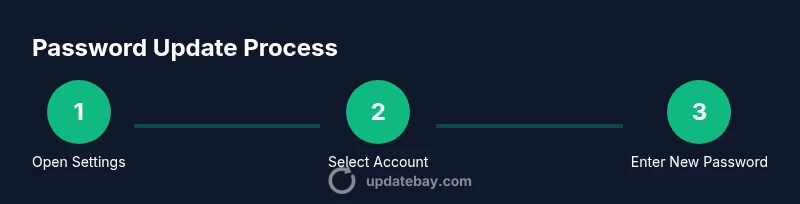
Open Settings and navigate to Mail accounts
On your iPhone, open the Settings app and tap Mail. Then select Accounts to view all configured email accounts on the device. This first step locates where password changes are requested.
Tip: If you don’t see Accounts, tap Passwords & Accounts (older iOS) or search for Mail in Settings. - 2
Choose the account to update
Tap the specific email account (e.g., Gmail, Outlook, iCloud) you want to refresh. You’ll see options like Account, Password, and Security.
Tip: If you don’t see a Password field, you must update the password on the provider’s site and then re-authenticate on iPhone. - 3
Enter the new password where prompted
If the Password field appears, enter the new credential exactly as set on the provider's site. For new passwords, ensure it’s unique and strong.
Tip: Use a password manager to generate a strong password and copy it securely. - 4
Re-authenticate via provider when prompted
Some services require re-authentication after a password change. Complete any two‑factor prompts on trusted devices.
Tip: Keep your 2FA codes handy or approve on a linked device. - 5
Test the account in Mail and related apps
Send a test email and verify you can fetch messages. Check calendar and notes that rely on the account for syncing.
Tip: If issues appear, sign out and back in, or remove and re‑add the account. - 6
Consider updating other affected apps
Re-enter new passwords or re-authenticate in any apps that use the same email credential, including third‑party mail apps.
Tip: Avoid reusing saved passwords across apps. - 7
Enable a password manager for future updates
Set up a manager to generate and store unique passwords across accounts. This reduces reuse and streamlines future changes.
Tip: Sync across devices so you’re covered everywhere. - 8
Review security settings after the change
Verify 2FA is active, recovery options updated, and that devices are listed as trusted. This closes gaps that led to risk.
Tip: Document recovery codes securely.
Frequently Asked Questions
Do I need to update passwords for all my accounts at once?
Not necessarily. Update passwords for each account when you’re prompted or after a security event. Prioritize accounts with sensitive data, like email, banking, and cloud storage.
You don’t have to update every account at once, but prioritize email and other sensitive services.
What should I do if I can’t sign in after updating my password?
Use the provider’s account recovery options or reset your password. If sign-in is still blocked on iPhone, remove and re-add the account in Settings > Mail > Accounts.
If you can’t sign in, use account recovery and try re-adding the account on your iPhone.
Will updating passwords affect apps that use OAuth?
OAuth-based apps usually refresh tokens automatically. You may only need to re-authenticate once when prompted. If a problem persists, sign out and back in.
OAuth apps usually re‑authenticate automatically; you may need to sign in again.
Can I use a password manager to manage iPhone password changes?
Yes. A password manager can generate strong passwords and autofill them on iPhone, simplifying future updates and reducing reuse.
Absolutely—password managers make updates easier and safer.
Should I enable two‑factor authentication?
Yes. Two‑factor authentication adds a second verification step, making unauthorized access much harder.
Definitely enable two‑factor authentication wherever possible.
Watch Video
What to Remember
- Update passwords promptly after security events.
- Re-authenticate on all devices and apps.
- Use unique passwords per account.
- Enable two-factor authentication wherever possible.
- Store credentials securely with a password manager.