What to Do If Software Update Is Not Working: A Step-by-Step Troubleshooter
Facing a failed software update? This urgent guide from Update Bay provides a step-by-step checklist, a diagnostic flow, and safe fixes to get updates back on track.


If an update won’t install, the most likely causes are connectivity issues, insufficient storage, or a corrupted update cache. Start with simple checks like ensuring a stable internet connection, enough device storage, and restarting the device. If the problem persists, follow this guide from Update Bay to diagnose and fix the issue quickly.
Understanding the problem and why updates fail
According to Update Bay, software update failures are usually not one single issue, but a combination of factors that block the installation or download. The most common causes include unstable internet connections, insufficient device storage, and corrupted temporary files. Before you dive into advanced fixes, take a moment to observe what happens when you try to update: do you see an error code, a download that stalls, or a message that says the update cannot be installed. Recognizing the exact symptom helps narrow down the diagnosis. In many cases, the problem is transient and tied to a momentary server slowdown or a routine maintenance window. However, on devices with limited space or aged hardware, updates can fail repeatedly until you address the underlying constraints. The Update Bay team emphasizes a calm, methodical approach: verify connectivity, free space, and system time, then move to targeted remedies. Smooth updates rely on stable power, reliable networks, and current software state.
What to check before you troubleshoot: quick checks
Before diving into configurations, do a quick audit of your environment. Make sure the device is plugged in or has sufficient battery, and your network is stable. Pause heavy downloads or streaming that might throttle bandwidth, try a wired connection if possible, and restart your router if you notice network hiccups. Confirm your device's date, time, and region are automatic, since clock drift can block secure update channels. Check storage space and delete or move large files if needed. If you’re updating on a corporate device, note any policy restrictions that could block installations. Completing these checks often resolves many immediate failures without complex steps.
What to do if software update is not working across platforms
Across Windows, macOS, iOS, and Android, the core principles are the same: secure a stable connection, ensure adequate storage, and keep power steady during the process. Use the platform-specific troubleshooter when available: Windows Update Troubleshooter, macOS Software Update, Android System Update, and iOS Software Update. If you encounter a specific error code, look it up in the official support documentation for your device and version. Avoid applying multiple updates at once and refrain from interrupting the process. If problems persist, consider booting into a safe mode or performing a clean boot to isolate background software conflicts. The key is to reduce variables and let the update package reach your device unimpeded.
How to gather the right information for troubleshooting
Start by recording the exact error message or code you see, along with the time the failure occurred. Note your device model, OS version, and whether other apps or updates are affected. Collect screenshots or logs if possible, as these details help support teams or online forums identify the root cause. Keep track of recent changes—new apps, settings tweaks, or network changes—that coincide with the problem. If you have a known-good backup, confirm its date so you can compare versions. This prepared snapshot speeds up diagnosis and reduces back-and-forth with support. "What’s happening right now?" is the simplest question to answer first, and it guides the entire troubleshooting flow.
Diagnostic flow: symptom → diagnosis → solutions
Symptom: Update fails to download or install, sometimes showing an error code or stalling at a percentage. Diagnosis: Likely factors include network issues, insufficient storage, or corrupted cache. Solutions: verify connectivity, free space, and clear cache; retry after a restart; run the built-in troubleshooter; if needed reset date/time and check for policy restrictions. If the symptom persists after these steps, escalate to professional assistance with your collected data.
Step-by-step fixes for the most likely cause
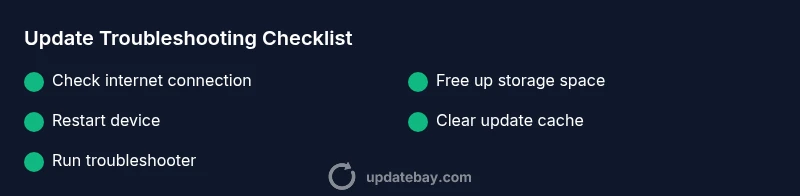
- Check internet connection: Ensure a stable connection, preferably wired. If the signal drops, move closer to the router or switch to a different network. Tip: perform a quick speed test to confirm latency is not the bottleneck. 2) Free up storage: Delete unused apps, large videos, and clear cache where possible. Tip: move rarely used media to the cloud or an external drive. 3) Restart device: A fresh boot clears stuck processes. Tip: perform a full shutdown rather than a quick restart. 4) Pause and retry: Cancel the current update, then retry at off-peak hours. Tip: pause background tasks to free bandwidth. 5) Clear update cache: On Windows, run the Update Cache cleanup; on mobile OSes, clear cached data for the update app. Tip: back up critical data before cache clearing. 6) Check date/time: Ensure automatic time settings are enabled. Tip: incorrect clocks can block secure channels. 7) Run built-in troubleshooter: Use Windows Update Troubleshooter or equivalent on your platform. Tip: follow prompts and don’t skip recommended steps. 8) Escalate if needed: If none of the above works, contact support with your logs. Tip: provide error codes, device model, OS version, and timing details.
estimatedTime":"25-40 minutes"}],
tipsList0
Steps
Estimated time: 25-40 minutes
- 1
Check internet connection
Verify your device has a stable internet connection. Run a quick speed test and switch to a wired connection if possible. Pause other bandwidth-heavy activities during the update. Ensure the network isn’t dropping packets.
Tip: A stable connection is the backbone of a successful update. - 2
Free up storage
Check available storage space and remove or offload large files, apps, or media that you no longer need. Empty the device’s trash or recycle bin if applicable. After freeing space, retry the update.
Tip: Even 1-2 GB can make a difference for large updates. - 3
Restart devices involved
Restart the device that is performing the update and, if feasible, restart your router or modem to refresh the network path. This clears temporary glitches that can block downloads.
Tip: A clean reboot is often the simplest fix. - 4
Pause and retry update
If the update is stuck, pause or cancel it, wait a few minutes, then resume or start the update again. Try during a time with lower network congestion.
Tip: Patience can help when servers momentarily slow. - 5
Clear update cache/temporary files
Clear cached data related to updates. On Windows, use the Update Cache cleanup; on mobile systems, clear cache for the update app. Restart after clearing.
Tip: Cached data can become corrupted and block progress. - 6
Check date/time and region settings
Make sure automatic date/time is enabled and your region matches your location. Incorrect time settings can prevent secure update channels from validating.
Tip: Auto-time is a quiet but crucial defender against update blocks. - 7
Run built-in troubleshooter
Launch the platform’s built-in update troubleshooter and follow its guided steps. Don’t skip recommended actions or reboot before finishing the tool’s flow.
Tip: Troubleshooters are designed to isolate common blockers. - 8
Seek professional help if needed
If updates still fail after all steps, collect error codes and logs and contact support or a local technician. They can diagnose hardware faults or deeper software conflicts.
Tip: Have your logs ready to speed up diagnosis.
Diagnosis: Update fails to install or download, with errors or wandering progress
Possible Causes
- highPoor or unstable internet connection
- highInsufficient storage space on device
- mediumCorrupted update cache or temporary files
- lowDate/time settings or region mismatch
Fixes
- easyCheck internet stability and switch to a reliable connection
- easyFree up storage by removing unused apps and media
- easyClear update cache/temporary files and retry update
- easyReset date/time and region settings to automatic
- easyRun built-in update troubleshooter or diagnostic tool
- mediumIf persistent, contact support or hardware service
Frequently Asked Questions
Why won't my software update install on my device?
Update failures usually arise from connectivity, storage, or cache issues. Start with quick checks and run the platform’s troubleshooter before diving into settings changes.
Update failures are often caused by network, space, or cache problems. Start with quick checks and run the built-in troubleshooter to identify the blocker.
What should I do first when a software update fails?
Begin with basic checks: ensure a stable internet connection, verify sufficient storage, and restart the device. These steps resolve most common issues quickly.
First, check your connection, space, and then restart the device.
Can updating take longer than expected?
Yes. Slow downloads can result from network congestion or server load. If it stalls, pause and retry during off-peak hours.
Updates can stall due to network or server load; pause and retry when it’s quieter.
Is it safe to retry updates multiple times?
Retrying is generally safe if you follow recommended timings and avoid forcing updates during power or connectivity issues.
It's usually okay to retry, just don’t force updates during unstable conditions.
When should I contact support?
If updates keep failing after trying the steps, or you see recurring error codes, reach out for assistance.
If it keeps failing after following steps, contact support with your logs.
Could hardware problems cause update failures?
Hardware faults can affect storage or device responsiveness, though this is less common. Seek a professional check if you suspect disk or memory problems.
Usually not, but hardware issues can cause update errors if you notice disk problems.
Watch Video
What to Remember
- Act quickly with quick checks to pinpoint blockers
- Follow a structured diagnostic flow for reliable fixes
- Use built-in tools and safe steps before escalating
- Document errors and seek help when hardware issues are suspected