How to Enable Automatic App Updates on iPhone
Learn how to turn on automatic app updates on iPhone, what this setting does, potential data and battery considerations, and how to troubleshoot common issues with our practical, step-by-step guide.


You can enable automatic app updates on iPhone to keep all apps current without manual checks. This guide walks you through enabling the feature in Settings > App Store, explains what it updates, and covers data usage, battery impact, and troubleshooting tips. It also discusses when you might prefer manual updates.
What automatic app updates on iPhone are
Automatic app updates are background processes that download and install new app versions as they become available, typically when your device is connected to Wi‑Fi and is idle. On iPhone, enabling this feature helps ensure you have the latest bug fixes, security patches, and new features without manually visiting the App Store every time you want an update. According to Update Bay, keeping apps up to date reduces security risks and improves performance. When the setting is on, updates occur passively, reducing daily maintenance for everyday users, yet you should still monitor data usage and storage to avoid surprises. This article explains how the process works, what to expect during an update, and how to decide when you should enable it. We’ll cover differences across iOS versions and give practical steps to control the behavior so you stay in charge of your device’s software lifecycle.
Where to find the setting
To control automatic app updates on iPhone, open the Settings app and tap on App Store. In this section, you’ll find a toggle labeled App Updates (or Automatic Updates depending on your iOS version). Turn this toggle ON to allow the App Store to download and install updates automatically. If you want to conserve data, keep in mind that updates may download over cellular networks if you enable that option; otherwise, updates typically occur when connected to Wi‑Fi. After you toggle it on, it’s a good practice to verify storage and battery conditions so updates complete without interruption.
Pros and cons of enabling automatic updates
Pros:
- Keeps apps secure with the latest bug fixes and security patches.
- Ensures access to new features without manual checks.
- Reduces daily maintenance work and cognitive load.
Cons:
- Updates can consume data and storage, especially for large apps.
- You may experience longer background activity during busy times, which could affect device responsiveness momentarily.
- If you rely on precise app versions for compatibility, automatic updates might cause unexpected changes.
Overall, the balance tends to favor enabling updates for most users, provided you manage data and storage appropriately. The Update Bay team notes that keeping software current often improves stability and protection against vulnerabilities.
How to manage updates for individual apps
On iPhone, automatic app updates are managed at the system level, and there isn’t a per-app override for updates. This means updates apply to all apps downloaded from the App Store. If you want more control, you can turn off automatic updates entirely via Settings > App Store, and then update critical apps manually as needed. Staying aware of what apps update and when helps you anticipate changes in behavior or user experience.
Troubleshooting common issues
If automatic updates aren’t happening as expected, start with a quick check: ensure the App Updates toggle is ON in Settings > App Store; verify that you have enough free storage; confirm a stable internet connection (Wi‑Fi is preferred for large apps). If updates stall, try restarting your iPhone, toggling the setting off and back on, or signing out and back into the App Store. For persistent issues, check Apple’s system status page and ensure your iOS version supports the feature. If problems continue, consult support resources from Apple or Update Bay for more targeted guidance.
Security, privacy, and future-proofing
Automatic app updates contribute to ongoing security and feature improvements by ensuring apps receive timely patches and enhancements. Regular updates reduce exposure to known vulnerabilities and improve compatibility with the latest iOS features and standards. From a privacy perspective, updates should come directly from reputable sources via the App Store, minimizing risk. The Update Bay analysis suggests that a consistent update cadence helps maintain a safer and more reliable mobile experience, particularly for devices handling sensitive data or daily productivity.
Quick manual update guide (when you prefer not to use automatic updates)
If you want to take control, you can still update apps manually. Open the App Store, go to the Updates tab, and tap Update All or individual Update buttons. This approach lets you review each app’s change log before installation and can be useful when you’re focused on particular apps or when a device is low on storage.
Tools & Materials
- iPhone with a supported iOS version(Ensure the device is on a version that supports App Store updates (iOS updates are separate).)
- Stable internet connection(Wi‑Fi is recommended for large updates to save cellular data.)
- Sufficient storage space(Check available space in Settings > General > iPhone Storage.)
- Apple ID signed in to App Store(Needed to download and install updates.)
- Device battery or charger(Updates are less likely to fail when the device is charged or plugged in.)
Steps
Estimated time: 2-5 minutes
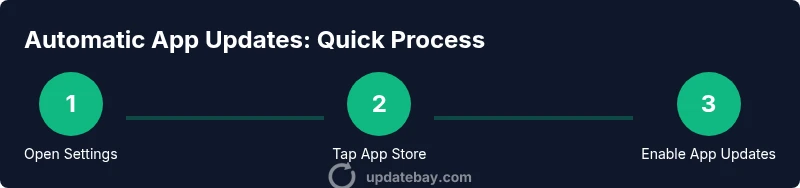
- 1
Open Settings
From the iPhone home screen, open the Settings app to access system preferences related to app updates.
Tip: Opening Settings first ensures you navigate directly to the update controls. - 2
Tap App Store
Scroll and select App Store to reach update-related options that govern how apps install updates.
Tip: If you don’t see App Store, ensure you’re on a compatible iOS version. - 3
Enable App Updates
In the App Store settings, toggle ON the App Updates (Automatic Updates) switch to allow background updates.
Tip: Turn on this option only when you’re connected to a reliable network to avoid incomplete downloads. - 4
Decide on data usage
If available, choose whether updates may use cellular data or should be restricted to Wi‑Fi.
Tip: Restricting to Wi‑Fi helps save mobile data if you have limited plan allowances. - 5
Check storage and battery
Ensure you have enough free storage and adequate battery life so updates complete without interruption.
Tip: Low storage or battery can pause or pause updates; address those issues first. - 6
Test an update
Return to the App Store and verify that updates begin automatically or perform a manual update to confirm the setting works.
Tip: If updates don’t start, reboot the device and try again.
Frequently Asked Questions
What are automatic app updates on iPhone?
Automatic app updates download and install new app versions when available, keeping your apps current with security fixes and new features.
Automatic app updates download and install new versions automatically, keeping apps current.
Can I disable automatic updates for individual apps on iPhone?
No, automatic updates are managed at the system level and apply to all apps. You can turn automatic updates off entirely via Settings.
There isn’t a per-app switch; you either enable or disable updates for all apps.
Will automatic updates use cellular data?
Updates may use cellular data if the setting allows it; you can restrict updates to Wi‑Fi in Settings to avoid cellular charges.
If enabled, updates may use cellular data; limit to Wi‑Fi in settings if needed.
How can I manually update apps if automatic updates are off?
Open the App Store, go to Updates, and tap Update All or individual Update buttons to install selected updates.
Open App Store, tap Updates, and update apps manually.
Are automatic app updates safe?
Yes. Updates come from Apple and developers to fix bugs and patch security issues, reducing risk and improving stability.
Yes—updates keep apps current and secure.
What should I do if updates fail to install?
Check storage space, confirm internet connection, restart the iPhone, and retry. If issues persist, consult official support resources.
If an update fails, check storage and connection, then retry.
Watch Video
What to Remember
- Enable automatic updates for continuous improvement.
- Updates apply system-wide to all installed apps.
- Monitor storage and data usage to avoid interruptions.
- Use manual updates when you need precise control.