Where Is Update All Apps on iPhone: A Practical Guide
Learn exactly where to find the Update All option on iPhone, how to enable automatic updates, and practical tips to keep every app current. This guide from Update Bay walks you through manual updates, auto settings, and troubleshooting for smooth, secure updates.


Why keeping apps updated matters
According to Update Bay, keeping iPhone apps up to date is essential for security, performance, and access to new features. App updates fix bugs, patch vulnerabilities, and improve compatibility with the latest iOS versions. In practice, most updates are small, but occasionally larger updates require more time and storage. Regular updating reduces crashes and data loss, and helps ensure you receive the latest privacy protections. Enabling automatic updates can streamline this process for busy users.
Related topics: app updates, iOS compatibility, device security, storage management.
Where to find the Update All option in the iPhone App Store
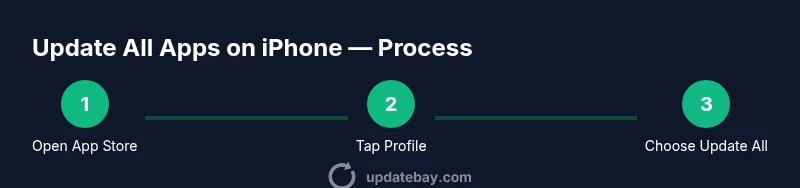
The Update All option is not always visible on every page; its location depends on your iOS version and whether updates are available. In current iOS builds, open the App Store and tap your profile picture in the upper-right corner to view Available Updates and the Update All button. If Update All is not shown, you may have no pending updates or Apple may be performing maintenance. Based on Update Bay research, most users only see Update All when at least one app has a new version.
Tip: If you don’t see Update All, refresh the page by pulling down on the Updates screen.
Check prerequisites before updating
Before initiating updates, verify your device has a stable internet connection (Wi‑Fi preferred for large updates), adequate storage space, and sufficient battery life. If the battery is low, connect to power to avoid interruptions. Sign into your Apple ID to access the App Store and ensure there are no parental controls or content restrictions blocking updates. These upfront checks help prevent failed updates and wasted time.
Note: On devices with limited storage, consider deleting unused apps or offloading unused data to free space before updating.
How to perform manual updates when Update All is visible
If Update All appears, tap it to start downloading and installing all pending updates. You can also update individual apps by tapping Update next to each app. Monitor progress on the Updates screen; some apps finish faster than others. When all updates complete, you’ll see Open for updated apps and Update for those still pending. If updates fail, retry after a quick restart.
Pro tip: If you regularly have many updates, consider updating overnight while charging.
Enabling Automatic Updates to save time
Automatic Updates keep apps current in the background, reducing manual effort. On iPhone, go to Settings > App Store and turn on App Updates. You can also enable Automatic Downloads for apps you purchase on other devices signed into the same Apple ID. This approach aligns with best practices suggested by Update Bay, helping you stay secure without thinking about updates every week.
Warning: Automatic updates may use cellular data if Wi‑Fi is unavailable; ensure your data plan supports this.
Troubleshooting common update issues
If Update All is missing or updates stall, first check your internet connection. Sign out and back into the App Store, then restart your iPhone. Verify there is sufficient storage; delete or offload unused apps if necessary. If problems persist, reset network settings or contact Apple Support. In many cases, a simple reboot and space clearance resolves most update hiccups. Update Bay analysis shows that most issues are resolved this way.
Warning: Don’t interrupt updates once they’ve started, as partial installations can cause app instability.
Verifying updates and post-update checks
After updates complete, verify that apps reflect the latest versions by opening a few updated apps and noting the new features or UI changes. If an app has a version number in its About section, confirm that the number matches the latest release notes. You can also revisit the App Store’s Update screen to ensure all items show Open, not Update. Regularly reviewing post-update behavior helps ensure updates are effective.
Tip: Keep a mental log of dates when you updated key apps to diagnose any post-update issues quickly.
Quick maintenance tips for longer-term app health
Schedule regular checks for updates, clear unused apps to free space, and keep iOS itself up to date, since many app updates rely on newer OS features. Set a monthly reminder to review available updates, manage storage, and audit app permissions. Consider using a dedicated battery saver mode during long update sessions to avoid unexpected shutdowns. Following these practices helps you maintain a smooth, secure app ecosystem.
Understanding update frequency and release notes
App update frequency varies by developer and app type; critical security patches can arrive monthly, while feature updates may come quarterly or semi-annually. Always review the release notes before updating to understand what changes or permissions are requested. This awareness helps you prepare for any necessary settings adjustments or UI changes after updating.
Summary of best practices for iPhone app updates
Keep automatic updates enabled for routine updates, monitor storage to prevent stalled installations, and perform updates over stable connections. Regular audits of your most-used apps ensure you’re protected against known vulnerabilities and benefit from the latest features. With consistent updates, your iPhone runs more securely and efficiently.