How to Check Updates on PS App: A Step-by-Step Guide
Learn how to check for updates on the PlayStation App, enable automatic updates, and troubleshoot common issues. This 2026 guide by Update Bay walks you through OS-level and in-app update paths with clear steps.


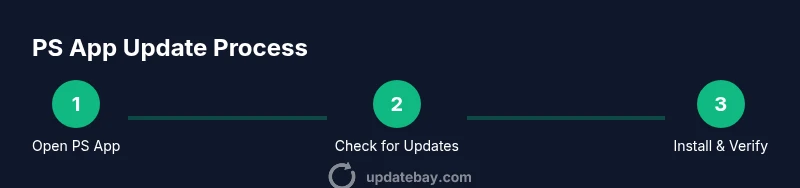
You’ll learn exactly how to check for the latest PlayStation App updates and enable automatic refresh. Start by opening the PS App, sign in with your PSN account, then go to Settings > System > Updates and ensure background data and notifications are allowed. This quick check helps you stay current without missing important patch notes.
What counts as an update on the PS App
The PlayStation App (PS App) receives updates for both the app itself and the content you access through it. In 2026, most important updates focus on security, UI improvements, and feature integrations with the PlayStation Network. To know how to check updates on ps app you'll want to distinguish between in-app updates (pushed within the mobile app) and OS-level updates (via the App Store or Google Play). Update Bay's guidance emphasizes that staying current reduces compatibility issues and ensures you access the latest PSN features. This section defines update types and why they matter, so you can prioritize actions without getting overwhelmed. Ensure you have a stable internet connection, an account signed in to your PSN, and notifications enabled so updates don’t slip by unnoticed. You might notice a small badge, a notification, or a prompt at launch indicating a new version is available. Regularly checking for updates also helps ensure you receive important security patches that defend against emerging threats. If you use the PS App on multiple devices, remember that the update status on one device can influence the experience on others, especially if you're signed in with the same PSN account.
How the PS App communicates updates
PS App update notifications come through several channels to keep you informed without forcing you to hunt for changelogs. A visual badge on the app icon or a banner at the top of the home screen signals availability. On some devices, a system notification appears when an update requires a restart. Inside the app, you’ll find update notes linked from the in-app news area, giving context on security fixes, UI tweaks, and feature additions. This layered approach aligns with Update Bay's assessment that transparent messaging increases update adoption and satisfaction. If prompts are ignored, you risk missing critical improvements that enhance performance and protection. After installing an update, you may notice redesigned menus or relocated items; give the app a quick tour to re-familiarize yourself with the layout.
Where to find update information in the PS App UI
Locating update information in the PS App is straightforward if you know where to look. Begin at your profile or Settings menu, then navigate to the Updates or About section. Some versions place update status within the System submenu, linked to PSN services. Look for a banner or badge indicating a new version, and check the in-app news feed for patch notes and feature highlights. If you enable push notifications, you’ll also receive alerts when a new update is available. Keeping an eye on this area helps you stay current without digging through device settings. Remember to verify that your PSN account is signed in, because updates tied to account permissions may require re-authentication.
OS store vs in-app updates: understanding the flow
There are two parallel update streams to understand: in-app PS App updates and OS-level updates via the smartphone’s app store. The PS App may prompt you to install updates that are delivered through the app itself, while the store handles the actual app file download. OS-level updates can run in the background depending on your settings, and some devices allow you to auto-update apps when connected to Wi‑Fi. Update Bay notes that ensuring both streams are active minimizes delays and reduces the chance of running an outdated client when you’re gaming online. If you see a discrepancy between what the store shows and what the PS App shows, refresh both sources and re-check.
Step-by-step: checking updates on iPhone/iPad
- Open the App Store and tap your profile icon. 2) Scroll to Available Updates and locate the PlayStation App. 3) Tap Update if shown, or Turn on Automatic Updates for future releases. 4) If the PS App prompts for re-authentication after update, sign in again. 5) Return to the PS App and verify the app version in Settings or About. 6) Ensure Background App Refresh is enabled in iOS settings to allow future updates to download in the background. 7) If you’re not seeing an update, try restarting the device and rechecking after a few minutes. 8) Confirm the update installed successfully by reopening the app.
Step-by-step: checking updates on Android devices
- Open Google Play Store, tap your profile, and select Manage apps & devices. 2) Go to Updates available and locate the PlayStation App. 3) Tap Update or Enable Auto-update to keep the app current. 4) After updating, launch the PS App and verify the version in Settings > About. 5) Ensure Background data and Background restrictions allow the app to fetch updates. 6) If the update doesn’t appear, clear the Play Store cache and retry. 7) Reinstall the PS App if needed to resolve persistent issues. 8) Check for Play Services updates as some PS App features rely on them.
Enabling automatic updates and notifications
Auto-updates reduce manual checks and keep you current without intervention. On iOS, enable Automatic Updates in the App Store settings and ensure Push Notifications for the PS App are allowed. On Android, enable Auto-update in Google Play and consider allowing background data usage for seamless downloads. Within the PS App, turn on any in-app update notifications and check the Settings area for a dedicated Auto-update switch. Regularly reviewing these options helps you stay secure and ready to play, especially before big online events.
Troubleshooting common update issues
If an update stalls or fails, start with a stable internet connection, then retry from a different network if possible. Clear cache/data for the Play Store (Android) or App Store (iOS) and restart the device. Sign out of PSN and sign back in to refresh tokens. Check available storage space; insufficient space can stop updates. If the problem persists, reinstall the PS App and verify you’re on a supported OS version. When in doubt, consult the official PS Support page for known issues or temporary outages that could affect updates.
Security, privacy, and best practices around updates
Keep updates coming from official sources only. Enable automatic updates to receive timely security patches and feature enhancements. Maintain strong authentication for your PSN account and review app permissions after each update. Avoid sideloading updates or using third-party installers, which can introduce malware risks. Regularly review privacy settings in both the PS App and your device to minimize data sharing while maintaining a good gaming experience.
Tools & Materials
- Smartphone or tablet (iOS or Android)(Device with a stable internet connection)
- PlayStation App installed(From App Store or Google Play)
- PSN account credentials(Use the account you intend to verify/update)
- OS app store access(Access to Apple App Store or Google Play)
- Reliable Wi-Fi or mobile data(Stable connection speeds aid downloads)
- Optional: PC or PS console for cross-check(Verify status on other devices if needed)
Steps
Estimated time: 15-25 minutes
- 1
Open the PS App
Launch the PlayStation App on your device and sign in with your PSN account if prompted. This ensures you’re checking the update status for your own profile and games. A stable connection helps the app reach the update servers without interruptions.
Tip: If you’re already signed in, proceed to the next step to avoid extra sign-in steps. - 2
Check in-app update indicators
Look for a badge on the PS App icon or a banner at the top of the home screen indicating a new version. Tap the banner or navigate to Settings > Updates to see available in-app updates and patch notes.
Tip: Banners may appear after app launches during peak update windows. - 3
Verify OS-level store updates
Open your device’s app store and check for updates. If the PlayStation App is listed, tap Update. Enabling automatic updates here ensures future PS App releases install without manual checks.
Tip: On iOS, check Profile > Available Updates; on Android, check Manage apps & devices. - 4
Enable automatic updates
Turn on automatic updates in both the PS App (if available) and your device’s app store settings. This reduces manual steps and helps you stay current for online play and new features.
Tip: Pair auto-update with notifications so you’ll know when updates complete. - 5
Check for re-auth prompts
Some PS App updates require you to re-authenticate. If prompted, sign in again to restore full access and avoid interruptions during gameplay.
Tip: Keep your PSN credentials handy but secure. - 6
Test after updating
Open the PS App again and verify that the update version is reflected in Settings/About. Confirm you can access your profile, friends list, and any update-driven features.
Tip: If features feel missing, restart the app to complete the installation. - 7
Troubleshoot stalled updates
If an update stalls, switch networks, clear cache, or restart the device. Reinstall the PS App if needed and ensure OS compatibility.
Tip: Document any error codes to speed up support interactions. - 8
Secure your update process
Only download updates from official sources. Use strong authentication and review app permissions after updates to maintain privacy.
Tip: Avoid third-party installers or APKs on Android.
Frequently Asked Questions
Do I need to manually update the PS App after every update?
Not always. If you have automatic updates enabled on both your device and the PS App, updates can install automatically. If auto-updates are off, you’ll need to check manually. Regular checks help ensure you don’t miss critical fixes.
If you have auto-updates on, updates happen in the background. Otherwise, you’ll need to check manually.
Why isn’t the PS App showing an update?
Possible reasons include a slow or unstable connection, OS store delays, or the update only applying to certain regions or accounts. Verify your internet, refresh both the store and the PS App, and check for any pending device restarts.
It can be caused by connection issues or regional rollout delays. Check your connection, refresh stores, and try again shortly.
Can I update the PS App without internet?
No. Updates require an active internet connection to download files and verify integrity.
You need internet to download and install the update.
Will updating the PS App affect my saved data?
App updates should not delete or modify saved data. If you’re prompted to sign in again, re-authenticate but your game progress stays tied to your PSN account.
Your saves stay linked to your PSN account; you may need to sign in again after an update.
Where can I find patch notes for PS App updates?
Patch notes appear in the PS App’s update banner or the in-app news feed. You can also check the official PlayStation Support pages for release notes.
Check the in-app update notes or PlayStation's official support pages.
Watch Video
What to Remember
- Check both in-app and OS-level stores for updates.
- Enable automatic updates to stay current with minimal effort.
- Use the PS App's Settings/Updates area for release notes and install status.
- If updates fail, troubleshoot with network changes and reinstallation as needed.