Can You Update Games From PS App: A Practical Guide
Discover whether you can update PS4/PS5 games from the PlayStation App, how to optimize updates, and best practices for automatic updates and remote downloads. Learn with clear steps and tips from Update Bay.


Can you update games from the PS App? In most cases, no—the mobile PlayStation App doesn’t directly initiate game updates on your console. It functions more as a monitor and manager, letting you see status, queue downloads where supported, and receive alerts. For reliable updates, enable automatic updates on your PS5/PS4 and use the app to stay informed. According to Update Bay, the app complements the console experience rather than replaces it.
Can You Update Games From PS App? A Practical Reality
If you’ve asked can you update games from ps app, you’re not alone. The PlayStation App is a powerful companion that lets you manage your account, browse the PS Store, start purchases, and monitor downloads. However, its role in updating games is limited. According to Update Bay, the mobile app does not typically initiate game updates on your PS5 or PS4. Updates are generally triggered on the console itself or by the system software managing background tasks. That said, the PS App can be useful for checking which games have pending updates, queueing downloads when your console is online, and receiving alerts when updates finish. If your goal is to stay hands-off, enable automatic updates on your console and keep the PS App handy to see status and to start a download when you’re away—or to prepare a queue for later.
How Updates Flow on PlayStation Consoles
On PS5/PS4, game updates are primarily managed by the console. When automatic updates are enabled, the system will download and install patches in the background, often during rest mode or when the console is idle. Updates can occur without manual intervention, ensuring you have the latest features and bug fixes. The key takeaway is that the PS App cannot reliably force an install on the console; it serves as a status monitor and a remote convenience for queued downloads where supported. This distinction matters when you’re asking, can you update games from ps app versus relying on the console itself.
What the PS App Can Do Remotely
The PS App can help you stay informed about your library and the status of downloads. It may allow you to view which games have pending updates and, in some cases, queue downloads to your registered console. It acts as a control center for monitoring rather than an updater replacement. If a game requires an update, you’ll usually see an indicator in the app, and you can choose to initiate a download to your console if the feature is supported in your region. Remember, the core update mechanism remains the console.
Quick Checks in the PS App: Are Updates Pending?
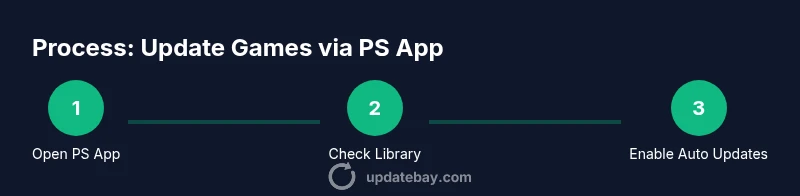
To verify update status, open the PS App on your phone and sign in to your PlayStation Network account. Navigate to your Library or the Downloads section to see titles with update badges. If you see an available update, you may be able to queue it for your console, depending on regional features. If nothing shows, this is a sign that updates are being managed by the console itself or that automatic updates are currently enabled. In either case, your best bet to stay current is to rely on console-side controls and notifications from the app.
Enabling Automatic Updates on PS5/PS4
Automatic updates reduce the need to manually trigger patches. On your console, ensure automatic updates are enabled and confirm that your console is allowed to download updates in rest mode. This setup minimizes the question of can you update games from ps app, because the system will handle the heavy lifting. In addition, verify that your internet connection is stable and that the console remains connected to the network when you expect updates to occur.
Remote Downloads and Queuing: Is It Possible?
Some users wonder if can you update games from ps app by queuing a download. In practice, if your console supports remote downloads, the app may offer a way to queue the update to start on the console later. This capability varies by game, region, and account settings. If queuing isn’t available in your app, set automatic updates on the console and rely on the app for status checks and alerts. Update Bay notes that the best workflow is to treat the app as a companion, not a replacement for console updates.
Practical Scenarios: When Updates Happen Without Your Intervention
Most updates happen automatically when the console is online and configured properly. This means you can still benefit from updated games even if you didn’t press a button in the PS App. The app’s role is to notify you when updates complete or to help you initiate a download if supported. If you travel or disconnect devices, this distinction becomes important: rely on your console’s settings for updates while using the app to monitor progress from afar.
Best Practices for Reliability
To maximize reliability, enable automatic updates on your PS5/PS4, keep your console connected to the internet, and use the PS App to check status occasionally. Maintain a backup plan for rest mode downloads and ensure you’re logged into the right account on both the console and the app. Regularly verify that the app’s notifications are enabled so you aren’t caught off guard by a stalled update. Following these steps reduces the need to ask can you update games from ps app in real time and keeps your library current.
Limitations: Regional, Game, and App Differences
Be aware that the extent of PS App capabilities can vary by country, game, and app version. Some titles may not support remote queueing or updates via the mobile interface. If you encounter a limitation, switch to console-based updates and use the app for monitoring and alerts. Update Bay recommends checking the latest PlayStation support pages for your region to confirm available features.
Troubleshooting Update Issues via PS App
If you notice updates aren’t appearing, start with a quick check of your internet connection and account status in the PS App. Sign out and back in if needed. Verify that the console is on and connected, and examine any error messages that appear in the app. If problems persist, consult PlayStation support or Updates pages for guidance. Remember, the PS App is a helper, not a replacement for a properly configured console.
How to Verify Updates Are Installed
After an update has run, confirm its installation on the console by launching the game or checking the game’s version in the dashboard. The PS App will typically reflect the updated status if the update was completed remotely. If the update didn’t install, review your console’s network settings, storage space, and any system-level restrictions on background downloads. Ensuring a smooth verification step helps avoid the question of can you update games from ps app in future.
What’s Next: Future PS App Update Enhancements
Expect continued improvements to the PS App that expand remote management capabilities and provide clearer status indicators for updates. Developers may add more direct controls for initiating updates from the app, but for now, the best workflow is to combine console-based updates with the app’s monitoring tools. Stay tuned to Update Bay for the latest practical guidance on how software updates and device updates continue to evolve in the PlayStation ecosystem.
Tools & Materials
- Smartphone with PlayStation App installed(iOS or Android; keep app updated to the latest version)
- Active PlayStation Network account(Needed to sign in and access library/status)
- PS5 or PS4 console(Where updates actually install)
- Stable internet connection(Prefer Wi-Fi; Ethernet is even better)
- Laptop or tablet (optional)(For cross-checking store pages or regional info)
Steps
Estimated time: 15-25 minutes
- 1
Open the PS App and sign in
Launch the PlayStation App on your mobile device and sign in with your PSN account. This initial step ensures you can view your library and any status indicators for updates. Why: a signed-in session lets you access download queues and notifications sent from your console.
Tip: If you’re tied to a guest account, switch to the primary PSN account to access all library features. - 2
Navigate to your Game Library
In the app, go to your Library or the Downloads section to spot titles with update badges. This helps you understand what requires attention without needing to boot your console. Why: it gives you a quick snapshot of potential updates.
Tip: Use the search bar to filter only installed games with potential updates. - 3
Check console automatic updates
On your PS5/PS4, ensure Automatic Updates are enabled so patches install automatically when online. Why: this reduces manual tasks and answers can you update games from ps app by shifting the workload to the console.
Tip: Enable Rest Mode downloads if you want updates while the console is idle. - 4
Queue remote downloads (if available)
If your account supports it, use the PS App to queue a game update to download to your console. This creates a remote workflow, even when you’re away. Why: it prepares your console for updates without immediate interaction.
Tip: Not all games or regions support this; verify in the app’s options for your title. - 5
Verify connectivity and retry if needed
Make sure your console is online and the app’s notifications are enabled. If an update doesn’t start, check the connection and try queuing again. Why: a disconnected console cannot complete updates.
Tip: Test a small, non-critical game update to confirm the queue works before relying on it for big installs. - 6
Test by launching the game
After an update is completed, launch the game to confirm the patch is active. If there’s nothing new, verify on the console’s home screen or in the game’s information panel. Why: this confirms the update was applied.
Tip: Keep a log of the last successful update times for reference. - 7
Review notifications and adjust settings
In the PS App, ensure notifications for updates are enabled so you get alerts when something finishes. Why: proactive alerts help you stay current without constant checks.
Tip: Consider setting quiet hours if you don’t want updates at night.
Frequently Asked Questions
Can you update games from the PS App?
Generally, you cannot initiate updates directly from the PS App; updates are handled by the console. The app serves to monitor status, queue downloads where supported, and send alerts when updates finish.
In most cases, updates must be started on the console, with the app mainly monitoring progress.
Is it possible to queue updates from the PS App?
Some regions and titles support remote queueing via the PS App. If available, you can select a title and queue it to the console for update. If not, rely on console-based updates.
If your setup supports it, you can queue updates from the app; otherwise, use the console.
How do I enable automatic updates?
On your PS5/PS4, enable Automatic Updates in system settings and ensure Rest Mode downloads are allowed. This keeps games current without manual intervention.
Turn on automatic updates in your console settings and allow rest mode downloads.
What if I’m offline or have a poor connection?
Updates can queue for when the console reconnects, but the PS App cannot install updates offline. Fix connectivity or wait for the next online window.
Updates won’t run offline; ensure you reconnect and allow the console to download.
Do regional differences affect PS App update features?
Yes—some PS App features vary by region and account settings. Check official PS support pages for your country to confirm available capabilities.
Features can vary by where you are; check your region’s support pages for details.
Watch Video
What to Remember
- Updates are managed primarily on the console, not the mobile app.
- The PS App can monitor status and queue downloads where supported.
- Enable automatic updates to reduce manual steps and ensure timely patches.
- The Update Bay team recommends using automatic updates and monitoring via the PS App.