How to Update an Application: A Practical Step-by-Step Guide
Learn how to update an application safely and efficiently across desktop and mobile. This guide covers built-in updaters, manual installs, backups, troubleshooting, and best practices to keep software secure.


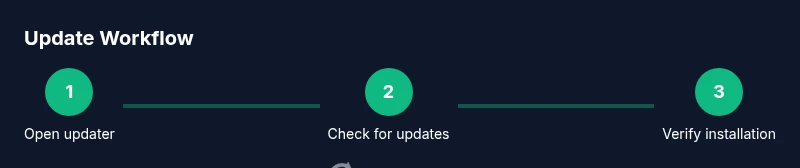
You can update an application by using the built-in updater or the official app store. Start by checking for updates, back up important data, download the latest version from a trusted source, install it, and restart the app. Afterward, verify the version and test core features to confirm everything works as expected.
What updating an application means in practice
Updating an application is more than installing a new feature. It patches security gaps, fixes bugs, and often refines performance. According to Update Bay, regular updates help protect your data and keep software compatible with other system components. The process varies by platform, but the core idea remains the same: install a newer, certified version from an official source, then verify that essential functions still work as expected. A successful update reduces vulnerabilities and unlocks improved stability, better compatibility with plugins and services, and sometimes new user-interface improvements. Before you begin, understand that updates may require downtime, storage space, and, in some cases, a reboot. Planning ahead helps you avoid data loss and ensures a smoother transition to the latest software.
Pre-update precautions and planning
Before updating, take a moment to plan. Check the update notes or changelog from the official source to know what changes are coming and whether any prerequisites exist. Back up your data and settings to protect against potential issues, especially for critical apps. Ensure your device has a stable internet connection and sufficient storage. If you rely on cloud backups, verify synchronization status. Consider the best time to update—during low usage hours—to minimize disruption. Disable any automatic syncs that could cause conflicts during the installation. If you’re updating on a shared device, inform other users about the planned downtime. Finally, confirm you have administrative access when required so the update can install without permission prompts.
Update paths: built-in updater vs manual install
Many apps offer a built-in updater that downloads and installs newer versions in place. This path is fastest and most convenient, and it reduces the risk of tampering when you stick to official stores or installers. Alternatively, some applications require a manual install from the developer’s website. This can be necessary for custom builds, beta releases, or cross-platform packages. When choosing a path, prioritize authenticity and integrity: use the official source, verify checksums if offered, and avoid third‑party download sites. If you’re updating enterprise software, you may need to work with your IT department to coordinate a rollout and maintain licensing compliance. Regardless of path, never interrupt a critical installation, and review post-update prompts carefully to configure new options or permissions.
Backups and data safety: how to prepare
Backups are your safety net during updates. Create a full backup of important data and, if possible, a system restore point or a snapshot. This makes it easy to roll back if something goes wrong. Store backups on a trusted medium or cloud service with redundancy. For databases or persistent app data, perform a separate data dump or export, and test restoration to verify integrity. If the app stores local preferences, copy the configuration files to a secure location. After backing up, close the app and any dependent services to prevent write conflicts during the update. Finally, ensure you have a recovery plan and a way to verify that the backup can be restored quickly should the update fail.
Desktop update workflow: Windows and macOS
On Windows, open the app, go to the Help or About menu, and select Check for updates. If the updater is integrated with Windows Update or the app store, follow prompts and allow the system to manage the installation. On macOS, use the App Store or the developer’s installer, depending on the app’s distribution method. Always review the permissions and privacy prompts that appear during installation, and avoid adding extensions or plugins from untrusted sources. After installation, relaunch the app and perform a quick test of core features. If the version shows a mismatch or the app fails to start, consult the developer’s support page for known issues and recovery steps.
Mobile update workflow: iOS and Android
On iOS, open the App Store, tap Updates or your profile, and install available updates. On Android, use Google Play, the app’s own update channel, or sideload options only if you understand the risks. Ensure you have a strong Wi‑Fi connection and ample storage; updates can be heavy and may consume data. After installation, clear the app’s cache if advised by the developer and restart the app to confirm the changes. If an update is not available, you may need to refresh the store or check for the latest OS compatibility.
Troubleshooting common update problems
If an update fails, start with a clean restart of the device and the app, then retry. Check network connectivity, storage space, and any ongoing backups that could block the process. For failed downloads, try a different network or download on a trusted Wi‑Fi network. If the installer reports a checksum mismatch, re-download from the official source and validate the file’s integrity. If the app still won’t update, consult the support page or log files for error codes. In enterprise environments, involve IT to verify licensing and deployment rules, and consider rolling out updates in test groups before wide deployment.
Best practices for reliable, secure updates
Adopt a regular update cadence that aligns with the app’s criticality and your risk tolerance. Enable automatic updates where appropriate, but maintain control by scheduling checks and monitoring change logs. Use official sources and verify digital signatures or checksums to protect against tampering. Regularly review installed versions and deprecations, and keep a log of updates for compliance. Implement a rollback plan with tested restore points so you can revert quickly if a release introduces regressions. Finally, keep security hygiene by pairing updates with OS patches and driver updates, and educate users about spotting phishing or fake update prompts.
Testing after update and rollback options
After installing an update, run a focused test pass that covers critical workflows and data paths. Validate that user accounts, permissions, and integrations still function as expected. If anomalies appear, consult the changelog for new behavior and adjust configurations accordingly. If the update introduces issues that cannot be resolved quickly, use the backup plan to roll back to the previous version or deploy a hotfix. Document the incident and any learnings to improve future update cycles. The Update Bay team recommends maintaining a proactive approach to updates, including monitoring for new patches and scheduling regular reviews of installed software to minimize risk.
Tools & Materials
- Stable internet connection(Wi-Fi or wired connection with reliable bandwidth)
- Official app store account or developer portal credentials(Needed for authentic updates)
- Backup storage (cloud or local)(External drive or cloud backup with redundancy)
- Admin or root access(Needed for system or enterprise updates)
- Sufficient device storage(Ensure free space for the update and temporary files)
- Power source or charged device(Avoid updates on low battery; keep device plugged in if possible)
- Checksum or signature verification (optional but recommended)(Verify integrity of the downloaded file when available)
Steps
Estimated time: 30-60 minutes
- 1
Open the updater or store
Launch the app and navigate to the updater section or go to the official app store page. This is where you initiate the update process and see the available versions. Opening the right path minimizes the chance of installing a tampered file.
Tip: If you don’t see updates, refresh the page or check the developer site for a newer installer. - 2
Check for updates
Tap or click Check for updates to fetch the latest version. Review the listed version number and release notes to understand what changes are included and any prerequisites.
Tip: Always read the changelog to anticipate behavior changes or new permissions. - 3
Review change log
Read the change log or release notes before installing. This helps you assess impact on workflows and identify any required configuration changes.
Tip: Look for known issues or compatibility notes with your OS or plugins. - 4
Back up data
Create a complete backup of critical data and, if possible, a system restore point. This step protects you if the update causes unforeseen problems.
Tip: Test a quick restore from the backup to ensure you can recover quickly. - 5
Download and install
Proceed with downloading and installing the update. Do not interrupt the process; allow it to complete to avoid corrupted files.
Tip: If prompted, choose the default installation path to reduce misconfigurations. - 6
Verify installation
After installation, confirm the version matches the release notes and perform a quick feature check to ensure key functions work.
Tip: Check for new permission prompts and adjust settings as needed. - 7
Restart and test
Restart the app and, if appropriate, the device. Run representative tasks to confirm everything operates normally post update.
Tip: Keep a close eye on any new dialogs or onboarding screens that appear. - 8
Troubleshoot if needed
If you encounter issues, consult logs, retry with a fresh download, or roll back to the previous version using your backup.
Tip: Document the error codes and steps taken for faster support.
Frequently Asked Questions
What is the best way to update an application on a desktop?
Use the built-in updater or the official installer. Verify the source and back up data beforehand to minimize risk.
For desktops, use the official updater and back up first to minimize risk.
Should I update apps immediately or wait for reviews?
Prioritize security patches and critical fixes. Test nonessential updates later if possible to avoid disruption.
Prioritize security updates, then test the rest when convenient.
Can updates cause data loss?
If you back up prior to updating, data loss risk is minimized. Always verify backups before proceeding.
Back up first to minimize data loss risk.
What should I do if the update breaks my workflow?
Roll back to the previous version using your backup, then consult the changelog and support resources.
If it breaks your workflow, rollback and check the notes.
Do I need admin rights to update?
Most updates require admin or root access to install components and modify system files.
Yes, admin rights are usually required for installation.
How do I verify the safety of an update?
Check the digital signatures, source URLs, and store reputation. Avoid unauthenticated installers.
Verify the signature and source before installing.
Watch Video
What to Remember
- Update regularly to improve security and stability
- Back up data before updating
- Use official sources and verify integrity
- Test core features after update
- Maintain a rollback plan for quick recovery