How to Update Android Apps: A Practical 2026 Guide for Users
Learn how to update Android apps across devices, enable auto-updates, troubleshoot failures, and manage storage while staying secure and aligned with best practices for 2026.


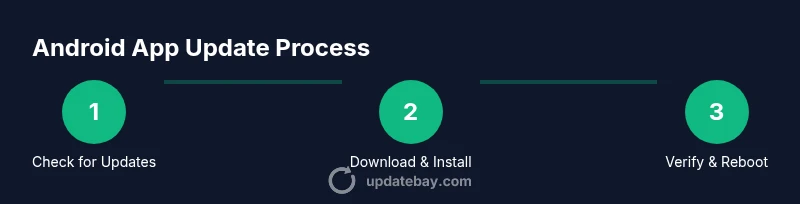
This guide will show you exactly how to update Android apps on your device, including choosing between automatic and manual updates, how to use Google Play Store for updates, and how to troubleshoot common update failures. You’ll learn best practices for data usage, storage, and app permissions to keep your device secure and running smoothly. Prerequisites include a working Android device, an active Google account, and internet access.
Why Keeping Android Apps Updated Matters
According to Update Bay, keeping Android apps updated is essential for security and performance. Each update patches vulnerabilities, fixes bugs, and introduces improved features that enhance compatibility with new Android versions. When updates are delayed, devices become more exposed to security risks and apps may run less efficiently or crash more often. Update Bay Analysis, 2026, shows that active devices with up to date apps experience fewer crashes and better battery life. Beyond security, updates ensure apps remain compatible with the latest OS changes and new features such as improved privacy controls and performance optimizations. As you read, you will learn how to configure updates, troubleshoot, and maintain a healthy app ecosystem on your Android devices. This section sets the foundation for a reliable update routine that minimizes disruption to your daily use.
How Android App Updates Work (Behind the Scenes)
Android app updates flow through a mix of Google Play Store updates, in app update mechanisms, and occasional OEM or firmware updates. When you hit update, your device negotiates with Google’s servers or the app developer’s server to download a delta or full APK or app bundle. Delta updates reduce data usage by sending only changed blocks, while full updates replace the entire package when needed. App bundles and dynamic features can unlock or remove components on the fly, improving install times. OTA firmware updates from device manufacturers can also affect compatibility with apps, so staying current with both OS and app updates is wise. In practice, this means you may see different update occasions for different apps, depending on their developers’ release cadence and the device’s OS version.
Automatic Updates: Pros, Cons, and How to Configure
Automatic updates offer convenience by updating apps in the background as soon as updates are available. Pros include up to date security patches and reduced manual effort. Cons include occasional bandwidth use and sometimes longer update times during peak hours. To configure automatic updates, open Google Play, go to your profile, select Settings > Network preferences > Auto-update apps, and choose Over Wi Fi only for data savings, or Over any network if you want updates more aggressively. If you have limited data or a slow connection, prioritizing Wi Fi can help prevent unexpected charges and slowdowns. You can also toggle automatic updates per app in the Updates tab.
Manual Update Steps for Google Play Store
Manual updates give you control over when and what gets updated. Start by opening Google Play Store on your device. Tap your profile icon in the top right, then choose Settings or Manage apps & devices. In the Updates section, you’ll see a list of apps with available updates. Tap Update All to refresh everything, or update individual apps as needed. After updating, launch each app to verify the new version is functioning correctly and review any new permission prompts or changes in settings. If you encounter issues, try clearing the Play Store cache and retrying the update.
Updating Apps Outside Google Play (APK Sources) – Risks and Steps
Sideloading APKs from third party sources can be risky and may expose you to malware or unstable builds. Only pursue this route if you trust the source and understand the potential security implications. Steps include downloading the APK from a reputable site, enabling Install unknown apps for the source app, confirming the APK’s signature, and installing it. After installation, disable the unknown sources option if possible to reduce risk. Always verify the APK against the developer’s official release notes and consider scanning with a trusted security app before installing.
Troubleshooting Common Update Failures
Update failures can happen for several reasons: poor connectivity, insufficient storage, or app level incompatibilities. First, ensure you have an active internet connection and enough free space. If updates still fail, clear the Google Play cache, restart the device, and try again. Checking for system updates can also resolve compatibility issues. If you continue to see errors, attempt updating a smaller set of apps first or update them one by one to identify the problematic package.
Managing Storage, Data Usage, and Permissions During Updates
Updates can temporarily increase data usage and storage requirements. Make sure you have adequate free space by removing unused apps or transferring files to cloud storage. For data efficiency, use Wi Fi for updates and disable automatic downloads over cellular networks when necessary. Review and adjust app permissions post update to ensure the new version behaves as intended, especially around location, contacts, and storage access. Keeping permissions aligned with your privacy preferences improves security and reduces potential misuse.
Best Practices for Update Scheduling and Maintenance
Create a predictable update routine that minimizes disruption. Schedule automatic updates during low-usage hours and confirm device energy settings allow background tasks. Maintain a regular OS update cadence to keep compatibility with apps, and back up important data before major updates. Consider a monthly check of app versions and privacy settings to stay aligned with security best practices. This approach helps you stay current with a minimal time investment while maximizing performance and security.
What to Do When an App Won’t Update
If an app fails to update, start with a quick triage: confirm internet access, verify storage, and check for any pending OS updates. Clear the Play Store cache and force stop the Play Store app, then retry the update. If it still fails, try updating the app individually, reinstall the app, or reach out to the developer with error details. In persistent cases, check for known compatibility notes that may require you to update your device OS or wait for a new app version.
Next Steps for a Smooth Update Routine
From here, implement the recommended practices: enable auto updates over Wi Fi, keep OS and apps current, and maintain a small buffer of free storage. Periodically audit your installed apps to remove unused ones and review privacy permissions. By establishing a routine, you reduce the risk of security gaps and enjoy a smoother, safer Android experience.
Tools & Materials
- Android device with internet access(Stable Wi Fi recommended for large updates)
- Active Google account(Used to access Google Play and sync updates)
- Google Play Store app(Preinstalled on most devices; ensure it’s updated)
- Sufficient storage space(Aim for at least 1–2 GB free for major updates)
- Device charged or connected to power(Update processes can be lengthy; prevent abrupt interruptions)
- Optional backup method(Backup important data before major OS or app updates)
Steps
Estimated time: 20-30 minutes
- 1
Open Google Play Store
Launch the Google Play Store app on your Android device. Make sure you are signed in with the Google account linked to your device to access your updates history and download permissions.
Tip: If Play Store doesn’t appear, check for hidden apps or install updates from your device settings. - 2
Access Update Settings
Tap your profile icon in the top right corner to access updates settings. Choose Settings or Manage apps & devices to view available updates and update preferences.
Tip: Use Updates available to quickly see which apps need attention. - 3
Enable Auto Updates
In the settings, select Auto update apps and choose Over Wi Fi only to save data, or Over any network if you want updates to run as soon as they’re released.
Tip: Auto updates can run in the background; ensure your device has enough battery or is charging. - 4
Update Apps Manually
From the Updates screen, tap Update All to refresh every app or update individual apps by tapping Update next to each item. Verify any new permissions requested by the updated apps.
Tip: Review permission changes before granting them to avoid surprises. - 5
Verify Post Update
Open each updated app to confirm the new version is installed and functioning. Check for improved performance and any new in app features.
Tip: If apps behave oddly after an update, clear cache for that app or restart your device. - 6
Troubleshoot Failures
If an update fails, restart the device, clear the Play Store cache, and retry. If problems persist, switch networks or try updating a smaller set of apps.
Tip: Persistent failures may indicate compatibility issues; monitor official release notes.
Frequently Asked Questions
Can I update Android apps without an internet connection?
No. Updates require an active internet connection to download files. You can use Wi Fi or mobile data to fetch updates.
No, you need internet to download updates.
Will updating apps delete my data?
Most updates preserve your app data, but some updates can reset certain preferences or require re login. Always back up important information if you’re doing a major update.
Usually your data stays, but you might need to re login after some updates.
How do I disable auto updates?
Open Play Store, tap your profile icon, go to Settings > Network preferences > Auto update apps, and choose Don’t auto update apps. You can also disable auto updates per app in the Updates tab.
Turn off auto updates in the Play Store settings.
What should I do if updates fail repeatedly?
Check your internet connection, free storage, and app permissions. Clear Play Store cache, restart the device, and retry. If the issue persists, update apps individually or check for OS compatibility notes.
Troubleshoot step by step: network, storage, cache, then retry.
Is sideloading APKs safe?
Sideloading APKs should be a last resort and only from trusted sources. Verify signatures and beware of malware. Prefer official app updates through Google Play whenever possible.
Sideloading can be risky; use trusted sources only.
Watch Video
What to Remember
- Enable auto updates to stay protected with minimal effort
- Keep observations on storage and data usage during updates
- Use Google Play for most updates and sideloading only with caution
- Troubleshoot update failures with a simple, repeatable checklist
- Maintain a routine to ensure OS and apps stay current