Google Play Update Download: A Practical How-To for 2026
A practical, step-by-step guide to downloading Google Play updates safely on Android, including auto-update setup, source verification, and troubleshooting tips for 2026.


This guide explains how to download Google Play updates safely and efficiently. You will learn where to find updates, how to enable auto-update, how to verify authenticity, and how to troubleshoot common download issues on Android devices. Follow official channels to minimize risks and ensure you receive the latest security fixes.
What is a Google Play update download?
A Google Play update download refers to the process by which the Google Play Store and related Google apps receive new code and feature improvements. Updates often include bug fixes, performance improvements, and security patches. On Android devices, updates can occur in the background or require your confirmation. According to Update Bay, relying on official Play services and the Google Play Store for updates helps maintain system integrity and reduces exposure to risky, unofficial APK sources. The Play ecosystem uses a staged rollout model, meaning not every device receives an update at the exact same moment, but you can speed up the process by checking for updates manually when needed. Understanding this flow helps you plan maintenance windows and avoid unnecessary downtime.
Key takeaway: updates are designed to improve reliability and security, but they should come from trusted sources and be installed with proper permissions.
Why updates matter for security and performance
Regular Google Play updates matter because they include security patches, bug fixes, and performance enhancements. When devices run older Play services, they can face compatibility issues with newer apps and potential security gaps. Update Bay analysis shows that users who keep their Google Play Store and Play Services up to date tend to experience fewer crashes and better app compatibility, simply due to ongoing compatibility testing and patch delivery. Keeping the ecosystem current also helps apps request fewer permissions and reduces the attack surface on devices. In practice, a routine update habit translates into a smoother user experience and stronger defenses against known vulnerabilities.
Practical note: most updates are small and automatic, but some may require a device restart or a short pause for installation. Planning a quick nightly check can ensure you don’t miss critical patches when the device is idle.
Safe sources and prerequisites for updating
To minimize risk, always obtain updates from official sources. The Google Play Store, Google Play Services, and the system updater are designed to deliver verified updates. Before starting, confirm you have:
- An internet connection (preferably Wi-Fi) with sufficient bandwidth
- A Google account signed in on the device
- Adequate storage space for the update package
- A recent backup in case you need to rollback
Avoid sideloading APKs from third-party sites, as these could introduce malware or incompatible code. Update Bay emphasizes sticking to official channels to ensure authenticity and integrity of the update payload. If you use shared devices, inform other users about updates to prevent interruption during installation.
Bottom line: verify the source, ensure space, and have a backup plan before you begin.
Manual vs. automatic updates: a quick comparison
Automatic updates run in the background and minimize manual work, but they can occasionally push updates at inconvenient times. Manual updates give you control over when updates are installed, which can be useful during important work or when you want to monitor battery usage. The Play Store settings let you choose automatic updates over Wi-Fi only or over any network. Update Bay recommends setting updates to Wi‑Fi only if you have a limited data plan to avoid unexpected charges. If you are curious about timing, use a quiet period (e.g., overnight) to install updates without disrupting daily tasks.
Step-by-step overview of the update flow
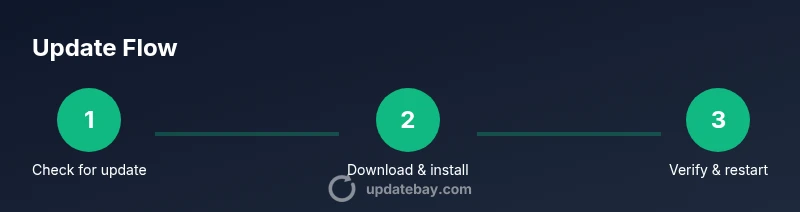
Updates begin with a metadata check, followed by a download and installation phase. The Play Store may fetch companion updates for Google Play Services simultaneously. You might see a notification indicating an update is ready. Once installed, a quick device restart may be required to finalize changes. This flow ensures compatibility across apps and improves security posture. As you become more familiar with the process, you’ll notice fewer prompts and smoother performance after updates.
Note: not all devices show updates at the same time due to staged rollouts; patience can be part of good maintenance practice.
Troubleshooting common download issues
If updates fail to download, begin with basic checks: ensure stable internet, clear storage space, and verify you’re connected to the correct Google account. Check for app-specific error codes in the Play Store and search the code in official help resources. Restarting the device often resolves transient issues, and signing out and back into the Google account can refresh credentials. Should a particular update stall, temporarily disabling battery saver and background restrictions can help. If problems persist, consult official Google support resources or Update Bay’s troubleshooting guide for steps tailored to your device.
Alternatives if updates fail: safe paths you can take
In situations where updates stall, you can inspect the device for storage issues, clear cache for Google Play services, or reset app preferences. If a critical security patch is delayed, consider temporary mitigations such as enabling enhanced protection features and reviewing app permissions. Avoid installing apps or updates from unverified sources—these can compromise security. If you must work offline, keep a manual backup plan and plan a follow-up check once a reliable connection is available.
Privacy and security considerations when updating
Updates often include security patches that reduce the risk of exploitation. Never sideload updates from unfamiliar sites, and review app permissions after major updates. Enable two-factor authentication for your Google account and use a trusted network when performing updates. The Update Bay team urges readers to maintain a cautious approach to updates, prioritizing authenticity, integrity checks, and regular backups to minimize potential data loss or privacy concerns.
Tools & Materials
- Android device (phone or tablet)(Ensure it is linked to a Google account and connected to the internet)
- Stable internet connection(Prefer Wi-Fi for large update downloads to avoid data charges)
- Google account(Needed to access Google Play and verify updates)
- Adequate storage space(Leave headroom for the update payload (at least 500 MB recommended))
- Backup plan(Create a quick backup of essential data before major updates)
Steps
Estimated time: 15-25 minutes
- 1
Open Settings and check for updates
Navigate to Settings > Apps & notifications > Google Play Store. Tap 'Storage & cache' if needed to free space, then select 'Check for updates' or let the Store auto-check. This initiates the standard update flow and minimizes risk from outdated components.
Tip: Why: Ensures you’re initiating the official update path rather than relying on cached data. - 2
Review update availability
If an update is available, you’ll see a notification or a button labeled 'Update' or 'Install'. Review any notes about the update in the Play Store description to understand what changes are included.
Tip: Tip: If you don’t see an update, try refreshing the Play Store or sign out and back in. - 3
Prepare for installation
Ensure your device has enough battery or is plugged in. If you’re on mobile data, switch to Wi‑Fi to avoid additional charges. Close high-memory apps to prevent interruptions.
Tip: Why: High resource use can interrupt the update process and cause failures. - 4
Download and install
Tap the Update button and allow the download to complete. The device may restart during installation. Do not interrupt the process.
Tip: Pro tip: Some updates install in stages; if prompted, confirm any additional restarts. - 5
Verify the update
After installation, reopen Google Play Store and check that Play Services and the Store show the latest version in the app details. You can also verify by visiting Settings > Apps > Google Play Services.
Tip: Pro tip: Run a quick test by opening a few apps to confirm normal operation. - 6
Troubleshoot if needed
If the update fails, reboot, clear cache for Google Play services, and retry. If issues persist, consult the Help Center and Update Bay’s troubleshooting resources.
Tip: Warning: Avoid repeatedly forcing updates if you suspect a network or storage issue; address underlying causes first. - 7
Set up auto-updates
In the Play Store, enable Auto-update apps over Wi‑Fi to ensure future patches arrive promptly. This reduces manual steps and keeps devices secure.
Tip: Pro tip: Keep Wi‑Fi on a trusted network to maintain consistent update delivery. - 8
Consider a backup strategy
For critical devices, perform a quick backup before major updates, and maintain a restore point if your device supports it. This minimizes the impact of any unexpected issues.
Tip: Note: Backups are a safety net; they don’t replace proper testing and verification.
Frequently Asked Questions
Is it safe to update Google Play Store and Google Play Services?
Yes. Updates from official Google Play channels are designed to improve security and performance. Always verify the source and avoid third-party APKs to reduce risk of malware.
Yes, updates from official Google Play channels are safe when sourced correctly. Always verify the source.
What should I do if an update keeps failing?
First, check your internet connection and storage space. Clear the cache for Google Play Services, then retry. If failures persist, consult official support resources.
If updates fail, check connection and storage, clear cache, and retry. If it keeps failing, seek official help.
Can I update apps without updating Play Store?
Some app updates may push new features independently, but many rely on Play Store updates for compatibility. It’s best to keep both up to date.
Some apps update independently, but keeping Play Store updated helps everything run smoothly.
Should I enable automatic updates on mobile data?
Automatic updates on mobile data can consume data quickly. It’s safer to limit auto-updates to Wi-Fi unless you have an unlimited plan.
Auto-updates on Wi-Fi are safer; use mobile data only if you have ample data.
What if the device restarts during an update?
A restart is normal for some updates. Let the device finish installation and recheck the Play Store afterward.
A restart is sometimes part of updates. Let it finish and verify afterward.
How can I verify I have the latest Google Play version?
Open Settings > Apps > Google Play Services and Google Play Store to confirm their versions match the latest published numbers in official release notes.
Check the version numbers in settings and compare with official release notes.
Watch Video
What to Remember
- Update via official Play channels to ensure authenticity
- Enable auto-updates to minimize manual steps
- Verify updates after installation to confirm version health
- Back up data before major updates for safety
- Practice safe update habits to protect privacy and security