Google Play Store Update: How It Works, Troubleshooting, and Best Practices
Learn how Google Play Store updates are delivered, how to enable auto-updates, and how to troubleshoot common issues on Android. Practical guidance from Update Bay covers steps, best practices, and verification to keep your devices current.


This guide explains how to update the Google Play Store on Android, what changes to expect, and how to troubleshoot common update issues. You will learn where to check for updates, how to enable automatic updates for apps, and how to verify a successful update. The steps cover practical checks, best practices, and quick fixes.
What is a Google Play Store update and why it matters
A Google Play Store update is the process of upgrading the app that manages Android app distribution on your device. These updates bring new features, security patches, performance improvements, and bug fixes. Understanding how these updates happen helps you stay secure and compatible with the latest apps. According to Update Bay, most Google Play Store updates are delivered via staged rollouts to minimize disruption and ensure compatibility across devices. The Google Play ecosystem also relies on supporting services that are updated in tandem, including the Play Services framework and the Play Store itself. For everyday users, keeping this component up to date reduces crashes, improves download speeds, and enhances permissions handling. In this guide, we’ll break down the update process, explain where to check for updates, and show you how to verify that changes have taken effect. By the end, you’ll know how to keep the Play Store current without interrupting your work or downtime.
How updates get pushed to Android devices
Updates to the Google Play Store and related services follow a staged rollout model designed to balance speed with reliability. When Google releases a new version, servers distribute the package to a subset of devices first, monitor telemetry, and gradually expand availability. This approach minimizes the risk of widespread issues and allows hotfixes to be pushed quickly. Update Bay analysis shows that most updates arrive across regions within 24–72 hours, depending on device type, OS version, and carrier constraints. You may see a notification prompting you to install a new version, or you might find the update under Settings > Apps & notifications > Google Play Store > Advanced > App version. Publicly visible changelogs (patch-notes) describe new features, bug fixes, and security improvements. In practice, updates can occur automatically in the background if you have auto-update enabled, but manual checks remain a reliable way to ensure you’re on the latest release. This is especially important when you rely on timely access to app updates and policy changes.
How to manually update the Google Play Store
Manual updates are straightforward when an update is ready but hasn’t installed automatically. Start by opening the Google Play Store and tapping your profile icon in the upper-right corner. From there, go to Settings and check the Play Store version under About. If an update is available, you’ll see an option to Update. Complete the on-screen prompts and allow the device to complete the installation. After updating, you may be prompted to restart the Play Store or your device. If you don’t see an update button, it may already be current or your device is on a version that Google is phasing out. In that case, you can rely on auto-update settings or repeat the check later. Keeping a watchful eye on the version number helps confirm you’ve got the latest improvements.
Enabling auto-updates and managing update settings
Auto-update for apps provides ongoing security and feature improvements without manual checks, but you can tailor preferences. In the Play Store, tap your profile icon > Settings > Network preferences > Auto-update apps. Choose Over Wi‑Fi only to conserve data, or Over any network for the latest versions faster. You can also disable auto-update for specific apps in the app's page. If you enable auto-update, ensure you’re connected to a trusted network and have sufficient battery or charging to prevent mid-update interruptions. Auto-updates can sometimes cause brief background activity; plan for brief pauses if you’re on a limited data plan or have metered connections. This setting helps you stay current with the minimum manual effort.
Common issues after updates and how to troubleshoot
After updating the Google Play Store, you might encounter issues such as download stalls, error codes, or apps failing to install updates. A frequent cause is cached data corruption or an outdated Play Store cache. Start by clearing the cache and, if necessary, clearing storage (data) for Google Play Store and Google Play Services. Ensure the device has sufficient storage space and stable network connectivity. If problems persist, disable and re-enable the Play Store, remove the Google account, restart the device, and re-add the account. Check that the device’s date and time are correct, since misalignment can hamper server communication. If you still see error messages, consult the patch-notes for known issues and consider reporting the problem to Google or your device maker. Maintaining logs of error codes will help when seeking support.
Best practices for staying current and secure
To minimize disruption and maximize security, adopt a routine: enable auto-updates, monitor Play Store version numbers, and review app permissions after updates. Use a strong, unique Google account and two-factor authentication to protect your device and data. Regularly clean cache periodically and avoid sideloading updates from third-party sources. Turn on device backups and ensure a stable Wi‑Fi connection during updates to prevent data loss. In practice, a consistent update strategy keeps you on the latest security patches, reduces compatibility issues, and improves app performance. Update Bay emphasizes the importance of verifying the Play Store version after major OS updates to ensure full compatibility with your installed apps.
How updates affect apps and compatibility
Each Play Store update can influence how apps are installed, launched, and granted permissions. Some changes are invisible to the user, while others affect pending installations or background processes. Compatibility issues typically arise when apps rely on older libraries or deprecated APIs, which developers address through their own updates. When you’re on a rolling-release device, you may encounter a temporary mismatch during the transition. Staying current reduces the risk of security vulnerabilities and feature gaps. If you notice unusual battery drain or slower performance after an update, diagnose with a clean boot and monitor resource usage. The goal is to minimize downtime and maintain a smooth user experience across your preferred apps.
Understanding update channels and beta programs
Google Play offers various update channels, including public releases and beta programs that let users preview upcoming features. Enrolling in beta gives you early access but may introduce instability. To participate, open the Play Store, navigate to Settings, and join a beta program if offered on the device. You’ll receive updates less predictably, but you gain early access to enhancements and bug fixes. If you operate a business device or a small fleet, beta testing can help catch issues before wider rollout. Always balance the benefits of early access with potential instability and ensure you can revert to a stable version if needed. Update Bay notes that beta participation can influence app compatibility timelines for critical tools.
Privacy and data considerations during Google Play updates
Updates involve downloading apps, services, and metadata that may impact data usage and permissions. Ensure you’re comfortable with the permissions requested by new features, and review privacy settings after major updates. It's wise to set data usage alerts and monitor battery impact during updates. Some updates may temporarily access accounts or location data; verify those changes against your organization's policies. Keeping Play Services up-to-date generally improves security and privacy protections, but you should stay informed about what changes are included in the patch-notes and terms of service. Update Bay reminds readers to read patch-notes to understand the scope of data handling and consent changes.
Steps to verify update success and monitor changes
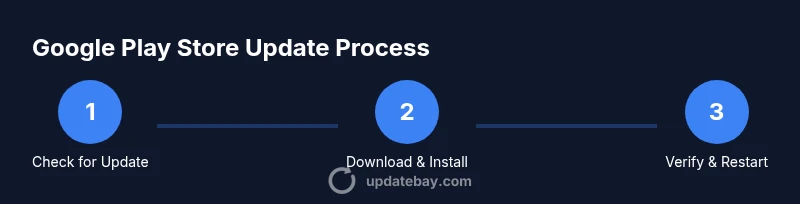
Verification is essential after any Google Play Store update. Start by checking the Play Store version under Settings > About. Confirm that the version shown matches the latest patch-notes from Google’s official site. Open the Play Store, navigate to a few apps, and ensure installations and updates proceed without errors. Watch for unexpected prompts or permission changes and test core features that rely on updated components. If issues appear, repeat the troubleshooting steps, review any related changelogs, and consider a device restart. This disciplined approach ensures you benefit from each update without surprises, and it aligns with Update Bay’s recommendations for careful verification.
Resources and further reading
Reference official Google Play help pages, Android developer documentation, and privacy policy updates. Patch-notes and changelogs from Google’s official channels provide the most accurate, up-to-date information. For additional guidance and curated insights, explore tech education sites and trusted outlets. The Update Bay team suggests starting with Google’s official Play Help center, Android Developers docs, and security advisories from major institutions to stay informed and prepared for future updates.
Tools & Materials
- Android smartphone or tablet(Device with Android 8.0+ for best compatibility)
- Charger(Keep device charged during updates)
- Stable Wi‑Fi connection(Prefer 5 GHz for reliability)
- Google account credentials(Needed to sign in to Play Store)
- Access to Google Play Store(Make sure the app is installed and functional)
- Backup method (optional)(Recommended before major updates)
Steps
Estimated time: 15-30 minutes
- 1
Open Google Play Store and access settings
Launch the Play Store and tap your profile icon in the top-right. Navigate to Settings to review the current Play Store version and see if an update prompt is available. If an update is shown, follow the on-screen prompts to install it.
Tip: If you don’t see the update prompt, ensure you’re signed in with a Google account and your device is connected to the internet. - 2
Check for a Play Store version update
In Settings -> About, look for Play Store version. If a newer version exists, tap Update to begin installation. Avoid interrupting the process once the update starts.
Tip: Keep battery above 20% or connect to power during the update. - 3
Enable auto-updates for apps
Go to Settings -> Network preferences -> Auto-update apps and choose Over Wi‑Fi only or Over any network. This reduces manual checks while ensuring Apps stay current.
Tip: For devices used in business, consider stricter controls on data usage. - 4
Clear cache if updates fail
If updates stall, clear the Play Store cache (Settings -> Apps & notifications -> Google Play Store -> Storage -> Clear cache) and retry. You may also clear Google Play Services cache.
Tip: Avoid clearing data unless necessary; it may require re-signing in. - 5
Restart device to apply changes
After installation, restart the device to ensure all components initialize correctly. This helps prevent post-update glitches.
Tip: A quick reboot can fix lingering permission prompts or service hiccups. - 6
Verify the update and monitor
Open Play Store > Settings > About to confirm the version. Check several apps for successful updates and monitor for abnormal behavior for the next run.
Tip: Keep a small log of version numbers and issues for future reference.
Frequently Asked Questions
Is the Google Play Store update separate from Android OS updates?
Yes, the Play Store update is separate from Android OS updates; they have their own release cycles and patch notes. Keeping both current is important for security and compatibility.
Yes, Play Store updates are separate from Android OS updates and have their own release cycle.
Why won't my Play Store update install?
Common causes include unstable network, insufficient device storage, or cached data corruption. Check your connection, free space, and clear cache/data if needed before retrying.
Usually network, space, or cache issues; retry after addressing those.
Can I update apps without updating the Play Store itself?
Yes. Apps can update through the Play Store while the Play Store app itself remains unchanged. Updates may be delivered to the store independently of the apps.
Yes, you can update apps without changing the Play Store.
Where can I find the Play Store version number?
Open the Play Store, go to Profile > Settings > About > Play Store version to see the current version.
Check Settings > About to find the Play Store version.
Does updating Play Store affect device battery life?
Updates use some battery during download and installation, but the impact is usually minor if the device is charged and updates occur over stable networks.
Battery use is typically minor and manageable.
Do I need an internet connection to update?
Yes. You need an internet connection to download and install updates; using Wi‑Fi is recommended to avoid data overages.
Yes, internet is required; Wi‑Fi is preferred.
Watch Video
What to Remember
- Know updates arrive via staged rollouts.
- Enable auto-update to stay current with minimal effort.
- Read patch-notes to understand changes and permissions.
- Troubleshoot by clearing cache and restarting if needed.
- Verify Play Store version after updates to confirm success.