How to Update Apps on iPhone: Step-by-Step Guide
Learn how to update apps on iPhone with a clear, step-by-step method. Improve security and performance by keeping apps current, with tips on automatic updates and troubleshooting.


If you want to ensure your iPhone apps stay secure and perform well, here’s the quick path: update apps through the App Store, either manually or automatically, and review each app’s update status regularly. This guide highlights the essential steps to update, verify, and troubleshoot app updates on iPhone, along with best practices for ongoing maintenance.
Why updating apps on
Understanding update sources on
Where to find and review app updates on
Step-by-step setup for automatic updates on
Step-by-step manual update: hands-on method
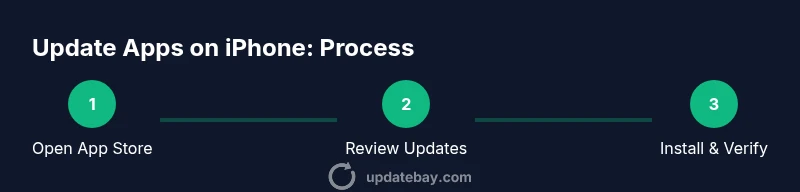
If you prefer manual control, open the App Store and navigate to 'Updates' or your profile to view available updates. Tap 'Update All' to install every pending update, or tap 'Update' next to a specific app to install it individually. After starting updates, give the device a moment to download and install; ensure you have a stable internet connection and enough storage. Once updates complete, you can open updated apps to confirm they launch correctly and review any new permissions requested by updated features.
Step-by-step verification and post-update checks
After updates finish, verify that the apps opened correctly and that any new features are visible. Check app settings for changes or new privacy prompts and confirm you’re signed in where required. If an app requires re-authentication after an update, follow the on-screen prompts to re-login. It’s also a good idea to track which apps you updated in a simple checklist to avoid repeating steps unnecessarily in the future. Finally, review battery and performance: if you notice unusual drain after updates, consider additional reboots or controlling background activity for problematic apps.
Troubleshooting common update issues on
Best practices for keeping apps updated
Set realistic expectations for updates: most are quick, but large feature updates may take longer. Keep automatic updates enabled if you value convenience, but monitor data usage if you’re on a limited plan. Regularly review app-specific update notes to understand new permissions or changes in behavior. Maintain backups of important data, especially for apps that handle sensitive information. By integrating these practices, you’ll maintain a secure, efficient
Common gotchas and final checks
Some apps require you to re-login after an update, or may change settings that affect notifications or privacy. If an update seems to have altered app behavior unexpectedly, check the app’s internal help or support resources. Keep your
Tools & Materials
- iPhone (any model with iOS 14+)(Ensure device is running a supported iOS version for app compatibility)
- Stable internet connection(Wi-Fi recommended; cellular works if allowed in settings)
- Battery level(Keep above 20% or connect to power during updates)
- Apple ID credentials(Required to access App Store updates and sign in)
- Storage space(Ensure enough free space for new app data during updates)
- Optional: backup method(iCloud or computer backup in case of issues)
Steps
Estimated time: 8-12 minutes
- 1
Check prerequisites
Before updating, verify you have a stable internet connection, sufficient storage, and enough battery. This reduces the chance of partial updates or failed installations.
Tip: Plug in your device if you’re running low on battery to avoid interruptions. - 2
Open the App Store
Launch the App Store from your Home Screen to access available app updates. If you don’t see updates, pull down to refresh the list.
Tip: Sign in with your Apple ID if prompted to refresh the update list. - 3
View available updates
Tap your profile icon (top-right) to view pending updates and the history of recent installations. Decide whether to update all or pick individual apps.
Tip: Read update notes to understand if changes affect permissions or features. - 4
Update apps
Tap Update All to install every pending update, or tap Update next to specific apps. Allow several minutes for downloads, depending on size and connection.
Tip: If updates stall, pause and resume or try a different network. - 5
Enable automatic updates
If you prefer hands-off maintenance, enable automatic app updates in Settings > App Store. This keeps apps current without manual checks.
Tip: Consider enabling automatic updates over Wi‑Fi only if you want to conserve data. - 6
Verify updates installed
Open updated apps to confirm they launch correctly and check for new features or changed permissions. Re-login if prompted by any app.
Tip: Keep a short log of updated apps for your records. - 7
Troubleshoot failed updates
If an update fails, diagnose connectivity, storage, and account status. Try restarting the device and retrying the update. If problems persist, contact support.
Tip: Disable VPN temporarily if it interferes with downloads. - 8
Maintain regular update habits
Schedule time to review app updates weekly. Automate where possible and pair with a monthly storage check to keep devices optimal.
Tip: Pair updates with a quick device reboot for best results.
Frequently Asked Questions
Can I update apps automatically on iPhone?
Yes. Go to Settings > App Store and turn on App Updates. You can also enable automatic downloads for apps to update in the background.
Yes, you can enable automatic updates in Settings so your apps update themselves when you're online.
What should I do if an update stalls or fails?
Check your internet connection and storage, then retry. If needed, restart your iPhone and try again. For persistent issues, verify your Apple ID status and App Store settings.
First check connection and storage, then retry. If it still fails, restart and try again or contact support.
Will updating apps delete data or logins?
Updates generally don’t erase data, but some apps may require re-login after an update. Backups are always wise before large updates.
Updates usually don’t erase data, but you may need to re-login for some apps.
Do updates require Wi‑Fi?
Updates can download over Wi‑Fi or cellular if you’ve allowed it in Settings. For larger updates or limited data plans, Wi‑Fi is preferred.
Updates can download over Wi‑Fi or cellular if enabled, but Wi‑Fi is recommended for large updates.
How do I update a specific app manually?
Open App Store, go to your updates, and tap Update next to the app you want to update. You can repeat for other apps as needed.
Open App Store, find the app, and tap Update for that app.
Watch Video
What to Remember
- Enable automatic updates for convenience and security.
- Review App Store notes to understand changes.
- Ensure sufficient storage before updating.
- Troubleshoot updates with network and login checks.