How to Update Your Samsung TV: A Step-by-Step Guide
Learn how to update your Samsung TV with OTA or USB methods, troubleshoot failures, and keep your device secure and feature-rich. Practical, step-by-step guidance from Update Bay.


To update your Samsung TV, go to Settings, then Support, and choose Software Update to check for new firmware. If available, install it and restart. For offline scenarios, enable Auto Update or use a USB drive with the firmware file and follow on-screen prompts. This approach keeps your TV secure and brings new features, as advised by Update Bay.
Why Updating Your Samsung TV Matters
Keeping your Samsung TV up to date is essential for security, reliability, and access to the latest features. This is especially true as streaming apps evolve and new content standards emerge. If you're asking how can update my samsung tv, you’re not alone: updates are designed to run automatically or on demand, but knowing how to trigger them gives you control over your viewing experience. The Update Bay team has found that regular updates can prevent compatibility issues and improve overall performance, making your smart TV feel snappier and more secure.
How Firmware Updates Improve Performance and Security
Firmware updates address security vulnerabilities, fix known bugs, and optimize how the TV handles apps, HDMI devices, and streaming platforms. In practice, you’ll notice smoother app launches, fewer crashes, and improved compatibility with voice assistants and search features. Update Bay analysis shows that even minor firmware patches can reduce lag when switching inputs and improve performance during 4K streaming. Keeping the OS current also reduces exposure to new vulnerabilities and ensures access to current security patches.
Update Methods: OTA vs USB (Overview)
Samsung TVs primarily receive updates over the air (OTA) through your home network, which is the simplest path for most users. If OTA is unavailable or you need to reinstall, you can perform a manual USB update using firmware files downloaded from Samsung's official support portal. USB updates are slower and require matching the firmware to your exact TV model and region. This section outlines the two main methods and when to use each.
Quick Checks Before Updating
Before you update, verify several conditions to minimize risk: ensure the TV is plugged into a reliable power source, connect to a stable Wi‑Fi or wired network, and close unnecessary apps to free system resources. Confirm your model number and region, as firmware files are model-specific. If you’re short on time, enable Auto Update after the first successful OTA update. And remember to reserve time for a reboot, as updates usually require one restart.
Step-by-Step: Update via TV Settings (OTA) – Narrative Overview
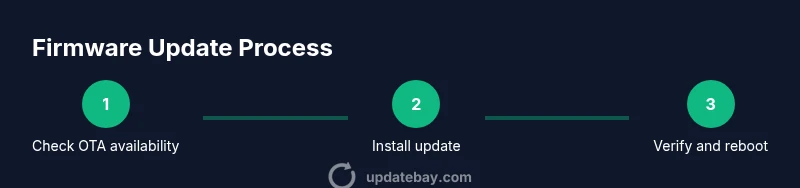
The OTA update path is the easiest and safest route for most Samsung TV owners. It uses the TV’s built-in software management to check for updates and install them automatically. You’ll typically see a notification if an update is available, or you can manually trigger the check. After installation, the TV will restart to apply changes. This flow minimizes the risk of corrupted firmware and keeps your settings intact in most cases, provided you have sufficient power and network stability.
Step-by-Step: Manual USB Update (Offline) – Narrative Overview
If your TV cannot access the internet, you can perform an offline update using a USB drive. Download the correct firmware file from Samsung’s official support site on a computer, copy it to a USB drive formatted as FAT32, and insert the drive into the TV. Use the TV’s update menu to select the USB option and follow the prompts to install. Offline updates are slower and require exact model matching, but they’re a reliable fallback.
Troubleshooting Common Update Issues
If an update fails, first verify power stability and network connectivity. Try a second attempt after a short period, and reboot the TV if necessary. For OTA failures, check that your firmware region matches your TV model and that the storage isn’t full. If problems persist, a USB offline update with the correct firmware file can bypass network issues. Remember not to unplug the TV during the install process to avoid bricking the device.
After Update: Verifying and Optimizing Settings
Once the update completes, confirm the firmware version via Settings > Support > About This TV. Check that apps launch correctly and that streaming services are logging in normally. Reconnect any Bluetooth devices if needed and re-check HDMI ARC settings if you use a soundbar. If you rely on smart home integrations, reauthorize voice assistants or smart speakers. Finally, consider enabling Auto Update for future improvements and security fixes. References: FCC, Consumer Reports, CNET.
Tools & Materials
- Stable internet connection(Wired Ethernet or strong Wi-Fi; avoid VPNs.)
- Samsung TV remote(Navigate menus and confirm prompts.)
- USB drive (for offline updates)(Format as FAT32. 8GB is usually sufficient.)
- Computer with internet(To download firmware from Samsung’s site if needed.)
- TV power source(Keep the TV plugged in during updates to avoid bricking.)
Steps
Estimated time: 15-30 minutes
- 1
Check prerequisites and connect to the internet
Power on the TV and ensure it is connected to a stable network. Confirm model and region so you download the correct firmware if needed. This reduces the risk of an incompatible update.
Tip: If using Wi‑Fi, move the router closer or switch to a wired connection for reliability. - 2
Open Settings and access Software Update
Using the remote, navigate to Settings, then Support, and select Software Update. The TV will connect to Samsung’s servers to check for available firmware.
Tip: If you don’t see a notification, force a check by selecting Update Now. - 3
Install the available update
If an update is listed, confirm installation. Do not interrupt the process; allow the TV to restart automatically after completion.
Tip: Avoid using the TV during the update to prevent data corruption. - 4
Enable Auto Update for future firmware
In Software Update, enable Auto Update to receive future patches automatically when connected.
Tip: Auto Update helps maintain security with minimal user effort. - 5
Use USB offline update if internet is unavailable
Download the correct firmware from Samsung’s site on a computer, copy to FAT32 USB, insert into TV, and follow prompts to install.
Tip: Ensure model and region match exactly to avoid installation errors. - 6
Verify the update and restart
After installation, check Settings > Support > About This TV to verify the firmware version and perform any required adjustments.
Tip: Test a few apps and inputs to confirm everything runs smoothly.
Frequently Asked Questions
How do I know if my Samsung TV needs an update?
Open Settings > Support > Software Update to check for available updates. If an update is available, the TV will prompt you to install it.
Go to Settings, then Support, and check Software Update to see if there’s anything new.
Can I update without an internet connection?
Yes, you can perform an offline update using a USB drive with the correct firmware downloaded from Samsung’s site. Ensure the file matches your model and region.
Yes—use a USB drive with the proper firmware if you’re offline.
Will updates erase my settings or apps?
Updates generally do not erase apps or personal settings, but a rare firmware glitch could reset some preferences. It’s a good idea to note custom settings before updating.
Usually not, but back up important settings just in case.
What should I do if the update fails?
Retry after a power cycle and confirm network stability. If it continues to fail, use USB offline update with the correct firmware.
Retry, check connections, and try USB if needed.
How often should I update my Samsung TV?
Update when Samsung releases firmware or security patches. Frequency varies by model and region, typically monthly to quarterly.
Update when available; check regularly but don't panic if nothing shows up.
Are updates available for all Samsung TV models?
Most modern Samsung TVs receive updates, but availability depends on model, OS version, and regional support.
Mostly, but some older models may have limited updates.
Watch Video
What to Remember
- Update regularly to secure and improve your TV.
- OTA is easiest; USB offline works when internet is unavailable.
- Verify post-update success by checking firmware and app performance.
- Enable Auto Update to simplify future maintenance.