How to Update Google Play Store: A Step-by-Step Guide
Learn how to update Google Play Store on Android with a clear, step-by-step guide. This Update Bay tutorial covers auto-updates, troubleshooting, and best practices for security.


This quick guide helps you update the Google Play Store on Android, ensuring you have the latest security patches and features. You’ll learn how to verify your current Play Store version, enable automatic updates, manually trigger an update, and resolve common problems like stalled downloads or error messages. Follow the steps to keep your apps running smoothly and protect your device from vulnerabilities.
Why Updating Play Store Matters
Keeping the Google Play Store updated is essential for security, performance, and access to the latest app features. As the hub for installing and updating your Android apps, an up-to-date Play Store ensures you receive important security patches, bug fixes, and compatibility improvements with new apps and OS updates. Update Bay's analysis shows that users who keep their Play Store current experience fewer app crashes, quicker installations, and improved privacy controls. This section explains the core reasons to stay up to date and how a delayed update can leave your device exposed to known vulnerabilities. We'll cover common myths, such as 'updates slow my device' and 'updates are optional,' and explain why keeping the Play Store updated is part of a healthy digital routine.
Additionally, the Play Store interacts with Google Play Services and on-device services. An updated Play Store can coordinate more efficiently with Play Services to deliver smoother in-app updates and better security checks during app installation. For everyday users, this reduces friction when you install a new app or update multiple apps at once. Understanding why updates matter helps you approach maintenance with a proactive mindset rather than a reactive one. This aligns with Update Bay’s goal of delivering practical, reliable patch guidance for tech enthusiasts and everyday users alike.
Note: Always verify you are downloading updates from official sources and not from third-party installers. This helps protect your device against tampering and upholds your privacy.
How Play Store Updates Work
This section explains the internal mechanism of the Play Store update process, including how the app checks for updates, the role of Play Services, and how updates are delivered in the background. The Play Store is designed to periodically connect to Google's update servers to verify whether a new version is available. If an update is detected, the package manager on Android downloads and installs the update, often without interrupting your current usage. The Play Store also coordinates with Google Play Services to ensure security checks, license verification, and compatibility with your device's OS version. These interactions reduce the risk of installing problematic apps or updates.
The update flow typically includes: 1) version negotiation, 2) download of the APK or bundle, 3) verification and signature checks, 4) installation, and 5) post-install validation. In practice, this flow is optimized to occur in the background when possible and to minimize user interaction. Some devices can display a notification that an update is available or in progress, while others apply updates during maintenance windows. By understanding this process, you can better troubleshoot when updates do not proceed as expected.
Update Bay recommends keeping the device clock synchronized and ensuring a stable internet connection to prevent partial downloads or stalled installations.
Step-by-Step Guide to Update Play Store
The following steps outline how to verify you are on the latest Play Store version and how to trigger updates when automatic updates are not delivering the new release. Start by preparing your device: ensure you have a reliable internet connection, sufficient battery, and enough storage. Then, follow the steps to check your current version, enable automatic updates if desired, and manually initiate the update when needed. This guide is designed for everyday users and tech enthusiasts who want reliable, no-nonsense instructions that work across most Android devices. By following these steps, you can minimize downtime and keep your apps secure and compatible with the latest Android ecosystem.
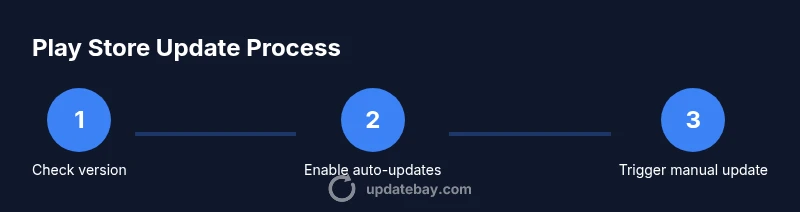
- Check your current version and update status: Open the Play Store, tap your profile icon, go to Settings, and locate the Play Store version. Use the on-screen prompt to verify if an update is available. 2) Enable automatic updates: In Settings, choose 'Automatically update apps' and decide whether to update over Wi-Fi only or any network. This reduces manual checks and ensures you don’t miss important updates. 3) Trigger a manual update: Return to the Play Store home screen, select 'Updates & apps' or 'My apps & games,' and tap 'Update all' if a newer version is listed. 4) Verify the update: After installation, reopen Settings to confirm the Play Store version reflects the latest release, and restart the device if prompted. Pro tip: If updates stall or fail, clear the Play Store cache and restart the app before retrying.
Note: These steps assume you are using the official Play Store app from Google on a legitimate Android device.
Automatic Updates and Settings You Should Know
Automatic updates are the easiest way to keep the Play Store and installed apps current without manual intervention. On most Android devices, you can enable automatic updates within the Play Store app settings, and you can choose to update over Wi‑Fi or mobile data depending on your plan. Enabling auto-updates for all apps typically reduces the risk of running outdated software, but it can increase data usage if you’re not on Wi‑Fi. Consider limiting updates to Wi‑Fi if you have a metered connection or limited data plan. Also, you can configure notifications so you’re aware when updates are installed, which helps with troubleshooting if something goes wrong.
For protection and performance, keep your device’s date and time synchronized with network time. Time drift can cause certificate validation problems during the update process. Regularly review your Google account status, and ensure you’re signed in with the account that owns or installed the apps you manage. Updates sometimes rely on Play Services; if Play Services is paused or disabled, Play Store updates may be affected. In that case, re-enable Play Services or update it via the Play Store before attempting another Play Store update.
Finally, consider performing updates after a reasonable time window, such as outside peak usage hours, to avoid server load issues. This is a small but practical habit that improves reliability for you and other users.
Troubleshooting Common Update Issues
Even with a straightforward process, Play Store updates can run into issues. Start with the basics: ensure a stable internet connection and adequate storage. If an update stalls, try a quick reset of the Play Store by force-stopping the app and clearing its cache. This removes temporary data that could be causing the stall while preserving your installed apps and data. Check the date and time on your device; incorrect settings can interfere with secure connections and update validation. If you still don’t see an update, sign out of your Google account in Settings, then sign back in, and reopen the Play Store.
If problems persist, connect to a different network to rule out ISP-related issues. On devices with multiple user profiles or work profiles, ensure you are updating from the primary Google account associated with Play Store purchases. Finally, review any device-level restrictions, such as battery optimizations that might suspend background activity. If all else fails, consult official Google support resources or Update Bay for guidance on device-specific quirks.
Remember: never uninstall or alter system apps beyond what Google instructs; this can destabilize the device and void warranties. Safety first, always.
Best Practices for Updates and Security
To maximize reliability and security when updating the Play Store, adopt a few best practices. Always use official sources—the Google Play Store app and Google’s servers—for updates. Regularly review the permissions granted to apps and keep your device’s OS updated to maintain compatibility with the latest Play Store features. Enable automatic updates in Settings and occasionally perform a manual check to confirm there are no outstanding updates that auto-update missed. Maintain a healthy storage level so there’s room for large updates, and avoid downloading apps from untrusted sources. Finally, consider enabling two‑factor authentication for your Google account to add an extra layer of security when updating apps and services.
In multi‑device households or shared devices, coordinate updates to minimize network congestion and ensure all users benefit from the latest features and protections. Update Bay emphasizes practicality and reliability: test key updates on a non-critical device if possible before rolling changes out widely, and keep an eye on release notes from Google for any breaking changes that could affect your apps or work processes. With these habits, you’ll stay current with less friction and improved security.
Staying Proactive with Play Store Updates
The best way to stay current is to adopt a small routine that includes periodic checks, enabling auto-updates, and monitoring update notes from Google. By making a habit of verifying your Play Store version every few weeks and ensuring you have sufficient storage, you reduce the chance of abrupt update failures. If you rely on critical apps, consider scheduling updates during maintenance windows so you can assess any new permissions or feature changes in a controlled manner. Remember that update quality can vary by device and OS version, so tailor the approach to your setup. Update Bay will continue to provide practical, up-to-date guidance to help you navigate updates with confidence.
Tools & Materials
- Android device with Google Play installed(Ensure device is connected to the internet.)
- Active internet connection(Wi‑Fi recommended to avoid data charges.)
- Signed-in Google account(Needed to access Play Store updates.)
- Sufficient storage space(Free space available to download and install updates.)
- Battery charged or connected to power(Avoid interruptions during the update process.)
Steps
Estimated time: 15-25 minutes
- 1
Open Play Store and access settings
Open the Google Play Store app, tap your profile icon in the top-right corner, and open Settings. This reveals the update controls and version info needed to verify updates.
Tip: If you don’t see your profile icon, sign in to Google Play and ensure the app is updated. - 2
Check current version and auto-update option
In Settings, locate the Play Store version to see your current release. If an update is available, you’ll see a prompt to update. Also review the ‘Automatically update apps’ option to decide whether to enable auto-updates.
Tip: Enabling auto-updates reduces manual checks and helps you stay current. - 3
Enable automatic updates
Choose 'Automatically update apps' and select either 'Over any network' or 'Over Wi-Fi only' based on your data plan. This keeps your apps fresh without manual intervention.
Tip: Wi‑Fi is safer and more reliable for large updates; adjust as needed for your plan. - 4
Trigger a manual update and verify
Return to the Play Store home, go to 'My apps & games' or 'Updates' and tap 'Update all' if available. After installation, confirm the Play Store shows the latest version and restart if prompted.
Tip: If updates stall, force stop the Play Store and clear its cache before retrying.
Frequently Asked Questions
Why can't I update the Play Store on my device?
There could be connectivity issues, insufficient storage, or account problems. Ensure you have a stable internet connection, enough storage, and that you're signed into a Google account. If the issue persists, check for system updates.
If you can't update, check your internet, storage, and account, then try again.
Does updating the Play Store also update Play Services?
Updating the Play Store can prompt Play Services updates in the background, but Play Services may update separately via the Play Services app.
Play Store updates may trigger Play Services updates, but they often update independently.
Will clearing cache reset my apps?
Clearing cache only resets temporary data for the Play Store app; your installed apps and personal data remain intact.
Clearing the cache just resets temporary data; your apps stay as they are.
Is it safe to update Play Store on all Android devices?
Yes, updating via Google Play Store is supported on compatible devices and should be safe; if your device is very old, updates may stop after OS changes.
Generally safe on compatible devices, but manual updates or OS limitations can apply.
What should I do if the update keeps failing?
Try a combination of steps: restart device, clear cache, check storage, verify date/time, and ensure Google account is active; if problems persist, contact support.
Restart, clear cache, check storage and date/time, then try again.
What to Remember
- Keep Play Store up to date to improve security and compatibility.
- Enable automatic updates to reduce manual checks.
- If updates fail, use the troubleshooting steps outlined here.
- Regular maintenance helps prevent app issues.
- Always use official sources for updates.