How to Update the Google Play Store: A Practical Guide
Learn how to update the Google Play Store on Android, troubleshoot common issues, and keep your apps secure with step-by-step instructions and practical tips.


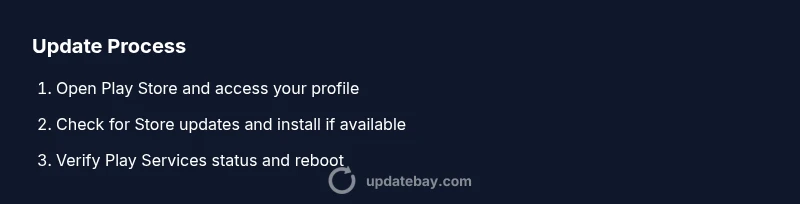
To update the Google Play Store, open the Play Store app, access your profile, go to Settings > About, and tap Play Store version to check for updates. If available, install, then restart the app. Ensure a stable internet connection and enough storage. Update Google Play Services if needed for broader app updates.
Why Keeping Google Play Updated Matters
According to Update Bay, keeping Google Play updated reduces compatibility issues and improves security across Android devices. The Play Store isn’t just a storefront; it also manages updates for apps and the Play Services framework. A newer Play Store version handles delivery and verification more reliably, helping apps launch smoother and keeping privacy controls up to date. Regular updates patch known vulnerabilities and improve overall performance during daily use. For power users and tech enthusiasts, staying current minimizes surprises when you install or update dozens of apps each week. The Update Bay team found that devices with current Play Store versions generally experience fewer update errors and more consistent sign-ins, contributing to a calmer Android experience.
How the Play Store Updates Happen
The Google Play Store updates itself through a mix of automatic background checks and optional manual prompts. In most cases, the update installs quietly without user action, but you can trigger a check: open the Play Store, tap your profile icon, go to Settings, and select About to view the Play Store version status. Google Play Services, which underpins many app features, may update separately or alongside the Play Store. Your device’s Android OS also plays a role; newer features require a compatible OS, and older devices may see delayed updates or none at all. Update Bay analysis shows that keeping both Play Store and Play Services current leads to smoother app behavior and faster delivery of app updates.
Prerequisites Before You Update
Before attempting any update, make sure you have a stable internet connection, sufficient storage space, and a signed-in Google account. Charge your device or ensure it has at least 50% battery to prevent mid-update shutdowns. If you manage multiple devices, schedule updates during a Wi‑Fi window to avoid data charges and interruptions. Clear understanding of these prerequisites helps prevent failed updates and wasted time.
Step-by-Step: Update Google Play Store App
- Open the Google Play Store app. 2. Tap your profile icon in the top-right corner. 3. Go to Settings > About. 4. Look for the Play Store version; if an Update button appears, tap it to install. 5. When prompted, confirm the update and wait for the process to finish. 6. Restart the Play Store to ensure the new version loads properly.
Tip: If you don’t see an update, proceed to Step 1 in the Play Services section and verify OS compatibility.
Step-by-Step: Update Google Play Services (optional)
- Open Settings on your device and select Apps or Apps & notifications. 2. Find Google Play Services and open it. 3. Tap Update if a prompt is available, or select Storage > Clear cache and retry. 4. Reboot your device if updates still don’t install properly. 5. Open Google Play Store again to verify the latest version is present.
Tip: Play Services updates can be automatic; enabling this setting helps keep all Play features current.
Troubleshooting Common Update Issues
If updates fail, start with a simple restart of the Play Store app and the device. Clear the cache for Google Play Store (and Google Play Services, if needed). Check for enough storage and ensure date/time settings are correct (incorrect time can block updates). If problems persist, temporarily disable VPNs, then retry. For enterprise devices, verify that management policies aren’t blocking Play updates.
Alternatives and Best Practices
If an update refuses to install, you can try using a different network, or update via a connected computer using sideloaded APKs only if you understand the risks. For most users, enabling automatic updates in the Play Store ensures you receive future improvements with minimal effort. A routine maintenance window—once per week—can keep Play and Play Services up to date without interrupting daily use.
How to Verify the Update Worked
After installation, confirm the Play Store shows the latest version by revisiting Settings > About in the Play Store. Open a few apps to ensure they update cleanly and watch for any error prompts. If everything runs smoothly, you’ve successfully updated the store and related services. The Update Bay team emphasizes verification as part of a reliable maintenance routine to prevent stale software from impacting performance.
Tools & Materials
- Android smartphone or tablet(With a supported OS version (Android 5.0+ recommended))
- Stable internet connection (Wi-Fi preferred)(Prevents interrupted downloads and data charges)
- Sufficient device storage(At least a few hundred MB free space recommended)
- Signed-in Google account(Required to access Google Play and manage updates)
- Optional: PC with USB cable(For advanced updates or sideloads (not needed for standard updates))
Steps
Estimated time: Estimated total time: 5-12 minutes
- 1
Open Google Play Store
Launch the Google Play Store app from your app drawer or home screen. This is the gateway to updates for apps and the platform itself.
Tip: Ensure you are signed into a Google account with internet access. - 2
Check for store updates
Tap your profile icon in the upper-right corner, then go to Settings > About to see the Play Store version. If an Update button appears, tap it to install the latest version.
Tip: If no update appears, proceed to the next steps and verify OS compatibility. - 3
Install available update
Follow on-screen prompts to download and install the update. After completion, re-open the Play Store and sign in if prompted.
Tip: Restart the app after updating to ensure the new version loads correctly. - 4
Troubleshoot stalled updates
If the update stalls, go to Settings > Apps & notifications > See all apps > Google Play Store > Storage and Clear Cache, then retry.
Tip: Do not Clear Data unless you want to reset preferences. - 5
Check Google Play Services
Open Settings > Apps > Google Play Services and update if prompted, or Clear cache and retry the update flow.
Tip: Play Services updates often occur in the background. - 6
Verify the update
Restart the device and re-open the Play Store to confirm the version reflects the latest release.
Tip: A quick reboot can resolve lingering issues.
Frequently Asked Questions
Do I need to update Google Play Store on every Android device?
In most cases, yes. Updating the Play Store on each device ensures access to the latest features and security improvements. If you manage many devices, enable automatic updates or use enterprise controls.
Yes. Update the Play Store on each device to get the latest features and security fixes.
What should I do if there is no update option available?
If no update appears, verify that your device OS version is supported and that you have a stable internet connection. Also try clearing the Play Store cache and restarting the device.
If there's no update option, check OS compatibility and try restarting the app and device.
Can I update Google Play Services separately from the Play Store?
Yes. Play Services updates are managed via Google Play and may update automatically. If prompted, update Play Services from the Play Store and ensure background updates are allowed.
You can update Google Play Services from the Play Store when prompted.
Why does my device say 'Update not available' for the Play Store?
This may happen if the device runs an older Android version that no longer supports the latest Play Store. Check OS updates, storage, and retry after some time.
Older devices may stop receiving updates due to OS compatibility.
How long does a Play Store update take?
Updates usually complete in a few minutes if the connection is stable. If it takes longer, check network and device performance.
Typically just a few minutes, depending on connection quality.
Is enabling automatic updates secure?
Automatic updates help keep apps and services current with security fixes. Ensure updates come from Google Play and that your device supports Google Play services.
Automatic updates help keep things secure and up to date.
Watch Video
What to Remember
- Keep Play Store and Play Services current to maximize compatibility.
- Use the built-in update flow and troubleshooting steps to resolve common issues.
- Verify updates by checking version and testing app updates.
- Enable automatic updates for ongoing maintenance.