How to Update Google Play Store: A Practical Guide
Learn step-by-step how to update Google Play Store, troubleshoot issues, and keep your Android device secure with Update Bay's practical, evidence-based guidance.


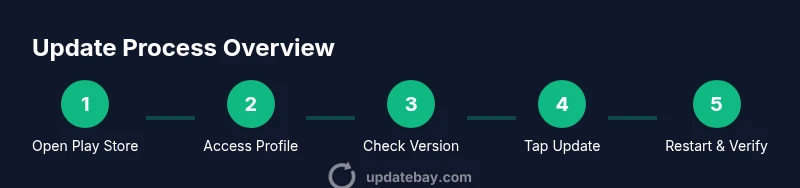
To update google play store, open the Google Play Store app on your Android device, tap your profile picture, then go to Settings and About to check the Play Store version. If an update is available, tap Update and allow the app to restart. For best compatibility, also check Google Play Services and system updates.
Why updating Google Play Store matters
According to Update Bay, keeping the Google Play Store up to date improves device security, compatibility with new app features, and the reliability of app installations. The phrase "to update google play store" is often associated with ensuring you have the latest Play Store version so apps install and run smoothly. An updated Play Store also helps ensure you receive timely security patches delivered through Google Play Services. In short, regular updates reduce the risk of errors, crashes, and security vulnerabilities on your Android device. In this section we’ll explore why updates matter and how to approach updating without disrupting your device usage.
Prerequisites for updating the Google Play Store
Before you start, make sure you have a stable internet connection, a charged device (preferably plugged in), and a Google account signed in on your Android device. Confirm there is enough storage space for the update and that you’re not on a heavily restricted data plan. If you rely on mobile data, consider connecting to Wi‑Fi to avoid interruptions. Follow these prerequisites to minimize update failures and ensure a smooth process. Update Bay emphasizes preparing your environment to reduce friction during updates.
How to update Google Play Store from the app
The most reliable way to update Google Play Store is through the Play Store app itself. Open the Play Store, tap your profile icon in the top-right corner, and select Settings. Go to About, then tap Play Store version. If an update is available, you’ll see an Update button; tap it and wait for the app to restart. If you don’t see an update prompt, you’re already on the latest version. In some devices, you may need to restart the device to apply the update. This path ensures you receive the official update without compromising security.
Forcing an update via Google Play Services and system prompts
If the Play Store update isn’t offered directly, ensure Google Play Services is up to date by visiting Settings > Apps & notifications > See all apps > Google Play Services > Update (if available) or open the Play Store and search for Google Play Services to install the latest version. You can also use the browser to check for system prompts to update Google Play components. Remember that Play Services updates can be shipped separately from the Play Store and may require a device restart. Keeping Play Services current improves app compatibility and background syncing.
Update via Android system settings
Android system updates can include improvements to the Play Store’s underlying dependencies. To check, go to Settings > System > System update (or Software Update on some devices). If an update is available, install it. After the OS update, reopen the Play Store and confirm the Play Store version, since some devices apply changes behind the scenes. This step helps when app compatibility issues persist after the Play Store itself appears current.
Auto-update settings and data usage
To reduce manual checks, enable auto-update for apps in the Play Store settings. Open Play Store > profile > Settings > Network preferences and Enable Auto-update apps. Choose whether updates occur over Wi‑Fi only or any network. Enabling auto-update saves time, but monitor battery usage and data limits, especially on modest devices. This setting helps ensure you’re consistently on the latest Play Store and app versions.
Troubleshooting common update issues
If updating the Play Store fails, start with a few quick checks: confirm a stable internet connection, verify the device date and time are correct, and ensure sufficient storage. Clear cache for the Play Store app (Settings > Apps > Google Play Store > Storage > Clear cache) and, if needed, clear data (note this will reset your Play Store preferences). If problems persist, sign out and back into your Google account, or reboot the device.
Security and privacy considerations when updating apps
Always update through official channels only. Updates from the Google Play Store include verified signatures and security patches. Keep Play Store and Google Play Services up to date to get the latest protections. Review app permissions after updating and consider enabling Play Protect scans. By following official update paths, you reduce exposure to malicious packages and keep your data safer.
Confirming the update is in place and what to do next
After an update completes, open the Play Store and return to Settings > About to confirm the Play Store version equals the latest available. If it still shows an older version, repeat the update steps or check for OS updates. Once confirmed, you can resume normal device use, re-enable any paused downloads, and monitor app stability over the next 24–48 hours.
Tools & Materials
- Smartphone or tablet with Android(Ensure your device is powered on and has access to the Play Store.)
- Stable internet connection(Wi‑Fi is preferred to avoid data overages during updates.)
- Google account(Signed in to access Play Store features.)
- Sufficient storage(At least 100 MB free space recommended.)
- Charger or power source(Keep device plugged in to avoid mid-process shutdowns.)
Steps
Estimated time: 15-25 minutes
- 1
Open the Google Play Store
Launch the Play Store app from your app drawer or home screen to begin the update check path.
Tip: Have a stable internet connection before starting. - 2
Access the profile menu
Tap your profile icon in the top-right corner to access account and settings options.
Tip: If you don’t see a profile icon, swipe from the left to reveal the menu. - 3
Open Settings > About
In Settings, navigate to About to locate the Play Store version information for update readiness.
Tip: Look for a highlighted version number or an Update button. - 4
Tap Play Store version or Update
If an update is available, tap Update and allow the process to complete; the app may restart automatically.
Tip: Do not interrupt the restart; let the device finish the update. - 5
Check Google Play Services status
If no Play Store update is shown, verify Google Play Services is up to date via Settings -> Apps.
Tip: An out-of-date Play Services can block Play Store updates. - 6
Check Android System updates
Go to Settings > System > System update to ensure the OS isn’t blocking components.
Tip: System updates can enhance overall compatibility. - 7
Enable auto-update for apps
In Play Store Settings, enable Auto-update apps for ongoing maintenance.
Tip: Choose Wi‑Fi only to control data usage. - 8
Verify the update
Open Play Store settings and confirm the Play Store version shows the latest release.
Tip: If needed, reboot and recheck after a short wait.
Frequently Asked Questions
Why isn’t the Google Play Store updating automatically?
Auto-update may be disabled in Play Store settings or restricted by battery saver mode. Check Settings > Network Preferences > Auto-update apps and ensure it’s enabled.
If auto-update isn’t working, check the Play Store settings and enable auto-update for apps.
What should I do if the update fails?
First verify connectivity and storage, then clear the Play Store cache. If needed, sign out of your Google account and sign back in, or reboot the device.
If updates fail, start with connectivity and storage checks, then try clearing cache or re-signing in.
Can I update Google Play Store without internet?
No. An internet connection is required to download and install updates from the Play Store servers.
No—updates require an internet connection to download and install.
Is updating Google Play Store safe?
Yes. Updates come from Google Play and are digitally signed to ensure integrity. Always use official Google sources.
Yes, updates from Google Play are safe when obtained through official channels.
How do I know the update was successful?
Check Settings > About in the Play Store to confirm the latest version number matches the released version.
Check the version in Settings to confirm the update took place.
Watch Video
What to Remember
- Update Play Store regularly to improve security
- Use official channels for updates to avoid malware
- Keep Google Play Services and Android OS current
- Verify the update by checking the Play Store version