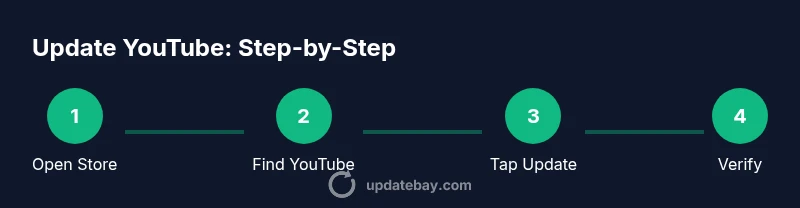
How to Update YouTube: A Step-by-Step Guide
Learn how to update YouTube on Android, iOS, desktop browsers, and smart TVs. Clear, step-by-step instructions, troubleshooting tips, and best practices to keep the app secure and current. Update Bay provides expert guidance.


To update YouTube, start by updating the YouTube app on your device. This guide covers Android, iOS, desktop browsers, and smart TVs, plus auto-update tips to keep YouTube current. According to Update Bay, regularly updating apps reduces bugs and improves security, so enable automatic updates where possible. This ensures you access new features without interruption.
Why Keeping YouTube Updated Matters
Keeping YouTube updated is more than a convenience; it's a core practice for security, performance, and new features. When YouTube releases a new version, it often includes bug fixes that resolve playback glitches, improved recommendations, and streamlined sign-in flows. For many users, the biggest gains come from compatibility with the latest device operating systems, which reduces crashes and ensures access to fresh controls like picture-in-picture, darker themes, or improved accessibility options. According to Update Bay, staying current with app updates reduces user-reported issues and helps protect against known vulnerabilities. Regular updates also enable new features that improve the streaming experience, such as smoother video playback or better buffering behavior. The takeaway is simple: a small update now can prevent bigger headaches later, especially if you rely on YouTube for work or education. In this section we break down how to approach updates across devices with minimal friction, plus smart habits to maintain a current YouTube experience over time.
Quick Checks Before You Update
Before you tap update, perform a quick readiness check to avoid failed installations. Ensure your device has sufficient battery or is plugged in, and you have enough storage space for a new app version. Sign in to the correct Google or Apple account used to download YouTube previously. Check that your internet connection is stable, ideally on Wi-Fi, and avoid updating during a flaky connection. Turning on auto-update can simplify future maintenance, but you should still verify permissions and storage after the first install.
How to Update YouTube on Android
Actionable steps to update YouTube on an Android device. Start by opening the Google Play Store and searching for YouTube. If an Update button is visible, tap it to start the install. If Update is not available, confirm device compatibility and that Google Play Services are up to date. After updating, launch YouTube and play a video to verify the latest features and UI. If you rely on auto-update, ensure the setting is enabled in the Play Store app settings. If performance seems slow after an update, clear the app cache and restart the device. Pro tip: keep your device charged during larger updates to avoid interruptions.
How to Update YouTube on iOS
On an iPhone or iPad, open the App Store and switch to the Updates tab (or search for YouTube). If YouTube shows an Update button, tap it to install the latest version. If Update is not shown, verify that your iOS version is compatible with the new YouTube build and that you have a stable internet connection. After updating, open YouTube and confirm the new features are available by checking the account avatar menu and the playback controls. If you use automatic updates, verify that the App Store auto-update setting is enabled for YouTube.
How to Update YouTube on Desktop Browsers
YouTube on a computer often relies on the browser rather than a standalone app. Ensure your browser is up to date (Chrome, Edge, Firefox, or Safari) to guarantee YouTube runs with the latest web standards. After updating the browser, clear cache and cookies if you notice odd behavior or playback hiccups. You can also visit youtube.com/new to preview upcoming features. If you use extensions, disable ones that might conflict with YouTube after updates and reload the page.
Updating YouTube on Smart TVs and Streaming Devices
Smart TVs and streaming devices typically update YouTube through the device’s app store or system update mechanism. On most TVs, open Settings > Apps > YouTube to check for an update, or run a general system update if the app store isn’t providing a separate YouTube update. After updating, relaunch the YouTube app and test a video to ensure subtitles, captions, and playback controls work as expected. If updates fail, restarting the device and trying again later is often effective.
Troubleshooting Common Update Issues
If an update fails, start by checking your internet connection and available storage. Sign out and back into your Google/Apple account if updates stall. Clearing app data or cache can resolve corrupted update files on mobile devices. For TVs, ensure the device has administrative rights to install apps and that there are no parental controls blocking updates. If all else fails, reinstall the YouTube app where possible, but back up any saved offline videos or preferences first.
Auto-update Best Practices and Maintenance
Enable auto-update for YouTube across devices where feasible. Auto-update reduces maintenance effort and minimizes the chance you’ll miss critical fixes. Keep your device OS and browser up to date to maximize compatibility. Regularly review app permissions after updates to ensure YouTube can access essential features like notifications and storage. Finally, consider running a quick check of your YouTube settings after major updates to tailor the experience to your needs.
How to Verify You’re on the Latest Version
After updating, verify you’re on the latest version by checking the app version in the settings or about section on your device. On desktop, confirm the browser version and test a few videos to ensure features like autoplay and captions function correctly. You can also review the release notes in the store page or YouTube's official help center for details on what changed in the latest update.
Tools & Materials
- Android smartphone or tablet(With Google Play access to install or update apps)
- iOS device (iPhone or iPad)(Access to the App Store for updates)
- Stable internet connection(Wi-Fi preferred during large updates)
- Accounts ready (Google/Apple ID)(Needed to access app stores and sign in)
- Web browser (optional for desktop)(Update browser to ensure best YouTube site experience)
Steps
Estimated time: 30-60 minutes
- 1
Open the appropriate app store
On Android, launch Google Play Store. On iOS, open the App Store. This is your first step to access the latest verified YouTube build.
Tip: If you can’t find YouTube, use the search bar and filter by apps. - 2
Search for YouTube and check the Update button
Type YouTube in the store search, then look for an Update button. If present, tap to start the update; if not, the app is likely up to date or your device isn’t compatible yet.
Tip: Ensure you’re signed into the correct account used for purchases. - 3
Toggle auto-update if needed
In the store settings, enable auto-update for YouTube so future updates install automatically.
Tip: Auto-update saves time and reduces missed updates. - 4
Launch YouTube to verify
Open the app after updating and play a video to confirm the latest features are active and the UI hasn’t changed unexpectedly.
Tip: If you notice issues, clear cache or data from the app settings. - 5
Update YouTube on desktop (browser)
If you primarily use YouTube on a computer, ensure your browser is up to date and reload YouTube. Clear cache if playback issues occur after an update.
Tip: Browsers should be updated regularly to support new YouTube features. - 6
Update YouTube on TVs/streaming devices
Use the TV’s app store or system update feature to install YouTube updates, then relaunch and test playback.
Tip: Restart the device after updating to apply changes.
Frequently Asked Questions
Do I need an internet connection to update YouTube?
Yes. Updates require an active internet connection to download the new app files.
Yes. An internet connection is required to download and install the update.
Can I update YouTube on a smart TV without internet access?
No. A working internet connection is required to update the YouTube app on a smart TV.
No. The TV needs internet access to download the update.
What should I do if the update isn’t visible in the store?
Try refreshing the store, sign out and back in, check for OS compatibility, or reinstall the YouTube app.
If it isn’t showing, refresh the store and sign back in, then try again.
Will updating YouTube improve video playback?
Updates often include fixes that improve stability and playback quality, though results vary by device.
Most updates fix bugs that affect playback, but experiences differ by device.
Is it safe to enable auto-update for YouTube?
Yes. Auto-update is generally safe and helps keep the app secure and current.
Yes. Auto-update is safe and helps you stay current without manual checks.
How can I verify I have the latest YouTube version?
Check the app’s About/Version section in Settings or the store’s page notes to confirm the latest build is installed.
Look in the app settings for the version, or check the store page notes for version details.
Watch Video
What to Remember
- Update YouTube to access new features and fixes
- Enable auto-update to reduce ongoing maintenance
- Verify playback after updates to ensure a smooth experience
- Keep device OS and browser up to date for best compatibility
- Use troubleshooting steps if an update fails
- Check version and release notes to confirm you’re current