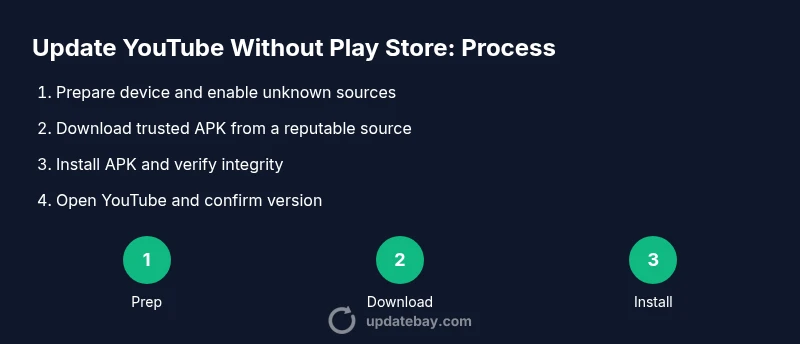
Update YouTube Without Play Store: A Practical Guide
Learn safe, step-by-step methods to update YouTube on Android without the Google Play Store, including risks, verification, and safer alternatives. Guidance grounded in 2026 best practices from Update Bay.


Yes — you can update YouTube without the Play Store by sideloading the latest official APK from a trusted source, then installing it over the existing app. This method works on Android devices where Play Store updates are unavailable or restricted. Always verify signature integrity and avoid untrusted mirrors to minimize security risks.
What does it mean to update YouTube without Play Store?
Updating YouTube without the Play Store means installing a newer version of the YouTube app using an APK (Android application package) from a trusted source rather than downloading the update through Google’s Play ecosystem. This approach is sometimes used on devices where Play Store access is restricted, a corporate image that blocks store updates, or in regions with limited marketplace availability. According to Update Bay, many users explore this option when official channels are temporarily unavailable, but they should proceed with caution to protect device integrity and personal data. The trade-off is clear: you gain control and rapid access to new features, yet you incur potential security and compatibility risks. This section lays the groundwork for a safe, informed process and helps you weigh the decision against sticking with Play Store updates.
Why you might consider sideloading YouTube (and when not to)
Sideloading can be appealing when Play Store updates are blocked by device policy, regional restrictions, or parental controls. It may also be used on older devices where the latest Google Play services are not compatible, leaving the app stuck on older versions. However, sideloading bypasses Google-signed channel checks, which increases exposure to malware, tampered packages, and version mismatches. Update Bay Analysis, 2026 notes that this path is best reserved for users who understand the risk and can verify APK integrity. For many users, waiting for an official Play Store update or exploring options like device policy exceptions is wiser.
Safety first: risks, verification, and best practices
The biggest risk when updating without Play Store is installing a compromised or incompatible APK. Always source APKs from reputable, verifiable repositories and verify cryptographic signatures where possible. Keep a current security suite on your device and review app permissions after install. If you use work or school devices, confirm with your admin before sideloading, as it may violate policies or void warranties. In short, sideloading should be approached with caution, deliberate verification, and a plan to revert if something goes wrong.
Where to get a trusted APK and how to verify it
There is no official Google distribution of an APK for YouTube outside the Play Store, which means you must rely on third-party repositories that you trust. Before downloading, check the source’s reputation, read user comments, and confirm that the file is the legitimate YouTube APK (look for the correct package name and version). After downloading, compare the APK’s cryptographic hash (if provided) with the hash listed on the source page. If hashes don’t match, do not install. This step helps minimize the risk of malware or tampered packages.
How to install an APK on Android (without root) and what to watch for
To install a sideloaded APK, you’ll need to enable installation from unknown sources for the app that will perform the installation (or enable it globally on newer Android versions). Then, locate the downloaded APK and run the installer. You'll be prompted to grant permissions and accept the caveats about unofficial software. After installation, open YouTube and ensure the version matches the one you intended to install. If you encounter install errors, it often means a signature or compatibility issue; revert to a previous version if necessary.
Alternatives to sideloading and safer options
If sideloading feels risky, consider alternatives such as waiting for an official Play Store update, using an alternative YouTube client that is distributed through trusted channels, or upgrading to a device/OS version that seamlessly supports Play Store updates. Some corporate devices may have a managed Play Store or a sanctioned testing channel that provides newer builds without sideloading. Always balance the desire for new features with the need for device security and policy compliance.
Tools & Materials
- Android device with internet access(Ensure you have permission to install apps from unknown sources if applicable)
- A trusted YouTube APK (latest stable release)(Download only from sources with strong reputations and user reviews)
- Backup method for your data(Use cloud backup or local backup before modifying apps)
- USB cable or microSD/PC for transfer(Helpful for moving APKs without re-downloading on device)
- Malware/antivirus scanner(Scan downloaded APK before installation)
Steps
Estimated time: 20-60 minutes
- 1
Prepare device settings
Open your Android settings and locate the security or apps section. If your device allows unknown sources, enable installation from unknown sources for the installer app you’ll use. On newer Android versions, grant “Install unknown apps” to the file manager or browser you’ll use to install the APK. This step prevents installation failures and keeps your device aware of new software sources.
Tip: Use a temporary toggle; re-disable after the APK is installed to minimize risk. - 2
Back up important data
Before changing installed apps, back up YouTube data if possible and ensure other important data is safeguarded. This is a precaution in case the new APK has compatibility issues or unexpected behavior. A recent backup makes it easy to revert if needed.
Tip: Archiving your login credentials and app preferences helps restore a smooth experience after install. - 3
Find a trusted APK source
Search for the latest stable YouTube APK from a reputable source. Check for user trust signals, reviews, and a clear file name with a version number. Avoid random forums or shady sites that bundle other software.
Tip: Verify the source’s HTTPS link and read recent user feedback about malware and tampering. - 4
Download the APK
Download the APK to your device or a connected computer. If downloading to a computer, move the file to your phone securely via USB or a trusted cloud service. Ensure the file size matches the expected release size to catch tampered files.
Tip: If your browser warns about unsafe files, don’t bypass the warning—cancel and reassess the source. - 5
Install the APK
Launch the APK file from your file manager or notification shade. Follow prompts, grant necessary permissions, and wait for the installation to complete. Do not interrupt the process, as it may corrupt the installation.
Tip: If you see a “App not installed” error, recheck signature and compatibility; you may need an older build. - 6
Verify the update
Open YouTube and check the version in the app info. Confirm core features work and that accounts stay logged in. If there are issues, uninstall the APK and reinstall a known-good version from the same trusted source.
Tip: Keep a backup copy of the previous APK in case you need to roll back. - 7
Reinstate security settings
Turn off the “unknown sources” toggle or revoke installer app permissions to maintain device security. This helps prevent unintended sideloads in the future while you continue normal use.
Tip: Regularly review app permissions after updates for ongoing security hygiene. - 8
Troubleshooting and fallback
If the update fails repeatedly or causes instability, consider reverting to the last stable version or using the Play Store—especially on devices with policies or warranty constraints. Seek official channels for updates when possible.
Tip: Document error messages to search for device-specific fixes or to ask for support.
Frequently Asked Questions
Is it safe to update YouTube without the Play Store?
Sideloading can be risky if you don’t verify the source. Use trusted APKs, scan for malware, and back up data. If you’re unsure, stick with the Play Store.
Sideloading can be risky; verify the source, scan for malware, and back up data. If unsure, use Play Store updates.
Will sideloading affect my YouTube data or login status?
In most cases, your YouTube data and login status remain intact when updating via a legitimate APK, but issues can occur if the APK is tampered or older than required. Always back up first.
Your data usually stays intact, but back up first in case of compatibility issues.
Can I sideload YouTube on iOS or iPadOS?
No. iOS does not support sideloading third-party apps outside the App Store in most scenarios. This method is specific to Android devices.
This is for Android; iOS users typically must use the App Store for updates.
What should I do if I get an App Not Installed error?
Check that the APK is compatible with your device architecture and Android version, and that the source is reputable. You may need to enable unknown sources or clear storage and retry.
If you see App Not Installed, verify compatibility and source integrity, then retry.
Do device policies affect sideloading YouTube updates?
Yes. Some devices or corporate policies forbid sideloading; consult IT or policy guides before proceeding to avoid policy violations.
Policy restrictions can block sideloading—check with IT or device policy before continuing.
Are there safer alternatives to sideloading?
Yes. Use official Play Store updates, or look for sanctioned enterprise channels or app distribution methods that are approved for your device.
Official updates or sanctioned channels are safer than sideloading.
Watch Video
What to Remember
- Verify APK sources before download
- Back up data prior to modification
- Re-enable unknown sources only temporarily
- If in doubt, use official Play Store updates