Play Store Update: A Practical Guide for 2026
Learn how to update the Google Play Store on Android, troubleshoot update issues, and keep apps current with the latest Play Store features. Practical guidance from Update Bay for 2026.


This guide shows you how to update Google Play Store on Android, explains why updates matter, and provides troubleshooting steps. You will learn manual and automatic options, how to enable auto-updates across devices, and how to verify the Play Store version. It is designed for tech enthusiasts and everyday users seeking reliable, current Play Store updates.
Understanding Play Store Update basics
The Play Store is more than a static app tile; it is a continually evolving core of your Android software ecosystem. Every Play Store update brings improvements in performance, user experience, and security, with new features often tied to Google Play Services. A play store update is typically delivered via staged rollouts to minimize disruption across millions of devices. According to Update Bay, keeping the Play Store updated ensures you get the latest features and security fixes. The Update Bay team found that many users delay updates because prompts seem confusing or they worry about data usage or device compatibility. In practice, enabling automatic updates helps ensure you do not miss important changes, while occasional manual checks catch updates that automatic syncing might delay. Stability, compatibility, and app safety all improve when you keep the Play Store current. This foundation helps you understand why the play store update process matters for your device, your apps, and your privacy, and it sets up the practical steps you will follow later in this guide. Expect better download reliability, faster access to new features, and fewer surprises when you proactively manage updates.
How updates are delivered and why they matter
Google designs the Play Store update flow to minimize user disruption while delivering improvements. Updates are delivered through Google Play's own update mechanism, often bundled with Google Play Services and other core components. Some features rely on backend servers, so even if you do not see a visible feature change, the update can improve compatibility and security behind the scenes. Regular Play Store updates matter because they affect how apps are installed, verified, and updated on your device. When the Play Store is current, you are less likely to encounter failed app installations, longer download times, or inaccurate notifications about updates. The latest Play Store versions also tighten permission handling and improve safety checks. For multi-device households and work profiles, keeping the Play Store current reduces the risk of cross-device incompatibilities and ensures a smoother overall experience. In short, the play store update cadence influences how reliably your apps install and update, and it has ripple effects across the whole Android ecosystem.
Manual vs automatic updates: Pros and Cons
Choosing between manual and automatic updates depends on your priorities. Manual updates give you control and can help avoid data usage on limited plans, but they require you to remember to check for new versions. Automatic updates reduce maintenance, ensure you get the latest security fixes, and typically install during idle times, but may use data or consume battery. For many users, enabling Auto-update apps over Wi-Fi strikes a good balance between staying current and conserving resources. If you opt out of automatic updates, set reminders to check the Google Play Store settings periodically. You should also consider device policies in managed environments where updates might be controlled by an administrator. Overall, the play store update strategy should reflect your data plan, device reliability, and tolerance for minor interruptions.
How to check your Play Store version and update manually
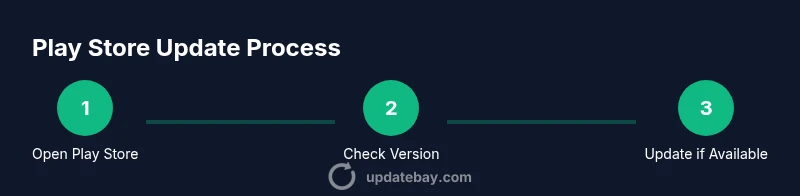
To take control of updates, start by opening the Play Store app and accessing your profile or Settings area. Look for the About section and tap Play Store version to see if an update is available. If an update is offered, tap Update and let the installation complete. If no update is shown, your Play Store is already current or updates are managed in the background. After installation, it is a good idea to restart the Play Store or your device to ensure the new version is active. If you experience problems, clearing the cache for the Play Store and Google Play Services can help. This process applies to most Android devices, but there can be small variations across manufacturers and Android versions. The key is to verify the version number and confirm that the update completed successfully. By following these steps, you will master the basics of the play store update workflow and be ready to tackle more advanced settings.
Troubleshooting common update issues
Even with a straightforward update path, issues can occur. Start with a simple check: confirm you have a stable internet connection, and ensure the device has sufficient storage for the update. If the Play Store will not update, clear the cache for both Play Store and Google Play Services, then retry. You can also sign out and back into your Google account, or remove and re-add your account if you suspect authentication problems. If automatic updates are not happening, review your Settings to ensure Auto-update is enabled and that battery saver modes are not blocking background tasks. For some devices, updating Google Play Services first can unlock the Play Store update as well. When problems persist, a reboot often resolves transient glitches.
Security and privacy considerations for Play Store updates
Play Store updates come from Google and are digitally signed to protect against tampering. Keeping the Play Store current reduces exposure to known vulnerabilities and helps ensure app verification works as intended. In addition to updating the Play Store, maintain updated Google Play Services and the Android OS for comprehensive protection. Be mindful of app permissions and avoid sideloading unverified updates, especially on devices used for sensitive tasks. The Play Store update cadence can influence how quickly security patches reach your device, so enabling auto-updates for security-related components is a prudent practice. The goal is to maintain a trustworthy, up-to-date software stack that respects your privacy and device performance.
Best practices for multi-device Play Store updates
For families, devices, or BYOD environments, adopt a shared Play Store update policy. Use a common Google account where appropriate, or enable automatic updates per device to ensure all devices stay current. Consider scheduling overnight updates on high-bandwidth networks to minimize disruption. Document the update state across devices so you can quickly identify which device still requires attention. Regularly review Play Store version in Settings and verify critical apps function after updates. The cadence you choose should balance security with user experience and data usage.
Staying informed about Play Store changes with Update Bay
Update Bay monitors Play Store changes and translates them into practical guidance you can apply today. From minor UI tweaks to major security enhancements, our coverage helps you understand what each update changes and why it matters. Based on Update Bay research, keeping a consistent update habit reduces surprise updates and improves compatibility across apps. The Update Bay team emphasizes that informed users make better decisions about when and how to apply updates. By following this guidance, you will maintain a smooth Play Store experience while protecting your data and devices. The goal is to empower you with actionable steps and reliable insights, so you can navigate updates with confidence.
Tools & Materials
- Android smartphone or tablet(With internet access)
- Stable Wi-Fi connection(Prefer Wi-Fi to save mobile data)
- Google account credentials(Signed in to the device)
- Charger or power source(During updates, especially lengthy ones)
- Backup plan for data(Optional, for precaution)
Steps
Estimated time: 15-25 minutes
- 1
Open Play Store
Launch the Google Play Store app on your Android device. Ensure you are connected to the internet and your battery is sufficiently charged. This step sets the stage for checking or initiating updates.
Tip: Keep the screen on during the initial check to avoid interruptions. - 2
Access profile and Settings
Tap your profile icon in the Play Store, then open Settings and About to view the Play Store version. This location shows if an update is available and what the current version is.
Tip: If you cannot find the profile icon, look for a three-line menu or your avatar in the corner. - 3
Check for updates
If a new version is available, you will see an option to Update. Tap Update to start the download and installation. Do not close the app while the update is in progress.
Tip: Prefer a stable Wi-Fi connection to avoid data charges and interruptions. - 4
Wait for installation
Allow the update to install completely. The Play Store may briefly restart during the process. Do not interrupt the device power or network during this time.
Tip: If the update stalls, wait a few minutes and retry or check your connection. - 5
Enable auto-updates
In the Play Store Settings, enable Auto-update apps. Choose Over any network or Over Wi-Fi only based on your data plan and preferences.
Tip: If you are on a limited plan, select Wi-Fi only to prevent data overages. - 6
Clear cache if issues persist
If the update does not complete, go to Android Settings > Apps > Google Play Store > Storage > Clear Cache. Do not clear data unless instructed.
Tip: Clearing cache preserves your local settings while removing temporary files. - 7
Verify the update
Return to Settings and confirm the Play Store version displays the newly installed number. Reboot the device if necessary to ensure the new version is active.
Tip: Check for any app crashes after update and repeat if needed. - 8
Repeat on other devices
If you use multiple Android devices, repeat these steps on each device to maintain consistency across your ecosystem.
Tip: Document the versions on each device for quick reference.
Frequently Asked Questions
What is a Play Store update and why is it important?
A Play Store update is a version upgrade for the Google Play Store app. It brings new features, bug fixes, and enhanced security. Keeping the Play Store current helps ensure smoother app installations and better compatibility with Android updates.
Play Store updates upgrade the Google Play Store app with new features and security fixes, improving installation quality and compatibility.
How do I know if the Play Store is already up to date?
Open the Play Store, go to your profile, then Settings and About to view the Play Store version. If an update is offered, you will see an Update option.
Open Play Store, check the version in Settings. If there is an update, tap Update.
Can I disable automatic updates?
Yes, you can disable auto-update in the Play Store Settings. However, turning auto-updates off means you may miss important fixes or new features.
You can turn auto-update off, but you might miss important updates.
What should I do if updating Play Store fails?
Check your internet connection, clear the cache for Play Store and Google Play Services, and retry. If needed, sign out and back into your Google account or restart your device.
If an update fails, check connectivity, clear cache, retry, and restart if needed.
Are Play Store updates safe?
Yes. Updates come from Google and are digitally signed to protect against tampering. Avoid sideloading updates from unknown sources.
Yes. Google signs Play Store updates to ensure safety.
Will updating Play Store affect other apps?
In general, Play Store updates improve app installation and verification on your device, which benefits most apps. It does not usually disrupt unrelated apps.
Updates mainly improve how apps install and verify, with rare disruptions to other apps.
Watch Video
What to Remember
- Update Play Store to access new features and security fixes.
- Auto-update helps maintain security and reduces manual checks.
- Troubleshoot updates via cache clear and account checks.
- Verify updates on all devices to ensure consistency.