Update Required YouTube: How to Update the YouTube App Across Devices
This guide explains how to handle update required youtube prompts, resolve update failures, and keep the YouTube app current on Android and iOS with practical steps.


Goal: ensure YouTube runs with the latest features and security by updating the app. Update the YouTube app to the newest version on your device, confirm your OS supports the update, and enable auto-update if available. If an update fails, clear space, check your network, and review app permissions before retrying.
Why You Need to Update YouTube
If you see an update notification or a prompt that says update required youtube, it means your current YouTube app version may be missing important security fixes, performance improvements, or new features. Keeping the app up to date reduces the risk of bugs, improves compatibility with new devices, and ensures you can access the latest features like improved video playback, enhanced captions, and new discovery tools. Update prompts aren’t a nuisance—they’re a signal that your viewing experience can be safer and smoother when you install the newest release.
Updated apps also help protect your data. Developers push patches for vulnerabilities, and using an out-of-date version can expose you to risks. Update Bay’s analysis shows that regular, timely updates on popular apps like YouTube are part of good device hygiene for tech enthusiasts and everyday users alike.
How YouTube Update Works Across Platforms
YouTube updates come through the official app stores (Google Play Store for Android, App Store for iOS). When a new release is published, your device can install it automatically (if auto-update is enabled) or when you manually trigger the update. Platform differences matter:
- Android often shows updates in Google Play with a simple Update button next to YouTube.
- iOS users see updates in the App Store, sometimes after tapping your profile and pulling to refresh.
In both cases, the update replaces the old package, preserves your account sign-in, and adds the latest features. If a feature is missing after an update, it may be due to regional availability or device compatibility rather than a failed install.
Prerequisites Before You Update
Before initiating an update, check that your device meets the minimum OS requirements for the new YouTube version. Ensure there is sufficient storage space to download and install the package, and connect to a reliable network (preferably Wi‑Fi). It’s also wise to back up important data (like playlists or saved videos) in case you need to re-install the app. If you rely on parental controls or device management policies, confirm updates are permitted by your administrator.
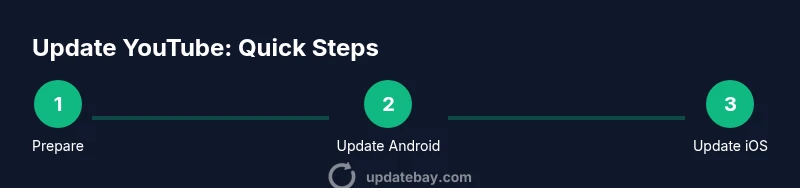
Step-by-Step: Update on Android
- Open the Google Play Store and search for YouTube. 2) If an Update button is visible, tap it and let the download complete. 3) When finished, open YouTube to verify the update. 4) If you don’t see an Update button, try refreshing the store page or rebooting the device. 5) Confirm that you’re running the latest release by checking the in-app settings or the store listing. Why: Android devices vary by manufacturer, so you may need to update through the Play Store in some cases.
Tip: If you’re low on storage, clear cache from the Google Play Store or delete unused apps before retrying the update.
Step-by-Step: Update on iPhone/iPad (iOS)
- Open the App Store and search for YouTube. 2) Tap your profile icon, then pull down to refresh the page. 3) Find YouTube in the list of pending updates and tap Update. 4) Wait for the installation to finish, then open YouTube to verify the new features. 5) If Update isn’t shown, ensure your iOS version is compatible and you have enough storage. Why: iOS updates can be paused by regional releases or device-specific compatibility, so a manual refresh helps.
Verify the Update and First Run Checks
After installing, launch YouTube and watch a short video to confirm smooth playback. Check in Settings or Help (within the app) for the version number to confirm you’re on the latest release. Run a quick search for a feature introduced in the new version (e.g., improved captions or search filters) to validate that the update is active. If something looks off, repeat the update process or restart the device to clear any residual installation issues.
Troubleshooting Common Update Failures
If an update stalls or fails, first pause the download and try again. Ensure you have a stable network connection and sufficient storage. If the problem persists, reboot the device, clear the app store cache, or temporarily disable VPNs that may interfere with downloads. As a last resort, you can temporarily use YouTube via a web browser while you troubleshoot the app update. Why: Most failures are caused by connectivity or space issues rather than the app itself.
Privacy and Security Considerations After Update
New updates may adjust permissions prompts or privacy settings. Review the app permissions in your device settings and adjust as needed. Enable auto-update to receive future security patches promptly. Keeping the app current helps ensure compatibility with the latest platform policies and security improvements, reducing exposure to vulnerabilities. Why: Proactive privacy and security management protects your data and viewing experience.
Post-Update Housekeeping
Sign back into YouTube if prompted and re-sync any preferences or offline playlists. Clearing cache can improve performance after a big update, but do so only if you notice slowdowns. If you manage multiple devices, repeat the update flow on each device to ensure consistency. Finally, consider turning on automatic updates for future updates to simplify maintenance. Why: A clean post-update state helps you immediately enjoy the latest features without glitches.
Tools & Materials
- Stable Internet Connection(Wi-Fi preferred; 5 Mbps or higher)
- YouTube app installed(Latest compatible version or preinstalled)
- Device with sufficient storage(Free at least 200-500 MB depending on OS)
- Account credentials(Google/YouTube account ready to sign in)
- Official app store access(Google Play Store (Android) or App Store (iOS))
- Optional: web browser(For watching YouTube while updating)
- Backup playlists and favorites(Not required, but helpful)
Steps
Estimated time: 15-25 minutes
- 1
Check prerequisites and space
Verify your device OS is supported by the new YouTube version and ensure there is enough free storage. This helps prevent failed installs and data loss during the update.
Tip: Run a quick Settings > Storage check and clear cache if needed. - 2
Enable auto-update
In Google Play Store or App Store, enable auto-update so YouTube updates install automatically in the future.
Tip: Auto-update saves time and ensures you receive security patches promptly. - 3
Update on Android
Open Google Play Store, search for YouTube, tap Update, and wait for the download to finish. Open the app to confirm the update is active.
Tip: If Update isn’t visible, you may already have the latest version or policy restrictions apply. - 4
Update on iOS
Open App Store, tap your profile, refresh the page, locate YouTube, and tap Update. Wait for installation and then launch the app to verify.
Tip: If Update is missing, verify available storage and iOS compatibility. - 5
Verify the update
Launch YouTube and check the in-app settings for the version or release notes to ensure you have the latest features enabled.
Tip: Test search results or captions to confirm new capabilities. - 6
Troubleshoot failures
If the update stalls, pause, retry, or reboot your device. Check network, storage, and app permissions; consider clearing the app store cache.
Tip: A re-install can fix stubborn update issues, but back up data first.
Frequently Asked Questions
What does the 'update required youtube' prompt mean?
It signals that your current YouTube version lacks essential fixes or features. Installing the latest update addresses security, performance, and compatibility improvements.
The prompt means you should update YouTube to get fixes and new features.
What if the update button is missing?
The app may already be up to date, or your device may restrict updates due to storage or policy. Try refreshing the store or check your device settings.
If you don't see an Update button, refresh the store and verify storage.
Will updating YouTube affect my data?
In most cases, updates do not erase your data, but you might need to re-sign in or re-apply some personalization after installation.
Most updates won't erase data, but you may need to sign in again.
Can I use YouTube if I can't update yet?
You can use YouTube in a web browser, but some features and performance may be limited until the app is updated.
Yes, you can use YouTube in a browser while you update.
Should I enable auto-update, and where?
Yes. Enable auto-update in your device's app store settings to keep YouTube current without manual checks.
Enabling auto-update on Android or iOS keeps YouTube up-to-date automatically.
Watch Video
What to Remember
- Update YouTube regularly to stay secure and get new features.
- Check storage and OS compatibility before updating.
- Auto-update helps ensure timely, hands-off updates.
- Troubleshoot network and permissions if updates fail.