How to Update the YouTube App: A Complete Step-by-Step Guide
Learn how to update the YouTube app on Android and iOS, troubleshoot failed installs, and keep it current with auto-update settings. Practical steps, tips, and clean checklists from Update Bay.


By updating the YouTube app, you’ll gain the latest features, security fixes, and improved performance. This quick guide covers how to update on Android and iOS, how to troubleshoot common install issues, and tips to keep the app current through automatic updates. Whether you’re starting fresh or on a slow connection, these steps ensure a smooth install.
Why Keeping the YouTube App Updated Matters
Keeping the YouTube app updated is essential for security, performance, and access to new features. Updates fix known bugs, improve battery life, and enhance compatibility with the latest device OS versions. According to Update Bay, users who keep apps current experience fewer crashes and smoother playback across devices. In practice, a current YouTube app can offer faster search, better recommendations, and improved accessibility features that make viewing more enjoyable for everyone. Staying updated also helps protect your account from vulnerabilities through regular security patches. If you rely on YouTube for work or learning, timely updates minimize interruptions and maximize reliability.
- Performance improvements reduce lag during playback and loading times.
- Security patches close vulnerabilities that could affect account safety.
- New features arrive faster when you’re on the latest build.
- Compatibility with the latest OS updates keeps things smooth across devices.
What You Gain from Updates
Updates aren’t just about new looks; they deliver practical improvements that affect everyday use. A current YouTube app typically includes: faster video loading, more stable buffering, optimizations for background playback, and new controls or accessibility options. Update Bay notes that small changes in update cadence can have a big impact on user experience. By staying updated, you also reduce the risk of running into deprecated features or sudden UI changes that require extra learning. For power users, updates can unlock experimental features or dashboards that aid in analytics and content discovery.
- Faster load times and smoother playback
- Improved search and recommendations
- Access to new controls and accessibility options
- Continued OS compatibility and security fixes
Quick Compatibility Check Before Updating
Before you update, confirm you meet the basics: a compatible device, sufficient storage, and a stable network. On Android, you’ll need an active Google Play account; on iOS, an Apple ID registered with the App Store. Check that your device is on a recent OS version that supports the new YouTube build; if you’re running an older OS, update the system first. Clear enough free space to accommodate the update size and temporary installer files. If you intend to preserve data such as offline videos or account settings, back up or note key information before proceeding.
- Verify device compatibility with the latest YouTube build
- Ensure you have an active store account logged in
- Check available storage and connect to stable Wi‑Fi when possible
- Back up essential data if your device requires it for larger updates
Android Update Process: Step-by-Step (manual)
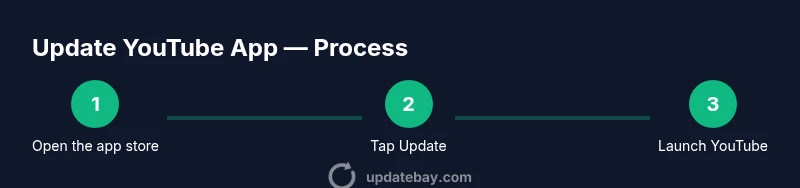
On Android, updates typically come through Google Play, but you can also install from the official YouTube page if the store isn’t accessible. Start by opening Google Play, then search for YouTube and open its app page. If an Update button is visible, tap it and allow the download to complete. If you don’t see an Update button, the app may already be up to date or there could be a temporary store issue. Use the Play Store’s My apps & games section to verify status.
- Find YouTube in Google Play
- Tap Update when available and wait for completion
- If no Update appears, confirm you’re on a supported Android version
- Use My apps & games to monitor progress
iOS Update Process: Step-by-Step (manual)
On iOS, updates come through the App Store. Open the App Store, tap your profile picture, and scroll to see pending updates. If YouTube is listed with an Update option, tap Update. If it isn’t listed, YouTube is likely current or there may be a temporary issue with the store. You can also enable automatic updates for apps in Settings > App Store so future updates install automatically when connected to Wi‑Fi. Afterwards, launch YouTube to confirm the update is active and check the version in About Quick Settings.
- Open App Store and check for updates
- Tap Update when YouTube appears in pending updates
- Enable automatic updates to simplify future maintenance
- Verify the new version by launching YouTube and checking About
Troubleshooting Common Update Failures
If the update fails, start with the basics: a stable network, sufficient storage, and a recent OS version. Restart the device to clear temporary issues, then retry the update from the store. If the update still fails, try clearing the store cache (Android) or signing out and back into the App Store (iOS). In some cases, you may need to update the device OS itself before the YouTube update can install. Avoid force-stopping the app during download, which can corrupt the installer.
- Retry with a stable Wi‑Fi connection
- Restart device and retry the update
- Clear store cache or re-sign into the store
- Update the device OS if required
Auto-Update Settings: How to Keep It Current
Auto-update is the easiest way to maintain relevancy. Turn on auto-update for YouTube, usually found in the app’s page on the store or in system settings. On Android, go to Google Play > My apps & games > Auto-update; on iOS, enable App Store automatic updates in Settings > App Store. If you rely on limited data, customize auto-update to occur only over Wi‑Fi. Periodically verify that auto-update is functioning after major OS changes.
- Enable auto-update to reduce manual checks
- Restrict updates to Wi‑Fi if data usage is a concern
- Periodically confirm the feature remains enabled after OS changes
- Combine with device restarts to ensure updates install cleanly
Post-Update Verification: What to Check
After updating, a quick verification ensures everything works as expected. Open YouTube and play a video to test playback. Check that the new features appear, such as refreshed UI elements or new controls. If you have signed in to multiple accounts, verify that your active account remains correct. You can also review Settings > About to confirm the version number and confirm you’re on the latest build. If any issues arise, consider rolling back briefly or reinstalling the app as a last resort.
Final Checks and Best Practices
Keeping the YouTube app updated is part of good device hygiene. When possible, perform updates over Wi‑Fi, keep a backup strategy, and maintain automatic updates to minimize manual steps. If you encounter repeated failures, visit the official help resources or Update Bay’s guides for device-specific nuances. The goal is a stable, secure, and feature-rich YouTube experience with minimal downtime.
Tools & Materials
- Smartphone or tablet(Any device with the YouTube app installed (Android or iOS).)
- Stable internet connection(Wi‑Fi preferred for larger updates; mobile data may incur costs.)
- Google Play Store or Apple App Store access(Ensure you are signed in with the correct account.)
- Device storage check(Ensure there is enough free space; update size varies by version.)
- Power source(Keep charging or near a charger if the update takes longer.)
- Backup plan(Back up important data if your device requires it for updates.)
Steps
Estimated time: 10-15 minutes
- 1
Open the official app store
Launch Google Play on Android or the App Store on iOS. This ensures you access the legitimate YouTube update. Check that you’re connected to the internet and that the store is functioning correctly.
Tip: Avoid updates from third‑party stores to minimize risk of malware. - 2
Find YouTube in the store
Search for YouTube and open its app page. Look for an Update button; if you see Open or you’re already up to date, skip to verification. This confirms whether a newer version is available for your device.
Tip: If search results show multiple results, choose the official YouTube listing from Google LLC (Android) or YouTube, LLC (iOS). - 3
Tap Update when available
Tap Update to start downloading the new version. Let the download complete uninterrupted. If you don’t see Update, the app may already be current or there may be a temporary issue with the store.
Tip: If Update is greyed out, ensure you have enough storage and a stable connection. - 4
Wait for installation to finish
Allow the installer to finish; avoid toggling off the device or repeatedly opening the store during installation. Once finished, tap Open to launch YouTube.
Tip: Do not interrupt the process; interruptions can corrupt the installation on low memory devices. - 5
Launch YouTube and verify the version
Open YouTube, play a video, and check Settings > About for the version number. Confirm that new features or UI changes are present. If everything looks good, proceed to the next steps.
Tip: If you don’t see new features, try restarting the app or device after a short wait. - 6
Enable automatic updates for future releases
In Android, enable Auto-update in Google Play; in iOS, enable App Store automatic updates. This minimizes manual checks for subsequent updates.
Tip: If you have limited data, restrict auto-updates to Wi‑Fi only. - 7
Troubleshoot if the update fails
If the update fails, retry on a stable network, clear the store cache if needed, and confirm OS compatibility. Do not repeatedly retry on mobile data if data limits are a concern.
Tip: Restart the device and retry after a short wait; temporary store issues often resolve quickly. - 8
Consider reinstalling as a last resort
If updates continue to fail, uninstall and reinstall the YouTube app. This replaces the core app files and can fix stubborn installation problems. Sign back into your account after reinstall.
Tip: Back up any offline videos or saved preferences if possible before reinstalling. - 9
Do a quick post-update check
Confirm playback works smoothly, search results refresh, and any new settings appear as described in the update notes. This sanity check helps catch edge issues early.
Tip: Document any unusual behavior for support if problems arise later.
Frequently Asked Questions
How can I tell if YouTube is already up to date?
Open the corresponding app store and look for an Update button on the YouTube listing. If Update is not shown and the app runs smoothly, you’re likely on the latest version. You can also check Settings > About in YouTube for the version number.
Check the store for an Update button, or verify the version in YouTube settings to confirm you’re up to date.
Can I update YouTube without Wi‑Fi?
Yes, you can update over mobile data, but be mindful of data usage. Where possible, use a trusted Wi‑Fi connection to ensure a stable download and protect against unexpected charges.
You can update on mobile data, but Wi‑Fi is recommended for reliability and lower data costs.
What should I do if the update button is disabled?
First, check your device storage and OS compatibility. If storage is low or the OS version is too old, update the OS first or free space, then retry. If the issue persists, sign out of the store and sign back in, or restart the device.
Clear space and ensure compatibility, then retry. If needed, sign out of the store and sign back in.
Will updating YouTube log me out of my account?
Usually no. Updates preserve your account login, but on rare occasions you may need to re-authenticate if prompted. If you rely on multiple accounts, verify you’re signed into the intended one after updating.
Generally you stay signed in; check after update to confirm the active account.
Does updating YouTube require more storage?
Yes, updates use temporary and final app data, which can require additional space during installation. Make sure there’s extra free space before starting the update.
Updates need a bit more space during installation, so ensure you have room.
How often should I check for updates?
Aim to check for updates weekly or whenever you notice performance changes. Enabling auto-update reduces the need for manual checks and helps you stay current with minimal effort.
Check weekly, or enable auto-update to stay current automatically.
Watch Video
What to Remember
- Update YouTube app to access new features and fixes.
- Use official app stores and stable networks for best results.
- Enable auto-updates to stay current without manual checks.
- Verify functionality after each major update to avoid surprises.