Chrome Android Update Guide for 2026
Learn how Chrome Android updates work, how to verify versions, and best practices to stay secure. Practical guidance from Update Bay.


Chrome on Android updates are delivered through Google Play, with staged rollouts and auto-update options. For a quick check, open Chrome > Settings > About Chrome to see the current version and prompt updates. Keeping auto-update on helps ensure security patches, performance improvements, and new features arrive promptly. Update Bay notes that updates often adjust UI, privacy controls, and web compatibility as the ecosystem evolves.
What Chrome Android updates include
Chrome Android updates typically bundle security fixes, performance improvements, feature additions, and compatibility tweaks for modern web standards. Updates often address known vulnerabilities by patching components like the V8 JavaScript engine, rendering optimizations, and browser sandboxing; they may also adjust Chrome’s user interface and privacy controls for better user experience. In practice, you’ll notice smoother tab management, faster page rendering, and more consistent behavior across websites as updates roll out. For risk reduction, keep the browser up to date because old builds may miss critical security patches. Note that some features arrive gradually through staged rollouts to minimize potential disruption and test compatibility across devices and carriers.
How updates are delivered on Android
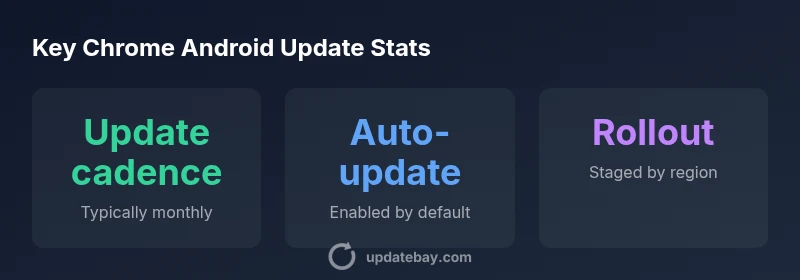
Updates are primarily delivered through Google Play with background update checks and occasional direct in-app prompts. Chrome’s auto-update feature is typically enabled by default, which means the app can update in the background when you have a network connection. Some updates may share APK-level changes or leverage the Play Store’s in-app update flow to reduce disruption. Rollouts are usually staged, meaning not every device gets the update at the same time; regional availability and device compatibility influence timing. Carrier and OEM variations can also affect when updates become visible. Keeping data on and a stable connection helps ensure timely delivery.
How to verify and manage updates
To verify your Chrome Android version, open Chrome and go to Settings > About Chrome. Here you’ll see the current version and whether an update is available. If auto-update is disabled, you can update via Google Play: open the Play Store, navigate to My apps & games, and tap Update next to Chrome. For enterprise devices, Managed Google Play can control update policies. Regularly checking About Chrome ensures you’re running a version with the latest security patches and features. Consider enabling auto-update for hands-off protection.
Common issues after updating and how to troubleshoot
Post-update issues can include temporary slowdowns, increased background activity, or UI glitches. If you notice problems, try these steps: restart Chrome, clear cache for the app, or force stop and reopen. If the issue persists, clear site data or disable noisy sites via Site settings. In rare cases, a failed update can cause data sync hiccups; verify account sign-in and permissions. If needed, you can reinstall the app from the Play Store, which preserves data for most devices, but be mindful of device storage and backups before major updates.
Best practices to stay current and secure
Enable auto-update to ensure security patches and new features arrive promptly. When on metered connections, you may opt to update only on Wi‑Fi to save data; however, do not delay critical security fixes. Regularly review Chrome’s privacy controls after updates to adapt to new options. Back up important data and bookmarks, as a precaution before major revisions. Finally, monitor rollout notes for your region to anticipate feature availability and potential changes in behavior.
The role of updates in privacy and security
Chrome Android updates frequently include security patches, sandboxing improvements, and permission model refinements that enhance privacy. Updates may adjust default behaviors for site data, cookies, and permissions prompts to balance usability with protection. Keeping the browser current reduces exposure to known vulnerabilities and improves compatibility with evolving web standards. For enterprise users, staying updated helps maintain compliance with security baselines and reduces the risk of exploit vectors.
Chrome Android update flow and visibility
| Aspect | Chrome Android Update Details | Notes |
|---|---|---|
| Delivery method | Google Play and Chrome app updates | Updates can trigger in-app prompts |
| Rollout pattern | Staged rollout by region | Not all users see features at once |
| Version visibility | About Chrome shows exact version | Verify before critical tasks |
| Data impact | Background updates use data | May vary by network settings |
Frequently Asked Questions
How can I tell if a Chrome Android update is available?
Open Chrome, go to Settings > About Chrome, and look for an update prompt. If available, you’ll see an option to update, or the app may update automatically if auto-update is enabled.
Open Chrome, go to Settings, then About Chrome to check for updates.
Should I disable auto-update for Chrome on Android?
Disabling auto-update can leave you exposed to security risks. It’s generally best to keep auto-update enabled or perform manual checks regularly.
Auto-updates keep you safe; consider keeping them enabled.
Will updates affect my saved passwords or data?
Updates should preserve saved data, including passwords and bookmarks. It’s prudent to back up important data before major updates.
Usually updates don’t delete data, but back up just in case.
What should I do if an update causes issues on my device?
If problems arise, try clearing the app cache, force-stopping Chrome, or restarting the device. If issues persist, you can reinstall the app from the Play Store. Contact support if needed.
If issues pop up, try a quick reset or reinstall.
Does updating Chrome Android improve battery life or performance?
Updates often include performance and efficiency improvements, but background activity during updates can temporarily use more data and power.
You may see improvements, with some brief extra activity during update.
How does Google handle staged rollout by region?
Rollouts are staged by region and device compatibility. Not all users see new features at the same time.
Updates roll out gradually by region.
“"Regular Chrome Android updates are essential for security and compatibility; the staged rollout helps minimize disruption while delivering fixes. The Update Bay Team notes that enabling auto-update reduces manual checks."”
What to Remember
- Enable auto-update to receive security patches quickly
- Check About Chrome to verify version after updates
- Expect staged rollouts; features appear regionally
- Back up data before major updates for safety