Chrome Update Google: Your Practical How-To Guide
Learn how to update Google Chrome across devices, troubleshoot common issues, and keep your browser secure with practical steps from Update Bay.


Goal: update Google Chrome to the latest stable version across desktop and mobile. You can check for updates via Chrome’s menu, or automatically enable updates where supported. This guide walks you through manual update steps, explains update channels, and covers common issues and best practices to keep Chrome secure and fast. It also explains how to update on Android and iOS devices.
Why Chrome Updates Matter
Chrome updates matter for security, performance, and compatibility. They fix vulnerabilities that could be exploited by attackers, improve stability, and introduce new features that enhance your browsing experience. According to Update Bay, keeping Chrome up to date is a primary defense against browser security vulnerabilities and exploit kits. The Update Bay team found that users who maintain current Chrome versions experience fewer crashes, faster page loads, and better protection against phishing and drive-by malware. When you see the chrome update google phrase in official notices, you’re seeing a signal that Google has patched issues that could expose you to risk. In practice, timely updates reduce exposure to zero-day threats and help ensure compatibility with modern websites and extensions. While some users worry about changes in UI, most updates are incremental improvements that do not disrupt core workflows. The takeaway is simple: update recommendations are security and performance best practices, not decorative features. Keeping track of update cadence for your devices is an essential part of responsible browsing.
- Security patches close gaps that attackers routinely target.
- Bug fixes reduce crashes and improve stability.
- Feature refinements improve speed and usability.
- Extensions and websites often rely on the latest engine and API support.
The Update Bay guidance emphasizes proactive update planning for both desktops and mobile devices. A quick check every few weeks can prevent larger issues later. The next sections explain how chrome update google signals and how to verify you’re on the latest release across platforms.
How Chrome Update Channels Work
Google Chrome uses a tiered release model to balance speed, stability, and testing. The Stable channel delivers the version most users experience after broad testing. The Beta/Preview channel gives early access to features and changes, with slightly higher risk of minor issues. The Dev or Canary channels are for developers and enthusiasts who want bleeding-edge updates, often with experimental features and more frequent changes. Understanding these channels helps you decide when to update manually and when to rely on automatic updates. In practice, most everyday users should remain on Stable and allow Chrome to update automatically when the browser signals a new version. If you rely on new features right away or test pages for compatibility, consider a Beta channel on a secondary device. The Update Bay findings indicate that switching channels can affect extension compatibility and page rendering, so test on a non-primary device first if you must experiment.
- Stable: safe, tested version rolling out broadly.
- Beta: early access with potential tweaks and fixes.
- Dev/Canary: bleeding-edge with higher risk of instability.
- Auto-update behavior varies by OS and device settings.
For most users, the recommended path is Stable with automatic updates enabled. For developers and power users, a controlled test on a secondary device can help catch incompatibilities before a full rollout.
How to Check Your Chrome Version
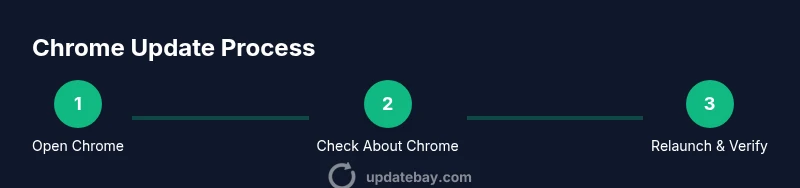
Verifying your current Chrome version is straightforward and helps you confirm that chrome update google has taken effect. On desktop, click the three-dot menu in the upper-right corner, go to Help, then select About Google Chrome. The page will show the current version and automatically begin downloading any available updates. On Android and iOS devices, open the respective app store entries for Chrome to verify if an update is pending or installed. If you notice a version number that matches the latest release described in Google's update notes, you’re up to date. It’s wise to keep a bookmark of the official Chrome release notes page for reference, so you can compare version numbers with the documented changes. Regular checks prevent unknowingly running outdated software and ensure you have the latest security protections.
- Desktop: Chrome Menu > Help > About Google Chrome.
- Android: Google Play Store > Chrome > Update (if available).
- iOS: App Store > Chrome > Update (if available).
If you don’t see a prompt to update, you are likely on the latest stable release. However, occasionally updates are staged by region or device, so you may see a delayed rollout on some devices.
The Risks and Benefits of Auto-Updates vs Manual
Auto-updates offer hands-free maintenance, ensuring you usually run the latest security patches and features without action. However, automatic updates can feel abrupt if you’re in the middle of a critical session or depend on a specific extension version. Manual updates give you control to schedule upgrades during low-usage windows and test compatibility with critical websites and extensions before rollout. The Update Bay guidance suggests balancing convenience with risk by enabling automatic updates for essential devices while keeping a manual override on machines used for testing or running legacy systems. If you enable auto-update, ensure you have reliable backup and recovery options in case a new release introduces unexpected behavior. On most consumer devices, Chrome updates automatically in the background, but some corporate or custom-managed systems may require administrator approval. In those cases, plan a testing window and communicate changes to your team.
- Auto-updates reduce maintenance effort but can disrupt ongoing work.
- Manual updates give you control and testing opportunities.
- Always have a backup plan and recovery options when rolling updates into a workflow.
- Verify extension compatibility after an update to avoid feature gaps.
These considerations help you decide the best approach for your environment and usage patterns.
How to Update Chrome on Desktop and Mobile
Updating Chrome across devices is a common maintenance task, but the exact steps differ by platform. On desktop, the update is usually seamless through the browser’s own update mechanism. On Android and iOS, updates happen through the Google Play Store and Apple App Store, respectively. The desktop update process is quick, with most systems requiring a relaunch after installation. Mobile updates may take longer due to store download and device constraints. The key is to ensure you’re connected to the internet and that you have enough free space for the update. If you administer multiple devices, consider creating a small checklist to verify the same steps on each platform, then document any platform-specific quirks.
- Desktop: Menu > Help > About Google Chrome → relaunch when prompted.
- Android: Open Google Play > Chrome > Update.
- iOS: Open App Store > Chrome > Update.
- Ensure sufficient storage and stable network during updates.
It’s also useful to keep a list of extensions you rely on, so you can quickly re-enable or adjust them post-update if necessary.
Troubleshooting Common Update Issues
Updates can fail for a variety of reasons, including low disk space, network restrictions, or corrupted installer files. Common symptoms include “Update failed” messages, stalled downloads, or Chrome refusing to relaunch after an update. Start by checking your internet connection and available disk space. If the issue persists, try restarting your device, clearing the browser cache, or temporarily disabling antivirus software that might block the update. For desktop, running the Chrome installer as an administrator can help on some Windows configurations. On mobile, ensure you have enough storage and that you’re connected to a stable network. If updates remain stubborn, removing and reinstalling Chrome from the official store is a last-resort option that preserves your data if you’re signed into a Google account.
- Common causes: network restrictions, insufficient storage, corrupted installer.
- Quick fixes: restart, clear cache, disable conflicting software.
- Last resort: reinstall Chrome while preserving data via sign-in.
If you’re still stuck, consult the official help pages or contact support for device-specific guidance.
Best Practices for Safer Browsing After Updates
After updating Chrome, adopt practices that maximize security and performance. Enable Safe Browsing, keep extensions from trusted sources, and review site permissions regularly. Use a strong, unique password manager and enable two-factor authentication where possible. Maintain bookmarks and sync settings so you don’t lose your essential data during a reinstallation or device change. Periodically review your browser’s privacy settings and disable any features you don’t need. Finally, consider enabling automatic updates on devices where stability is high and monitoring update notes from the Chrome Release Blog for any known issues affecting your configuration.
- Enable Safe Browsing and site permissions audits.
- Keep extension inventory up to date.
- Maintain data backups and session sync.
- Follow release notes to anticipate changes in behavior.
What’s New in Recent Chrome Updates
Recent Chrome updates typically bring security improvements, performance optimizations, and UI refinements. You’ll often see enhancements to password management, built-in privacy controls, and developer APIs that support modern websites. Staying informed through official release notes helps you understand what changed and why it matters. The focus in the latest updates tends to be on measurable improvements in page load speed, reduced memory usage, and more robust protection against phishing and malware. Update Bay tracks these developments and translates them into actionable steps so you can maximize benefits without surprises.
- Security and privacy improvements.
- Performance and stability fixes.
- UI and developer enhancements for better compatibility.
- Proactive guidance for enterprise and power users.
For ongoing updates, refer to the Chrome Releases Blog and Google Support pages for the official changelogs and recommended user actions.
Authority Sources
- https://support.google.com/chrome/answer/95414?hl=en
- https://chromereleases.googleblog.com/
- https://us-cert.cisa.gov/ncas/tips/ST04-001
Tools & Materials
- Stable internet connection(Broadband or faster; ensure download stability during updates)
- Backup of bookmarks and profile(Export bookmarks or enable sync before updating)
- Admin access or permissions(Needed to install or update software on desktop)
- Sufficient disk space(At least 200 MB free for the update and temporary files)
- Mobile device with store access(Android: Google Play; iOS: App Store; keep device charged)
- Secondary device (optional)(For testing updates on a non-primary device)
Steps
Estimated time: 15-25 minutes
- 1
Open Chrome menu
Click the three-dot menu in the upper-right corner of Chrome to access settings. This initial action begins the path to verifying and triggering an update. The reason is simple: most updates are delivered through the browser’s own update mechanism, not from external downloads.
Tip: If you don’t see the menu, ensure you’re using a supported Chrome version and that you’re not in full-screen mode. - 2
Navigate to About Google Chrome
From the menu, hover over Help and select About Google Chrome. This page shows your current version and automatically checks for available updates. If an update is found, Chrome will begin downloading it in the background.
Tip: Keep this tab open until the download completes to confirm progress. - 3
Relaunch to apply updates
If an update is downloaded, Chrome will prompt you to Relaunch. Save any work, then click Relaunch to complete the installation. A quick restart ensures you’re running the latest security patches and features.
Tip: If you’re in a critical workflow, choose a low-traffic time to relaunch. - 4
Verify the updated version
After relaunch, re-open About Google Chrome to confirm the version number reflects the latest release. This verification step helps you ensure the update applied correctly.
Tip: Compare the version number with the release notes for confirmation. - 5
Update on Android via Play Store
Open Google Play > My apps & games > Update is Chrome, or search for Chrome and tap Update. This ensures the mobile browser is current and protected.
Tip: If you don’t see an update, try refreshing the store or restarting the device. - 6
Update on iOS via App Store
Open App Store > Today or Updates, then update Chrome if available. iOS updates can be staged differently, so checking periodically helps.
Tip: Enable automatic updates in Settings for ongoing protection. - 7
Test Chrome post-update
Open a few websites and apps you use daily to confirm compatibility and performance. Look for slower pages, broken extensions, or UI quirks and document any issues.
Tip: If you notice issues, check extensions for compatibility or temporarily disable them. - 8
Handle update failures
If an update fails to install, check your internet connection, free space, and device time settings. Retry the update, and consider re-installing Chrome if problems persist.
Tip: Avoid forced removal of data; back up if you must reinstall. - 9
Document and monitor
Keep a simple log of update dates and version numbers for each device. Subscribe to official Chrome release notes to stay informed about new features and security patches.
Tip: Consistency makes it easier to troubleshoot future updates.
Frequently Asked Questions
Why isn’t Chrome updating on my device?
Common causes include a slow or unstable internet connection, insufficient disk space, or administrator restrictions on managed devices. Check your connection, free up space, and verify update permissions. If the problem persists, consult the official Chrome Help pages for device-specific steps.
If Chrome isn’t updating, check your internet, free space, and any admin restrictions; then refer to Chrome’s help pages for device-specific steps.
Is it safe to update Chrome?
Yes. Chrome updates include security patches and performance improvements designed to protect you while browsing. Always download updates from official sources and avoid third-party installers.
Yes, updates are safe and important for security; install them from official sources.
Will updating Chrome affect my extensions?
Updates can affect extensions if new API changes are introduced. Most extensions continue to work, but you may need to re-enable or update some extensions after a major Chrome release.
Most extensions keep working after updates, but some may need tweaks or updates.
Do I need to restart my device after updating?
Chrome updates typically require a relaunch of the browser. A full system restart is rarely necessary unless updates affect other software. Save work before relaunch.
Usually just relaunch Chrome; a full restart is rarely required.
What should I do if an update fails to install?
Retry the update, ensure enough disk space, and check for network issues. If the problem persists, reinstall Chrome from the official store after backing up bookmarks and data.
If an update fails, retry, check space and network, and consider re-installing Chrome if needed.
Do updates improve performance, or just security?
Updates typically improve both security and performance, often by optimizing rendering and memory usage while patching vulnerabilities. Reading the release notes helps you see the exact gains for your setup.
Updates improve security and performance, with notes detailing the exact improvements.
Watch Video
What to Remember
- Update Chrome regularly to reduce security risks.
- Use the correct update channel for your needs.
- Verify version after update to ensure success.
- Test critical workflows after updates to catch compatibility issues.
- Keep official release notes handy for context and troubleshooting.