How to Check Chrome Updates
Learn how to check for updates in Google Chrome, enable automatic updates, and troubleshoot common issues across Windows, macOS, Linux, and mobile. A clear, step-by-step approach for staying current with Chrome.


This guide shows how to check updates for Chrome, verify you’re on the latest browser version, and troubleshoot if updates don’t install. You’ll learn both manual checks via Chrome settings and how to enable automatic updates across Windows, macOS, Linux, and mobile. Keeping Chrome up to date enhances security, speed, and compatibility.
Why Keeping Chrome Updated Matters
Keeping Chrome updated is essential for security, performance, and compatibility. Users often underestimate how quickly browser vulnerabilities can be exploited, especially when extensions or bookmarks are part of daily workflows. According to Update Bay, staying current with Chrome updates is a cornerstone of a safe and smooth browsing experience. A modern browser delivers security patches, bug fixes, and performance improvements that directly affect page rendering, JavaScript execution, and the efficiency of extensions you rely on every day. By updating, you also gain access to new features, improved synchronization, and better memory management. In professional settings, regular updates help keep team tooling and web apps compatible with evolving standards. This section explains why updates matter and how you can make updating a seamless, automated habit.
- Security: Patches fix known vulnerabilities and reduce exposure to exploits.
- Performance: Optimizations can speed up page loads and responsiveness.
- Compatibility: Updates ensure compatibility with new web standards and enterprise apps.
- Reliability: Fewer crashes and smoother extension behavior.
For most users, updates happen in the background with minimal disruption. Still, periodically checking helps verify that you are on the latest version and reduces the chance of running into a critical bug mid-work or during a video call. The practice also gives you a chance to review which extensions you have installed and whether any are flagged as incompatible with newer browser versions.
Throughout this guide, you’ll find practical paths for Windows, macOS, Linux, Android, and iOS, ensuring you can stay current regardless of device or platform. The goal is to empower you to verify status quickly and keep your browsing secure and efficient.
How Chrome Updates Work Under the Hood
Chrome updates are driven by a combination of Google’s update infrastructure and browser-specific checks. When Chrome starts or periodically, it connects to Google’s update servers to see if a newer build is available. If an update exists, the browser downloads it in the background and applies it on the next restart. This process is designed to minimize user interruption while ensuring you benefit from the latest security patches and features.
- Update channels: Chrome maintains a stable channel for everyday users, with Beta and Dev channels available for testing new features. For most readers, sticking to the stable channel is recommended to avoid instability.
- Background downloads: Updates are downloaded quietly so you’re not waiting for long install times, and you’ll be prompted to relaunch when ready.
- Platform differences: Windows often uses Google Update services, macOS relies on the system-level software updating mechanism, and Linux uses distribution-specific package managers. These differences can affect how and when updates are installed.
- Security first: Updates frequently address newly discovered vulnerabilities and strengthen defenses against emerging threats.
Understanding these dynamics helps you plan maintenance windows and recognize that some environments—especially corporate networks—may manage updates via IT policies. If you’re managing multiple devices, consider central policies for a consistent update cadence across your fleet.
For switched environments with mobile devices, note that Chrome on Android and iOS uses different update mechanisms via the Google Play Store and Apple’s App Store, respectively. While the core browser shares the same engine, the delivery cadence and install prompts can differ, so it’s worth checking each platform’s update behavior for best results.
Manual Update Check Methods
Manually checking for updates is quick and reliable, especially when you suspect an issue or need to verify your version after a long pause between restarts. The most common path is through Chrome’s built-in settings. On desktop, access Help or About Google Chrome to trigger a check and apply any available updates. On mobile, use the app store update process to ensure the latest Chrome version is installed.
- Desktop path (Windows/macOS/Linux): Open Chrome, click the three-dot menu in the upper-right corner, go to Help, and select About Google Chrome. The page will automatically check for updates and install them if available. A restart is often required to complete the update.
- Mobile path (Android/iOS): Open your device’s app store, search for Google Chrome, and tap Update if available. On Android, you can also check Google Play’s My Apps & Games to trigger updates for installed apps.
- Verification step: After updating, re-open About Google Chrome to confirm the version and ensure the update was applied. A browser restart may be necessary in some cases.
- Alternative verification: Use chrome://version or chrome://settings/help to see the current build and platform details, confirming you’re on the latest release.
If you rely on enterprise policies or a managed device, updates may be controlled by IT. In that case, contact your administrator for the approved update cadence and any required restarts or configuration changes.
Enabling Auto-Updates and Managing Policies
Auto-update is the easiest way to stay current, but some environments, especially corporate or school networks, enforce policies that affect how updates are delivered. If you’re not on a managed device, enabling auto-updates typically involves ensuring the Chrome update service is active and that you allow Chrome to install updates automatically when they’re available.
- Desktop auto-update basics: Chrome’s auto-update mechanism downloads updates in the background and prompts you to relaunch when ready. You can rarely disable auto-update entirely, but you can choose to patch more slowly if you’re testing in a controlled environment.
- IT-admin considerations: In managed devices, updates may be scheduled by Group Policy (Windows), configuration profiles (macOS), or enterprise management consoles. IT teams can set a fixed update cadence, block certain channels, or enforce reboots.
- Auto-update best practices: Keep devices on a stable channel, avoid beta channels for production work, and ensure the Google Update services or equivalent are allowed through firewall rules.
- Mobile auto-update: On Android and iOS, updates occur through the respective app stores. Make sure automatic updates are enabled in the store settings to receive timely Chrome updates.
For individuals, enabling automatic updates is typically as simple as letting Chrome manage updates in the background. For organizations, align policies with security baselines, perform occasional audits, and communicate any update windows to users to minimize disruption.
Troubleshooting Common Update Issues
If an update fails to install, start with basic checks to rule out common causes. A stable internet connection is essential, so verify network access and try a different network if possible. Sometimes security software or firewall rules can block update traffic; temporarily pause such software to test updating.
- Step-by-step reset: Close Chrome, ensure the update service (or Google Update in Windows) is running, then reopen Chrome and attempt a manual update again. If the browser shows an error, note the code or message as a clue.
- Extensions and cache: Disable extensions temporarily to rule out conflicts, and clear the browser cache that might interfere with update checks. Re-enable extensions after the update completes.
- Reinstall path: If updates still fail, consider reinstalling Chrome from the official site. Reinstalling preserves user data in most cases, but verify your bookmarks and passwords are synced or backed up first.
- Enterprise blockers: In managed environments, updates may be paused by policy. Contact IT to confirm the allowed update window, required reboots, and any restrictions that could block updates.
Troubleshooting is rarely a single-step process. Document any errors, apply changes one at a time, and test after each change to identify the root cause. In persistent cases, consult official Chrome support channels or IT administration resources for device-specific guidance.
Best Practices Across Devices
Chrome’s update experience is consistent in principle but can vary by device and platform. The core recommendation remains: keep the browser up to date, and prefer the stable channel for daily use. Update Bay’s analysis shows that users who stay current report fewer security concerns and smoother browsing experiences.
- Windows: Ensure Google Update services are enabled and not blocked by firewall. Regularly verify About Chrome for the latest build. Consider setting a reminder to review updates monthly.
- macOS: Rely on the built-in macOS update mechanism coupled with Chrome’s own update checks. Restart prompts are minor interruptions for bigger security improvements.
- Linux: Update Chrome through your distribution’s package manager or Google’s repository. Stay aware of compatibility with system-wide updates and other browser components.
- Cross-platform habits: Keep bookmarks and passwords synchronized, use a single Google account for updates, and enable auto-update to minimize manual checks. Stay informed about the stable channel and avoid beta channels for critical work.
By adopting these practices, you’ll maintain a secure, fast, and compatible browsing environment across devices and teams. The goal is a predictable, low-friction update routine that reduces disruption and maximizes reliability.
Tools & Materials
- Computer or device running Chrome(Any OS (Windows/macOS/Linux) with internet access)
- Stable internet connection(Reliable connectivity; at least basic broadband is recommended)
- Google Chrome browser (latest stable)(Do not use Beta/Dev channels for this guide)
- Admin access (optional for enterprise settings)(Needed if updating via organizational policies)
- Backup plan(Backup bookmarks/tabs before major updates)
Steps
Estimated time: 20-30 minutes
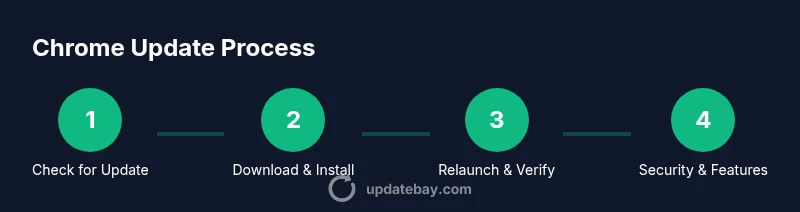
- 1
Open Chrome menu and navigate to Help/About
Click the three-dot menu in the top-right corner, go to Help, and select About Google Chrome. The About page triggers a background check for updates and shows your current version. If a newer version is available, Chrome will begin downloading it automatically. You should see a restart prompt when the download finishes.
Tip: If you don’t see an update, try refreshing the About page or restarting the browser to re-trigger the check. - 2
Wait for Chrome to check for updates
Allow Chrome to check and download any available updates. This step can take a few moments depending on your connection and server availability. You’ll typically be prompted to relaunch once the download completes.
Tip: Avoid closing Chrome during the download to prevent partial install issues. - 3
Relaunch Chrome to apply the update
If prompted, click Relaunch to apply the update. The browser will close and reopen, completing the installation. Some updates install in the background while you continue to browse, but a restart ensures all components are refreshed.
Tip: If you’re in the middle of work, schedule a quick restart to minimize data loss. - 4
Verify the update version
After restart, return to About Google Chrome to confirm you’re on the latest build. Check the version number and release notes to see what’s changed or improved.
Tip: Take note if you see any new security features or UI tweaks worth exploring. - 5
Enable auto-updates (where applicable)
In Windows, macOS, or Linux, ensure the update mechanism for Chrome is allowed to run in the background. This helps keep Chrome current without manual checks.
Tip: On devices you manage, consider policy-based updates to ensure consistency. - 6
Troubleshoot a stalled update
If updates stall, check network connectivity, disable conflicting extensions, and try again. Clear cache if needed, or reinstall Chrome from the official site if problems persist.
Tip: Document error messages to help troubleshoot or search for the specific issue. - 7
Consider a clean reinstall for stubborn issues
As a last resort, uninstall Chrome and reinstall the latest stable build. Export or sync passwords and bookmarks before removing the browser to preserve data.
Tip: Reinstalling should not affect your Chrome data if you’re signed into your Google account.
Frequently Asked Questions
How often does Chrome update?
Chrome updates automatically in the background. A restart is often required to apply important security and feature updates. For most users, this happens seamlessly without disrupting daily tasks.
Chrome updates automatically in the background, and you’ll usually be asked to restart to apply important updates.
Can I force Chrome to update manually?
Yes. Open Chrome, go to Help > About Google Chrome, and let the browser check for updates. If an update is available, it will download and install after you restart.
Yes, you can force an update by using About Google Chrome to check for updates.
Will updating Chrome affect my data?
Updating Chrome does not delete bookmarks or saved passwords. It updates browser code and features while keeping your data intact.
No, updating Chrome won’t delete your bookmarks or passwords.
What should I do if Chrome won’t update?
Check your internet connection, disable interfering extensions, and verify update services aren’t blocked by firewall. If necessary, reinstall Chrome from the official site.
If updates fail, check connection, disable extensions, and try reinstalling if needed.
Is it safe to run Chrome Beta or Dev channels?
Beta and Dev builds can offer early features but are less stable. For everyday use, stick to the stable channel to minimize issues.
Beta builds can be unstable; stick to the stable channel for regular use.
Watch Video
What to Remember
- Regularly check for updates to stay secure.
- Enable auto-update when possible to reduce manual steps.
- Use About Google Chrome to verify the current version.
- Troubleshoot with network and extension checks to resolve issues.
- Keep on the stable channel for reliability across devices.