Chrome Update on Android: Step-by-Step Guide
Learn how to update Chrome on Android, enable auto-updates, and troubleshoot common issues. This Update Bay guide helps you keep Chrome secure, fast, and feature-rich on mobile.


This guide helps you update Chrome on Android to the latest stable version. You’ll learn how to check for updates, enable auto-update, and troubleshoot common update errors. By following the steps, you’ll ensure faster browsing, improved security, and new features without extra apps or manual downloads. This content uses practical checks and quick commands to help you finish in under 10 minutes.
Why Chrome Update on Android matters
Keeping Chrome up to date on Android is essential for security, performance, and access to the latest features. Each new build often patches vulnerabilities, improves JavaScript performance, and enhances power efficiency. For regular users, a current browser means fewer crashes, smoother page rendering, and better compatibility with modern web apps. From a practical perspective, updating Chrome reduces friction when signing into services or syncing data across devices. According to Update Bay, consistent updates are a reliable signal of ongoing security and feature hygiene, particularly on mobile where software layers constantly interact with web content.
Key takeaway: If you browse daily, an up-to-date Chrome minimizes risk and maximizes speed on Android devices.
Checking Your Version: How to tell if you’re up to date
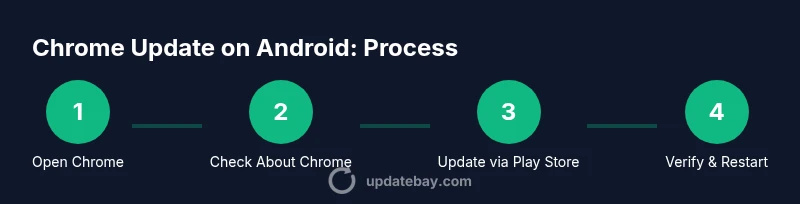
To verify you’re on the latest Chrome, open the app and navigate to the three-dot menu > Settings > About Chrome. The version number will be displayed, and if an update is available, you’ll see a prompt or a button to update. If you don’t see a new version here, a background Play Store update may be pending. You can also cross-check the Play Store entry for Chrome to confirm the latest available version. Regular checks help you catch delayed updates that might otherwise slip by during busy weeks. Update Bay notes that many users assume automatic updates always install immediately; in reality, Android devices can pause updates due to settings or connectivity.
How to update Chrome on Android manually
Manual updates come through the Google Play Store. Open the Play Store, search for Chrome, and tap Update if available. If Update isn’t visible, Chrome may already be current, or your device may restrict updates due to policy or storage limits. Ensure you’re connected to a stable network, and you have enough free space. After updating, reopen Chrome and revisit Settings > About Chrome to confirm the new version number. This hands-on step ensures you don’t miss an important security patch when automatic updates are delayed.
Updating Chrome via Google Play Store
Using the Play Store is the most common path for Chrome updates on Android. Launch the Play Store, tap your profile icon, select Manage apps & device, then Updates available. If Chrome shows in the list, tap Update. If not, Chrome is likely current. Enabling auto-update for Chrome in Play Store settings ensures future updates install without manual checks. You can also set network preferences to Wi‑Fi only to save mobile data during updates. Update Bay recommends keeping auto-update enabled for critical security patches.
Enabling Auto-Update and Managing Permissions
Auto-update for Chrome can be toggled within the Google Play Store under Settings > Network preferences > Auto-update apps. Choose Over any network or Over Wi‑Fi only, depending on your data plan. Some organizations restrict auto-updates via device policies; in those cases, consult IT for permission or use a personal device. Ensure Chrome has the necessary storage permissions to install updates and run smoothly. After enabling auto-update, you should see Chrome update automatically when a new version is released.
Clearing Cache and Data After Updates (if you run into issues)
If you notice slow performance or broken features after updating, clearing Chrome’s cache can help. Go to Settings > Apps > Chrome > Storage & cache, then Clear cache. If problems persist, you can Clear storage (data) to reset Chrome’s local state, but note this will remove saved cookies and local browsing data. Sign back into Chrome to resync data from your Google account. This step is a common, safe maintenance routine after major updates.
Common Update Problems and Fixes
If Chrome fails to update, try these steps: 1) Restart the device and retry the update; 2) Clear Play Store cache and storage, then retry; 3) Ensure sufficient storage space and stable internet; 4) Check for Android system updates, as OS-level updates can influence app behavior; 5) If still stuck, temporarily disable battery optimization for Play Store and Chrome. These practical fixes cover most update roadblocks and restore normal operation quickly.
Security and Performance Benefits of Updated Chrome
Each Chrome update typically includes security hardening, bug fixes, and performance improvements. New features may enhance page rendering, reduce memory usage, and improve battery life in some scenarios. By staying current, you also gain better compatibility with newer web standards and improved privacy controls. Update Bay emphasizes that consistent updates reduce the risk surface and help you enjoy smoother browsing on Android devices.
Next Steps: Keeping Chrome Fresh on Android
Set a reminder to check for updates weekly, and keep auto-update enabled where possible. Pair browser updates with regular system updates to minimize conflicts and maximize security. If you manage multiple devices, enable Chrome sync so your data travels with you and remains consistent across devices. Finally, review chrome://settings/help periodically to confirm the latest version and any new options introduced by recent releases.
Tools & Materials
- Android device (phone or tablet)(Android 8.0 or newer recommended)
- Stable internet connection(Wi‑Fi or strong mobile data)
- Google account signed in(Needed for Play Store access)
- Google Play Store access(Ensure Play Store is installed and updated)
- Chrome app installed (latest version recommended)(From Google Play)
- Optional: computer for backup/sync checks(To compare versions via Chrome Sync)
Steps
Estimated time: 15-25 minutes
- 1
Open Chrome settings
Launch Chrome on Android and tap the three-dot menu in the top-right. Choose Settings to access the About Chrome section and version information. This is where you’ll find direct version details and update prompts.
Tip: If the menu is hard to reach, try rotating the screen to landscape for easier access. - 2
Check for updates in About Chrome
In Settings, select About Chrome to view the current version and trigger a check for updates. If an update is available, you’ll see a prompt or a button to update. If not, you may already be on the latest version.
Tip: A stable connection helps ensure the version check completes without errors. - 3
Update Chrome via Google Play Store (manual)
Open Google Play Store, search for Chrome, and tap Update if the option is visible. If you don’t see Update, Chrome is likely current or your device blocks the update.
Tip: If Update isn’t visible, try refreshing the Play Store or reinstalling the app. - 4
Verify the update is installed
Return to Chrome Settings > About Chrome to confirm the version number matches the latest release. Open a web page to ensure rendering is smooth and features behave as expected.
Tip: If the page looks slower, consider clearing cache as a first step. - 5
Enable auto-update for Chrome
In Play Store, enable Auto-update for Chrome (Over any network or Over Wi‑Fi only). This reduces manual checks and ensures security patches install automatically.
Tip: Choose Wi‑Fi only if you have data caps and want to save bandwidth. - 6
Restart Chrome and the device if needed
After updates, restart Chrome and, if necessary, reboot the device to ensure all new files are loaded correctly. This step helps avoid lingering process issues.
Tip: A quick restart can clear temporary glitches post-update. - 7
Check for related updates
Sometimes Chrome updates rely on Google Play Services or WebView updates. Update those components if prompted to avoid compatibility issues.
Tip: Keep Play Services up to date to prevent update bottlenecks. - 8
Test that Chrome is updated
Open Chrome and navigate to a few secure pages to verify functionality. Check for new features in Settings and privacy controls.
Tip: Visit chrome://version to confirm the exact build number. - 9
Troubleshoot update issues
If updates fail, clear the Play Store cache, free up storage, and ensure the device isn’t restricted by battery optimization. Re-try updates after these steps.
Tip: If problems persist, consider a factory reset as a last resort (back up first).
Frequently Asked Questions
Do I need to update Chrome on Android manually, or does it update automatically?
Chrome updates on Android can occur automatically if auto-update is enabled in Google Play. If not, you can manually update via the Play Store. Regular checks help you catch missed updates.
Updates can happen automatically if auto-update is on; you can also update manually via the Play Store.
Will updating Chrome delete my bookmarks or data?
Updating Chrome should not delete bookmarks or data when you’re signed into a Google account with Chrome Sync enabled. If you lose data, sign back in and verify sync settings.
No, updates don’t delete bookmarks if Sync is on. Sign back in if needed.
What should I do if Chrome doesn't update from the Play Store?
Try clearing the Play Store cache and storage, check available storage, ensure a stable connection, and retry. If the problem persists, check for device policy restrictions or software updates for Android.
Clear Play Store cache, free space, and retry. Check device policy if updates still fail.
How often should I check for Chrome updates on Android?
Aim to check weekly or rely on auto-update. Auto-update reduces manual checks and ensures you receive security patches promptly when connected to Wi‑Fi.
Check weekly or rely on auto-update for timely patches.
Can Chrome updates affect battery life?
Updates can indirectly affect battery life through background tasks, but most releases aim to improve efficiency. If you notice drain, review background activity and adjust auto-update settings.
Battery impact is possible, but updates usually improve efficiency; adjust settings if needed.
Watch Video
What to Remember
- Update Chrome on Android regularly to improve security and speed.
- Use Play Store to manage Chrome updates and enable auto-update.
- Verify the installed version in Settings > About Chrome.
- Clear cache or storage if updates stall or slow down the browser.
- Enable auto-update with a reliable network to minimize manual steps.