AMD Driver Update Guide: Safe, Fast & Reliable 2026
Master safe AMD driver updates with Radeon Software or manual installs. This step-by-step guide covers backups, clean installs, troubleshooting, and performance tips to keep your Radeon graphics running smoothly in 2026.


Updating the amd update driver to the latest Radeon Software improves compatibility, stability, and performance for most systems. You can let Radeon Software auto-detect and install the newest driver, or download the package from the AMD website for a manual install. Ensure you have admin rights and a stable internet connection; Update Bay recommends backing up before major updates.
Why updating AMD drivers matters
Keeping the amd update driver current matters for stability, performance, and compatibility with the latest games and apps. AMD Radeon graphics rely on a tight integration between the GPU, driver software, and system BIOS/OS. When updates arrive, they often include bug fixes for known crashes, security patches, and optimizations for new releases. According to Update Bay analysis, most users experience smoother operation and fewer driver-related hiccups after updating. That said, not every update is a win for every system, so a cautious approach is wise.
In practice, staying current reduces the risk of performance regressions and ensures new features like FidelityFX Super Resolution, improved power management, and better multi-GPU support work as intended. If you’re a creator or gamer, you may notice faster load times, fewer stutters, and more stable frame pacing after a well-executed AMD update driver installation. However, the benefit depends on your hardware configuration, the exact driver version, and your software environment. For laptops, updates could affect battery life, so testing is recommended.
AMD update driver options: Radeon Software vs manual install
AMD offers two main pathways to update drivers: Radeon Software/Adrenalin Edition (auto-detect and install) or a manual installation from the AMD drivers page. Radeon Software bundles the control panel, performance tuning, and automatic checks; manual installs give you a fresh copy of the package without extras. The choice depends on preference for ease vs control, your hardware (desktop vs notebook), and whether you want clean installs after issues. In some cases, Windows Update might offer driver components, but AMD-specific features and optimizations typically require Radeon Software or manual AMD downloads. Regularly updating via the official source minimizes risk of bundled malware. Update Bay research shows that users who stick to official AMD channels tend to have smoother updates.
Preparing to update: backups, system checks, and prerequisites
Before updating, prepare by creating a restore point and backing up important data. Verify your operating system version is supported by the target driver and free disk space. Check that you have a reliable internet connection and an administrator account on the machine. If you’re updating a laptop, plug it into power to avoid interruptions during installation. Having a recent backup reduces the risk of data loss if something goes wrong during the process. Keep a note of your current driver version so you can compare changes after the update.
Troubleshooting common issues after updating
Sometimes a driver update can cause screen flicker, crashes, or reduced performance. If you encounter issues, try a clean install by removing the old driver and reinstalling the latest one. Check for firmware/BIOS updates that can affect GPU stability, and verify that game settings are compatible with the new driver. If problems persist, roll back to the previous driver version using Device Manager or Radeon Software’s rollback feature. In rare cases, a clean Windows reinstall is overkill, but it can fix stubborn conflicts when other fixes fail.
Performance optimization after installing AMD drivers
After installation, run a quick sanity check: ensure you’re using the correct resolution, refresh rate, and color settings. Enable features you use regularly, such as FidelityFX Super Resolution or Radeon Anti-Lag, if supported by the driver. Run a few representative workloads or games to gauge stability and frame pacing. If you notice regressed performance, confirm you’re using the latest driver and that you haven’t enabled conflicting overclock profiles. Regularly updating drivers can help maintain optimal temperatures and power efficiency.
Safety and maintenance: rollback, clean reinstall, and monitoring
Maintain a safe update practice by avoiding beta drivers unless needed for testing. Store a known-good driver backup and consider a periodic clean install if performance degrades. Monitor system temperatures, fan speeds, and power states after updates to catch thermal or throttling issues early. If you ever need to revert, a rollback option within Radeon Software or Device Manager can restore the previous stable driver, minimizing downtime and frustration.
Tools & Materials
- Stable internet connection(Needed to download drivers without interruption)
- Administrator access on the computer(Required to install or uninstall drivers)
- Sufficient disk space (at least 2 GB)(Driver packages plus temporary files)
- System restore point or backup utility(Helps recover if something goes wrong)
- AMD Radeon Software (optional for auto-detect)(Installs auto-detect and in-app update checks)
- Previous driver version (optional)(Useful if you want a quick rollback)
Steps
Estimated time: 20-40 minutes
- 1
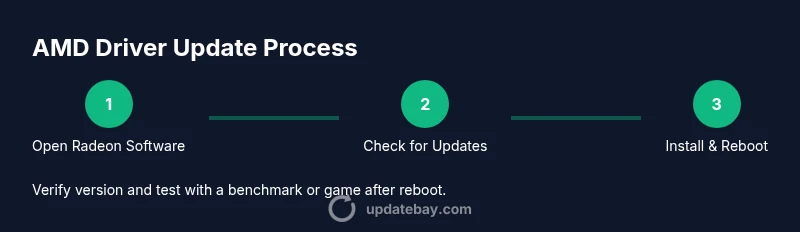
Open AMD Radeon Software
Launch the Radeon Software/Adrenalin Edition from the Start menu or system tray. This is the primary hub for checking updates and adjusting settings. If the software isn’t installed, download it from AMD’s official site. The goal is to access the update utility quickly.
Tip: If you’re on a laptop, connect to power before starting to avoid interruptions during the update. - 2
Check for updates automatically
In Radeon Software, navigate to the ‘Drivers’ tab and click ‘Check for updates’ to let the tool detect the latest amd update driver. Allow the installer to download and prepare the package. This is the simplest path for most users.
Tip: Use wired Ethernet if your Wi‑Fi is unstable to prevent partial downloads. - 3
Choose install method and start update
If an update is found, choose the standard install. You can select a clean install to replace any remnants of old drivers. The process will unpack, install, and configure components in a few minutes.
Tip: Select clean install if you’ve had driver-related issues in the past. - 4
Manual install from AMD site (if auto-detect fails)
If auto-detect doesn’t find an update, go to the AMD Drivers page, select your GPU model and OS, and download the driver package. Run the installer and follow on-screen prompts. This path gives you a fresh copy independent of Radeon Software.
Tip: Verify you downloaded the correct OS version (Windows 10/11 or Linux, if applicable). - 5
Perform a clean install
During installation, choose the clean install option to remove older components that might conflict with the new driver. After the installer finishes, restart the system to finalize changes. A clean install reduces post-update issues.
Tip: Close all background apps to speed up installation and avoid file conflicts. - 6
Verify and test
After reboot, verify driver version in Radeon Software and test with a game or benchmark to confirm stability and performance. Check display resolution and color accuracy, then run a quick stress test if available.
Tip: Record your observed FPS and temperatures for about 10–15 minutes to assess stability. - 7
Rollback if problems appear
If you notice crashes or driver conflicts, roll back to the previous version from Radeon Software or Device Manager. Keep the backup driver handy for a quick switch back if needed.
Tip: Document the issue and the driver version you rolled back to aid future troubleshooting.
Frequently Asked Questions
What is the AMD update driver?
The AMD update driver is the software package that enables your Radeon graphics hardware to work with the latest features, optimizations, and fixes. You can install it via Radeon Software auto-detect or manually from AMD’s official site.
The AMD update driver is the software that keeps your Radeon graphics working smoothly with the newest features. You can update it automatically or manually from AMD’s site.
Auto-update vs manual install — which should I choose?
Auto-update via Radeon Software is easiest and recommended for most users. Manual installs are useful if auto-detect misses an update or if you need a clean install to fix persistent issues.
Auto-updates are simplest, but manual installs give you more control when you need a clean slate.
Will updating affect my games or settings?
Most updates improve compatibility and performance, but a few can require game setting adjustments. Always test a couple of titles after updating to confirm stability and adjust in-game options if needed.
Usually upgrades help games run better, but test a few titles to be sure.
What if the update causes issues?
If issues occur, try a rollback to the previous driver, perform a clean install, or use the AMD Driver Uninstaller in a controlled environment. Backups and restore points make this easier.
If problems arise, roll back and try a clean reinstall; backups help a lot.
Do I need to restart after updating?
Yes, most AMD driver updates require a restart to complete installation and ensure all components are properly loaded. Save work beforehand to avoid data loss.
A restart is usually required to finalize the update.
Watch Video
What to Remember
- Update AMD drivers through official channels for best results
- Use a restore point before major updates
- Prefer clean installs to minimize conflicts
- Verify stability with real-game testing